
Top 5 Servidores NAS Compactos para Pequenos Apartamentos e Escritórios: Guia de Compra


Viver num apartamento pequeno ou num escritório apertado não significa que tenha de abdicar de armazenamento fiável. Um servidor NAS compacto pode fazer backup de telemóveis e portáteis, transmitir media e executar aplicações leves enquanto se mantém silencioso, eficiente e fácil de colocar numa prateleira ou secretária. As secções abaixo esclarecem o que “compacto” realmente significa, depois comparam cinco formatos para que ruído, desempenho, conectividade e armazenamento se adaptem ao seu espaço sem transformar a sua divisão num armário de servidores.
Comparação Rápida: Top 5 Servidores NAS Compactos
A tabela abaixo destaca as diferenças para que possa rapidamente associar um formato ao seu espaço e fluxo de trabalho.
| Tipo | Melhor para | Ruído | Desempenho | Expansão | Esforço de configuração | Custo típico |
|---|---|---|---|---|---|---|
|
NAS tradicional de caixa com 2 baias |
Armazenamento partilhado simples e backups |
Baixo a médio |
Médio |
Médio |
Baixo |
Médio |
|
Mini PC NAS |
Aplicações de uso geral e atualizações fáceis |
Médio |
Alto |
Médio a alto |
Médio |
Médio |
|
Pegada plana com armazenamento modular |
Baixo |
Médio a alto |
Alto |
Médio a alto |
Médio |
|
|
NAS compacto totalmente em flash |
Silêncio e armazenamento rápido e pequeno |
Muito baixo |
Médio |
Baixo a médio |
Baixo a médio |
Médio a alto |
|
Construção com computador de placa única |
Projetos de aprendizagem e cargas de trabalho leves |
Muito baixo |
Baixo a médio |
Baixo |
Alto |
Baixo |

O que “Compacto” Realmente Significa para um Servidor NAS
Numa casa maior, o equipamento de armazenamento pode ficar fora de vista. Num estúdio ou num escritório silencioso, fica ao alcance da mão, por isso o conforto e a praticidade são tão importantes quanto as especificações. Um verdadeiro servidor NAS compacto é definido por quatro pilares.
Ruído e Vibração
O tom do ventilador e a ressonância do disco muitas vezes importam mais do que o tamanho da caixa. Ventiladores pequenos podem produzir um tom mais agudo, e discos rígidos de 3,5 polegadas podem enviar um zumbido baixo para uma secretária ou prateleira. Arrefecimento passivo, pés estáveis e armazenamento baseado em SSD ajudam a manter o ambiente calmo, o que faz diferença durante chamadas, trabalho focado e momentos de descanso noturno.

Desempenho e Compatibilidade
Partilha básica de ficheiros é fácil. A carga de trabalho cresce rapidamente quando entram em cena encriptação, indexação de fotos, bibliotecas multimédia e serviços conteinerizados. Em muitas configurações domésticas e de pequenos escritórios, as plataformas x86 tendem a suportar uma gama mais ampla de contentores e ferramentas de virtualização do que as típicas placas ARM, pelo que menos projetos ficam bloqueados por falta de binários ou suporte limitado.
E/S e redes
Um servidor NAS torna-se frequentemente o centro, por isso as portas e ligações de rede moldam a experiência diária. O Ethernet Gigabit cobre backups rotineiros e acesso a ficheiros. Redes multi-gigabit, incluindo 2.5GBASE-T, podem tornar transferências grandes muito menos aborrecidas, especialmente quando mais do que um dispositivo está ativo. Portas Ethernet duplas também permitem disposições mais limpas, como separar o tráfego de trabalho do uso doméstico geral.
Estratégia de armazenamento e segurança dos dados
A redundância melhora o tempo de atividade após uma falha de disco, mas não garante recuperação de acidentes, malware ou desastres. O NIST alertou que o RAID não substitui backups fora do local. A abordagem de backup 3-2-1 continua a ser uma base prática: manter três cópias dos dados, armazená-las em dois tipos de suporte e manter uma cópia fora do local.

Tipo 1: NAS tradicional com caixa de 2 compartimentos (dispositivos prontos a usar)
Um dispositivo com dois discos é a forma menos complicada de ter um servidor NAS dedicado num espaço pequeno. Os compartimentos para discos, a alimentação e o software de gestão estão integrados, pelo que a configuração pode ser rápida e a rotina diária permanece previsível.
Esta opção tende a adequar-se a famílias e pequenas equipas que precisam principalmente de pastas partilhadas, permissões e backups agendados.
Prós
-
Pegada física limpa com acessórios mínimos
-
Gestão de utilizadores e agendamento de backups simples
-
Funcionamento consistente após configuração
Contras
-
Capacidade interna fixa, pois o compartimento limita a dois discos
-
Ruído audível do disco em ambientes silenciosos, especialmente com HDDs de alta capacidade
-
Flexibilidade limitada para funções de rede personalizadas ou expansão específica
Melhor ajuste numa linha: uma escolha prática e de baixa manutenção para pastas partilhadas e backups automáticos.
Tipo 2: Mini PC NAS (Pequeno, Flexível e Fácil de Atualizar)
Um PC de secretária compacto pode servir como um servidor NAS capaz e também como uma caixa de uso geral para aplicações auto-hospedadas. Hardware familiar torna as atualizações acessíveis, e a margem extra de CPU ajuda com encriptação e indexação.
As pessoas geralmente escolhem esta forma quando o armazenamento é apenas uma parte do plano, juntamente com contentores, virtualização leve e automação.
Prós
-
Capacidade de computação forte para cargas de trabalho multi-serviço
-
Caminhos claros para atualização de memória e, em muitos modelos, armazenamento interno
-
Amplo suporte de software em sistemas operativos mainstream
Contras
-
O ruído do arrefecimento varia muito entre modelos e configurações
-
O armazenamento externo pode espalhar-se quando as baías internas são limitadas
-
Decisões adicionais na configuração sobre formatos de armazenamento, permissões e backups
Melhor descrição numa linha: uma opção flexível para quem quer armazenamento e aplicações sempre ativas.
Tipo 3: Servidores Híbridos de Placa Única x86 (O Meio-termo Modular)
Sistemas híbridos de placa única x86 mantêm a unidade de computação compacta e ligam o armazenamento apenas quando necessário. Esta abordagem modular poupa espaço na secretária porque não há baías de disco não utilizadas a ocupar volume, e a construção pode manter-se plana e amiga das prateleiras.
Este estilo funciona bem quando o objetivo é um servidor NAS versátil que permanece discreto num espaço habitacional.
Prós
-
Pegada muito pequena que cabe atrás de um monitor ou em prateleiras rasas
-
Expansão modular via USB, SATA ou slot de expansão
-
Dupla ligação Ethernet é comum, suportando redes segmentadas ou configurações tipo gateway
Contras
-
A escolha dos acessórios molda a experiência final, incluindo caixas, cabos e suportes
-
Computação intensiva contínua pode aquecer em designs com arrefecimento passivo
-
Uma má gestão dos cabos pode comprometer o objetivo de “compacto”
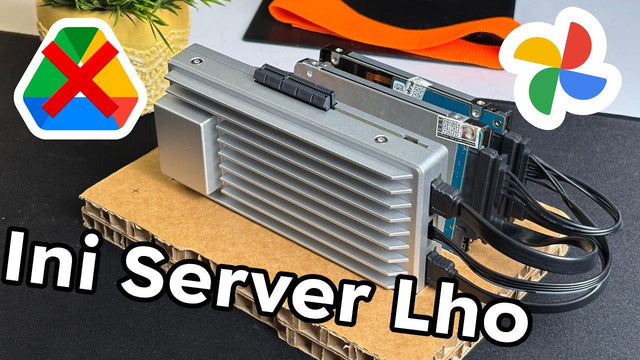
Um exemplo nesta categoria é O servidor doméstico ZimaBoard 2, um servidor de placa única x86-64 com processador Intel N150, dupla ligação 2.5GbE e um slot PCIe x4 aberto para expansão.
Melhor descrição numa linha: um “hub” de pequena dimensão para armazenamento modular e trabalho leve em home lab.

Tipo 4: NAS Compacto Todo em Flash (Silencioso e Rápido)
Os designs totalmente em flash ganham o seu lugar em espaços de habitação apertados porque eliminam as duas maiores fontes de ruído: discos giratórios e vibração. O armazenamento SSD também tende a ser responsivo com muitos ficheiros pequenos, o que é comum em bibliotecas de fotos, pastas de projetos e documentos sincronizados.
Um servidor NAS totalmente em flash atrai frequentemente pessoas que atendem chamadas durante todo o dia na mesma divisão que o equipamento, ou qualquer pessoa sensível a ruídos baixos durante a noite.
Prós
-
Funcionamento quase silencioso com vibração mínima
-
Acesso rápido para projetos ativos e muitos ficheiros pequenos
-
Discos pequenos que cabem em caixas compactas
Contras
-
Custo por terabyte mais elevado comparado com discos rígidos
-
O crescimento da capacidade precisa de planeamento, pois a expansão pode ser cara
-
Os backups continuam a ser importantes, pois o flash pode falhar como qualquer outro meio
Melhor opção numa linha: a escolha mais silenciosa para quartos calmos e bibliotecas pequenas.
Tipo 5: Construções SBC: Quando Vale a Pena
As construções com computadores de placa única podem ser uma solução económica para armazenamento básico em rede. Muitas placas funcionam a baixa temperatura e consomem pouca energia, o que é adequado para operação 24/7 em espaços pequenos. A desvantagem surge frequentemente no débito de armazenamento e rede, especialmente quando múltiplos utilizadores ou serviços pesados em segundo plano entram em cena.
Prós
-
Baixo consumo de energia contínuo para operação sempre ligada
-
Funcionamento silencioso em espaços pequenos
-
Ótimo valor para aprendizagem de redes e fundamentos de Linux
Contras
-
O débito de armazenamento pode ser limitado quando os discos partilham um barramento USB
-
Cablagem extra devido a acessórios de energia e armazenamento separados
-
Capacidade limitada para muitos serviços ou múltiplos utilizadores ativos
Melhor opção numa linha: uma construção económica para aprendizagem, partilha leve de ficheiros e backups.
Escolha o Melhor Servidor NAS Compacto para o Seu Espaço
O melhor servidor NAS compacto adapta-se ao seu espaço e à sua carga de trabalho. Um dispositivo de duas baias é ideal para armazenamento partilhado e backups rotineiros com esforço mínimo. Mini PCs tendem para a flexibilidade e aplicações mais exigentes. Sistemas híbridos de placa única x86 equilibram uma pegada pequena com opções de expansão. Configurações totalmente em flash priorizam o silêncio e o acesso rápido. Projetos com computadores de placa única fazem sentido para aprendizagem e tarefas leves. Considere a tolerância ao ruído, a velocidade da rede e os hábitos de backup, depois dimensione o armazenamento em conformidade.
Perguntas Frequentes
P1: Preciso de um switch dedicado ou de um router novo para beneficiar de um servidor NAS compacto?
Não necessariamente. Muitas pessoas obtêm bons resultados em redes gigabit padrão para backups e acesso diário a ficheiros. Os benefícios multi-gig geralmente aparecem com transferências grandes de media ou vários dispositivos ativos. Uma abordagem prática é atualizar um link de cada vez, como a estação de trabalho e a porta do switch primeiro.
P2: Posso colocar um servidor NAS num quarto ou numa secretária sem me preocupar com o sono ou chamadas?
Em muitos casos, sim, mas depende da escolha e da colocação do disco. O armazenamento baseado em SSD é tipicamente o mais silencioso. Se forem usados discos rígidos, a isolação de vibração e uma superfície sólida são importantes. O calor também precisa de atenção, por isso evite armários fechados e deixe espaço para a circulação de ar.
P3: É seguro expor o meu servidor NAS diretamente à internet para acesso remoto?
Normalmente não recomendado. A exposição direta aumenta a superfície de ataque e pode transformar um pequeno erro num incidente grave. Um padrão mais seguro é usar uma VPN reputada ou um gateway de acesso remoto seguro com autenticação forte. Mantenha o firmware e os serviços atualizados e desative tudo o que não for usado.
P4: Com que frequência devo verificar a saúde do disco e o que devo observar?
Uma verificação mensal é uma cadência razoável para a maioria das configurações domésticas e de pequenos escritórios. Observe os indicadores SMART, as tendências de temperatura e as contagens de setores realocados ou pendentes. Também preste atenção a leituras lentas, avisos repetidos de reconstrução ou cliques incomuns. Substituir um disco suspeito cedo é frequentemente mais barato do que a recuperação.
P5: Qual é a forma sensata de dimensionar o armazenamento se eu esperar que os meus dados cresçam?
Estime os próximos 12–24 meses e depois adicione uma margem para backups, snapshots e projetos inesperados. O crescimento de fotos e vídeos é frequentemente mais rápido do que o esperado. Se o orçamento permitir, reserve espaço para pelo menos uma expansão, para evitar migrar tudo demasiado cedo. Monitorizar o crescimento semanal durante um mês ajuda a refinar a estimativa.

Produtos recomendados

Centro de Campanhas Zima
Mais para Ler
Como é que o Rez Tech cria a sua própria nuvem pessoal com o ZimaBoard 2
A Rez Tech cria uma nuvem pessoal com o ZimaBoard 2, duas unidades locais, RAID 1 e ZimaOS, e depois testa o acesso a...

O Silicon Steak reduz o seu laboratório doméstico com o ZimaBoard 2
Silicon Steak explora se o ZimaBoard 2 pode substituir uma máquina de homelab muito maior, testando armazenamento, reprodução multimédia, Minecraft, Pi-hole, aplicações autoalojadas e...

Como a Smart Life cria uma nuvem privada com o ZimaBoard 2
A Smart Life transforma o ZimaBoard 2 num destino doméstico para fotografias e vídeos do telemóvel, mostrando a construção do hardware, a configuração do...


