
NAS Storage Explained: HDD vs. SSD & How Much Capacity Do You Need?


A home NAS usually falls short in familiar ways. Space disappears sooner than expected, apps feel slow even though the hardware looks capable, and file transfers stall far below what the network should allow. NAS storage planning fixes those frustrations before you spend money twice. Two decisions carry most of the weight: which workloads belong on HDD versus SSD, and how much capacity you actually need once backups, media, redundancy, and growth are accounted for.
HDD vs. SSD for Home NAS: What Each Does Best
Drive choice shapes daily experience. HDDs deliver affordable terabytes. SSDs deliver responsiveness because latency stays low. A home NAS works best when those strengths are assigned intentionally, rather than hoping one drive type covers every job.
Before getting into details, here is the practical comparison most households care about:

| Consideration | HDD (Spinning Disk) | SSD (Flash) |
| Best Use | Media libraries, archives, large backups | OS, apps, containers, thumbnails, databases |
| Workload Fit | Large sequential reads and writes | Many small reads and writes |
| Noise | Often audible in quiet rooms | Silent |
| Idle Power | Commonly several watts per drive | Often extremely low at idle |
Why HDDs Still Win on Cost Per Terabyte
HDDs remain the sensible answer for bulk storage. Movie libraries, multi-year backup archives, and shared folders full of large files are mostly sequential workloads. HDDs handle that pattern well, and the cost advantage matters once you cross into multi-terabyte territory. Streaming a film or pulling a large backup image rarely needs SSD latency.
Where SSDs Make a NAS Feel Faster
SSDs shine when the NAS runs services. Containers, VMs, photo management, and indexing workloads touch lots of small files. SSD latency changes the parts people actually notice: faster app launches, smoother web UI navigation, quicker library scans, and less waiting for thumbnails. If your NAS feels “fine for copies, annoying for apps,” flash storage is usually the missing ingredient.
Managing Noise and Heat in Shared Spaces
If the NAS sits near a couch or desk, mechanical noise becomes a quality-of-life issue. HDDs can produce idle hum and seek noise, and they add steady heat from continuous power draw. SSDs avoid mechanical noise entirely and usually run cooler for the same workload. That difference often determines whether the NAS can live in a common room without becoming a distraction.
A reliable layout for NAS storage that stays fast without inflating cost:
- SSD for the OS and applications (containers, databases, photo tools).
- HDD for the bulk pool (media, archives, backup targets).
- Extra SSD space reserved for metadata-heavy workloads if your photo library or app stack feels sluggish.
How Much NAS Storage Do You Need? From Backups to 4K Media
Capacity planning goes sideways when everything is treated as one pile of files. Backups grow differently from media. Photos and home videos carry a different kind of value than downloadable content. Separating data into categories keeps the math honest, and it keeps redundant decisions grounded in what you can and cannot replace.
This section focuses on sizing that holds up over time, including the two traps that cause most underbuying: 4K media and versioned backups.
4K Media Sizing That Stays Realistic
4K file sizes vary because bitrate, codec, HDR layers, and audio tracks vary. Disc formats provide a useful anchor: Ultra HD Blu-ray comes in 50GB, 66GB, and 100GB capacities. Home libraries often include smaller encodes, yet disc capacities show why 4K collections can balloon quickly.
For planning math, ~50GB per 4K movie works as a middle-of-the-road placeholder that stays easy to calculate. That yields a clear mental model: 100 4K movies ≈ 5TB using the 50GB planning number. If your library leans toward high-bitrate rips, plan higher. If it leans toward smaller encodes, plan lower. Consistency matters more than perfection.
A Reusable Capacity Template for Home Data
Once the media is anchored, the rest becomes predictable. Measure what you already have, estimate what you add each year, then leave headroom. This table provides a practical template you can reuse:
| Category | How to Estimate | What It Often Turns Into |
| Device backups | Sum used space across devices, include versions | Often 1 to 6TB total |
| Photos and home videos | Current library size, add annual capture | Hundreds of GB to several TB |
| 4K movies | Titles × 50GB (planning), then adjust | About 1TB per ~20 titles |
| TV shows | Seasons × format size | Steady growth over time |
A short checklist helps keep NAS storage sizing consistent across households:
- Backups: include version history, not just today’s used space.
- Photos and videos: count new captures each year, phone video adds up fast.
- Media: pick one planning number, update it later if your habits change.
- Headroom: reserve space for growth and maintenance tasks.
When RAID 1 Makes Sense and When It Doesn’t
Redundancy should follow replacement cost, not file size. RAID 1 (Mirroring) writes the same data to two drives, so a single drive failure does not take the dataset down. That protection fits irreplaceable content.
A practical split keeps the decision simple:
- Protect with RAID 1: family photos, personal videos, important documents, primary device backups.
- Consider lighter protection: downloaded media, temporary folders, projects that have an upstream copy elsewhere.
One non-negotiable point for NAS storage planning: RAID covers drive failure. It does not cover accidental deletion, ransomware, or a stolen device. Backups still matter.
Planning for Growth Without Guesswork
Storage tends to grow each year. Cameras improve, backups keep versions, and old projects linger. A growth allowance of around 20% per year works as a budgeting heuristic for many households. The exact number varies, yet planned headroom prevents emergency upgrades that cost time and money later.
A clean way to apply it: size for today’s categories, add growth for one to two years, then account for redundancy so usable capacity is still comfortable.
Modular Scaling: How to Expand Storage on Compact Servers
A compact NAS can stay compact while capacity grows, as long as expansion remains part of the design. Modular thinking also improves long-term value, because compute upgrades and storage upgrades can happen on different timelines. This section covers three levers that keep NAS storage flexible: PCIe expansion card, external enclosures, and a clean separation between boot and data.

Raising the Ceiling with PCIe Expansion
A PCIe slot can raise the ceiling on a small server. It can add an NVMe tier through an adapter, add more SATA ports through an HBA or controller, or increase network capability through a multi-gig NIC. The principle is what matters: pick a platform with a credible path to add ports and storage tiers later. Even compact x86 boards like ZimaBoard 2 can fit into this modular approach because an expansion path exists.

Two checks reduce frustration before you buy add-in hardware:
- OS support: confirm the controller chipset has stable drivers for your chosen OS.
- Power and cooling: extra drives and cards increase heat and power draw.
Server Plus Drive Enclosure: Separating Compute from Storage
External drive enclosures let storage scale without turning the compute node into a noisy, bulky box. A common pattern is “server plus DAS”: a small server handles CPU and networking while a separate enclosure holds the drives. This separation keeps upgrades simple. The compute node can be replaced later without forcing a full storage rebuild, and the drive cage can be expanded without swapping the motherboard.
This approach also helps with noise management. A drive enclosure can be placed where sound matters less, while the server remains close to your router or switch.
Why a Dedicated Boot SSD Pays Off
A dedicated boot SSD keeps maintenance clean. OS updates, container experiments, and log churn stay isolated from the data pool. The data drives can then focus on stable file storage and predictable performance. This separation often makes recovery less stressful, especially when you later change operating systems or reconfigure services.
Maximum Performance: Filesystems, Caching, and Network Bandwidth
Performance complaints often get blamed on drives, yet the bottleneck may sit in the filesystem layer, cache design, or network link. Better results come from treating the path from disk to client as one system, then tuning the part that sets the ceiling.
Data Integrity and Advanced Filesystems
Integrity-focused filesystems such as ZFS and Btrfs use checksums to detect corruption during reads. When redundancy exists, detection plus a healthy copy enables repair. Those features are valuable for long-term storage, and they also consume resources during verification and scrub tasks. CPU and memory influence how smoothly the system runs while maintaining integrity checks.
For NAS storage that holds family memories and long-lived archives, data integrity features can be worth the overhead, especially when paired with mirrors or parity.
SSD Caching: Great for Metadata, Limited for Streaming
Hybrid designs blend HDD capacity with SSD responsiveness. SSD caching helps most when the same data is accessed repeatedly, especially small files and metadata such as photo thumbnails, application binaries, and container layers. Large sequential reads that happen once, such as streaming a single movie, usually see less benefit.
A quick way to interpret symptoms:
- Slow library browsing and slow app pages often point toward missing SSD space for metadata-heavy workloads.
- Slow large transfers often point toward a network ceiling, not a disk ceiling.
2.5GbE Bottlenecks and Real-World Throughput
2.5GbE has a theoretical maximum of 312.5 MB/s before overhead (2.5 gigabits per second divided by 8). Real throughput runs lower due to protocol and system overhead. These ceilings keep expectations grounded:

| Link Speed | Theoretical MB/s (No Overhead) | What People Often See |
| 1GbE | 125 MB/s | Roughly 100 to 115 MB/s |
| 2.5GbE | 312.5 MB/s | Often in the 200s MB/s |
| 10GbE | 1250 MB/s | Varies widely by drives and tuning |
Matching storage capability to network capability prevents wasted spending. Faster disks feel underwhelming on a 1GbE link, while faster networking pays off only if the storage layout and system tuning can keep up.
Build a Storage Solution That Grows with You
A dependable home NAS feels calm in daily life. Apps load quickly, browsing stays smooth, and free space does not vanish overnight. That outcome comes from assigning HDDs to bulk capacity, reserving SSD space for the OS and latency-sensitive virtual machines, and sizing NAS storage by category with redundancy and growth baked in. Modular expansion keeps upgrades simple, and realistic network ceilings prevent disappointment when transfers top out. Put those pieces together, and the system stays useful for years.
FAQs
Q1: What Backup Approach Protects You From Accidental Deletion and Ransomware?
Use a 3-2-1 plan: three copies, two media types, one offsite. Add filesystem snapshots for fast rollbacks, plus an offline or immutable backup target. Run a restore test monthly so recovery is predictable under stress.
Q2: SMB or NFS: Which One Fits a Home NAS Setup Better?
SMB fits Windows-heavy homes and mixed devices, and it handles user permissions in a familiar way. NFS often feels simpler for Linux clients and can be efficient for media boxes. Pick one primary protocol, then standardize permissions to avoid confusion.
Q3: Do You Need a UPS for a NAS, and How Big Should It Be?
Yes. A UPS prevents corruption during sudden power loss and enables clean shutdowns. Size it by the total watt draw of the NAS plus network gear. Aim for 5 to 10 minutes of runtime and USB shutdown signaling so the NAS powers down safely.
Q4: Should You Use Encryption for NAS Storage, and What Are the Trade-offs?
It depends on your threat model. Encryption protects data at rest if drives are stolen, and it adds key management responsibility. Keep recovery keys backed up offline, and confirm your backup workflow still works. Expect some performance overhead, usually minimal on modern CPUs.
Q5: How Can You Make Drive Replacement and Rebuilds Safer?
Burn in new drives with an extended SMART test before trusting them. During rebuilds, reduce heavy workloads, keep temperatures low, and monitor error counters daily. Maintain an external backup first, since rebuilds stress remaining drives and expose weak disks.

Recommended products

Zima Campaign Hub
More to Read

How Giorgio Cappello Di Paglia Tests Gaming Like It Is 1997 on ZimaBoard 2
Giorgio Cappello Di Paglia uses ZimaBoard 2 and Batocera to ask whether modern players can still adapt to games designed like those released in...
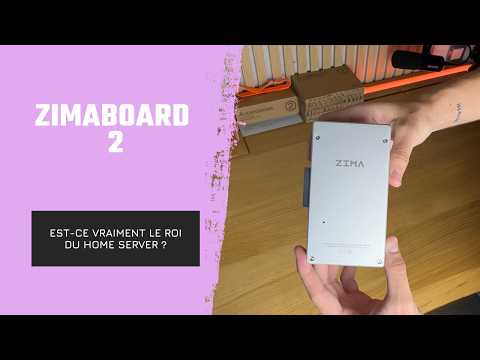
How YOTECH Evaluates ZimaBoard 2 as a Compact Home Server
YOTECH examines ZimaBoard 2 as a compact home-server platform, covering its aluminum passive-cooling enclosure, included cables, optional fan, metal drive rack, SATA storage, dual...
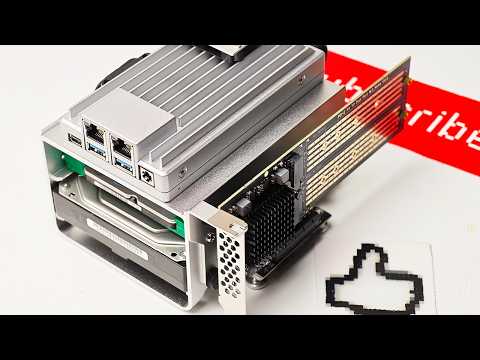
How Arthur From Hobby Support Runs Home Network Services on ZimaBoard 2
Arthur from Hobby Support Int. assembles a ZimaBoard 2 home server with SATA storage, active cooling, and PCIe expansion, then explores how ZimaOS simplifies...


