
Um Guia Prático: De Dispositivo NAS a Servidor Plex


O buffering estraga rapidamente a experiência: um filme parece nítido e depois fica desfocado. Legendas transformam um fluxo suave num salto. Um ficheiro 4K reproduz bem num dispositivo e tem dificuldades noutro. Estes problemas geralmente vêm de um conjunto pequeno de causas: modo de reprodução, carga de conversão em tempo real, estabilidade da rede ou resposta do armazenamento. Um dispositivo NAS pode tornar-se um servidor Plex fiável uma vez que esses fatores sejam geridos de forma intencional, não por tentativa e erro. As secções abaixo focam-se em soluções que reduzem surpresas e tornam a reprodução diária mais fácil.
Como Funciona a Reprodução no Plex: Reprodução Direta vs. Transcodificação
O Plex toma uma decisão sempre que pressiona Play, e essa decisão controla tanto a qualidade quanto a carga do servidor. Quando um ficheiro reproduz suavemente num ecrã e faz buffering noutro, a diferença é frequentemente o caminho de reprodução, não o ficheiro em si.
Reprodução Direta, Transmissão Direta e Transcodificação
-
Reprodução Direta: o cliente reproduz o ficheiro exatamente como está armazenado. O servidor lê principalmente do disco e envia dados pela rede.
-
Transmissão Direta: os fluxos de áudio e vídeo permanecem os mesmos, mas o Plex os reempacota num contêiner que o cliente aceita.
-
Transcodificação: o Plex converte vídeo, áudio ou ambos durante a reprodução.
Um servidor Plex parece "potente" quando a Reprodução Direta acontece frequentemente. Parece "fraco" quando a Transcodificação é acionada com frequência, mesmo em hardware decente.

Gatilhos Comuns que Forçam a Transcodificação
Os mesmos culpados aparecem repetidamente:
-
Um codec de vídeo que o cliente não consegue decodificar
-
Um formato de áudio que o cliente não consegue processar
-
Limites de qualidade do lado do cliente que solicitam um formato inferior
-
Legendas que requerem incorporação nesse dispositivo
Um hábito útil: quando a reprodução se comporta mal, procure a incompatibilidade que forçou o Plex a entrar em modo de conversão. Corrigir essa incompatibilidade muitas vezes é melhor do que atualizar o hardware.
O Segredo para Streaming 4K Suave: Transcodificação Acelerada por Hardware
A reprodução 4K é fácil quando o cliente consegue decodificar o ficheiro e a rede consegue fornecer a taxa de bits. O 4K torna-se difícil quando a conversão acontece em tempo real, especialmente com ficheiros de alta taxa de bits e conteúdo HDR.
Transcodificação acelerada por hardware transfere grande parte do trabalho de conversão para motores de mídia dedicados no hardware suportado. Num servidor Plex a correr num dispositivo NAS, isso geralmente significa menos picos e menos interrupções "aleatórias".
Taxas de bits, Codecs e Contêineres
-
Taxa de bits: define o débito mínimo sustentado. Se a rede não conseguir acompanhar, aparece buffering mesmo durante o Direct Play.
-
Codec: decide a compatibilidade. HEVC/H.265 é comum para 4K, mas dispositivos mais antigos ainda têm dificuldades com ele.
-
Container: o invólucro, como MKV ou MP4. Uma incompatibilidade de container pode ativar o Direct Stream, mesmo quando os codecs estão corretos.
Transcodificação por Software na CPU vs. Aceleração por Hardware na GPU
A transcodificação apenas por CPU pode funcionar, mas a conversão 4K pode aumentar a carga sustentada o suficiente para causar engasgos, ventoinhas barulhentas ou resposta lenta da interface. A aceleração por hardware reduz essa pressão. Não elimina todos os problemas, mas muitas vezes transforma "funciona mal" em "funciona sempre".
Por Que o Mapeamento de Tons é Importante para a Conversão HDR para SDR
Conteúdo HDR num ecrã SDR pode parecer lavado sem mapeamento de tons. O mapeamento de tons também pode aumentar os custos de conversão. Se a sua biblioteca tem muito HDR e a sua casa tem ecrãs mistos, planeie isto para que a reprodução se mantenha consistente entre dispositivos.

Intel Quick Sync vs. GPUs Dedicadas: Qual se Ajusta às Suas Necessidades
Dois caminhos comuns suportam a conversão acelerada de vídeo: gráficos integrados via Intel Quick Sync Video e GPUs dedicadas. Ambos podem fazer sentido para um servidor Plex; a escolha certa depende da frequência da conversão e do número de pessoas a fazer streaming ao mesmo tempo.
A Eficiência dos Gráficos Integrados nos Chips Intel Modernos (N-Series/Core)
O Quick Sync está integrado em muitos CPUs Intel modernos e é projetado para codificação e decodificação de vídeo eficiente. Para um dispositivo NAS que funciona o dia todo, a eficiência é importante: menos calor, menor consumo de energia e menos peças móveis.
O Quick Sync encaixa especialmente bem quando a maior parte da visualização permanece em Direct Play e a transcodificação acontece como exceção, não como padrão.
Quando Usar uma GPU Discreta: Gerir Múltiplos Streams 4K Simultâneos
Uma GPU dedicada torna-se útil quando a conversão acontece frequentemente e simultaneamente, como:
- Vários utilizadores remotos a fazer streaming ao mesmo tempo
-
Tipos mistos de dispositivos que repetidamente ativam a transcodificação
-
A conversão HDR a aparecer na reprodução diária
-
Queima de legendas a tornar-se rotina
Nesses casos, uma margem extra traz estabilidade.
Comparação de Consumo de Energia: Eficiência do iGPU vs. Desempenho do dGPU
Os gráficos integrados geralmente ganham em eficiência. As GPUs dedicadas costumam ganhar em desempenho bruto. Qualquer opção funciona melhor quando combinada com limites sensatos de qualidade de streaming e uma biblioteca que visa o Direct Play nos dispositivos mais usados.
Planeamento da Sua Configuração Plex: CPU, RAM, Armazenamento e Noções Básicas de Rede
O planeamento torna-se mais fácil quando segue a forma como o Plex falha. A maioria dos problemas está relacionada com limites de computação durante a conversão, débito instável ou armazenamento lento para metadados e varreduras. Para um planeamento completo de hardware para servidor doméstico, considere o sistema como um todo. As soluções tornam-se mais simples quando separa o sistema em quatro partes.
| Padrão de uso | Provável Gargalo | Foco |
|---|---|---|
|
Reprodução maioritariamente local |
Compatibilidade do cliente |
Prefira formatos Direct Play, ligações com fios estáveis |
|
Visualização remota frequente |
Carga de upload e conversão |
Limites realistas de taxa de bits, aceleração de hardware |
|
Casa com muitas legendas |
Conversão forçada |
Escolhas de legendas, definições do cliente |
|
Biblioteca grande, muita navegação |
Resposta do armazenamento |
Rápido armazenamento de metadados, organização limpa |
A Conectividade Importa: Thunderbolt e 10GbE para Media de Alta Taxa de Bits
Conectividade de alta qualidade pode ajudar fluxos de trabalho específicos: mover ficheiros grandes rapidamente, alimentar vários dispositivos ou evitar contenção na rede. Para muitas casas, Ethernet estável é melhor do que perseguir números máximos. A consistência é o que reduz o buffering.
Escalabilidade de Armazenamento: De Iniciantes com 2 Baías a Potências com 6+ Baías
O planeamento de capacidade é sobre crescimento e redundância. Mais baías dão mais flexibilidade: pools maiores, layouts mais seguros e expansão mais fácil. A melhor configuração é aquela que suporta a biblioteca de amanhã sem uma migração ao fim de semana. Saiba mais sobre expandir o seu armazenamento NAS com configuração RAID adequada.
A Importância do Cache SSD para a Velocidade de Navegação na Biblioteca
Mesmo quando os media estão em HDDs, os dados da aplicação e metadados do Plex podem parecer muito mais rápidos em SSD ou NVMe. Isto afeta o carregamento de cartazes, pesquisa e navegação na biblioteca. Se a interface parecer lenta enquanto a reprodução está boa, o armazenamento de metadados é frequentemente a peça em falta.
Gerir a Sua Biblioteca: Estrutura de Pastas, Nomeação e Metadados
Uma biblioteca desorganizada cria dois tipos de problemas: correspondências incorretas e perda de tempo. Também aumenta problemas "misteriosos" de reprodução porque os dispositivos podem escolher faixas de áudio ou variantes de legendas diferentes em itens duplicados.
Estrutura de Pastas que Permanece Previsível
Mantenha as pastas de nível superior MECE e organizadas:
- Filmes
-
Séries de TV
-
Música
-
Vídeos Pessoais (opcional)
Dentro de cada pasta, mantenha um título por pasta. Evite misturar categorias na mesma árvore de diretórios.
Convenções de Nomeação Que Melhoram a Correspondência
A nomeação não precisa de ser elaborada. Precisa de ser consistente. Inclua os anos de lançamento para filmes, use a numeração de temporada e episódio para séries, e mantenha a pontuação simples. Uma pequena limpeza de nomes antes de importar um grande lote poupa horas depois.
Hábitos de Metadados Que Poupa Tempo
Quando uma correspondência está errada:
- Corrija primeiro o nome do ficheiro e da pasta
-
Corrija a correspondência uma vez
-
Mantenha o mesmo estilo de nomeação para futuras adições
Isto mantém as varreduras da biblioteca mais calmas e torna a resolução de problemas mais rápida.
Expandir o Seu Dispositivo NAS: Plex Junto com Outras Aplicações
Um dispositivo NAS frequentemente aloja mais do que vídeo: fotos, backups, ferramentas de sincronização e pequenos serviços. Executar o Plex juntamente com outras aplicações é realista quando os picos de recursos se mantêm previsíveis.
O Immich é frequentemente usado para gestão de fotos auto-hospedada. Pode coexistir com um servidor Plex se respeitar duas restrições: I/O do disco e indexação em segundo plano.
Limites Práticos Que Evitam Lentidões
-
Mantenha os dados da aplicação Plex e metadados em armazenamento mais rápido sempre que possível
-
Coloque as bases de dados de fotos em armazenamento que suporte bem leituras e escritas frequentes e pequenas
-
Agende importações pesadas e tarefas de reindexação fora das horas de maior visualização
-
Mantenha os backups de fotos separados das rotinas de limpeza de media
Esta abordagem mantém a reprodução estável enquanto o dispositivo NAS continua a gerir os serviços domésticos diários.
Resolução de Problemas Comuns Sobre Reprodução e Desempenho no Plex
Confirme primeiro o que o Plex está a fazer: Reprodução Direta, Transmissão Direta ou Transcodificação. Depois aplique a correção que corresponde ao modo.
- Buffering em casa: Se a Transcodificação estiver ativa, experimente uma faixa de áudio diferente, desative as legendas para um teste, ou reduza a qualidade; se a Reprodução Direta estiver ativa, mude para Ethernet ou melhore o sinal Wi-Fi e a congestão.
-
Mensagem "Servidor não é potente o suficiente": Reduza a qualidade do streaming, altere a faixa de áudio, teste sem legendas, depois ative a aceleração por hardware em hardware suportado.
-
As legendas causam interrupções: Experimente outra faixa de legendas, prefira legendas que o dispositivo possa renderizar sem burn-in, e evite burn-in sempre que possível.
-
A reprodução remota limita a qualidade ou faz buffering: Defina um limite de qualidade remota realista que corresponda à velocidade de upload, depois verifique os requisitos da conta se o comportamento remoto mudar inesperadamente. Para streaming fiável fora de casa, consulte o nosso guia sobre configuração segura de acesso remoto.
-
Um dispositivo tem dificuldades enquanto outros reproduzem bem: Atualize a aplicação cliente, compare o seu codec e suporte de áudio com o ficheiro, depois teste novamente com o mesmo título e definições.

Mantenha o Seu Servidor Plex Fiável com uma Rotina Simples
Um servidor Plex fiável resulta de pequenos hábitos, não de ajustes constantes. Mantenha o servidor atualizado, mantenha espaço livre onde os dados da app vivem e reveja os limites de streaming após alterações na rede. Coloque os metadados em armazenamento rápido sempre que possível e evite importar fotos pesadas durante as horas de filmes. Os backups são mais importantes para fotos pessoais e documentos, por isso trate esses dados separadamente dos media de entretenimento. Manutenção silenciosa mantém a reprodução estável.
Perguntas Frequentes
P1: Preciso do Plex Pass se só quero Reprodução Direta?
Não necessariamente. Se a maioria dos seus dispositivos consegue reproduzir os ficheiros via Reprodução Direta, o Plex pode funcionar bem sem aceleração de hardware. O Plex Pass é importante principalmente se depender de transcodificação acelerada por hardware ou funcionalidades avançadas. Muitas casas mantêm-se confortáveis ao usar formatos compatíveis com o cliente e limitando conversões desnecessárias.
P2: Devo armazenar os meus media em MKV ou MP4 para melhor compatibilidade?
Depende dos seus dispositivos de reprodução. MP4 tende a ser amplamente suportado por TVs e apps móveis, enquanto MKV é comum para rips de alta qualidade e múltiplas faixas. Se frequentemente vir Transmissão Direta ou Transcodificação, converter alguns títulos problemáticos para MP4 pode melhorar a consistência sem precisar reconstruir toda a biblioteca.
P3: Um dispositivo NAS aguenta o Plex se eu também executar backups e apps de fotos?
Normalmente sim, desde que as tarefas em segundo plano não concorram durante as horas de visualização. Agende indexação pesada de fotos, backups ou cópias de arquivos grandes fora do horário dos filmes. Se a interface parecer lenta, mover os dados e metadados da app Plex para um armazenamento mais rápido pode ajudar a manter a reprodução e navegação responsivas.
P4: Qual é a forma mais simples de evitar interrupções relacionadas às legendas?
Tente usar faixas de legendas que o seu cliente possa renderizar nativamente e evite legendas embutidas sempre que possível. Se uma faixa de legendas causar interrupções, mudar para outro formato geralmente resolve. Como teste rápido, reproduza a mesma cena sem legendas para confirmar se as legendas são a causa antes de alterar outras configurações.
P5: Como posso saber se o buffering é causado pela minha rede ou pela transcodificação?
Verifique os detalhes da transmissão no Painel do Plex durante a reprodução. Se mostrar Reprodução Direta e ainda ocorrer buffering, a rede é provavelmente a causa, especialmente a estabilidade do Wi-Fi. Se mostrar Transcodificação, concentre-se no codec, áudio, legendas, limites de qualidade e configurações de aceleração de hardware.

Centro de Campanhas Zima
Mais para Ler
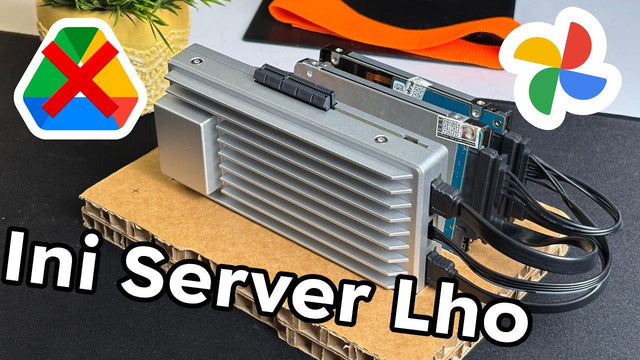
Como é que o Rez Tech cria a sua própria nuvem pessoal com o ZimaBoard 2
A Rez Tech cria uma nuvem pessoal com o ZimaBoard 2, duas unidades locais, RAID 1 e ZimaOS, e depois testa o acesso a...

O Silicon Steak reduz o seu laboratório doméstico com o ZimaBoard 2
Silicon Steak explora se o ZimaBoard 2 pode substituir uma máquina de homelab muito maior, testando armazenamento, reprodução multimédia, Minecraft, Pi-hole, aplicações autoalojadas e...

Como a Smart Life cria uma nuvem privada com o ZimaBoard 2
A Smart Life transforma o ZimaBoard 2 num destino doméstico para fotografias e vídeos do telemóvel, mostrando a construção do hardware, a configuração do...


