
Jellyfin Remote Access Guide 2026: Stream Securely with Tailscale, Reverse Proxy, or VPN


Quick Answer: What Is the Best Way to Access Jellyfin Remotely?
The best way to achieve Jellyfin remote access depends entirely on who is watching and how your home network is configured.

Best option for most users
For the average home server owner streaming to their own phone or laptop, a mesh VPN like Tailscale is the absolute best option. It requires zero router configuration, provides end-to-end encryption, and keeps your server completely invisible to the public internet.
When port forwarding is not recommended
Direct port forwarding (opening port 8096 on your router) is not recommended if you are behind Carrier-Grade NAT (CGNAT), have a dynamic IP address that changes frequently, or lack the networking knowledge to set up robust firewall rules and fail2ban policies to deter automated bot attacks.
When to use Tailscale, WireGuard, or a reverse proxy
-
Tailscale: Use this for personal devices. It is secure, fast, and bypasses CGNAT effortlessly.
-
WireGuard: Use this if you want maximum VPN performance and full self-hosted control without relying on third-party authentication servers.
-
Reverse Proxy (HTTPS): Use this if you are sharing your server with friends and family. It allows users to connect via a simple, secure web address (e.g.,
jellyfin.yourdomain.com) without needing to install VPN software.

What Is Jellyfin Remote Access?
Local streaming vs remote streaming
Local streaming occurs when your playback device (like a smart TV) and your Jellyfin server are on the same home network (LAN). Remote streaming happens when you are away from home (WAN) and need to access your media over the internet. Because Jellyfin is self-hosted, bridging the gap between your local server and the outside world requires specific routing configurations.
Why Jellyfin does not provide built-in cloud relay like Plex
Unlike Plex, which routes authentication and connection discovery through its own corporate servers, Jellyfin is 100% free, open-source, and decentralized. There is no central "Jellyfin account" to link your devices. As detailed in the official Jellyfin networking documentation, the software runs completely independently from the internet, meaning administrators must manually expose the server to the outside world.
What you need before setting up remote access
Before attempting any configuration, ensure you have:
-
A static local IP address assigned to your Jellyfin server.
-
Adequate ISP upload speed (at least 10-20 Mbps for a single 1080p stream).
-
Hardware capable of transcoding video if your remote connection speed fluctuates.
Jellyfin Remote Access Methods Compared
Choosing the right routing method dictates both the security and usability of your media server.
Port forwarding
This tells your router to send all incoming internet traffic on a specific port directly to your Jellyfin server. It is the oldest and simplest method but exposes your machine directly to web scanners.
Reverse proxy with HTTPS
A reverse proxy acts as a secure middleman. It receives web traffic on standard ports (80/443), encrypts it with an SSL certificate, and securely hands it to Jellyfin. This is the gold standard for sharing a server with multiple users.
Tailscale
Tailscale is a zero-configuration mesh VPN. It assigns a secure, private IP address to your server and your remote devices, allowing them to communicate as if they were in the same room, regardless of physical location.
WireGuard VPN
A self-hosted WireGuard setup creates a highly efficient, private tunnel into your home network. It requires opening a single UDP port on your router but keeps Jellyfin itself off the public web.
Cloud tunnel or VPS relay
If your ISP uses CGNAT, you cannot open ports. A VPS (Virtual Private Server) relay or a service like Cloudflare Tunnels routes your traffic through an external server, bypassing local network restrictions entirely.
Method Comparison Table
| Method | Setup Difficulty | Security Level | Best For | Requires Port Forwarding? |
| Tailscale | Very Easy | Very High | Personal Use | No |
| Reverse Proxy | Hard | High | Family Sharing | Yes (80/443) |
| WireGuard | Medium | Very High | Advanced Self-Hosters | Yes (1 UDP Port) |
| Direct Port Forward | Easy | Low | Testing Only | Yes (8096) |
Why Direct Port Forwarding Can Be Risky
What happens when you expose Jellyfin to the internet
When you forward port 8096, anyone with your public IP address can see the Jellyfin login screen. Automated bots scan the internet 24/7 for open ports. If a zero-day vulnerability is discovered in Jellyfin or its underlying web server, your system could be compromised before you have a chance to patch it.
When port forwarding is still acceptable
Direct port forwarding is generally only acceptable for temporary troubleshooting or if it is strictly locked down using a firewall that drops all traffic except from specific, whitelisted IP addresses.
Basic security checklist if you still use port forwarding
If you must use direct port forwarding:
-
Enforce strong, unique passwords for all users.
-
Disable remote access for administrator accounts.
-
Implement a tool like fail2ban to block IPs that repeatedly fail login attempts.
Method 1: Access Jellyfin Remotely with Tailscale
Why Tailscale is the easiest secure option
Tailscale removes the complexity of traditional networking. By utilizing WireGuard under the hood, it handles NAT traversal, dynamic IPs, and encryption automatically. Your Jellyfin Tailscale setup ensures that only devices authenticated to your specific Tailscale network (Tailnet) can even "see" that your server exists.
Basic setup flow for Jellyfin
To get started, refer to the official Tailscale integration guide for Jellyfin, which generally outlines the following steps:
-
Install Tailscale on your home server and log in.
-
Note the unique
100.x.x.xIP address assigned to the server. -
Install the Tailscale app on your remote client (phone, tablet, laptop).
-
Enter
http://100.x.x.x:8096in your Jellyfin client app.
Pros, cons, and best use cases
-
Pros: Bypasses CGNAT, requires zero router configuration, highly secure.
-
Cons: Every viewing device must have the Tailscale app installed (not ideal for smart TVs).
-
Best Use Case: Single users, digital nomads, or strictly private self-hosting.
Method 2: Access Jellyfin with WireGuard VPN
Why WireGuard is better for full self-hosted control
While Tailscale uses WireGuard, it relies on Tailscale's coordination servers. Hosting your own WireGuard server ensures 100% of your network traffic and authentication handshakes remain under your physical control.
Setup requirements
You will need a Dynamic DNS (DDNS) provider to track your changing home IP address, and you must forward a single UDP port (typically 51820) on your router to your WireGuard host.
Pros, cons, and best use cases
-
Pros: Unbeatable throughput, low latency, no reliance on third-party identity providers.
-
Cons: Requires managing cryptographic keys and client configuration files manually.
-
Best Use Case: Privacy purists and advanced network administrators.
Method 3: Use a Reverse Proxy for Jellyfin
Caddy vs Nginx vs Traefik
Setting up a Jellyfin reverse proxy is the most elegant way to stream media remotely.
-
Caddy: The undisputed champion for beginners because it automatically acquires and renews SSL certificates.
-
Nginx: The industry standard, often paired with Nginx Proxy Manager for a visual UI.
-
Traefik: The best choice if you run an advanced Docker Swarm and want automated container routing.
HTTPS and domain setup
To use a reverse proxy, you must purchase a domain name (or use a free DDNS domain) and point its DNS records to your public IP. The proxy server then encrypts the traffic using Let's Encrypt certificates, allowing users to access the server securely via https://movies.yourdomain.com.
Known proxies, forwarded headers, and WebSocket settings
Because the proxy handles the internet connection, Jellyfin only sees the proxy's internal IP address. To prevent security and playback issues, you must configure Jellyfin to trust the proxy. As outlined in Jellyfin's official reverse proxy documentation, you must add the proxy's IP to the "Known Proxies" setting. This allows Jellyfin to correctly log the actual client IP and maintain WebSocket connections, which are vital for real-time playback updates.
Method 4: Use DDNS and Port Forwarding
When this method still makes sense
Using Dynamic DNS (DDNS) with basic port forwarding is useful if you are using older, niche client devices (like legacy smart TVs) that cannot run Tailscale or VPN software, and you do not have the compute resources to run a reverse proxy.
Required router and Jellyfin settings
You must assign a static IP to your server, open port 8096 (TCP) on your router, and configure a DDNS service (like DuckDNS) to keep your domain name tied to your home's public IP address.
Security hardening checklist
-
Ensure Jellyfin is updated to the latest version.
-
Limit the geographical regions that can connect to your router via firewall GeoIP blocking.
-
Audit active sessions regularly within the Jellyfin dashboard.
Best Jellyfin Remote Access Method by Use Case
Different users have different thresholds for complexity. Here is a definitive breakdown of what to choose.
| User Scenario | Recommended Method | Why It Works Best |
| Best for beginners | Tailscale | Setup takes 5 minutes. No router configurations or domain purchases are necessary. |
| Best for family sharing | Reverse Proxy (HTTPS) | Friends and family only need a web address and a password. No VPN apps required. |
| Best for CGNAT networks | Tailscale or Cloudflare Tunnel | Punches through strict ISP NAT layers seamlessly without requiring a public IP. |
| Best for advanced self-hosters | WireGuard VPN | Maximum privacy, local DNS resolution, and high-speed throughput. |
| Best for ZimaBoard 2 setups | Reverse Proxy via Docker | The hardware easily handles routing containers (like Nginx Proxy Manager) alongside Jellyfin. |
Why ZimaBoard 2 Makes Sense for a Jellyfin Server in 2026
When planning your Jellyfin remote access strategy, the hardware hosting the server is just as important as the network routing. The ZimaBoard 2 has emerged as a highly compelling edge device for media hosting.
x86 compatibility for Jellyfin, Docker, and media server apps
Unlike ARM-based boards, the ZimaBoard 2 uses x86 architecture. This ensures 100% compatibility with the wider Docker ecosystem and guarantees that hardware acceleration works out of the box with Jellyfin's transcoding engine.
Dual 2.5GbE networking for faster local streaming and NAS workflows
Remote streaming relies heavily on how fast your server can pull media from storage and push it to the router. Dual 2.5GbE ports eliminate network bottlenecks, especially if you are using the board as a combined NAS and media server.
SATA and PCIe expansion for media storage
Standard mini PCs often max out at one or two NVMe drives. The ZimaBoard 2 offers native SATA ports and PCIe expansion, allowing you to attach massive multi-terabyte NAS drives without relying on unstable USB enclosures.
Fanless design for quiet home theater setups
Because it serves as a silent, passive-cooled block, it can be placed directly in a living room behind a TV without adding fan noise to your viewing experience.
When ZimaBoard 2 is better than Raspberry Pi 5 or an old mini PC
While the Raspberry Pi 5 is an amazing DIY board, it lacks the hardware video transcoding capabilities (Intel Quick Sync) necessary for remote Jellyfin streaming. Conversely, while an old enterprise mini PC has Quick Sync, it lacks the native SATA ports and PCIe expandability of the ZimaBoard 2, making the ZimaBoard the superior all-in-one appliance for media self-hosting.
Jellyfin Server Hardware Tips for Remote Streaming
Why upload speed matters more than download speed
When you stream remotely, your home network is uploading the video to your remote device. Even if you have gigabit download speeds, an upload cap of 10 Mbps will severely throttle your remote viewing quality.
When hardware transcoding matters
If you are streaming a 4K Blu-ray rip to a smartphone on a cellular network, the video file is too large for the connection. Jellyfin must transcode (compress) the video on the fly. Without hardware acceleration (like Intel QSV), your CPU will hit 100% utilization and the video will constantly buffer.
How storage layout affects Jellyfin performance
Always install the host OS, Docker engine, and the Jellyfin metadata folder on a fast NVMe SSD. The actual media files (movies, shows) can safely live on slower, high-capacity spinning HDDs. Loading posters and UI elements requires high random read speeds.
ZimaBoard 2 vs mini PC vs NAS for Jellyfin
-
ZimaBoard 2: Best balance of x86 transcoding, storage expansion, and low power draw.
-
x86 Mini PC (Intel N100): Excellent for compute-heavy transcoding, but limited in hard drive expansion.
-
Pre-built NAS (Synology/QNAP): Great for massive storage, but often features weaker CPUs that struggle with heavy transcoding tasks compared to dedicated mini-servers.

Troubleshooting Jellyfin Remote Streaming
Remote access not working
If using a reverse proxy or direct port forwarding, verify that your ISP is not blocking port 80/443/8096, and ensure your router is routing the traffic to the correct local IP of your Jellyfin server.
Buffering outside home
This is almost always caused by either insufficient home upload bandwidth or a lack of hardware transcoding. Check the Jellyfin dashboard during playback; if the stream is transcoding and the frame rate is dropping below 24fps, your hardware is the bottleneck.
App can connect locally but not remotely
Ensure that "Allow remote connections to this server" is checked in the Jellyfin User settings. Also, verify that your external IP hasn't changed if you aren't using a DDNS service.
Reverse proxy login or playback issues
If the UI loads but videos fail to play, or if the server cannot be found on the app, ensure that WebSockets are explicitly enabled in your proxy configuration. Furthermore, ensure the "Base URL" setting in Jellyfin perfectly matches your proxy routing.
Tailscale connects but Jellyfin does not load
Ensure that Jellyfin's network settings are bound to 0.0.0.0 (all interfaces) rather than strictly a local 192.168.x.x address. If it doesn't listen on the Tailnet IP, it will reject the connection.

FAQ
Can I access Jellyfin remotely without port forwarding?
Yes. Using a mesh VPN like Tailscale, ZeroTier, or a tunneling service like Cloudflare Tunnels completely removes the need to forward ports on your router.
Is Tailscale better than port forwarding for Jellyfin?
Yes. A Jellyfin Tailscale setup provides military-grade WireGuard encryption, bypasses CGNAT, and keeps your server completely invisible to internet scanners, making it vastly superior to direct port forwarding.
Is Jellyfin safe to expose to the internet?
It is safe only if you use a properly configured Jellyfin reverse proxy with enforced HTTPS, strong user passwords, disabled remote admin access, and strict firewall rules.
Do I need a domain name for Jellyfin remote access?
If you are using Tailscale or a traditional VPN, no. You connect via an IP address. If you want to use a reverse proxy to give users a clean web address, yes, you will need a domain name.
Does Jellyfin work behind CGNAT?
Yes, but you cannot use traditional port forwarding. You must use a VPN that facilitates NAT traversal (like Tailscale) or route your traffic through an external VPS.
Is ZimaBoard 2 good for Jellyfin?
Yes. Because it uses an x86 Intel processor, it supports Intel Quick Sync Video (QSV) for highly efficient hardware transcoding, and its PCIe/SATA expansion makes adding media storage effortless.
What is the best hardware for Jellyfin remote streaming?
Any device with a modern Intel processor (like the N100, N97, or newer Core series) that supports Intel Quick Sync is the best choice. This includes x86 mini PCs and devices like the ZimaBoard 2.
Conclusion: The Safest Way to Stream Jellyfin Anywhere in 2026
Achieving seamless and secure Jellyfin remote access in 2026 relies on matching your network environment to your technical comfort level. For solo users, integrating a Jellyfin Tailscale setup is the absolute easiest and safest method, demanding zero router changes while guaranteeing privacy. However, if your goal is to build a true media platform to share with friends and family, investing the time to configure a Jellyfin reverse proxy with a domain name and HTTPS is the ultimate solution. Pair these network strategies with a capable x86 hardware platform like a modern mini PC or the ZimaBoard 2, and you will enjoy a buffer-free, fully self-hosted streaming experience from anywhere in the world.

Zima Campaign Hub
More to Read
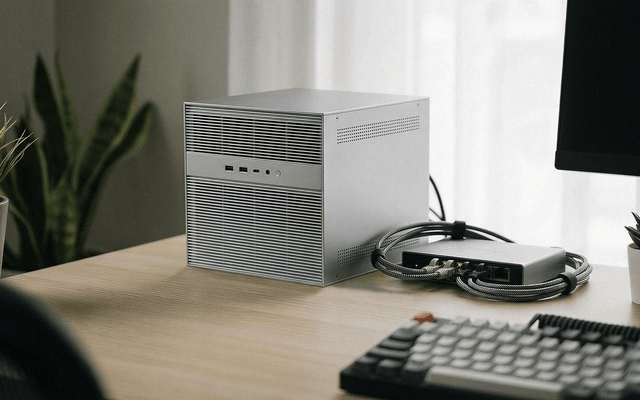
Why I Replaced Rack Servers With a ZimaCube 2 — A Homelab Evolution Story
ZimaCube 2 replaces noisy rack servers and limited mini PC setups with a quiet all-in-one homelab for Docker, ZFS storage, NVMe, backups, self-hosting, and...
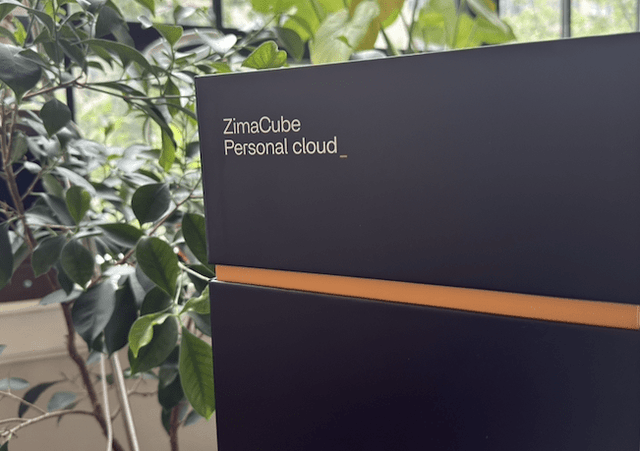
Running Docker, CI/CD, and 10+ Self-Hosted Services on the ZimaCube 2
This community spotlight features ZimaCube 2 Pioneer Michael Luckenbill’s full self-hosted infrastructure test. Running 10+ Docker containers, local GitHub Actions CI/CD, dual ZFS HDD/NVMe...

What Happens When Two AI Agents Fight Over One Server?
Zero Noichi’s AI cybersecurity experiment used two ZimaBoard 2 devices to simulate attacker and defender agents, showing how homelab servers can support safe AI,...


