
Topp 5 Kompakta NAS-servrar för Små Lägenheter och Kontor: En Köparguide


Att bo i en liten lägenhet eller ett trångt kontor betyder inte att du måste ge upp pålitlig lagring. En kompakt NAS-server kan säkerhetskopiera telefoner och laptops, strömma media och köra lätta appar samtidigt som den är tyst, effektiv och lätt att placera på en hylla eller ett skrivbord. Avsnitten nedan förtydligar vad “kompakt” verkligen betyder och jämför sedan fem formfaktorer så att ljud, prestanda, anslutning och lagring passar ditt utrymme utan att förvandla rummet till ett serverrum.
Snabb jämförelse: Topp 5 kompakta NAS-servrar
Tabellen nedan lyfter fram skillnaderna så att du snabbt kan matcha en formfaktor till ditt utrymme och arbetsflöde.
| Typ | Bäst för | Ljudnivå | Prestanda | Utbyggnad | Installationsinsats | Typisk kostnad |
|---|---|---|---|---|---|---|
|
Traditionell 2-bay NAS-låda |
Enkel delad lagring och säkerhetskopior |
Låg till medelhög |
Medium |
Medium |
Låg |
Medium |
|
Mini-PC NAS |
Allmänna appar och enkla uppgraderingar |
Medium |
Hög |
Medel till hög |
Medium |
Medium |
|
Platt fotavtryck med modulär lagring |
Låg |
Medel till hög |
Hög |
Medel till hög |
Medium |
|
|
Helflashad kompakt NAS |
Tystnad och snabb liten lagring |
Mycket låg |
Medium |
Låg till medelhög |
Låg till medelhög |
Medel till hög |
|
Bygg med enkortsdator |
Lärandeprojekt och lätta arbetsbelastningar |
Mycket låg |
Låg till medelhög |
Låg |
Hög |
Låg |

Vad “kompakt” verkligen betyder för en NAS-server
I ett större hem kan lagringsutrustning hållas utom synhåll. I en studio eller ett tyst kontor står den inom räckhåll, så komfort och praktikalitet är lika viktiga som specifikationer. En verkligt kompakt NAS-server definieras av fyra pelare.
Ljud och vibrationer
Fläktton och hårddiskresonans spelar ofta större roll än lådans storlek. Små fläktar kan ge en skarpare ton, och 3,5-tums hårddiskar kan sända ett lågt brummande till ett skrivbord eller en hylla. Passiv kylning, stabila fötter och SSD-baserad lagring hjälper till att hålla rummet lugnt, vilket gör skillnad under samtal, fokuserat arbete och sena kvällar.

Prestanda och kompatibilitet
Grundläggande fildelning är enkelt. Arbetsbelastningen växer snabbt när kryptering, fotoindexering, mediebibliotek och containeriserade tjänster kommer in i bilden. I många hem- och småkontorsmiljöer tenderar x86-plattformar att hantera ett bredare utbud av containers och virtualiseringsverktyg än typiska ARM-kort, så färre projekt blockeras av saknade binärer eller begränsat stöd.
I/O och nätverk
En NAS-server blir ofta navet, så portar och nätverksanslutningar formar upplevelsen varje dag. Gigabit Ethernet täcker rutinmässiga säkerhetskopior och filåtkomst. Multi-gig-nätverk, inklusive 2.5GBASE-T, kan göra stora överföringar mycket mindre tråkiga, särskilt när mer än en enhet är aktiv. Dubbla Ethernet-portar möjliggör också renare uppställningar, som att separera arbets trafik från allmänt hemmabruk.
Lagringsstrategi och datasäkerhet
Redundans förbättrar drifttiden efter en diskfel, men garanterar inte återställning från olyckor, skadlig kod eller katastrofer. NIST har varnat för att RAID inte ersätter offsite-säkerhetskopior. 3-2-1-säkerhetskopieringsmetoden är fortfarande en praktisk grundregel: behåll tre kopior av data, lagra dem på två typer av media och ha en kopia offsite.

Typ 1: Traditionell 2-bay NAS-låda (färdiga enheter)
En tvådiskarsenhet är det minst komplicerade sättet att få in en dedikerad NAS-server på en liten yta. Diskplatser, ström och hanteringsprogramvara är integrerade, så installationen kan gå snabbt och den löpande rutinen förblir förutsägbar.
Denna lösning passar oftast hushåll och små team som främst behöver delade mappar, behörigheter och schemalagda säkerhetskopior.
Fördelar
-
Ren fysisk design med minimala tillbehör
-
Enkel användarhantering och schemaläggning av säkerhetskopior
-
Konsekvent drift när det väl är konfigurerat
Nackdelar
-
Fast intern kapacitet eftersom chassit låser dig till två platser
-
Hörbart hårddiskljud i tysta rum, särskilt med högkapacitets-HDD:er
-
Begränsad flexibilitet för anpassade nätverksroller eller nischad utbyggnad
Bästa valet i en rad: ett praktiskt, underhållsfritt alternativ för delade mappar och automatiska säkerhetskopior.
Typ 2: Mini PC NAS (Liten, flexibel och lätt att uppgradera)
En kompakt stationär PC kan fungera som en kapabel NAS-server samtidigt som den är en allmän dator för självhostade appar. Välbekant hårdvara gör uppgraderingar tillgängliga, och extra CPU-kapacitet hjälper till med kryptering och indexering.
Folk väljer oftast denna form när lagring bara är en del av planen, tillsammans med containers, lätt virtualisering och automation.
Fördelar
-
Stark beräkningskapacitet för arbetsbelastningar med flera tjänster
-
Tydliga uppgraderingsmöjligheter för minne och, i många modeller, intern lagring
-
Brett mjukvarustöd för vanliga operativsystem
Nackdelar
-
Kylbuller varierar mycket mellan modeller och konfigurationer
-
Extern lagring kan sprida ut sig när interna platser är begränsade
-
Extra beslut kring lagringsformat, behörigheter och säkerhetskopior
Bäst sammanfattat i en rad: ett flexibelt alternativ för personer som vill ha lagring plus alltid aktiva appar.
Typ 3: Hybrid enkortsdator x86-servrar (Den modulära mellanvägen)
Hybrid enkortsdatorer med x86 håller beräkningsenheten slimmad och kopplar bara på lagring vid behov. Den modulära metoden sparar skrivbordsutrymme eftersom inga oanvända enhetsplatser tar plats, och bygget kan hållas platt och hyllvänligt.
Denna stil fungerar bra när målet är en mångsidig NAS-server som förblir diskret i ett vardagsrum.
Fördelar
-
Mycket liten formfaktor som får plats bakom en skärm eller i grund hylla
-
Modulär expansion via USB, SATA eller en expansionsplats
-
Dubbla Ethernet är vanligt och stödjer segmenterade nätverk eller gateway-layouter
Nackdelar
-
Tillbehörsval påverkar slutupplevelsen, inklusive chassin, kablar och fästen
-
Långvarig tung beräkning kan värma upp passivt kylda konstruktioner
-
Dålig kabeldragning kan motverka målet med “kompakt”
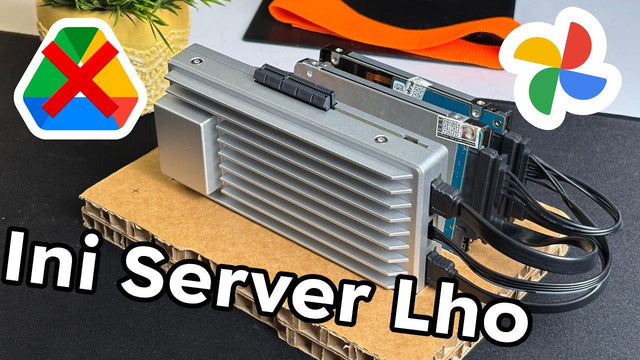
Ett exempel i denna kategori är ZimaBoard 2 hemserver, en x86-64 enkortsdator med Intels Processor N150, dubbla 2,5GbE och en öppen PCIe x4-plats för expansion.
Bäst sammanfattat i en rad: en liten “nav” för modulär lagring och lätt hemma-labbarbete.

Typ 4: All-Flash Kompakt NAS (Tyst och Snabb)
All-flash-designs förtjänar sin plats i trånga bostadsutrymmen eftersom de tar bort de två största ljudkällorna: snurrande skivor och vibration. SSD-lagring känns också ofta responsiv med många små filer, vilket är vanligt i fotobibliotek, projektmappar och synkroniserade dokument.
En all-flash NAS-server tilltalar ofta personer som tar samtal hela dagen i samma rum som sin utrustning, eller alla som är känsliga för lågt surr på natten.
Fördelar
-
Nästan ljudlös drift med minimal vibration
-
Snabb åtkomst för aktiva projekt och många små filer
-
Små enheter som passar i kompakta höljen
Nackdelar
-
Högre kostnad per terabyte jämfört med hårddiskar
-
Kapacitetstillväxt kräver planering eftersom uppskalning kan bli dyrt
-
Säkerhetskopior är fortfarande viktiga eftersom flash kan gå sönder som vilket annat medium som helst
Bästa valet i en rad: det lugnaste alternativet för tysta rum och mindre bibliotek.
Typ 5: SBC-byggnader: När det är värt det
Single-board-datorbyggen kan vara en kostnadseffektiv väg till grundläggande nätverkslagring. Många kort är svala och drar lite ström, vilket passar för 24/7-drift i små rum. Nackdelen visar sig ofta i lagrings- och nätverksgenomströmning, särskilt när flera användare eller tunga bakgrundstjänster tillkommer.
Fördelar
-
Låg strömförbrukning för ständig drift
-
Tyst beteende i trånga utrymmen
-
Stort lärandevärde för nätverk och Linux-grunder
Nackdelar
-
Lagringsgenomströmning kan begränsas när enheter delar USB-buss
-
Extra kablage från separata ström- och lagringstillbehör
-
Begränsad kapacitet för många tjänster eller flera aktiva användare
Bästa valet i en rad: en budgetvänlig lärandeenhet för lätt filöverföring och säkerhetskopior.
Välj den bästa kompakta NAS-servern för ditt utrymme
Den bästa kompakta NAS-servern passar ditt rum och din arbetsbelastning. En tvåfacksenhet passar delad lagring och rutinmässiga säkerhetskopior med minimal ansträngning. Mini-PC:er lutar åt flexibilitet och tyngre applikationer. Hybrid single-board x86-system balanserar ett litet fotavtryck med expansionsmöjligheter. All-flash-byggnader prioriterar tystnad och snabb åtkomst. Single-board-datorprojekt är bra för lärande och lätta uppgifter. Tänk på ljudtolerans, nätverkshastighet och säkerhetskopieringsvanor, och anpassa sedan lagringen därefter.
Vanliga frågor
Q1: Behöver jag en dedikerad switch eller en ny router för att dra nytta av en kompakt NAS-server?
Inte nödvändigtvis. Många får bra resultat med standard gigabit-nätverk för säkerhetskopior och vardaglig filåtkomst. Multi-gig-fördelar syns oftast vid stora medieöverföringar eller flera aktiva enheter. Ett praktiskt tillvägagångssätt är att uppgradera en länk i taget, till exempel arbetsstationen och switchporten först.
Q2: Kan jag placera en NAS-server i ett sovrum eller på ett skrivbord utan att oroa mig för sömn eller samtal?
I många fall ja, men det beror på val av enhet och placering. SSD-baserad lagring är vanligtvis tystast. Om hårddiskar används är vibrationsisolering och en stabil yta viktiga. Värme måste också tas i beaktande, så undvik slutna skåp och lämna utrymme för luftflöde.
Q3: Är det säkert att exponera min NAS-server direkt mot internet för fjärråtkomst?
Vanligtvis inte rekommenderat. Direkt exponering ökar attackytan och kan förvandla ett litet misstag till en allvarlig incident. Ett säkrare tillvägagångssätt är att använda en pålitlig VPN eller en säker fjärråtkomstgateway med stark autentisering. Håll firmware och tjänster uppdaterade och inaktivera allt som inte används.
Q4: Hur ofta bör jag kontrollera hårddiskens hälsa och vad ska jag vara uppmärksam på?
En månatlig kontroll är en rimlig frekvens för de flesta hem- och småkontorsmiljöer. Titta på SMART-indikatorer, temperaturtrender och antal omallokerade eller väntande sektorer. Var också uppmärksam på långsamma läsningar, upprepade varningar om ombyggnad eller ovanliga klickljud. Att byta ut en tveksam enhet tidigt är ofta billigare än återställning.
Q5: Vad är ett rimligt sätt att dimensionera lagring om jag förväntar mig att mina data ska växa?
Beräkna ditt behov för de kommande 12–24 månaderna och lägg sedan till en buffert för säkerhetskopior, snapshots och oväntade projekt. Tillväxten av foton och video är ofta snabbare än väntat. Om budgeten tillåter, lämna utrymme för åtminstone ett expansionssteg för att undvika att behöva migrera allt för tidigt. Att följa den veckovisa tillväxten under en månad hjälper till att förfina uppskattningen.

Rekommenderade produkter

Zima Kampanjnav
Mer att läsa
Hur Rez Tech bygger sitt eget personliga moln med ZimaBoard 2
Rez Tech bygger ett personligt moln med ZimaBoard 2, två lokala enheter, RAID 1 och ZimaOS, och testar filåtkomst, 4K HDR-media samt en kompakt...

Silicon Steak krymper sitt homelab med ZimaBoard 2
Silicon Steak undersöker om ZimaBoard 2 kan ersätta en betydligt större homelab-maskin genom att testa lagring, medieuppspelning, Minecraft, Pi-hole, självhostade appar och hantering i...

Hur Smart Life bygger ett privat moln med ZimaBoard 2
Smart Life förvandlar ZimaBoard 2 till en hemmadestination för foton och videor från mobilen och visar hårdvarubygget, ZimaOS-lagringskonfigurationen, mobilanslutningen och alternativ för automatisk säkerhetskopiering.


