
Can a Home NAS Run Plex and Local AI? When to Use a Mini PC Instead


Quick Answer
A home NAS can run many useful workloads: file storage, backups, media libraries, light Docker apps, sync tools, basic indexing, and some lightweight AI tasks. But not every home AI or media workload should run directly on the NAS.
You should move a workload outside the NAS when it needs sustained CPU power, GPU acceleration, more RAM or VRAM, real-time video transcoding, local LLM inference, image or vision processing, or large batch jobs that could slow down storage, backups, and other always-on services.
A better setup is to treat the NAS as the stable storage layer and use a mini PC, AI PC, desktop, or workstation as the compute layer when needed. This keeps files centralized while giving heavy tasks more suitable hardware.
Why This Question Matters for Home Servers
A NAS Is Usually Storage-First
A home NAS is built around reliable storage, shared access, backups, file organization, and always-on availability. It can also run apps, containers, media servers, and automation tools, but storage reliability should remain its main job.
The problem starts when users treat the NAS as if it should run every workload: Plex transcoding, local LLMs, image recognition, RAG indexing, virtual machines, databases, downloads, backups, and remote access at the same time. Even if the software runs, the experience may become unstable when multiple heavy tasks compete for CPU, memory, disk, and network resources.
AI and Media Workloads Are Not All the Same
Some AI-related tasks are lightweight. For example, small OCR jobs, basic metadata extraction, file indexing, simple automation, and scheduled document processing may be reasonable on a NAS.
Other tasks are more demanding. Local LLM chat, embeddings over large document libraries, image recognition, video analysis, model serving, and multi-user AI assistants can require sustained compute or acceleration. These are the workloads that often make more sense on a separate compute device.
The Goal Is Not “NAS vs Mini PC”
The better question is not whether a NAS or a mini PC is always better. The better question is: which device should own which layer of the workflow?
For many home setups, the NAS should store the data, protect the archive, and run stable services. A mini PC or AI workstation can then process files from the NAS, run heavier AI models, transcode media, or perform batch jobs without putting the storage layer under constant pressure.
A Simple Workload Placement Model
Before deciding where a workload should run, separate your home server into four layers: storage, always-on services, acceleration, and clients.
| Layer | What It Includes | Where It Usually Fits |
|---|---|---|
| Storage Layer | Files, photos, media libraries, documents, backups, snapshots, shared folders | NAS |
| Always-On Service Layer | Sync, backup, light Docker apps, Home Assistant, media library management, file indexing | NAS or low-power home server |
| Acceleration Layer | Plex transcoding, local LLMs, embeddings, image analysis, model serving, bulk OCR | Mini PC, AI PC, GPU desktop, or workstation |
| Client Layer | TV, phone, browser, laptop, tablet, app interface | User device |
This model helps avoid a common mistake: forcing every workload onto the NAS just because the files live there.
What a Home NAS Can Usually Run Well
File Storage, Backups, and Shared Folders
Storage is the strongest reason to use a NAS. It gives multiple devices a central place to store files, photos, videos, project folders, and backups. It also makes it easier to manage permissions, organize folders, and build repeatable backup workflows.
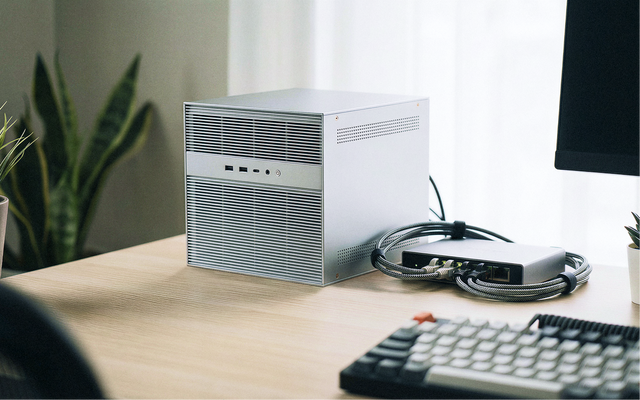
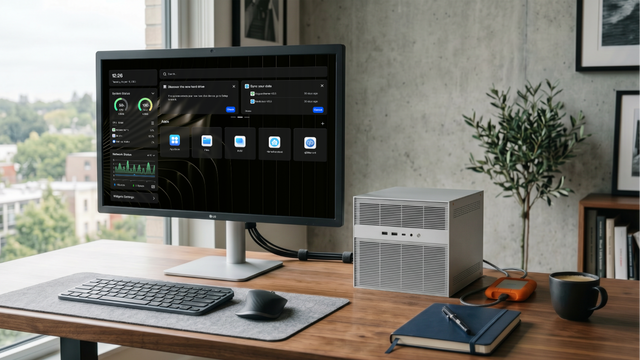
This is where a device such as ZimaCube 2 AI NAS fits naturally: it can act as the local storage foundation for home data, private media, self-hosted apps, and AI-related workflows.
Light Docker Apps and Home Automation
Many home server apps do not require heavy compute. Examples include password managers, dashboard tools, lightweight databases, DNS tools, Home Assistant, download managers, note tools, and simple document management apps.
These workloads are usually fine on NAS-style hardware as long as they do not constantly consume CPU or memory. The key is to monitor resource use and avoid letting one container dominate the system.
Media Library Storage and Direct Play
A NAS is often excellent for storing a Plex, Jellyfin, or Emby media library. If the client device can direct play the file, the server mostly sends the file over the network without converting it in real time.
Direct play is much easier on the server than transcoding. This is why the same NAS may feel fast for one user but slow for another: the difference is often whether the media is being streamed directly or converted during playback.
Light AI Indexing and Scheduled Jobs
Some AI-adjacent tasks are not very demanding if they are scheduled carefully. A NAS may handle light OCR, metadata extraction, basic file classification, small document indexing, or periodic automation jobs.
The safest approach is to run these tasks in batches during low-usage hours and avoid running them while backups, media streaming, and file transfers are active.
When Plex Should Run Outside the NAS
Plex Stuttering Often Means Network or Transcoding Pressure
Plex playback problems are not always caused by the NAS itself. According to Plex support, the two broad causes for most buffering issues are that the network connection cannot support the requested stream or the content cannot be transcoded fast enough.
For troubleshooting, start with Plex’s official guide: Why is my video stream buffering?. This is a better search match for users who find your article through “Plex stuttering playback.”
Transcoding Is the Real Hardware Test
If your media direct plays, the NAS mainly needs fast enough storage and network throughput. If your media transcodes, the server must convert video in real time. That is a much heavier job.
4K video, HEVC, subtitles, remote streaming, lower client bandwidth, and unsupported codecs can all trigger transcoding. When this happens, a low-power NAS may struggle even if it is perfectly good at storage.
Hardware Acceleration Can Help, But It Has Requirements
Plex explains that hardware-accelerated streaming uses dedicated video decoder and encoder hardware to convert videos with less processing power. See: Using Hardware-Accelerated Streaming.
This is why hardware matters. A NAS, mini PC, or server with supported Intel Quick Sync, NVIDIA GPU support, or another compatible acceleration path can handle transcoding better than a storage-only box.
Use a Mini PC When Plex Is Competing With Storage
If Plex transcoding causes backups, file transfers, or other services to slow down, move Plex compute outside the NAS. The NAS can still store the media library while a mini PC mounts the library over the network and runs Plex Media Server.
This keeps the NAS focused on storage and lets the compute device handle transcoding, client compatibility, and remote streaming pressure.
When Local AI Should Run Outside the NAS
Local LLMs Need RAM, VRAM, and Sustained Compute
Running a local LLM is different from running a simple file index. Even small models can consume meaningful memory, and larger models may need GPU acceleration or more VRAM to feel responsive.
Ollama’s hardware support documentation lists GPU acceleration support across NVIDIA, AMD, Apple Metal, and Vulkan paths: Ollama Hardware Support. This makes it a useful reference when deciding whether a NAS CPU is enough or a separate AI machine is more realistic.
Vision Models and Image Workloads Are Heavier Than Text Search
Image classification, object detection, OCR over many images, video analysis, and screenshot understanding can be heavier than text-only search. These tasks may need GPU, NPU, or a dedicated inference runtime.
For Intel-based local AI workflows, OpenVINO is a relevant reference because it is designed for deploying AI inference across cloud, on-prem, and edge environments: OpenVINO Documentation.
Large Batch Jobs Can Make the NAS Feel Slow
Even if a NAS can technically run OCR, embeddings, or AI classification, a large backfill can make the system feel slow. Processing thousands of files may compete with normal storage access, backups, media scans, and user activity.
For this reason, heavy batch jobs often belong on a separate machine that mounts the NAS folders, processes the files, and writes results back to the archive.
Model Serving Should Be Treated as a Compute Workload
If you want to serve models to multiple devices, multiple users, or several apps, treat that as a compute workload rather than a basic NAS app. Model serving needs predictable CPU, memory, GPU, and cooling behavior.
The NAS can remain the storage source for documents and media, while the model server runs on hardware designed for inference.
How Docker Containers Can Affect NAS Performance
Containers Can Compete for CPU and Memory
Docker makes it easy to run many apps on one box, but each app still consumes real resources. A media server, indexer, database, AI app, download client, and backup tool can all compete at the same time.
Docker’s resource constraint documentation explains that containers have no resource constraints by default and can use as much resource as the host scheduler allows: Docker Resource Constraints.
Resource Limits Protect the Storage Layer
For NAS use, resource limits are not just a developer feature. They protect the storage layer. If one container uses too much memory or CPU, backups, file transfers, and media access may suffer.
A practical setup should limit high-risk containers, schedule heavy jobs during quiet hours, and avoid running several resource-heavy tasks at once.
Watch for Hidden Bottlenecks
Performance problems are not always caused by CPU. A home server can also bottleneck on memory, swap, disk I/O, network throughput, thermal limits, or container storage paths.
If the NAS becomes slow only when one app runs, that app may belong on a separate compute device even if it technically installs on the NAS.
NAS vs Mini PC vs AI PC: Which Should Run What?
| Workload | Run on NAS | Run Outside NAS |
|---|---|---|
| File storage and backups | Yes. This is the NAS’s core job. | Usually no, except for backup copies. |
| Media library storage | Yes. Store the library on the NAS. | Only if another machine is the main media server. |
| Plex Direct Play | Usually fine. | Not necessary unless other services are affected. |
| Plex 4K transcoding | Only if hardware acceleration and cooling are suitable. | Often better on a mini PC or GPU-capable machine. |
| Light Docker apps | Usually fine. | Move if the app causes resource contention. |
| Local LLM chat | Only for small models or testing. | Better on hardware with more RAM, VRAM, or acceleration. |
| Embeddings and RAG indexing | Fine for small libraries or scheduled jobs. | Better outside the NAS for large libraries or frequent re-indexing. |
| Vision AI or image analysis | Only for light experiments. | Usually better on GPU, NPU, or AI PC hardware. |
| Virtual machines | Fine for light single-VM use if resources allow. | Better outside the NAS for multiple or heavy VMs. |
How to Think About ZimaBoard 2, ZimaCube 2, and Separate Compute
ZimaBoard 2: Lightweight Homelab and Edge Server
If users arrive from “ZimaBoard 2 review,” they are probably trying to decide whether a compact server can handle their home workloads. The right answer should be practical: a compact board can be great for lightweight services, self-hosting, networking projects, automation, and small Docker stacks, but it should not be framed as a replacement for every heavy AI or media task.
ZimaBoard 2 can fit users who want a low-power, flexible, x86 home server for experiments and everyday services. For heavy transcoding, local LLMs, or large AI batch jobs, users should evaluate whether separate compute is a better match.
ZimaCube 2 AI NAS: Storage Foundation for Private AI Workflows
ZimaCube 2 AI NAS is better positioned as the storage foundation for private AI workflows: files, backups, media libraries, document archives, app containers, and local data access.
That does not mean every AI workload has to run on the NAS itself. In many real setups, the NAS stores the data while a separate compute device runs the heavier AI pipeline.
Separate Compute: Mini PC, AI PC, Desktop, or Workstation
A mini PC or AI PC becomes useful when a workload needs more compute than the NAS should provide. Examples include Plex transcoding, model serving, image analysis, video processing, large RAG indexing, or local LLM chat.
This split is not a weakness. It is a cleaner architecture: storage stays stable, compute can be upgraded, and heavy experiments do not risk slowing down the file server.
Example Home Setups
Setup 1: NAS-Only for Simple Home Storage
This setup is best for users who mainly need file storage, phone backups, shared folders, simple media streaming, and light apps. Keep the NAS simple and avoid heavy AI or transcoding tasks.
Best for: families, basic home backup, document storage, photo archives, and direct-play media libraries.
Setup 2: NAS Plus Mini PC for Plex
In this setup, the NAS stores the media library while a mini PC runs Plex Media Server. The mini PC handles transcoding and client compatibility, while the NAS remains focused on storage.
Best for: users who experience Plex stuttering, remote streaming problems, 4K transcoding pressure, or multiple simultaneous streams.
Setup 3: NAS Plus AI Workstation for Local AI
Here, the NAS stores documents, images, videos, and datasets. A separate AI workstation or GPU desktop mounts the NAS folders and runs local LLMs, embeddings, OCR, vision models, or batch indexing.
Best for: private knowledge bases, local RAG, image analysis, large document search, and AI experiments that need more RAM or GPU acceleration.
Setup 4: NAS Plus Scheduled Batch Processing
This setup keeps most services on the NAS but schedules heavier jobs during low-usage hours. OCR, indexing, backups, and media scans run at different times so they do not compete.
Best for: users who want a simple setup but need occasional heavier processing.
How to Decide Where a Workload Should Run
Use this checklist before installing a new app directly on your NAS.
- Does the workload need constant CPU? If yes, consider separate compute.
- Does it need GPU, NPU, or VRAM? If yes, separate hardware is often better.
- Will it run during backups or media streaming? If yes, schedule it or move it.
- Does it create many small temporary files? If yes, watch disk I/O carefully.
- Does it need low latency? If yes, choose hardware close to the user or model runtime.
- Can it fail without affecting storage? If no, keep it away from the core NAS layer.
- Can it be upgraded independently? If yes, separate compute gives more flexibility.
Common Mistakes to Avoid
Using the NAS as the Only Compute Device
A NAS can run apps, but that does not mean every app belongs there. Treat the NAS as the trusted storage foundation first. Add compute only when it does not harm reliability.
Assuming Plex Problems Are Always Storage Problems
Plex stuttering may come from network limits, transcoding speed, client compatibility, subtitles, bitrate, or unsupported formats. Before replacing hardware, check whether the stream is direct playing or transcoding.
Running Local LLMs Without Checking Memory
Local models can fail, slow down, or fall back to CPU if hardware support is not available. Check model size, RAM, VRAM, GPU support, and driver requirements before making the NAS responsible for inference.
Letting Docker Containers Use Unlimited Resources
Containers are convenient, but a runaway container can affect the whole host. Use resource limits, monitor usage, and avoid running heavy containers during backups or file transfers.
Conclusion
A home NAS can run Plex, Docker, and some AI-related tasks, but it should not be treated as the only compute device in the home. The NAS is strongest when it protects data, centralizes files, and keeps core services stable.
Move workloads outside the NAS when they require real-time transcoding, sustained CPU, GPU acceleration, large memory, local LLM inference, vision models, or heavy batch processing. In many homes, the best architecture is simple: the NAS stores the data, and a mini PC, AI PC, or workstation handles the heavy compute.
This makes the article more aligned with real search demand: users are not only asking when AI workloads should run outside the NAS. They are asking whether their NAS can handle Plex, whether local AI needs a separate machine, and how to build a home server setup that stays fast, private, and reliable.
FAQ
Can a home NAS run Plex?
Yes, a home NAS can run Plex, especially when media files direct play on the client device. Problems are more likely when Plex needs to transcode video in real time, especially for 4K, HEVC, subtitles, remote streaming, or unsupported client formats.
Why does Plex stutter on a NAS?
Plex stuttering can happen when the network cannot support the requested stream or when the server cannot transcode fast enough. It can also be affected by client limitations, subtitles, high bitrates, and other applications competing for system resources.
Should Plex run on the NAS or a mini PC?
Run Plex on the NAS if your streams are mostly direct play and the NAS has enough resources. Use a mini PC if you need frequent transcoding, remote streaming, multiple users, or hardware acceleration that the NAS does not provide.
Can a NAS run local AI models?
A NAS can run lightweight AI tasks or small local models in some cases, but larger LLMs, embeddings, vision models, and model serving often need more RAM, VRAM, GPU acceleration, or cooling than a storage-first NAS is designed to provide.
Is a mini PC better than a NAS for AI workloads?
A mini PC is often better for compute-heavy AI workloads, while a NAS is better for storage, backups, and shared data. The best setup may use both: NAS for data, mini PC for compute.
Where does ZimaCube 2 fit in this setup?
ZimaCube 2 AI NAS fits best as the local storage and private data foundation for media, documents, backups, containers, and AI-related workflows. Heavy AI inference or video transcoding can still run on a separate machine when needed.

Recommended products

AI HUB
More to Read
The Home AI Server Demand Forecast 2027: Why Private AI Workloads Are Moving Closer to Home
A 2027 forecast on why home AI server demand may grow as local LLMs, private RAG, media AI, automation, privacy needs, and cloud infrastructure...
What GPT-5.6 Means for Local AI, Home Servers, and Private Data
A practical guide to GPT-5.6, local AI, home servers, private data, hybrid workflows, RAG, tool calling, and safe cloud model use.
AI Agent at Home: What Can It Actually Automate?
A practical guide to home AI agents, covering smart-home control, local files, private RAG, server reports, approval gates, and safe automation.


