
The Digital Archivist: Preserving Internet History and Family Memories with a Plex Server


A digital archive usually breaks down in ordinary ways. Photos stay trapped on phones. Old home videos live on one aging laptop. Important web pages sit in bookmarks until they vanish. The fix is not complicated, yet it does require a system. A clear backup routine, durable file formats, and one central place for your media can turn a messy pile of files into something your family can still use years from now. For many households, a Plex server is a practical anchor for that setup.
Why Personal Digital Archiving Matters Today
Digital files are easy to collect and easy to lose. Phones get replaced, drives fail, and online content disappears. As more family memories live in digital form, personal archiving becomes necessary.
Make Your Media Easier to Find and Protect
When files are scattered across phones, laptops, cloud folders, and old drives, they become difficult to search, harder to back up, and far easier to lose. A Plex server helps solve part of that problem by giving your household a central place to organize personal videos, music, and photo libraries. It also supports free local streaming on the same home network, which makes everyday access simple for families who want their media in one place.

Preserve Context for the People Who Come After You
Digital archiving also has a human side. Family memories are far more useful when other people can actually find and understand them. Clear folder names, recognizable dates, and organized libraries make it easier for children and relatives to locate important photos, videos, and documents without relying on the one person who remembers where everything is. That kind of structure saves time now and protects meaning over time.

The Core Strategy: The 3-2-1 Backup Rule for Long-Term Preservation
Long-term preservation needs a system people can actually follow. One of the most widely used methods is the 3-2-1 backup rule. It means keeping three copies of important files, using two different types of storage media, with one copy stored offsite. For a home archive, that approach lowers the risk of losing everything to a single mistake, hardware failure, or disaster.
In simple terms, the rule looks like this:
- 3 copies: Keep your original files plus two backup copies.
-
2 types of media: Store them in different kinds of storage, such as a home server and an external drive.
-
1 offsite copy: Keep one backup somewhere outside your home, such as in cloud storage or at another physical location.
A practical household setup might look like this:
| Backup Layer | Example |
|---|---|
|
Primary copy |
Your main archive stored on a home server or NAS |
|
Second local copy |
An external hard drive or another storage device in the house |
|
Offsite copy |
A cloud backup or a drive stored in a different location |
|
Offline protection |
A backup drive that stays disconnected when not in use |
This structure protects against the failures most families actually face. If one drive fails, the local backup is still available. If a file is deleted by accident, a backup copy can restore it. If theft, fire, or storm damage affects your home, the offsite copy keeps the archive from disappearing with the hardware.
One point is especially important: redundancy is not the same as backup. Mirrored drives or other fault-tolerance features can keep a system running when one drive fails, but they do not protect against accidental deletion, malware, sync errors, or damage to the entire device. If your media library lives on a Plex server, think of that server as your main working copy, not your full backup strategy.
A few simple habits make the 3-2-1 rule much easier to maintain:
- Automate backups whenever possible
- Test file restoration on a regular schedule
- Label external drives with names and dates
-
Keep the original scan or transfer files separate from edited versions
-
Write down your backup routine so others in the household can follow it
How to Build a Centralized Family Media Hub with a Plex Server
To build a centralized family media hub, you need three things in place: one storage location, a clear folder structure, and a simple way to keep new files organized.
Step 1: Choose One Central Storage Location
The first step is deciding where your family media will live. A Plex server can run on Windows, Mac, Linux, and compatible NAS devices, so the platform matters less than consistency. What matters is having one primary location for your media library instead of leaving files scattered across phones, laptops, and external drives.
Step 2: Create a Folder Structure People Can Understand
Once you have a central location, organize it in a way that feels obvious. Use top-level folders such as Photos, Home Videos, Movies, TV, Music, Scans, and Documents. Under those folders, sort files by year, event, or occasion. Clear file names, such as YYYY-MM-DD_Event_Name_01, will stay useful much longer than vague names like IMG0007 or FinalFinal2.
Step 3: Set Up Automatic Uploads from Phones
A family media hub only works if new files keep flowing into it. Enable automatic camera uploads from phones and send them to one intake folder. That gives every new photo or video a consistent landing place before it gets sorted into the main archive. This step is often what turns a media library from a one-time cleanup project into a system that actually lasts.

Step 4: Review, Sort, and Remove Duplicates Regularly
Automation helps, but it does not replace review. Check the intake folder on a regular schedule, remove obvious duplicates, and move files into their permanent folders. If your household uses a Plex server for home videos and shared photos, this routine makes the library easier to browse and far less cluttered over time.
Step 5: Add Useful Metadata While the Details Are Fresh
Dates, event names, locations, and people tags make a huge difference later. This is what turns a large personal media library into something searchable. It is also what helps family members find a graduation video, vacation album, or scanned letter without digging through hundreds of files manually.
Step 6: Understand Local and Remote Access Early
Plex works very well for local playback on a home network, which makes everyday family access simple. Remote video access has additional subscription rules, so it is worth understanding that early if you expect relatives outside the home to stream your library. That helps you plan access in a realistic way and avoids confusion later.
Archiving the Web: Saving Websites, Articles, and Online Content for Personal Reference
A useful web archive is not just a collection of saved links. You need the right capture format, a clear storage structure, and extra care when archiving online videos.
Save Pages in the Right Format
Different tools serve different needs. Some are better for creating portable copies in formats such as HTML, PDF, PNG, TXT, JSON, or WARC. Others are more useful when you want to preserve page layout and browsing context more completely.
Keep Web Archives Separate from Your Media Library
A Plex server works well for organizing home videos and shared media, but it is not a web archiving tool. Website captures should be stored separately, with clear folder names and dates, so they remain easy to find and manage later.
Archive Online Videos Carefully
Some tools can download, organize, and index online videos for offline access, and some can also integrate with Plex so those files appear in your media library. In many cases, extra utilities are needed to merge audio and video streams or handle post-processing tasks.
When building your personal video archive using tools like TubeArchivist or yt-dlp, it's crucial to respect digital copyrights. We strongly recommend using these tools exclusively for backing up your own creative work, archiving public domain or creative commons content, or for strictly personal, offline educational viewing. Never distribute copyrighted material publicly.
What Hardware Matters Most for a Long-Term Digital Archive
When choosing hardware for a long-term digital archive, focus on reliability, storage layout, and enough performance to handle backups, indexing, and media access smoothly. For a standard Plex Media Server installation, 4GB of RAM is typically enough. Hardware-accelerated streaming can also reduce CPU load and improve power efficiency, though that feature requires Plex Pass.
For a home archive, a sensible baseline looks like this:
| Component | What helps in real life |
|---|---|
|
CPU |
A modern low power processor with enough room for indexing and occasional transcoding |
|
RAM |
4GB for a simple install, 8GB or more if the box also runs backups or archive tools |
|
System drive |
SSD for the operating system and application data |
|
Media storage |
Large hard drives for photos, videos, scans, and backup targets |
|
Network |
Gigabit Ethernet at minimum for smooth local transfers |
|
Protection |
Redundancy for uptime, plus separate local and offsite backups |
Storage layout matters as much as the processor. Put the operating system and app data on solid-state storage if possible. Keep large media files on dedicated drives. Leave free space for thumbnails, indexing, and maintenance tasks. If your Plex server will serve multiple people, high bitrate video, or remote streams, give it room before the library grows into a headache.
Keep Your Archive Accessible for Future Generations
Long-term access depends on formats, documentation, and security. Durable formats should match the content type. WARC works well for web archives. PNG is a strong choice for many still images. HTML and XHTML remain useful for textual content. WAVE with LPCM is a dependable option for long-term audio preservation. For personal photo scanning, keeping a TIFF master file and using JPEG copies for everyday sharing is a smart balance. Keep your Plex server updated, use strong passwords, and enable MFA on related accounts. Those small habits do a lot to keep your archive usable and secure for the people who inherit it.

FAQs about managing home digital archives
Q1. Do I need to check file integrity if everything already opens normally?
Yes, in many cases you should. A file can look fine today and still develop corruption over time. Periodic checksum verification helps you confirm that archived files have not silently changed. This matters most for large photo libraries, scanned documents, and older video files you may not open very often.
Q2. Should I convert all old files into one modern format right away?
Not always. A full conversion project can waste time and sometimes reduce quality. A better approach is to identify higher-risk files first, especially rare proprietary formats or media tied to outdated software. Keep the original file, then create a preservation copy only when long-term compatibility is a real concern.
Q3. How often should a home archive be reviewed or audited?
A light review every few months is usually enough for most households. Check that backups are running, storage space is healthy, and recently added files are in the right folders. Once a year, do a deeper audit that includes restore testing, duplicate cleanup, and a quick review of folder naming consistency.
Q4. What is the safest way to move an archive onto new drives?
The safest method is to copy first, verify second, and erase last. Transfer the data to the new drive, confirm file counts and folder structure, and verify important files before deleting anything from the old drive. Keeping the old drive untouched until checks are complete lowers the risk of a painful migration mistake.
Q5. Can non-technical family members use the archive without learning the whole system?
Yes, usually they can, if the archive is documented well. A short “read me first” file, clear folder names, and a simple media library layout go a long way. It also helps to leave basic instructions for login, shared access, and where essential family photos, videos, and documents are stored.

Recommended products


Zima Campaign Hub
More to Read

How Giorgio Cappello Di Paglia Tests Gaming Like It Is 1997 on ZimaBoard 2
Giorgio Cappello Di Paglia uses ZimaBoard 2 and Batocera to ask whether modern players can still adapt to games designed like those released in...
How YOTECH Evaluates ZimaBoard 2 as a Compact Home Server
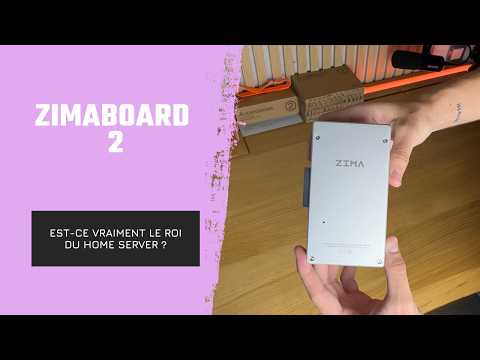
YOTECH examines ZimaBoard 2 as a compact home-server platform, covering its aluminum passive-cooling enclosure, included cables, optional fan, metal drive rack, SATA storage, dual...
How Arthur From Hobby Support Runs Home Network Services on ZimaBoard 2
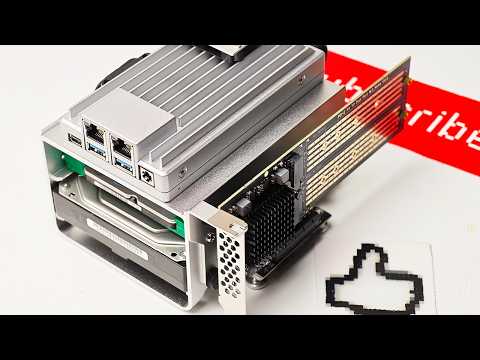
Arthur from Hobby Support Int. assembles a ZimaBoard 2 home server with SATA storage, active cooling, and PCIe expansion, then explores how ZimaOS simplifies...


