
Top 10 Useful Services to Run on an Old PC in 2026


That old PC in the closet may be too slow for your daily desktop, but it is probably still faster than many devices sold specifically as home servers. Give it one useful job—or ten small ones—and suddenly keeping it around makes sense again.
The trick is choosing workloads that match old hardware instead of asking a ten-year-old CPU to behave like a new workstation.
| Rank | Service / Platform | Main Job | CPU Load | RAM Need | Good on Very Old Hardware? |
|---|---|---|---|---|---|
| 1 | ZimaOS | NAS + home server platform | Low–Medium | Medium | Yes, on compatible x86-64 hardware |
| 2 | Jellyfin | Media server | Low–High | Low–Medium | Yes, especially with Direct Play |
| 3 | Pi-hole | Network-wide DNS filtering | Very Low | Very Low | Excellent |
| 4 | Immich | Private photo backup | Medium–High | Medium | Depends on age and RAM |
| 5 | Home Assistant | Smart-home automation | Low–Medium | Low–Medium | Very Good |
| 6 | Syncthing | Device-to-device file sync | Low | Low | Excellent |
| 7 | Tailscale | Remote access / subnet router | Very Low | Very Low | Excellent |
| 8 | Uptime Kuma | Service monitoring | Low | Low | Excellent |
| 9 | Vaultwarden | Password vault | Very Low | Very Low | Excellent |
| 10 | UrBackup | PC backup server | Low–Medium | Low–Medium | Very Good |
ZimaOS is included as a platform rather than a single background service: its role is to turn the old computer itself into the host for storage, apps, backup, and several of the services below.
1. ZimaOS — Turn the Old PC Into a NAS and Home Server

If the machine is currently doing nothing, the most useful first step may be to stop thinking about one application and turn the whole computer into a home server.
ZimaOS is designed for generic x86-64 devices as well as Zima hardware. The current installation guide calls for at least 25 GB of storage, UEFI boot support, and Secure Boot disabled, making many older office PCs, mini PCs, and laptops realistic candidates.
Once installed, the machine can become several things at once:
Old PC
  |
ZimaOS
  |
+-- SMB File Storage
+-- RAID / Storage Pools
+-- Jellyfin / Plex
+-- Immich
+-- Docker Apps
+-- Backups
+-- Remote Access
That is more useful than installing Windows on the machine again and leaving it powered off 95% of the time.
The appeal for an older PC is that the base server workload is not particularly demanding. File sharing, downloading, backups, DNS services, monitoring, and lightweight containers care far more about reliable storage and networking than benchmark-leading CPU performance.
An old laptop can become a working ZimaOS home server without first buying dedicated NAS hardware, which makes this particularly useful as a first self-hosting project.
Best for: turning one unused x86-64 machine into a general-purpose NAS, app server, backup target, and self-hosting platform.
Hardware catch: check NIC, storage-controller, boot-mode, and expansion compatibility before deciding that any old PC is automatically a good NAS. An old laptop with one internal SSD and two USB drives has very different storage potential from an old desktop with several SATA ports.
2. Jellyfin — Turn It Into a Personal Media Server

A dusty PC and a folder full of movies are a surprisingly good match.
Jellyfin can turn the computer into a private Netflix-style server for movies, television, music, and other personal media.
Whether old hardware performs well depends heavily on one distinction:
Direct Play
Media File
   |
Jellyfin
   |
Network
   |
Compatible TV / Phone / Client
If the client already understands the codec, resolution, and container, Jellyfin can send the original file with relatively little processing.
This can make a modest old CPU perfectly usable.
Transcoding
4K HEVC File
     |
Jellyfin
     |
Decode → Convert → Encode
     |
Older CPU at 100%
Transcoding is where things change. Jellyfin's current documentation supports hardware acceleration through Intel Quick Sync, NVIDIA NVENC/NVDEC, AMD VA-API or AMF, and other supported accelerators. A reasonably modern Intel iGPU can therefore make an old PC dramatically more capable than its raw CPU benchmark suggests.
For Intel systems, Jellyfin currently supports Linux VA-API across a broad range of Intel GPUs, while QSV is available on Broadwell-generation Core processors and newer. :contentReference[oaicite:0]{index=0}
The difference between Direct Play and transcoding is also why hardware-accelerated streaming matters more than simply asking whether an old PC can install Jellyfin.
Best for: movie, television, and music libraries where most clients can Direct Play or the PC has a supported hardware video engine.
Hardware catch: old hardware can be excellent for serving files and terrible at 4K software transcoding. Check the iGPU or GPU before assuming the CPU has to do everything.
3. Pi-hole — Give Every Device on the Network Cleaner DNS

Pi-hole may have the best useful-work-per-watt ratio in this entire list.
Pi-hole acts as a network-level DNS sinkhole. Instead of installing filtering software independently on every phone, TV, tablet, laptop, and smart device, DNS requests can pass through one local service.
Phones
Laptops
TVs
Tablets
IoT Devices
    |
  Router
    |
 Pi-hole
    |
Upstream DNS
This is one of the rare services where a genuinely weak old PC is still massive overkill.
Pi-hole's current official prerequisites list only 512 MB RAM and 2 GB of free storage, with 4 GB recommended. It supports x86_64 alongside several ARM architectures. :contentReference[oaicite:1]{index=1}
That means a computer which feels painfully slow as a desktop can still handle network DNS without breaking a sweat.
Best for: very old PCs, thin clients, and low-end mini PCs that need a lightweight 24/7 job.
Hardware catch: DNS is infrastructure. If the only Pi-hole machine goes offline and your network has no working secondary DNS strategy, internet access can appear broken even though the WAN connection is fine.
4. Immich — Build Your Own Private Photo Backup Server

If thousands of family photos are living mostly inside phones and cloud accounts, an old PC can give them another home.
Immich provides automatic mobile photo backup, albums, sharing, timeline browsing, semantic search, facial recognition, maps, and other features associated with modern cloud photo services.
Unlike Pi-hole, though, Immich is not a “run it on anything” workload.
The current official requirements recommend:
- at least 6 GB RAM;
- 8 GB RAM for a smoother experience;
- at least 2 CPU cores;
- 4 cores recommended;
- a 64-bit Linux or Unix-like environment;
- Docker with Docker Compose.
Immich also notes that systems with only 4 GB RAM can be used if machine-learning features are disabled. :contentReference[oaicite:2]{index=2}
The heavier work happens during:
- initial imports;
- thumbnail generation;
- video transcoding;
- facial recognition;
- smart-search indexing.
After the initial library has been processed, normal browsing and incremental phone uploads can be much easier on the machine.
A 14,000-photo Immich library illustrates why storage planning quickly becomes as important as application installation once a personal photo server becomes permanent.
Best for: an old PC with roughly 8 GB RAM or more, decent storage, and enough CPU performance for indexing.
Hardware catch: a 2 GB or 4 GB relic is better used for Pi-hole, Tailscale, or monitoring. Immich's database, thumbnails, machine learning, and media processing make it one of the heavier services in this list.
5. Home Assistant — Make the Old PC the Brain of Your Smart Home

Home automation does not need a gaming PC. It needs a machine that is available every day.
Home Assistant officially supports generic 64-bit Intel and AMD PCs, and Home Assistant OS is the recommended installation type for most users.
That makes an old mini PC, office desktop, or small laptop an obvious candidate.
Lights
Sensors
Plugs
Thermostat
Blinds
Cameras
     |
Home Assistant
     |
   Old PC
Normal automations, dashboards, integrations, and sensor histories do not need a powerful GPU. The machine's age matters less than stability, reliable networking, and whether any Zigbee, Z-Wave, Bluetooth, or Thread adapters you need can be connected properly.
Home Assistant's current generic x86 guide expects a 64-bit UEFI-capable machine, a requirement met by many PCs from roughly the last decade. :contentReference[oaicite:3]{index=3}
Best for: old mini PCs and compact systems that can sit quietly on the network 24/7.
Hardware catch: camera analytics, large databases, voice processing, and many heavy add-ons can turn an otherwise lightweight automation server into a much more demanding system.
6. Syncthing — Build a Private File-Sync Node

Sometimes you do not need a private Google Drive. You just want the same folder to exist on two or three computers.
Syncthing synchronizes folders directly between devices rather than requiring a conventional central cloud-storage account.
Laptop
   ↕
Old PC
   ↕
Desktop
   ↕
Other Server
The old PC can become an always-on peer that helps keep important folders available even when the other computers are not online at the same time.
This is useful for:
- documents;
- project folders;
- photos;
- game saves;
- configuration files;
- working copies shared between desktop and laptop.
The current Syncthing documentation continues to center the system around synchronizing folders between explicitly trusted devices. :contentReference[oaicite:4]{index=4}
Best for: low-resource systems where simple file synchronization is more important than running a full collaborative cloud suite.
Hardware catch: synchronization is not automatically backup. If a deletion or bad change is synchronized to every peer, you still need snapshots, versioning, or a separate backup strategy.
7. Tailscale — Turn It Into a Secure Remote-Access Node

An old PC does not need to store anything to be useful. It can simply become the safe way back into your home network.
Tailscale can turn a compatible always-on machine into a subnet router, giving devices in your tailnet access to systems that do not run Tailscale themselves.
Laptop Away From Home
        |
    Tailscale
        |
      Old PC
        |
+-------+-------+
|       |       |
NAS   Printer  LAN Device
The same machine can also operate as an exit node, routing internet traffic through the home connection when selected by a remote client.
Tailscale's documentation notes that almost any device capable of running the client can serve as a subnet router. :contentReference[oaicite:5]{index=5}
That makes this another excellent use for older hardware because the workload is usually much lighter than media transcoding, machine learning, or photo indexing.
Best for: accessing a home NAS, printer, router UI, lab machine, or another private service without exposing each one directly to the public internet.
Hardware catch: routing very high network throughput or using the PC as a heavily used exit node can eventually expose weak CPU or NIC performance.
8. Uptime Kuma — Monitor All the Other Services

Once the old PC is running three or four useful services, the next question is inevitable: how do you know when one quietly stops working?
Uptime Kuma is a lightweight self-hosted monitoring dashboard for HTTP, TCP, ping, DNS, WebSocket, Docker, and other checks.
Jellyfin ------\
Pi-hole --------\
Home Assistant --- Uptime Kuma
NAS ------------/
Website --------/
It can also send notifications through email, Discord, Slack, Telegram, Gotify, ntfy, Pushover, and many other supported services. The current project lists more than 90 notification integrations. :contentReference[oaicite:6]{index=6}
For a growing homelab, this is one of those services that becomes more useful every time another application is added.
Best for: old PCs running several containers, servers, websites, or network services.
Hardware catch: Docker monitoring can require access to the Docker socket. Uptime Kuma explicitly warns that exposing that socket gives the monitoring container significant control over the Docker host, so this configuration should be treated carefully. :contentReference[oaicite:7]{index=7}
9. Vaultwarden — Host a Lightweight Password Vault

A password manager does not need much CPU, which makes it technically ideal for old hardware. It does, however, deserve a much higher security standard than a movie server.
Vaultwarden is a lightweight Bitwarden-compatible server implementation written in Rust and commonly deployed in containers.
Its appeal for an old PC is simple:
Very Small Compute Requirement
          +
Always-On Server
          =
Useful Password Vault
But the consequences of poor configuration are much higher than with Uptime Kuma or Jellyfin.
The Vaultwarden project recommends using its official container images and notes that the Web Vault requires a secure browser context, meaning HTTPS is required except for localhost access. Reverse-proxy deployment is the commonly recommended approach. :contentReference[oaicite:8]{index=8}
At minimum, think about:
- HTTPS;
- timely updates;
- strong account authentication;
- backup of the persistent Vaultwarden data;
- limited administrative exposure;
- remote access through a trusted private path when appropriate.
Best for: users comfortable maintaining a security-sensitive service and its backups.
Hardware catch: the CPU requirement may be tiny, but the reliability and security requirement is not. A failing disk and a six-month-old container image are poor foundations for your password vault.
10. UrBackup — Turn Spare Storage Into a Backup Server
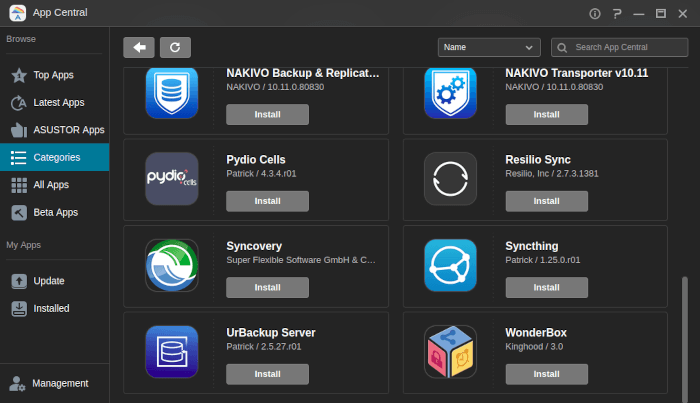
The least glamorous job on this list may be the one you are happiest to have when a laptop SSD dies.
UrBackup is an open-source client/server backup system that combines file and image backups with incremental operation.
The server can sit on the old PC while backup clients run on the computers you actually use:
Family Laptop
Work PC
Desktop
    |
  LAN
    |
Old PC
    |
Backup Storage
The server automatically discovers compatible clients on the same local network and lets users restore files through the Web interface or client. UrBackup's current site reports more than 21,000 running server instances and shows active 2026 releases, including Server 2.5.38 on August 30. :contentReference[oaicite:9]{index=9}
This is exactly the kind of task where an old CPU matters much less than disk capacity and network speed.
Best for: old desktops with room for additional HDDs and households with several PCs that need centralized backup.
Hardware catch: never make the old PC the only backup of important data. A decade-old motherboard, PSU, or HDD can fail too.
What Can Your Old PC Realistically Handle?
“Old PC” can mean anything from a 2009 dual-core office box to a 2020 laptop replaced only because its battery died.
A rough starting point is more useful than treating them as identical.
| Hardware | Good Starting Services | Use More Caution With |
|---|---|---|
| 2–4 GB RAM, older dual-core | Pi-hole, Tailscale, Uptime Kuma, Vaultwarden, light Syncthing | Immich, multiple heavy containers, transcoding |
| 8 GB RAM, 4-core CPU | ZimaOS, Jellyfin Direct Play, Syncthing, Home Assistant, backup services | Large Immich libraries, heavy 4K transcodes |
| 16 GB+ RAM, newer Intel iGPU | Most services in this list, Immich, several containers, Jellyfin hardware transcoding | Large local AI models without suitable GPU/VRAM |
These are practical tiers rather than hard minimum specifications. Storage layout, CPU generation, iGPU capability, NIC speed, and workload size can matter more than RAM alone.
Best Services for a 4 GB Old PC
A genuinely old machine should start with jobs where always-on availability matters more than compute performance:
Pi-hole
   +
Tailscale
   +
Uptime Kuma
   +
Optional Vaultwarden
This can turn a very modest machine into useful network infrastructure without forcing it to index a huge photo library or transcode HEVC video.
Best Services for an 8 GB Old PC
With 8 GB RAM and a reasonable x86 CPU, the machine starts to become a proper general-purpose home server:
ZimaOS
  |
+-- Jellyfin
+-- Syncthing
+-- Tailscale
+-- Uptime Kuma
+-- Backup
A cheap laptop can handle a practical home-server stack when the workloads are chosen around its actual CPU, RAM, storage, and cooling limits.
Old Laptop vs Old Desktop: Which Makes the Better Server?
An old laptop has several surprisingly good server characteristics.
| Old Laptop Advantage | Old Laptop Limitation |
|---|---|
| Built-in battery acts like a short-duration UPS | Battery may already be degraded or swollen |
| Usually relatively low idle power | Limited SATA and PCIe expansion |
| Screen and keyboard available for troubleshooting | Cooling was not designed for some sustained workloads |
| Compact | USB storage often becomes the expansion path |
| Often has integrated Wi-Fi and Ethernet | Some models only have Wi-Fi |
A desktop usually wins when the server's main purpose is storage:
- more internal drive bays;
- more SATA ports;
- PCIe expansion;
- replaceable NICs;
- easier cooling;
- easier RAM upgrades.
The laptop often wins when the primary workloads are lightweight apps rather than a large multi-drive array.
What Should You Not Run on an Old PC?
Large Local AI Models
Technically running a model and productively running it are very different things.
A ten-year-old CPU with 8 GB RAM can run some small quantized models, but local AI is one of the least old-hardware-friendly workloads on this list. Modern inference quickly becomes limited by memory bandwidth, RAM capacity, GPU support, or VRAM.
Heavy 4K Software Transcoding
Jellyfin may run beautifully until the first client requests a codec conversion.
If the PC lacks useful hardware acceleration, repeated 4K transcoding can turn an otherwise excellent media server into a very loud space heater.
The Only Copy of Irreplaceable Data
Family Photos
     |
12-Year-Old HDD
     |
Only Copy
That is not a backup strategy.
Old computers can be perfectly useful servers, but age increases uncertainty around fans, capacitors, batteries, PSUs, hard drives, and connectors.
Every Critical Home Service on One Machine
Running ten containers is easy. Losing ten services at once is less fun.
One Old PC
   |
+-- DNS
+-- Passwords
+-- Smart Home
+-- Photos
+-- Media
+-- Backups
+-- Remote Access

PC Fails
   |
Everything Stops
Think about which services the household can temporarily live without and which ones need redundancy or another fallback.
How Much Does an Old PC Cost to Run 24/7?
The biggest argument against reusing old hardware is often not performance. It is idle power.
A machine using 10 watts at idle and one using 70 watts can both run Pi-hole perfectly well, but they have very different annual electricity costs.
The useful calculation is:
Watts ÷ 1000
× 24 hours
× 365 days
× electricity price
For example, a 50-watt average load consumes about:
0.05 kW × 24 × 365
≈ 438 kWh per year
That does not automatically make the old computer a bad choice. Avoiding a new hardware purchase also has value. But if a power-hungry tower is running only Pi-hole and Tailscale, replacing it with a small low-power device may eventually make more sense.
When Is It Time to Replace the Old PC?
Reuse is attractive until the hardware becomes the thing limiting the project.
An upgrade starts making sense when you repeatedly hit one of these constraints:
- not enough SATA or NVMe connectivity;
- no reliable hardware transcoding;
- idle power is disproportionately high;
- fan noise makes 24/7 use annoying;
- RAM cannot be expanded;
- NIC speed is limiting storage transfers;
- USB storage has become too complicated;
- the machine lacks the PCIe expansion needed for the next workload;
- hardware reliability is becoming questionable.
The goal is not to keep an old PC alive forever. It is to extract useful life from hardware that still solves the problem well.
Final Verdict
An old PC does not need one spectacular new purpose. Several small, boring, always-on jobs can make it more useful than it ever was as a spare desktop.
ZimaOS is the best starting point when the goal is turning the whole x86 machine into a NAS and general home-server platform.
Jellyfin is an excellent use of older hardware when most playback can Direct Play or the PC has a supported video engine.
Pi-hole, Tailscale, Uptime Kuma, Syncthing, and Vaultwarden show how little compute power many genuinely useful self-hosted services require.
Immich makes more sense once the old PC has enough RAM and CPU headroom, while UrBackup is one of the most practical ways to put spare disk capacity to work.
The best reuse project is ultimately the one that matches the machine you already have.
FAQ
What is the most useful thing to do with an old PC?
Turning it into a home server is one of the most flexible options because one machine can provide file storage, media streaming, network DNS, monitoring, backups, remote access, photo hosting, and other self-hosted services.
Can I install ZimaOS on an old PC?
ZimaOS supports compatible generic x86-64 hardware. The current installation requirements include at least 25 GB of storage, UEFI boot mode, and Secure Boot disabled. Hardware compatibility should still be checked before relying on an older computer as permanent storage.
Is 4 GB RAM enough for a home server?
Yes for lightweight services such as Pi-hole, Tailscale, Uptime Kuma, Vaultwarden, and modest Syncthing workloads. Four gigabytes becomes limiting for heavier applications such as Immich and larger multi-container stacks.
Is 8 GB RAM enough for a home server?
Eight gigabytes is enough for many general home-server workloads, including file sharing, Jellyfin Direct Play, Home Assistant, Syncthing, monitoring, DNS, remote access, and several lightweight Docker services.
Can an old PC run Jellyfin?
Yes. Older hardware is often perfectly adequate when clients can Direct Play media. Transcoding is much more demanding, so Intel Quick Sync or another supported hardware video accelerator can make a major difference.
Can an old PC run Immich?
It depends on the hardware. Immich currently requires at least 6 GB RAM and recommends 8 GB plus four CPU cores for a smoother experience. Initial photo indexing and machine-learning jobs are significantly heavier than normal file sharing.
Can an old PC replace a NAS?
It can perform many NAS functions if it has suitable storage connectivity, reliable disks, Ethernet, and a NAS-oriented operating system. A desktop with several SATA ports is usually a better multi-drive NAS candidate than a laptop dependent on several USB disks.
Is an old laptop a good home server?
Yes for lightweight apps, automation, DNS, remote access, monitoring, file sync, and small media workloads. Its built-in battery and relatively low idle power can be advantages, while limited storage expansion is the biggest downside.
Should I use Nextcloud or Syncthing on an old PC?
Use Syncthing when the goal is simple device-to-device folder synchronization with low overhead. Nextcloud makes more sense when you need a broader cloud-style platform with Web files, sharing, collaboration, calendars, contacts, and additional applications.
Is Pi-hole worth running on an entire old PC?
Pi-hole itself needs very little hardware, so a full desktop is usually excessive if Pi-hole is the only service. It makes more sense when the same computer also runs Tailscale, monitoring, file sync, or other lightweight services.
Can an old PC run local AI?
Small quantized models may run on older CPUs, but local AI is far more hardware-sensitive than DNS, file sharing, monitoring, or media serving. Limited RAM, memory bandwidth, and lack of a suitable GPU can make modern inference impractically slow.
Is it safe to keep an old PC running 24/7?
It can be, but inspect cooling, fans, drives, the power supply, laptop batteries, and temperatures first. Important services and data should also have backups because the age of the hardware increases the chance of component failure.

Tech & AI HUB
More to Read
Top 10 Local AI Web UI for Home Labs In 2026
Compare 10 self-hosted local AI web UIs for home labs, covering Ollama support, RAG, agents, multi-user access, setup effort, and ideal use cases.
How Much Does GPT-6 Astra Cost Over Time? When Cloud AI Makes Sense vs Local AI
A practical GPT-6 Astra cost guide covering token usage, long-term AI workloads, cloud vs local tradeoffs, and why hybrid AI infrastructure matters.
GPT-6 Astra vs Local AI: Which Parts of an Agent Should Stay on Your Home Server?
GPT-6 Astra can stay in the cloud while your home server keeps files, memory, RAG, tools, permissions, and durable agent state local.


