
Can You Really Run a Home Server on a Cheap Laptop?


Yes, you can run a home server on a cheap laptop. For light services, it can be one of the easiest ways to start self-hosting without buying a mini PC, NAS, or used server first. A laptop with a modest CPU, 8GB to 16GB of RAM, and an SSD can handle dashboards, Docker apps, personal cloud tools, remote access, Home Assistant, and light media tasks.
The trade-off is that a cheap laptop is not a perfect server. It gives you low cost, low power, a built-in screen, keyboard, and battery, but it also brings limited storage, weaker expansion, laptop cooling limits, aging battery concerns, and more DIY maintenance. It is a strong starter server, not a serious long-term NAS.
A Cheap Laptop Can Be a Real Home Server, but Not the Whole Lab
A cheap laptop becomes useful when the workload is small, steady, and easy to rebuild. That means services like Pi-hole, Home Assistant, Uptime Kuma, Vaultwarden, a small wiki, a lightweight Nextcloud instance, a private dashboard, a reverse proxy, or a few Docker containers. These jobs spend most of their time idle, so they do not need server-grade hardware to be useful.
The problem starts when the laptop becomes the place where everything lives. If it is running services, storing the only copy of family photos, holding backups, serving media, handling remote access, and running experiments at the same time, the risk changes. The laptop is no longer a low-cost learning box. It becomes a single point of failure with limited storage and cooling.
Misconception: if a laptop can run Linux, it does not mean it should become your only storage server. A cheap laptop is good for learning what you need from a home server. It is not the same as a purpose-built NAS, mini PC, or dedicated server.
| Good Fit | Bad Fit |
| Docker apps | Large RAID storage |
| Home Assistant | Heavy virtualization |
| Pi-hole / DNS | Mission-critical backup |
| Personal dashboard | 4K transcoding for many users |
| Lightweight personal cloud | Large media archive |
| Tailscale / VPN node | GPU-heavy local AI |
Why a Cheap Laptop Feels Surprisingly Practical
The biggest advantage is not that a cheap laptop is the best server. It is that it lets you start before you know what your perfect server should be. Many people already have an unused laptop in a drawer, and even a used business laptop can be cheaper than buying dedicated hardware on day one.
A laptop also includes parts that a normal server often does not: screen, keyboard, trackpad, Wi-Fi, charger, and battery. During setup, that matters. If SSH breaks or the network configuration is wrong, you can still open the lid and fix the machine directly. For beginners, that local rescue path reduces frustration.
The built-in battery is also useful during short power flickers. A mini PC or desktop may shut off immediately without a UPS, but a laptop can keep running for a while. That does not make it enterprise-grade, but it does make it forgiving while you are learning.
Start With a Lean Server OS, Not Laptop Habits
A laptop home server should stop behaving like a laptop. The goal is not to keep a normal desktop session running all day. The better pattern is a lean Linux server setup with SSH, fixed network access, minimal background apps, and only the services you actually need.
Ubuntu Server or Debian is usually a cleaner starting point than a full desktop OS. Ubuntu’s lean Linux server setup documentation covers the kind of server basics that matter here: installation, networking, security, SSH, web services, containers, storage, and backups. For a cheap laptop, fewer desktop features means more memory and CPU left for services.
Once the OS is stable, Docker Compose is often the easiest way to manage apps. Docker’s official Docker Engine on Linux documentation supports the basic setup path for running containers on a Linux server. The important part is not installing ten apps at once. Start with two or three services, watch resource use, then add more only when the laptop stays stable.
What Services Can Actually Live on It?
The best laptop-server workloads are boring in a good way. Pi-hole or AdGuard Home barely stresses the CPU. Uptime Kuma, a homepage dashboard, a small wiki, Syncthing, File Browser, or a reverse proxy can also run comfortably on modest hardware. These services give you real home-lab value without turning the laptop into a heat machine.
Personal cloud tools can work, but they need more restraint. Nextcloud on a cheap laptop is reasonable for one household, a few users, and modest storage. It becomes less attractive if you expect heavy photo sync, large file archives, many users, or constant database writes. The issue is not whether the app launches. The issue is whether storage, backups, and maintenance stay clean after months of use.
Media serving also depends on expectations. Direct-play Jellyfin or Plex for a few files can be fine if the client devices support the format. Heavy transcoding is different. A cheap laptop with an older CPU may struggle, run hot, or become noisy. For 4K transcoding, multiple users, or a large library, a better mini PC or NAS-plus-compute setup is usually a cleaner answer.
The Built-In Battery Helps, but It Is Not a Free UPS
The battery is one reason laptops feel attractive as home servers. If the power flickers, the laptop may keep running. If you configure graceful shutdown, the battery can give the system time to stop services safely. For a learning server or light self-hosting box, that can be useful.
But the battery also becomes one of the risks. Cheap laptops are often old laptops, and old batteries may have reduced capacity, heat sensitivity, swelling risk, or unpredictable shutdown behavior. Microsoft’s laptop battery heat and charging care guidance is a reminder that heat and long periods at high charge can affect battery health over time.
The practical rule is simple: treat the laptop battery as a convenience, not a reliability plan. Check for swelling. Keep the machine ventilated. Do not hide it under papers, inside a drawer, or on fabric. If the battery is damaged or visibly swollen, stop using it as a server until the hardware is made safe.
Storage Is Where the Laptop Stops Feeling Like a NAS
Storage is the first hard wall. Most cheap laptops have one internal 2.5-inch bay, one M.2 slot, or both. That is enough for an SSD and some app data, but it is not the same as a multi-bay NAS. There is usually no clean drive redundancy, no hot-swap design, no serious drive cooling, and no simple path to a large disk pool.
External USB drives can help, but they should be used carefully. A USB drive is fine for temporary storage, a secondary backup, or a small archive that is copied elsewhere. It is less ideal as the main always-on storage pool for important data. Cables get bumped, enclosures sleep, drives run warm, and recovery becomes messier than it should be.
Misconception: a laptop can share files, but that does not make it a reliable NAS. If the data is important, the laptop should not be the only copy. Use it to host the service, test the workflow, and learn your storage needs. Put long-term archives, photo libraries, and serious backups on storage designed for that job.
Cooling and Lid-Closed Operation Need Real Attention
Laptops are built around compact thermal design. That is fine for normal bursts of work, but a server is different. It may run all day, stay plugged in, sit in one location, and keep background services active. Heat that seems harmless during a short test can become a problem after weeks of 24/7 operation.
Lid-closed operation needs testing, not assumptions. Some laptops vent through the keyboard area. Some trap more heat when closed. Some sleep unexpectedly unless the OS power settings are changed. A home server should not disappear because the lid was shut, the charger was unplugged, or the system entered suspend mode after an update.
The safer pattern is to keep the laptop on a hard surface or stand, clean the vents, monitor temperatures, and avoid sustained high-load jobs. If the fan constantly ramps, the chassis stays hot, or the CPU throttles under normal services, the workload is too heavy for that machine. The laptop may be cheap, but heat is still the bill you eventually pay.
Remote Access Should Be Private First
A cheap laptop can make a good remote-access node, but it should not be exposed casually to the public internet. Beginners often think port forwarding is the fastest way to reach home services. It is also one of the easiest ways to create a security problem.
Start with LAN-only access. Give the laptop a stable local address through DHCP reservation or static IP, manage it over SSH, and confirm the services work from inside the home network first. For remote access, a VPN-style tool is safer than opening random ports. Tailscale’s secure remote access for Linux server documentation supports the common pattern: install it on Linux, join your private network, and access services without exposing them directly.
Misconception: exposing a cheap server directly to the internet is not cheaper if it creates a security problem. A low-cost server should still follow serious network boundaries. Use VPN or tunnel access, keep services updated, and avoid public admin panels unless you know exactly what you are doing.
Cheap Laptop vs Mini PC vs NAS: The Real Difference
A cheap laptop is usually the best zero-cost starting point. It is useful when you want to learn Linux, run a few containers, test self-hosting, and decide what matters before spending money. Its weakness is that the setup can become messy as storage, uptime, and cooling needs grow.
A mini PC is usually the cleaner long-term compute box. It uses little power, takes less space, and often handles Docker, Home Assistant, lightweight VMs, and media services more neatly than an aging laptop. But it still does not solve large internal storage unless you choose a special model or pair it with external storage.
A NAS is different. It is the storage foundation: drive bays, shared folders, snapshots, backups, media libraries, and long-term data organization. It may run apps, but its main value is keeping data available and protected. That is why many users eventually move from “cheap laptop as everything” to “compute node plus NAS.”
| Choice | Best At | Weak At |
| Cheap laptop | Starting cheaply, learning, light services | Storage expansion, cooling, long-term reliability |
| Mini PC | Quiet low-power compute | Large internal storage |
| NAS | Storage, backups, shared files | Heavy compute unless high-end |
| Used server | VMs, expansion, enterprise learning | Noise, power, space |
When a Cheap Laptop Is Good Enough
A cheap laptop is good enough when the home server is mostly for one household, a few services, modest storage, and learning. It is a good place to test what you actually use instead of buying a NAS, mini PC, and switches before you know your workload.
It is also good enough when failure would be annoying but not catastrophic. If the laptop dies and you can rebuild from Docker Compose files, exported configs, and backed-up data, the risk is reasonable. The server becomes a learning platform rather than a fragile dependency.
The key is to keep the promise small. Run the laptop as a service host, not a full storage platform. Keep important data elsewhere. Back up configs. Monitor heat. Avoid stuffing it with every self-hosted app you find. A cheap laptop works best when it stays boring.
When You Should Move Beyond the Laptop
You should move beyond the laptop when storage becomes important. If you need multiple drives, a large media library, family photo protection, PC backups, or a private cloud that holds real data, a NAS is the better foundation. A laptop can host a file service, but it is not the cleanest place to protect files.
You should also move beyond the laptop when compute becomes steady and demanding. Many VMs, heavy databases, constant media transcoding, local AI inference, or multi-user workloads can turn a cheap laptop into a hot, noisy, unreliable box. At that point, a mini PC, workstation, or dedicated server is not a luxury. It is the correct tool.
For a cleaner upgrade path, a compact compute node such as a ZimaBoard 2 personal server can take over always-on apps, while a ZimaCube 2 NAS can hold backups, media, archives, and private cloud data. The point is not to replace learning with buying hardware; it is to separate compute from storage once the laptop teaches you what matters.
A Practical Starter Setup
Start by making the laptop boring and predictable. Replace an old hard drive with an SSD if needed, install a lean server OS, set a fixed network address, enable SSH, and disable sleep or lid suspend. A server that randomly sleeps is not a server. It is a laptop pretending to be one.
Then add only the first few services. A good starter stack might be Docker Compose, a dashboard, Pi-hole or AdGuard Home, Uptime Kuma, and Tailscale. After that, add one larger app such as Nextcloud, Jellyfin, or Home Assistant only if temperatures, memory, and storage still look stable.
Finally, plan for rebuild from the beginning. Keep your Compose files, app configs, and important data backed up somewhere else. Write down the setup steps. If the laptop fails, you should be able to move the services to a mini PC, NAS, or server without starting from zero.
Decision Checklist
The decision is not whether a cheap laptop can run server software. It can. The real question is whether the laptop matches the risk, storage, and uptime expectations of the job you want it to do.
Choose the laptop when the project is low-cost, low-risk, and mostly educational. Choose a mini PC when the services are becoming permanent and you want a cleaner always-on compute box. Choose a NAS when the data itself matters more than the experiment.
If you are unsure, start with the laptop, but keep the data portable. That way the first server becomes a stepping stone rather than a trap.
| Question | Cheap Laptop | Mini PC | NAS |
| Need lowest cost? | Strong | Medium | Weak |
| Need quiet 24/7 compute? | Medium | Strong | Strong |
| Need large storage? | Weak | Weak | Strong |
| Need Docker apps? | Good | Strong | Medium |
| Need many VMs? | Weak/medium | Medium | Weak |
| Need long-term data protection? | Weak | Weak | Strong |
Final Takeaway
A cheap laptop can absolutely run a home server if the workload is realistic. It is good for learning Linux, running a few Docker apps, hosting dashboards, using Home Assistant, testing personal cloud tools, running a VPN node, and serving light media.
But it is not a serious NAS, not a heavy virtualization host, and not the ideal long-term platform for critical backups or large data. The limits are not theoretical: storage expansion is awkward, cooling needs attention, and old batteries need care.
Treat the laptop as a low-cost starting point. Once your storage, uptime, or performance needs grow, move storage to a NAS and compute to a cleaner mini PC, personal server, or dedicated server. Outgrowing the laptop does not mean the laptop failed. It means it helped you learn what to build next.
FAQ
Can any cheap laptop become a home server?
Most x86 laptops can run light home-server workloads if they have enough RAM, an SSD, stable power, and a supported operating system. Very old laptops, Chromebooks, or machines with weak storage and poor cooling may be too limited for anything beyond basic experiments.
Should I use Linux or Windows for a laptop home server?
Linux is usually cleaner for a server because it can run headless, use fewer resources, and work well with SSH and Docker. Windows can work if you know it well, but sleep behavior, updates, and desktop overhead can make it less predictable for always-on services.
Can a cheap laptop run Docker?
Yes, if the CPU, RAM, and storage are reasonable. Docker is one of the best uses for a laptop server because apps are easier to deploy, remove, back up, and migrate later.
Is a laptop good for Plex or Jellyfin?
It can be good for direct play and small libraries. Heavy transcoding, especially 4K transcoding or multiple users, is a different workload and may be better on a mini PC with a capable iGPU or a stronger media server.
Can I use external USB drives for storage?
You can, but they are better for secondary storage, temporary files, or backups than for the only copy of important data. For long-term multi-drive storage, a NAS is cleaner and safer.
Is the laptop battery a UPS?
It can act like a small outage buffer, but it is not a full reliability plan. Old batteries can degrade, swell, or fail, so the battery should be monitored and important data should still be backed up elsewhere.
When should I replace the laptop with better hardware?
Move on when you need multiple drives, better uptime, many VMs, sustained media transcoding, local AI inference, or reliable backups. At that point, a mini PC for compute and a NAS for storage is usually a better long-term setup.

Recommended products

Support & Tips
More to Read
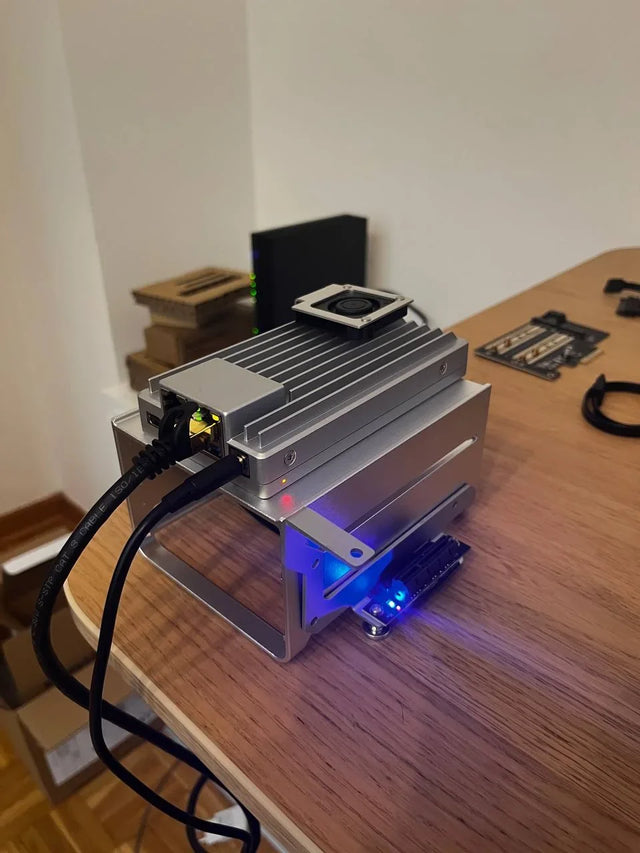
Home Assistant Works on Wi-Fi but Fails on Ethernet or VPN
Test each network path separately, verify interface and routing state, distinguish direct IP from discovery, then repair only the failed layer.
How to Decommission Home Assistant Without Leaving Unprotected Data
Prove the replacement or archive, revoke every trust path, sanitize each data-bearing device, and retain only documented protected recovery copies.
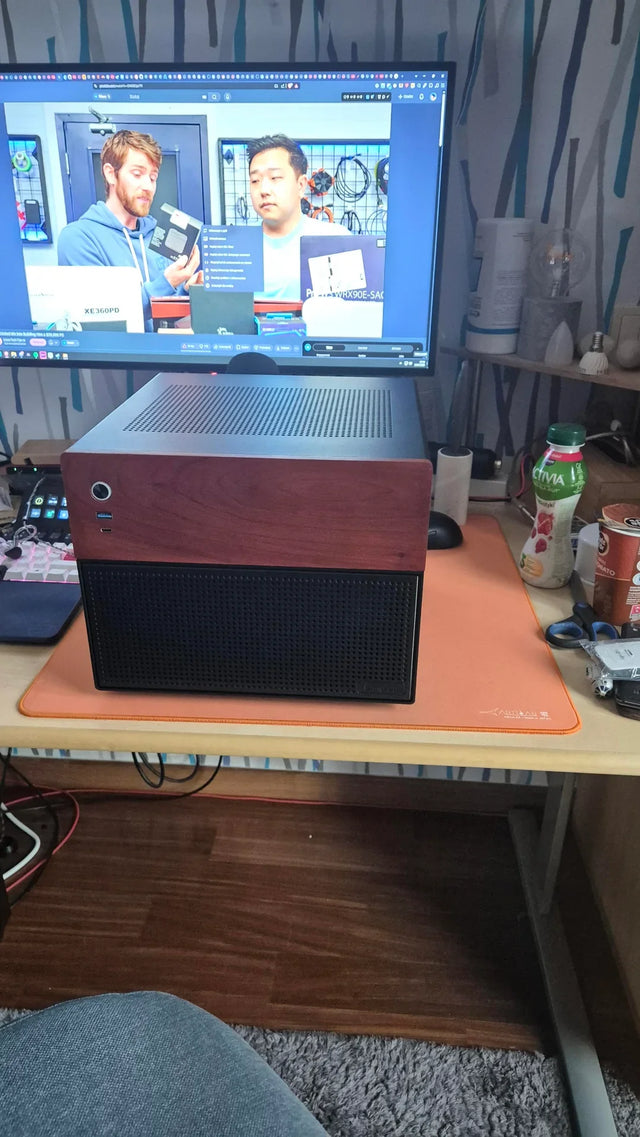
Should You Use Automatic Updates for Home Assistant on a Home Server?
Choose manual, notification-only, or staged automatic updates from household impact, compatibility risk, observation time, and recovery readiness.


