


NASTIER: A Printed ZimaBlade Micro NAS with Mirrored SSDs


Thank you to Cameron Coward, who shared NASTIER on Reddit as u/TheSerialHobbyist: a ZimaBlade micro NAS with two mirrored SATA SSDs inside a red-and-yellow printed enclosure. The project gives a small server a clear household task, keeping a synchronized copy of documents on local storage that can also be reached over the network.
The Reddit showcase leads to a more detailed build record. In his original ZimaBlade review, Coward identifies a ZimaBlade 7700 with 8 GB RAM and discloses that the review unit was supplied. NASTIER was the project he created to put it to use.
A Small Server Gets a Specific Storage Job
The name stands for Network-Attached Storage; Tiny; Inexpensive; Easy; Redundant. The hardware centers on a ZimaBlade and two 1 TB SATA SSDs configured as RAID 1. Mirroring makes the nominal data capacity approximately 1 TB before filesystem overhead, rather than adding both disk capacities together.
That choice gives the project a concrete purpose. A small document collection does not necessarily need a large multi-bay enclosure. The interesting question is whether the device makes an everyday workflow easier: saving documents on a computer, synchronizing them to the NAS and finding them again without moving drives between machines.

| Layer | Purpose in this project |
|---|---|
| ZimaBlade | Runs the server software |
| Two mirrored SSDs | Provide the data volume with disk redundancy |
| Printed enclosure | Keeps the board and storage together |
| CasaOS and Cockpit | Provide file access and storage administration |
| Syncthing | Synchronizes documents from the desktop |
The Printed Case Organizes a Complete Assembly
Coward’s NASTIER build guide documents the two-piece enclosure, retained metal heatsink base, SATA Y-cable and front power/reset buttons. The assembly photographs show the board in the rear section and the SSDs before they slide into place. They explain the layout more clearly than the finished exterior alone.

The enclosure’s contribution is organization. A board and two loose drives can already perform storage work, but they are harder to move and easier to disconnect accidentally. Bringing them together gives the project a defined footprint and an obvious place on a shelf. The benefit is visible without needing a performance claim about the printed shell.
For anyone making a different enclosure, service access is a useful design question. Can the drive cables be reached without pulling on them? Can the cover be opened without disturbing the board? These questions follow from the assembly, but the creator’s photographs should not be treated as measurements of every possible replacement drive or cable.
File Access and Storage Administration Are Separate Views
The build uses CasaOS for file access and applications, with Cockpit managing the mirrored storage. The creator records an important interface limitation in that historical setup: the RAID volume was usable through Files even though the CasaOS storage overview did not represent it properly. Cockpit supplied the storage view.
That distinction is useful well beyond this particular interface. Seeing a file in a browser confirms that the path is reachable; it does not by itself confirm the health of the disks underneath. Conversely, a healthy disk report does not establish that an application is writing to the intended directory. A storage workflow needs both checks.
Cockpit’s official application list identifies its storage component and support for RAID, partitions and mounts. That is the appropriate reference for the administration layer. In a similar build, recording which interface answers which question can prevent an apparent dashboard discrepancy from becoming a confusing storage diagnosis.

Synchronization Turns the NAS into Part of a Routine
The documented workflow uses Syncthing to copy the desktop’s Documents folder into the NAS storage. A network share provides another way to access files. These are different conveniences: synchronization moves selected changes between devices, while a share gives a computer access to a folder on the server.
For someone adapting the idea, the folder choice matters more than the number of application tiles installed. Starting with a well-defined set of documents makes it easier to see what should be present, which device originated a change and whether a transfer has finished. It also keeps a first storage project tied to a task the household already understands.
A useful acceptance check would be to save a disposable test file on the desktop, confirm its appearance at the NAS destination and then open it from the intended client. That is a suggested check for a new deployment, rather than a test result attributed to Coward. The goal is to verify the complete route the real documents will take.
Mirroring and Keeping Earlier Files Solve Different Problems
RAID 1 provides redundancy against a member disk failure, but both disks still belong to one running system. Deleting or overwriting a file can affect the mirrored data just as surely as a deliberate edit. A second physical disk inside the same array does not automatically supply an older version of the document.
Syncthing’s versioning documentation explains that retaining old versions is a separate, per-folder and per-device setting, disabled by default. It applies to changes received from another device. The original guide mentions versioning as an option; it does not establish that it was enabled in the completed build.
For a household NAS, that leads to a separate recovery question: where would an earlier copy come from if the current synchronized file were wrong? An independent backup destination and a verified restore process address a different concern from disk redundancy. These are considerations for adapting the design, not additional protections claimed for NASTIER.
Our ZimaBlade family photo server story explores another everyday storage workflow. The Proxbox 360 backup-server project offers a different example of giving compact hardware a defined data role.
FAQ
Does mirroring two 1 TB SSDs provide 2 TB of usable space?
No. Both members store the mirrored data, giving approximately one drive’s nominal capacity before filesystem overhead.
Where are the original case files linked?
The creator’s guide links to the NASTIER model page on Printables. Use that creator-linked destination for the design; availability and revisions remain with its host.
Is this a ZimaOS project?
The documented software is CasaOS with Cockpit and Syncthing. The story preserves that original stack rather than substituting another operating system.
Can the mirror replace a separate backup?
No. Disk redundancy does not supply independent recovery from every deletion, overwrite or whole-device loss. Recovery planning remains a separate part of a similar deployment.
Conclusion
NASTIER connects a distinctive printed enclosure to a straightforward purpose: a ZimaBlade keeping documents on mirrored local storage. Its useful detail lies in the whole workflow, from the drive layout to the separate storage interface and synchronized folder. Following that workflow also makes the remaining recovery questions easier to identify before important files depend on it.
Welcome to the ZimaSpace community! Share your setup, ask questions, and explore practical build guides, real user stories, and product updates with fellow self-hosters.

Zima Campaign Hub
More to Read
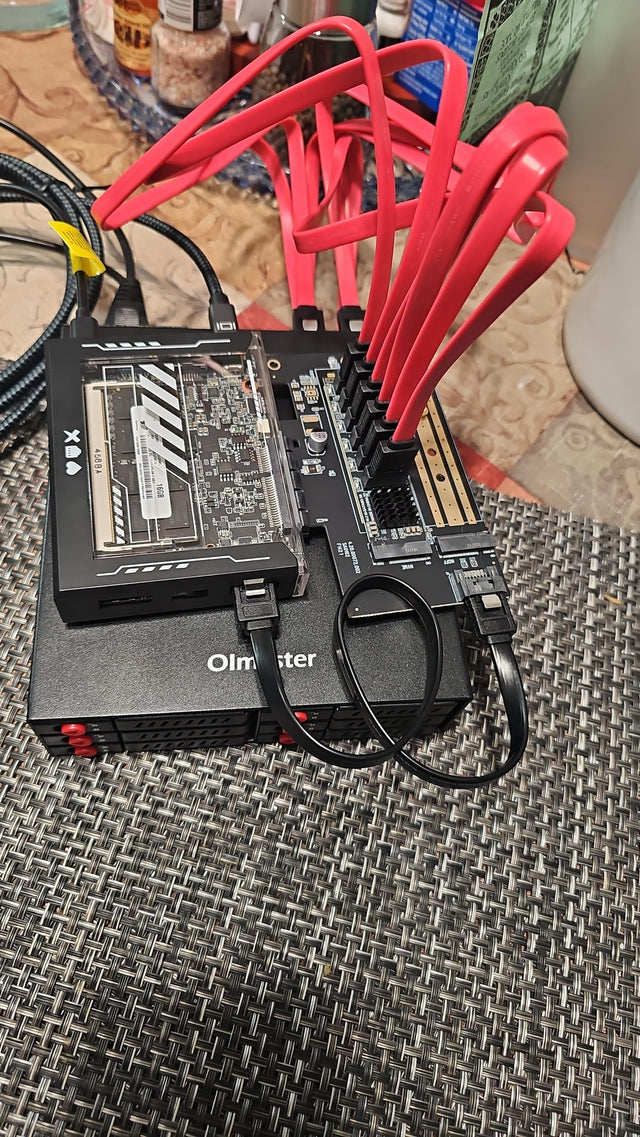
Before First Boot: A ZimaBlade 7700 NAS Plan with Six Drives
A first ZimaBlade 7700 assembly pairs a six-drive cage with plans for TrueNAS, Jellyfin and Minecraft, before power and storage configuration are verified.
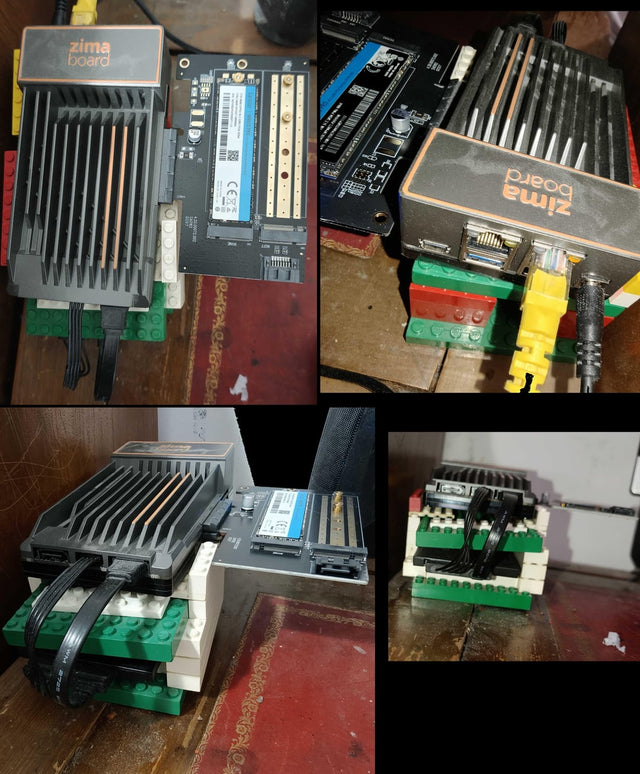
A ZimaBoard LEGO Prototype Looking for a Permanent Enclosure
A temporary LEGO support holds a ZimaBoard and NVMe card while the owner plans a low-cost enclosure for two extra SSDs without a 3D...
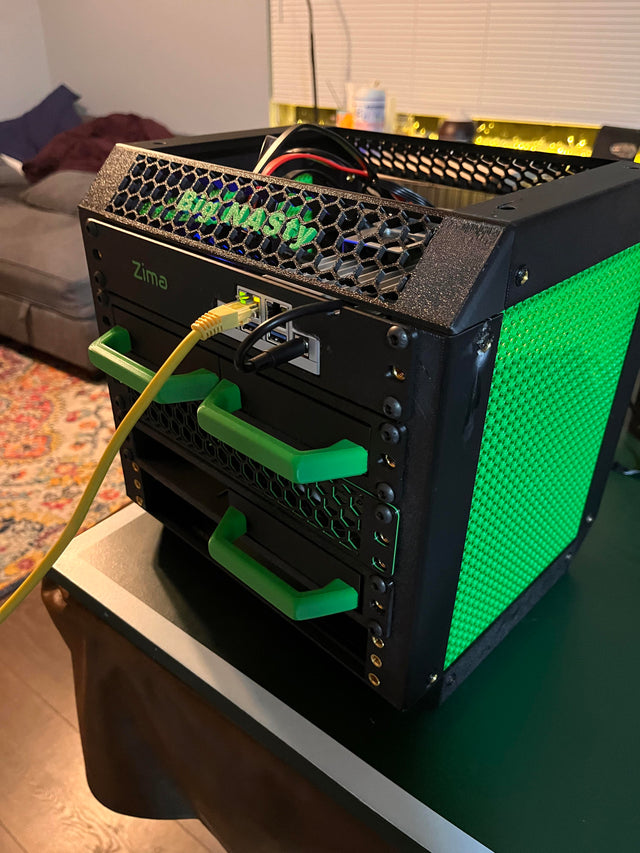
A Printed Ten-Inch ZimaBoard 2 Rack with Four Drive Trays
Gerrit3D documents a printed ZimaBoard 2 rack from threaded rails to drive trays and cabling, with original construction photographs and clear limits.


