
America Recycles Day 2026: Before You Recycle an Old Computer


America Recycles Day is November 15, and an old computer deserves a plan before it leaves your home. First decide whether it can still be useful. Then preserve the files you need, verify those copies, handle accounts and stored data, and choose a suitable reuse or recycling route. Clearing a desk should not mean losing the only copy of a family archive.
A retired laptop can contain much more than its Documents folder: browser profiles, recovery codes, email archives, photo catalogs, and files stored under another family member's account. This guide walks through a practical retirement process, from deciding whether to repair a machine to handing it over with a clear record of what happened to its data.
What Is America Recycles Day?
America Recycles Day, a Keep America Beautiful program, takes place every November 15. In 2026, the date falls on a Sunday. The observance encourages recycling awareness and participation; local collection events have their own accepted materials, opening times, and eligibility rules.
Electronics need particular attention because they combine reusable components, different materials, batteries, and potentially sensitive information. A working computer may be useful to another person. A damaged device may need a specialist collection route. Neither belongs in an ordinary recycling bin simply because the case contains metal.
For a household, the useful outcome is a completed handover rather than a pile moved into a different room. That means identifying the next owner or facility, checking what they will accept, and making sure the important information has a safe destination before the hardware goes.
Should You Repair, Reuse, Donate, or Recycle a Computer?
Begin with condition and purpose. Does the machine start reliably? Can it run a supported operating system? Is there a real next job for it? Keeping a device in service is meaningful when somebody will use and maintain it, not when it becomes an unattended server with no updates.
The EPA's electronics donation and recycling guidance recommends considering upgrades before replacement and addressing personal information before handover. The decision depends on the actual device, including its security support, repair cost, reliability, and energy use.
| Situation | Possible next step | Check before committing |
|---|---|---|
| Working machine with a fixable limitation | Repair or upgrade it for its current owner. | Compatibility, supported software, cost, and component condition. |
| Reliable machine with a specific new job | Repurpose it for a modest local service or learning project. | Actual workload, maintenance, power draw, and backup requirements. |
| Usable machine you no longer need | Sell or donate it through an appropriate recipient. | Recipient requirements, data sanitization, accessories, and account locks. |
| Broken or unsupported machine without a sensible repair | Use an electronics collection or recycling service. | Accepted items, fees, batteries, and handling of data-bearing media. |
| Device with a damaged or swollen battery | Seek instructions from a qualified battery or electronics service. | Safe handling and transport instructions before moving or shipping it. |
Be honest about a device's limitations when passing it on. Include known faults and missing parts. A donation organization may prefer fewer complete, supported computers to a box of machines that require extensive repairs. Ask first, and do not leave equipment outside a collection site.
Which Files Should You Save Before Recycling a PC?
Make an inventory before copying. Check each person's user folders, attached drives, and application-specific storage. Look for photo libraries, tax documents, school projects, password manager exports, virtual machines, and locally stored email. Some applications require an export procedure to preserve information in a usable form.
Check whether a cloud folder contains full local files or only placeholders. Signing in on another device is not the same as proving that every item has synchronized. Open a selection from the destination and confirm that the account holding the cloud copy will remain accessible after retirement.
Preserve the information needed to understand the files, too. Photo edits may live in a catalog or sidecar files. A project might depend on a particular application version. Record enough context for the next machine: software name, export format, date, and where the original files came from.
For older family material, our digital preservation guide explains why filenames and context deserve attention alongside the files themselves. Keeping an unexplained folder is better than losing it, but a documented archive will be easier to use later.
How Do You Verify a Backup Before Erasing the Original?
A completed copy operation is the start of verification, not the end. Work from the destination rather than from recent-file shortcuts that may still point to the old drive. Confirm that the expected folders exist and open representative files from each important category.
- Copy the planned material. Use a destination with enough free space and keep the source intact while checking.
- Review completeness. Compare the expected folders and file counts where practical, noting items intentionally excluded.
- Open real examples. Try documents, photos, videos, and application exports from the new location.
- Check recovery dependencies. Make sure you can access passwords, encryption keys, and software needed to read the archive.
- Keep an independent copy. Protect important files against failure or mistakes at the primary destination.
Checksums can help identify whether copied file contents match, but they do not prove that you selected every important file or that a proprietary database can be restored. For a critical application, test its own restore or import procedure on a suitable system.
Do not erase the only remaining source while an unresolved copy or restore problem exists. Our RAID and 3-2-1 backup guide distinguishes storage availability from independent backups. A second folder on the same drive is not protection against that drive failing.
Is Deleting Files Enough Before Donating a Computer?
Deleting files or emptying a trash folder should not be treated as secure sanitization. A quick format also does not establish that all previously stored information is inaccessible. The appropriate process depends on the media, the information's sensitivity, and whether the device will be reused or destroyed.
NIST SP 800-88 Revision 2, published in September 2025, provides a current framework for planning media sanitization. For household equipment, follow the device or storage manufacturer's applicable instructions and verify the outcome. Do not assume that one overwrite command, a factory reset, or removing an account is suitable for every drive.
Flash storage and hard drives can require different approaches. Encryption-based sanitization also has prerequisites; turning encryption on at the last moment is not a universal substitute for a proper process. If you cannot confirm what a method does, use a qualified service that can explain the method, media coverage, and evidence it provides.
After preserving required information, address signed-in services, device associations, activation locks, and software licenses according to the relevant provider's instructions. Include any other storage in the device: a second drive, memory card, or external disk is easy to overlook. Record what was sanitized, when, and how you checked it.
When Does Reusing an Old PC as a Home Server Make Sense?
A retired PC may be suitable for a limited learning project, a local file-sharing service, or a secondary backup destination. Suitability depends on its condition and supported software, as well as whether someone will maintain it. An old machine with an unreliable drive should not become the only home for important files.
Our old-laptop home server guide offers one way to explore reuse. Check hardware compatibility and the intended workload before installing anything. Keep experiments separate from the household's primary archive until recovery and reliability have been tested.
Power use deserves measurement. A desktop left on continuously may consume more electricity than expected, while a device used occasionally has a different operating pattern. Compare real idle and workload behavior rather than treating reuse as proof of lower total environmental impact. There is no useful sustainability claim without a clear comparison.
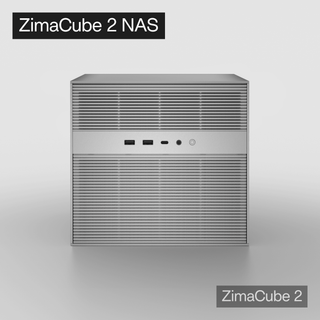
If your actual need is a dedicated shared archive rather than another experiment, ZimaCube 2 is an option to evaluate against capacity, applications, and support needs. An existing NAS or external drive may already be enough for the migration. Buying new hardware is not a requirement for responsible electronics recycling, and a NAS does not automatically sanitize the old computer or create independent backups.
How Do You Choose an Electronics Recycler?
Contact the collection service before visiting. Ask whether it accepts household computers, loose drives, monitors, and battery-containing devices. Confirm any fees, residency requirements, appointment rules, and restrictions on damaged batteries. An event advertised as recycling may accept only certain categories.
The EPA's certified electronics recyclers guidance identifies R2 and e-Stewards as certification programs. Check the facility's current certification and service scope, then ask specifically about data-bearing media. A collection site's name alone does not tell you which data services are included in your handover.
Lithium-ion batteries and devices containing them should not go into household garbage or curbside recycling bins. Follow the receiving service's instructions for preparation and transport. If a battery is swollen, damaged, leaking, or difficult to access, do not puncture it or force it out of a sealed device; obtain appropriate handling guidance.
Keep a receipt where available, especially when paying for data sanitization or destruction. Store it with your inventory and backup notes. This gives you a record of which device left the household and which provider received it, without relying on memory months later.
Your America Recycles Day Handover Checklist
Use November 15 as a deadline for one manageable batch. A single computer retired properly is a better outcome than several machines handed over with unresolved files or unknown account access.
- List each device, its storage, its condition, and its intended next destination.
- Confirm whether repair, reuse, sale, or donation is realistic.
- Copy important files, test the destination, and keep an independent backup.
- Complete an appropriate sanitization process and address account associations.
- Confirm the recipient's requirements, including battery handling and fees.
- Record the handover and retain relevant receipts.
If an important step is incomplete, postpone that device's handover. The calendar is a useful reminder, not a reason to rush an irreversible erasure. You can still organize the inventory or confirm a collection appointment while a difficult archive is being checked.
Give the Hardware and the Data a Clear Next Step
Responsible retirement has two parallel outcomes: a suitable destination for the equipment and a verified plan for the information it held. Reuse can extend a device's useful life; appropriate recycling can handle equipment that no longer has a sensible job. Both require preparation.
Start with the oldest machine whose purpose is unclear. Find out what it contains, preserve what matters, and decide what comes next. That turns America Recycles Day into a practical improvement to your home rather than another annual reminder to deal with a drawer of electronics.
FAQ: America Recycles Day and Old Computers
When is America Recycles Day 2026?
It is Sunday, November 15, 2026. Local events may take place on another date, so verify the organizer's schedule and accepted items before traveling.
Can I put a laptop in the household recycling bin?
No. Use a suitable electronics collection or reuse service. Battery-containing electronics require appropriate handling, and the recipient should confirm what it accepts.
Should I remove the hard drive before donating a PC?
That depends on the recipient's requirements and your data-handling plan. Some programs need a complete working computer; others accept devices without drives. Removing a drive does not sanitize it, so retain responsibility for its safe storage, sanitization, or disposal.
Does a NAS replace the need to erase the old computer?
No. A NAS can hold a migration copy or backup, but the original device still needs an appropriate sanitization process before handover. Verify the copy before changing the source.
Is keeping an old PC running always the greener choice?
No universal answer applies. Consider its useful purpose, reliability, repair options, security support, and measured energy use. Avoid claiming an environmental benefit from age, size, or reuse alone.
Cover image: electronics collection photograph published by the US EPA. Illustrative image, not a photograph of a 2026 collection event.

Recommended products
Zima Campaign Hub
More to Read
SC26 2026: What Supercomputing Can Teach a Home AI Lab
Preview SC26 in Chicago, November 15–20, 2026. Explore practical lessons for local AI memory, storage, networking, benchmarks, and home-lab planning.
World Usability Day 2026: Make Home Technology Easier to Use
Mark World Usability Day 2026 with practical checks for family file sharing, accessible interfaces, AI controls, and home-server usability.

From an Xbox 360 Shell to a Proxmox Backup Server
A college project grew into a recycled-hardware homelab, an Xbox 360 enclosure and a separate backup server. Follow the original builder's journey.


