
How to Reduce Heat and Disk Activity in an Always-On Plex Server


Reducing heat and disk activity in an always-on Plex server starts with identifying which work actually keeps the CPU, storage, and fans busy.
The goal is not to force every drive to sleep or make the server silent at any cost. It is to separate Plex state from bulk media, schedule media-touching work, use efficient acceleration where it fits, and verify that the resulting thermal and storage behavior still supports normal playback and maintenance.
Measure CPU Heat and Disk Activity Separately
High package temperature, fan speed, and hard-drive activity can come from different workloads. A transcode may heat the processor without touching every media disk, while a library scan may wake drives with little CPU load.
On one N100 Plex setup, hardware transcoding changed the host from sustained CPU work to a lower-power GPU path; the measured power draw during transcoding fell after the buffer filled, showing why workload path matters more than the word “idle.”
Log CPU temperature, package power, drive activity, and the Plex task running at the same time. Change the component responsible for the heat or wake-up instead of applying one global power policy.
Keep Plex State Away From Bulk Media When Practical
Database, metadata, logs, and cache can remain active even when no movie is streaming. If those small operations live on the same spinning volume as the media library, ordinary server-state work may keep the whole media tier awake.
Plex can generate scheduled and idle disk activity even when no viewer is active, so app-data and media activity should be monitored separately.
Place Plex app data on SSD when the layout supports it, then observe whether the media disks stay quiet outside scans and playback. Do not assume the split will eliminate every wake-up because library checks can still touch source paths.
Schedule Work That Must Touch the Media Drives
Thumbnail generation, analysis, scans, backup reads, and companion automation may need to access source media. These tasks should run in a deliberate window rather than being scattered across the day.
Thumbnail and analysis jobs can wake media drives, so spin-down behavior depends on which scheduled features still need source-file access.
Group disk-touching work into a quiet period, then compare daily spin-up count and maintenance completion before and after. If the server repeatedly misses maintenance, extend the window instead of making sleep more aggressive.

Reduce Compute Heat Without Hiding a Capacity Problem
Hardware acceleration, quieter task scheduling, and lower background overlap can reduce heat, but they should not be used to mask a server that is already undersized for the required streams.
When the client and codec path allow it, hardware-accelerated streaming can move video conversion away from sustained general-CPU work and change the thermal profile of a compact host.
Validate the final design with the busiest normal stream plus maintenance activity. Keep it when temperatures, fan behavior, and disk activity remain acceptable without missed tasks or playback instability.

Recommended products

NAS & Server Setup
More to Read
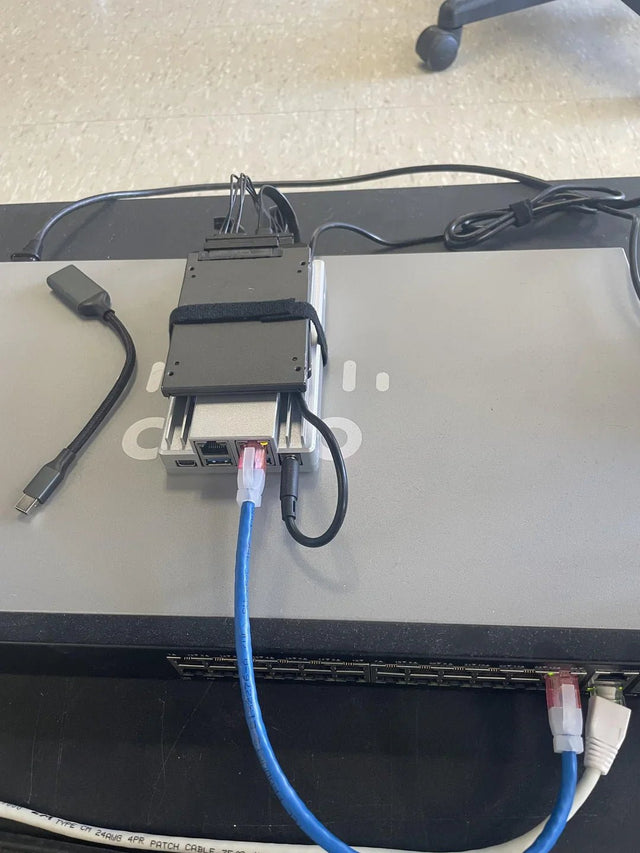
How AI-Like Analysis and Automation Change Jellyfin Storage and Compute Needs
Automation and adjacent AI analysis add scans, derived data, CPU/GPU work, cache, scratch space, and background scheduling beyond ordinary Jellyfin playback.
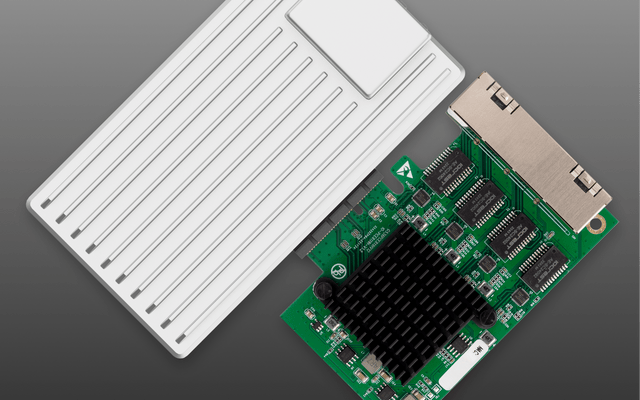
How to Integrate Jellyfin Into a Small Apartment or Rental Network
Build a rental-friendly Jellyfin network around stable local addressing, minimal wiring, quiet hardware, CGNAT-aware remote access, and reversible changes.
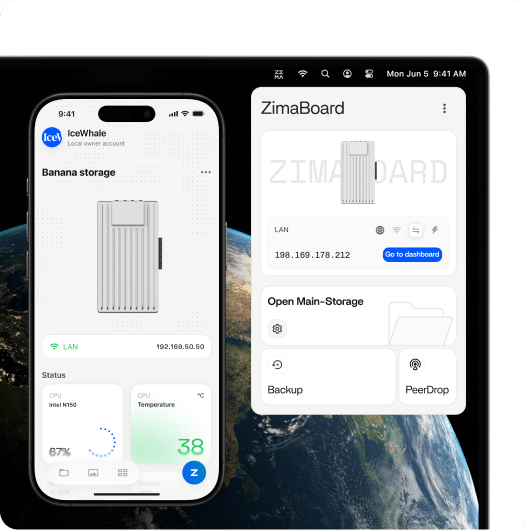
How Many Users and Background Jobs Should One Jellyfin Host Support?
Treat Jellyfin users and background jobs as one shared workload budget; capacity ends when playback latency, queues, or resource pressure becomes repeatable.


