
How to Design a Family Backup Setup for Phones, Laptops, and Old External Drives


A family backup setup works when every phone, laptop, and old external drive has a defined source role, destination, retention rule, and tested recovery path.
The household should not treat all devices as equal copies of the same data. Phones continuously create photos and videos, laptops contain active documents and application state, and old external drives often mix archives, duplicates, forgotten backups, and files that exist nowhere else. The setup must first identify what is authoritative, then centralize recoverable data without erasing the independent copies needed when one account, disk, server, or location fails.
Inventory Every Device Before Creating Backup Jobs
List each phone, laptop, desktop, external drive, cloud account, and memory card that may contain household data. Record the owner, device age, approximate capacity, last successful backup, encryption status, and whether the files are active, archived, duplicated, or unique. This prevents the newest devices from receiving protection while older family history remains invisible.
WIRED’s digital-life backup guide starts with identifying where important files live and then combining automated local and remote copies. That source-first backup inventory is the correct beginning for a household with mixed devices.
| Source type | Likely authoritative data | First action |
|---|---|---|
| Phones | Recent photos, videos, messages, and app exports | Confirm automatic upload and device-level recovery scope |
| Laptops | Documents, projects, local application state, and downloads | Separate working files from replaceable system data |
| Old external drives | Historical photos, archives, and unknown duplicates | Read, inventory, and copy before cleanup |
| Cloud accounts | Synced folders, phone libraries, and shared documents | Export or preserve an independent local copy |
Do not begin by deleting duplicates or reorganizing folders. First create a read-only inventory and mark the files that may be the only remaining copy. Cleanup comes after the household can recover the original source.
Protect Phone Photos Through an Intake and Archive Workflow
Phones need automatic intake because manual copying is easy to postpone. Each family member should upload into a private account or personal intake folder. The home archive should receive validated originals, while shared albums remain a presentation layer rather than the only location of important files.
TechRadar’s 2026 photo-backup guide recommends combining automatic cloud or network workflows with additional local and off-site copies rather than relying on one phone or service. That multi-copy phone-photo workflow matches the risk profile of frequently changing mobile libraries.
Pilot the workflow with one phone before enrolling the household. Verify original resolution, capture dates, videos, background-upload behavior, duplicate handling, and what happens when a photo is deleted from the phone. The archive should not silently mirror every deletion unless that behavior is deliberate and reversible.
Give Laptops Versioned Backups Instead of Another Sync Folder
Laptop users need protection for active documents, projects, and selected application state. A synchronized folder improves access across devices, but a deletion, encryption event, or mistaken overwrite may propagate. A backup target should retain earlier states and allow recovery without replacing the working folder.
Lifewire’s external-drive backup guide distinguishes selected file backups from fuller computer recovery and emphasizes scheduled, automatic protection. That versioned laptop-backup path should be adapted to a NAS or other household destination.
Decide whether each laptop needs file-level recovery, a full-device image, or both. Protect current work frequently, retain enough history to reverse accidental changes, and exclude caches or large replaceable downloads when they would consume recovery capacity without adding value.

Treat Old External Drives as Unverified Sources, Not Trusted Backups
An old external drive may contain unique family photos, obsolete computer images, duplicate folders, unreadable files, or backups created by software no longer installed. Do not add it directly to the live family archive or erase it after one successful directory listing.
The Washington Post’s guidance on local backup warns that external drives and cloud accounts can both fail or become inaccessible, so important data should exist in multiple locations and be checked rather than assumed safe. That verified-local-copy requirement is especially important for aging drives.
Connect one drive at a time to a trusted computer, record its identity and filesystem, scan for obvious errors, and copy readable data into a quarantine or staging path. Preserve the original folder structure until checksums, sample files, and item counts have been reviewed. A failing drive should be copied before intensive duplicate analysis or reorganization.
Consolidate Data Without Turning the Home Server Into the Only Copy
The home server can become the central backup and archive destination, but centralization increases the impact of a server failure or administrator mistake. Working data, backup history, and irreplaceable archives should not all depend on one pool, one set of credentials, and one physical location.
Digital Camera World’s 2026 external-drive guide treats large external disks as useful backup and archive devices while emphasizing capacity, reliability, and data-security considerations. That separate archive-device role supports keeping a rotated or disconnected copy beside the central server workflow.
Use clear server destinations such as private phone intake, laptop backups, historical-drive staging, validated family archive, and administrative backup state. Keep at least one additional copy outside the live server. Do not count another folder or mirror inside the same storage pool as an independent backup.
Size Capacity Around Retention and Data Classification
Backup capacity includes more than the current size of the source devices. It also includes laptop versions, deleted-file windows, phone-video growth, historical-drive imports, staging space, snapshots, and free capacity needed for maintenance. Different data classes should not receive identical retention.
Backblaze’s 3-2-1 framework recommends maintaining multiple copies across different media or locations, with one copy off-site. That copy-and-location model means the budget must include recovery capacity beyond the main NAS.
| Data class | Suggested retention behavior | Reason |
|---|---|---|
| Current documents and projects | Frequent versions plus off-site copy | High change rate and business or school value |
| Phone originals | Long-term archive after validated intake | Often irreplaceable family history |
| Old-drive imports | Preserve source copy until classification is complete | Uniqueness and integrity may be unknown |
| System cache and replaceable downloads | Short retention or exclusion | Rebuildable and capacity-intensive |
Set separate capacity alerts for active backup jobs, historical staging, and the validated archive. A large old drive should not be allowed to fill the live backup pool before its contents are classified.
Automate Current Devices but Schedule Legacy-Drive Maintenance
Phones and laptops change every day, so their backups should run automatically and report failures. Old external drives usually change slowly or not at all, so they need a scheduled archive workflow: connect, verify, update the recovery copy, record the result, and disconnect or store them safely.
Cloudwards distinguishes cloud storage and backup by workflow: synchronization prioritizes access and current state, while backup prioritizes recoverable historical copies. That automation-versus-recovery distinction helps assign different schedules to active devices and legacy archives.
Every job should have an owner and a visible failure state. A phone that stops uploading, a laptop that has not backed up for two weeks, or an archive drive that has not been verified for a year should produce an actionable reminder rather than remain hidden in separate apps.
Retire an Old Drive Only After Restore and Independence Tests
An old external drive is ready for retirement only when its unique data has been copied, the copy has been verified, a second recovery location exists, and representative files can be restored and opened. Deleting duplicates does not prove that the surviving files preserve metadata, folder context, or application compatibility.
TechTarget’s backup-testing tutorial emphasizes restoring data and checking that the recovered files or workload actually function. That functional-restore gate should be completed before an aging drive is erased, recycled, or reused.
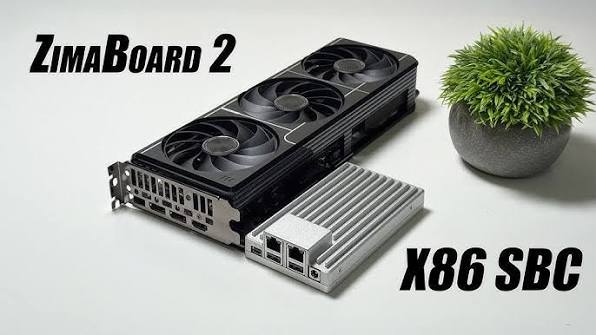
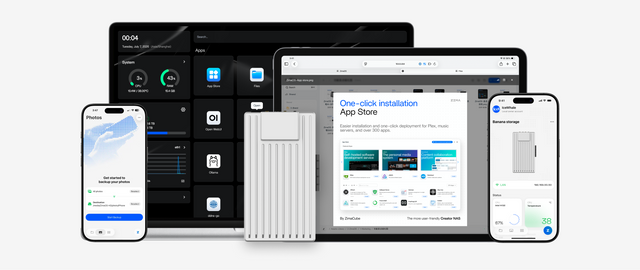
The ZimaSpace guides to 3-2-1 backup for home NAS users and safe family-photo storage extend the copy and archive decisions. A ZimaBoard 2 Mini Home Server fits a compact multi-device backup workflow with deliberate attached storage. A ZimaCube 2 AI NAS is the clearer base when several devices, multiple large historical drives, longer retention, and multi-bay recovery capacity are explicit requirements.
The family backup system is complete when every device reports into one visible plan and no old drive, cloud account, or home server holds the only recoverable copy.

Recommended products

NAS & Server Setup
More to Read
A Local RAG Setup for Research Papers, Notes, and Private Documents
Keep original documents authoritative, make indexing repeatable, require citations, and separate replaceable models from private source data.
Why Are Developers Using a Gateway Node for Private DNS, VPN, and Test Apps?
A gateway node gives private apps one controlled name and access path, while compute nodes stay unexposed and replaceable.
How to Build a Reproducible App Stack With Compose Files, Secrets, and Persistent Data Separated
Keep Compose definitions portable, secrets protected, and app data independently backed up so the stack can be rebuilt on a clean host.


