
New Zima Docs: From ZimaOS Setup to Apps, Hardware, Developer Tools & Community


A home server rarely stays the way it was on day one. You start by getting the system online, then add storage, move over your files, install a few apps, experiment with remote access, and eventually find yourself comparing RAID levels, running Jellyfin, backing up photos, testing local AI, or reading about ZFS late on a Sunday night.
That is why we rebuilt the ZimaSpace Docs around the things people are actually trying to do. Instead of treating documentation as one long manual, the new structure gives you five clear learning paths: ZimaOS, App Store, Hardware, Developer, and Help Center. And when the documented path is not enough, the ZimaSpace Community gives you another place to compare setups, ask questions, share solutions, and see what other users are building.
| Path | Start Here If You Want To... | What You'll Find |
|---|---|---|
| ZimaOS | Set up your server, organize storage, move data, or configure everyday access. | Overview, Setup & Storage, Sync & Backup, Access & Share, Install Methods, System |
| App Store | Turn your server into a media hub, private cloud, self-hosted service, or local AI machine. | Media Server, Self-Hosted Apps, AI & Machine Learning, Creative Builds, Developer Resources |
| Hardware | Set up, expand, or troubleshoot a Zima device and understand what hardware it supports. | ZimaCube, ZimaBoard, ZimaBlade, Compatibility, Third-Party Systems |
| Developer | Go beyond the defaults into advanced storage, networking, automation, APIs, or app development. | Storage & Filesystem, Networking & Protocols, Development, App Store Development, ZimaOS API, Version Log |
| Help Center | Fix something that is not working or quickly find technical reference information. | Troubleshooting, Reference |
| Community | Ask other users, explore real-world setups, share feedback, or find solutions beyond a formal guide. | User Tutorials, ZimaOS Discussions, Hardware Projects, Troubleshooting, Feedback, Announcements |
For most new users, the journey naturally starts with ZimaOS, moves into apps once the basics are working, and branches into hardware or developer tools as the setup becomes more ambitious. But there is no required order: if you are here for Jellyfin, jump straight to App Store; if you need ZFS or SSH, go directly to Developer; if something has already stopped working, start with Help Center; and if your setup does not quite match a formal guide, Community is often the next place to look.
1. ZimaOS: Start With the Foundation
The ZimaOS documentation is the best starting point if your main question is about getting the operating system, storage, data, backups, and everyday access working correctly.

This part of the docs follows the natural lifecycle of a home server rather than treating every feature as an isolated tutorial: get the system running, organize the storage, bring in your data, make that data accessible, and then learn how to maintain the server.
Overview
The ZimaOS Overview works as the entrance to the whole section. If you are not sure which guide you need yet, start here. It connects setup, storage, backup, file sharing, installation, and system management so you can quickly move toward the problem you are actually trying to solve.
For a completely new system, the Get Started with ZimaOS guide is the most direct route. It walks through the first connection, ZimaClient, account creation, and the basic environment you will use afterward.
Setup & Storage
If the server is new, spend a little time here before installing ten apps just because they look interesting.
Setup & Storage covers the decisions that become harder to change later: understanding the ZimaOS interface, choosing drives, creating storage, comparing RAID options, and deciding where application data should live.
The ZimaOS storage setup guide is particularly useful if you are deciding between a simple single-disk system, redundant storage for important files, a larger media library, or storage for an always-on home server.
Getting the storage layout right early makes almost everything that follows easier.
Sync & Backup
Once the server is running, the next question is usually not about the server itself. It is about your data: how do I actually get all my stuff onto it?
Sync & Backup brings those migration paths together. This part of the docs covers phone backup, computer backup, cloud-drive connections, moving data from another NAS, transferring files between drives, Time Machine, and broader backup workflows.
Photos are often one of the first large personal datasets people move onto a home server. If you want to build a private photo library, the Immich photo backup guide gives you a practical route into photo backup and management on ZimaOS.
Whether you are moving a few hundred phone photos or gradually replacing an older NAS or cloud-storage workflow, you do not need to migrate everything in one weekend. Move one source at a time and build the backup system around the data you actually care about.
Access & Share
A NAS that can only be reached while you are sitting beside it is not especially exciting.
Access & Share is where ZimaOS begins connecting the server to the rest of your devices. The section covers ZimaClient, remote access, SMB file sharing, share links, and multi-user Samba configurations.
If you are connecting a computer or phone for the first time, the ZimaClient installation guide is a useful starting point.
From there, think about access based on the situation: local file sharing for computers around the house, remote access when you are away from home, or sharing tools when another person only needs specific files or folders.
Install Methods
ZimaOS is not limited to one installation path.
If you are installing the system yourself, the How to Install ZimaOS guide covers creating installation media, booting the device, installing the operating system, and accessing the system afterward.
This section is especially useful for DIY home server builders using compatible x86-64 hardware, as well as users experimenting with Proxmox, migrating from CasaOS, or handling other installation and account-related tasks.
System
You probably will not open the System section every day. That is a good thing.
Once a server becomes part of your everyday workflow, reliability matters more than setup. The System section covers the less glamorous but important side of running ZimaOS, including power protection, recovery, offline installation, network resets, search, and other maintenance tasks.
These are not necessarily the first guides you will read, but they are the ones you may be glad to know exist before the day you actually need them.
2. App Store: Decide What You Want Your Server to Do
Getting storage online is satisfying. Installing the first useful app is usually when a home server starts feeling like your home server.

The ZimaOS App Store documentation is organized around workloads rather than installation mechanics.
Instead of starting with the question, “How do I configure Docker?” this part of the learning map starts somewhere more useful: What do you want your server to do?
Media Server
This is one of the easiest places to begin with self-hosting. A home server can become a private library for movies, television, music, photos, and other media that stays under your control.
The Media Server section brings together Jellyfin, Plex, Emby, Immich, DLNA services, camera servers, photo migration, and GPU-assisted media workloads.
If Jellyfin is your first server project, the Jellyfin media server setup guide provides a direct path into creating a private streaming library.
If your first home server idea sounds more like “I want my own Netflix” or “I want my photos off a cloud subscription,” this is the part of the docs to explore first.
Self-Hosted Apps
After the media server comes the dangerous part: realizing you can self-host almost everything.
This section covers tools for file synchronization, network-wide ad blocking, document management, download automation, monitoring, media management, and other services that would normally live somewhere in the cloud.
You do not need twenty containers on day one. Pick one problem you want your server to solve, get that workflow working, and then add the next service.
AI & Machine Learning
Local AI has quickly become another reason to keep a capable server running at home.
The AI & Machine Learning section focuses on workloads where models, documents, photos, or agents can run close to your own data. The learning path includes local model deployment, AI-powered search, offline models, photo intelligence, and always-on AI agents.
If you are interested in private AI, local LLMs, or agents that need continuous access to files stored on your server, this is the branch to follow.
Creative Builds
Not every home server project needs to improve productivity. Sometimes you simply want to build something because you can.
Creative Builds collects more experimental projects such as game servers, retro gaming, VR-related setups, virtualization experiments, community app stores, and other projects that sit somewhere between a homelab and a weekend hobby.
For homelab users, this is often where one project quietly turns into three more.
Developer Resources
Eventually, some users run into the same problem: the app they want does not exist in the store yet.
Developer Resources provides the next step for people who want to build and publish applications themselves, creating a natural bridge from using the App Store to contributing to the ecosystem behind it.
3. Hardware: Understand the Machine Underneath the Software
Software guides answer a lot of questions until the question becomes, “Which port is that?” or “Can this machine take another drive, NIC, GPU, or operating system?”
That is where the Hardware documentation takes over.
Overview
The Hardware Overview puts the main Zima device families together and gives you a quick way to understand which documentation path matches the hardware in front of you.
ZimaCube is built around larger NAS, storage, media, and expansion-focused workloads. ZimaBoard fits compact home server, networking, self-hosting, and hardware experimentation. ZimaBlade provides a smaller entry point into DIY NAS and server projects.
Once you know which family you are working with, the rest of the Hardware section becomes much easier to navigate.
ZimaCube
The ZimaCube path is for users working with a larger NAS and expansion-focused system.
Its guides move beyond first setup into hardware interfaces, additional storage, GPU expansion, SSD expansion, BIOS configuration, networking, Thunderbolt, cooling, Wake-on-LAN, and other device-specific features.
Use this section when the question is no longer simply “How do I use ZimaOS?” but “What can this particular hardware configuration do?”
ZimaBoard 2
ZimaBoard 2 is the compact, expansion-friendly branch of the hardware map. It is designed for users who like experimenting with home servers, networking, self-hosting, storage, and custom hardware setups.
If you have just taken the board out of the box, begin with the ZimaBoard 2 getting started guide. It gives the hardware journey a clear starting point before you move deeper into storage, networking, apps, cooling, or PCIe expansion.
From there, ZimaBoard documentation covers hardware interfaces, power-on steps, expansion, cooling, PWM fan setup, and practical details for integrating the board into a larger homelab project.
That makes the same board suitable for very different directions: a compact NAS, a media server, a Docker host, a networking appliance, a virtualization node, or another always-on self-hosted service.
ZimaBlade
ZimaBlade keeps the hardware path simpler and provides an approachable entry point into DIY servers.
Its documentation focuses primarily on getting the hardware running, understanding the basic setup, and preparing the system before you begin layering applications and services on top.
Compatibility
Home servers rarely exist alone. Drives, UPS units, network adapters, Wi-Fi modules, expansion cards, and other accessories gradually become part of the system.
The Compatibility section answers the practical question of what has been tested and how specific hardware should be configured.
It has a very simple job: help answer “Does this work with my setup?” before you spend an afternoon wondering why it does not.
Third-Party Systems
Zima hardware is not locked to a single operating system.
If your project calls for Unraid, TrueNAS, OpenWrt, OpenMediaVault, Ubuntu Server, Arch Linux, or another environment, the Third-Party Systems section provides a path into alternative deployments.
This means the hardware documentation remains useful even when your project eventually grows beyond ZimaOS itself.
4. Developer: Go Deeper When the Defaults Are No Longer Enough
Most people do not need to begin here—and that is exactly the point.
The Developer documentation is for the moment when convenient defaults stop being enough and you want more control over the system underneath them.
Overview
The Developer Overview is the advanced branch of the learning map for power users, homelab builders, developers, and anyone who wants to go deeper than the standard ZimaOS interface.
If you already know what you are looking for—ZFS, SSH, APIs, custom apps, or more advanced networking—you do not need to work through the beginner guides first. Start here.
Storage & Filesystem
This section moves beyond everyday disk setup into technologies such as ZFS, advanced RAID configurations, NFS, iSCSI, encrypted storage, rsync, recovery workflows, and connections with other NAS systems.
If Setup & Storage in the ZimaOS section answers “How should I configure my drives?”, the Developer storage section starts answering a different question: “How does the storage stack work, and how much control can I have over it?”
Networking & Protocols
As a homelab grows, networking becomes part of the project instead of something that simply happens in the background.
Networking & Protocols covers network configuration, SSH access, advanced SSH settings, transfer performance, and the protocols used to connect ZimaOS with other machines.
This is the natural next stop when you begin working with multiple servers, faster networking, remote shells, or more advanced network configurations.
Development
This branch is for building on top of the system itself.
For users who want to automate their server or contribute to the ecosystem, the Development section covers scripting environments, contribution workflows, and community-driven development.
Even if you are not building a complete application, a small script can become surprisingly useful once it saves you from repeating the same administrative task every week.
App Store Development
Running apps and building apps are two different stages of the same journey.
App Store Development is designed for people who want to package Docker applications, publish them for ZimaOS users, build app catalogs, work with Docker Compose metadata, manage assets and localization, or automate app publishing workflows.
If the App Store section is the playground, this is the workshop behind it.
ZimaOS API
When clicking buttons manually is no longer enough, the API becomes the next layer.
The ZimaOS API section provides a path into programmatic control, authentication, integrations, available endpoints, and tools for exploring how other applications can communicate with ZimaOS.
That opens the door to custom scripts, dashboards, management tools, and integrations built around your own home server environment.
Version Log
The Developer area also keeps the ZimaOS version history close to the technical documentation.
That becomes useful when behavior changes between releases, when you want to understand when a feature arrived, or when a guide depends on functionality introduced in a newer version of ZimaOS.
5. Help Center: Start With the Symptom
Sometimes you do not want to learn a new storage protocol. You just want the machine to boot again.
The ZimaSpace Help Center is deliberately the shortest path on the map. Instead of requiring you to understand the root cause first, it lets you begin with the problem you can actually see.
Overview
If you arrive here, there is a good chance something is already not behaving the way you expected.
The Help Center points users toward troubleshooting and reference material rather than making them search through every setup guide to decide whether the issue belongs to software, storage, networking, or hardware.
Troubleshooting
If the device will not boot, RAID creation fails, a network connection disappears, memory needs to be tested, BIOS needs attention, or a hardware connection is not working, begin here.
The troubleshooting path is designed to shorten the distance between:
“Something is wrong” → “This looks like my problem” → “Here is what to check.”
That is usually more useful than expecting someone to know whether an issue belongs to the operating system, storage layer, network stack, or hardware before they start looking for help.
Reference
Not every useful page needs to be a step-by-step walkthrough.
The Reference area keeps supporting information and technical material that users may need to look up occasionally without following a complete tutorial.
Community: When the Docs Are Only the Beginning
Documentation works best when the problem already has a clear answer. Home servers are not always that cooperative.
Maybe your setup combines a network card, storage controller, Docker stack, and operating-system version that no single guide was written for. Maybe you want to know how another user solved the same Immich storage problem. Or perhaps you have built something useful enough that other people should know about it.
That is where the ZimaSpace Community becomes the next layer of the learning map.
The Community brings together several kinds of knowledge that are difficult to capture in static documentation:
- Real-world troubleshooting: see how other users diagnose unusual ZimaOS, app, storage, networking, and hardware problems.
- Community tutorials: discover workflows and configurations created by people running ZimaOS in their own environments.
- Hardware experiments: compare expansion cards, network setups, storage configurations, virtualization projects, and other homelab builds.
- Feedback and ideas: suggest features, report issues, and discuss how ZimaOS and Zima hardware could improve.
- Announcements: follow ZimaOS releases, product updates, community projects, and other changes across the ecosystem.
A useful rule is simple: use Docs when you need the established path; use Community when you want to see how other people are actually walking it.
If you cannot find the answer immediately, return to the ZimaSpace Docs homepage, or continue the conversation in the ZimaSpace Community.

FAQ: Finding Your Way Around the New ZimaSpace Docs
Where should a new ZimaOS user start?
Start with the Get Started with ZimaOS guide. From there, the natural path usually moves through Setup & Storage, Sync & Backup, and Access & Share before you begin adding more applications.
Do I need to read all five documentation sections in order?
No. The documentation works better as a map than as a book. A new user may begin with ZimaOS, while an experienced homelab user looking for ZFS or SSH can jump directly into the Developer documentation. If something is already broken, start with the Help Center.
Where can I find ZimaOS storage and RAID guides?
For normal storage planning, start with the ZimaOS storage setup guide. For deeper topics such as ZFS, advanced RAID, NFS, or iSCSI, continue into Developer → Storage & Filesystem.
Where should I look for Jellyfin, Plex, Immich, or other self-hosted apps?
Start with the App Store documentation. Media Server covers services such as Jellyfin, Plex, Emby, Immich, DLNA, and related media workflows, while Self-Hosted Apps covers a broader range of services.
Where are the local AI guides?
Open the App Store documentation and follow the AI & Machine Learning section. It groups local models, AI search, photo intelligence, offline AI workflows, and agent projects together.
Where should I start with ZimaBoard 2?
Begin with the ZimaBoard 2 getting started guide. From there, you can move into storage, networking, expansion, cooling, ZimaOS, or third-party systems depending on what you want to build.
Can I install ZimaOS on my own x86 hardware?
Yes. The How to Install ZimaOS guide covers the installation path for compatible x86-64 hardware, making it useful for DIY NAS and home server projects as well as Zima hardware.
Can I install another operating system on Zima hardware?
Yes. The Hardware documentation includes a Third-Party Systems section for users experimenting with alternative NAS, Linux, or networking operating systems.
Where do I find API, SSH, ZFS, or advanced networking documentation?
Go directly to the Developer documentation. It is the advanced branch for storage, networking, development, App Store development, and the ZimaOS API.
When should I use the ZimaSpace Community instead of the Docs?
Use the Docs when you need an established setup, configuration, or troubleshooting path. Use the ZimaSpace Community when your setup is unusual, you want to compare real-world experiences, need help from other users, want to share your own solution, or have feedback that could help improve the ecosystem.
What should I do if I do not know which section contains my problem?
If something has stopped working, begin with the Help Center and look for the symptom that matches your problem. If you are trying to build or configure something new, return to the ZimaSpace Docs homepage and choose the path closest to your goal. If your situation falls outside the documented path, take the question to the ZimaSpace Community.
A home server does not really have a final level. There is always another drive to add, another app to try, another backup to improve, or another strange weekend project waiting to happen.
The new documentation is built for that kind of journey. Start where you are, follow the branch that matches what you are building, and go as deep as your project needs. And when the documented path ends, there is probably someone in the community who has already tried going a little further.
Explore the new ZimaSpace Docs →
Have a question, a workaround, or a build worth sharing? Join the ZimaSpace Community →

Recommended products



Zima Campaign Hub
More to Read
OCP Global Summit 2026: What Open Infrastructure Means for Home Servers
OCP Global Summit 2026 puts AI infrastructure in focus. Explore what its theme means for home server users, from workload planning and local AI...
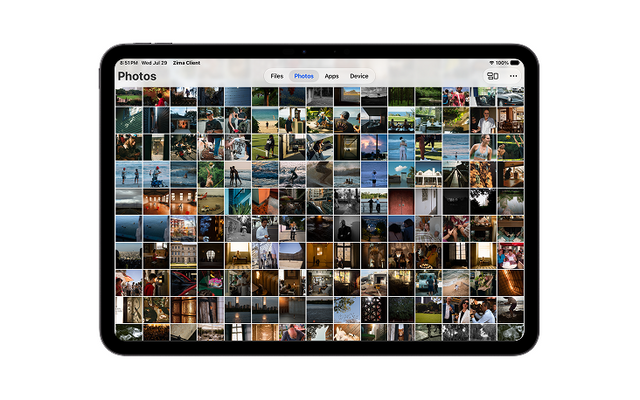
Best Photo Management Software for NAS in 2026: 10 Tools Compared
Compare 10 NAS photo managers by folder handling, mobile backup, search, sharing, privacy, and maintenance to choose a library for your home server.
Self-Hosting Day 2026: Why September 25 Belongs to the Self-Hosting Community
Discover what Self-Hosting Day 2026 is, why September 25 matters, what people self-host, and how to share your own server story.


