


How LADTech Hosts Minecraft with Crafty and Playit.gg on ZimaBoard 2


Thank you to LADTech for walking through a Minecraft server from installation to joining the world. The demonstrated setup uses ZimaOS to install Crafty Controller, creates a Paper-based Minecraft Java server, tests it on the local network, and then uses Playit.gg to provide an address friends can join. Crafty manages the game process; Playit supplies the external connection.
The video uses a 16GB ZimaBoard 2 and also discusses using an existing compatible computer. This article follows the creator’s sequence while adding the checks that make it easier to maintain: memory headroom, persistent storage, an allowlist, a reachable tunnel target, and a tested backup. Watch the original LADTech Minecraft walkthrough before following the steps with your own addresses and versions.
Understand the four parts of this Minecraft setup
The build combines hardware, a management application, the actual Minecraft server, and a network tunnel. Keeping those roles separate makes troubleshooting much simpler. A working management page does not prove the game server is ready, and a connected tunnel cannot repair a server that has not finished starting.
| Component | Its job | A useful success check |
|---|---|---|
| ZimaBoard 2 and ZimaOS | Provide the host, storage, and application environment. | The host remains reachable and has resources for the combined workload. |
| Crafty Controller | Creates and manages the game server, console, files, and backup tasks. | You can sign in and inspect the correct server instance. |
| Paper Minecraft server | Runs the world and accepts Java Edition players. | A matching client joins the intended world over the LAN. |
| Playit agent and tunnel | Relay an external game address to the reachable server endpoint. | An authorized player on another connection can join. |
For the wider hardware decision, JBlanked’s ZimaBoard 2 and Raspberry Pi 5 comparison discusses the role of application compatibility and storage connections. Here, the goal is narrower: keep one Minecraft world available for the people who should be able to play.
Prepare a stable host and persistent storage
LADTech begins by connecting the host to power and Ethernet, then uses another computer on the same network to access ZimaOS. Ethernet gives the host a straightforward wired path to the network. The ZimaBoard 2 specifications distinguish the 8GB/32GB and 16GB/64GB configurations; the video uses the latter.
Record the host’s LAN address and keep it stable using an appropriate DHCP reservation or static configuration. The creator’s private address is an example, not a value to copy. A stable address matters because a saved Minecraft entry or tunnel destination can stop working after the host receives a different lease.
Before creating a world, identify where Crafty stores its configuration, game servers, and backups. World files grow as players explore, while logs and retained backups consume additional space. Keep enough free space for the next backup as well as the running world. If you later move data to another drive, verify the actual persistent mapping rather than assuming the new disk is used automatically.
The same principle applies to an existing PC: it must remain available when friends want to play, and its storage should remain attached after a restart. The tutorial is a service-hosting pattern, not a promise that every old computer supports the same OS installation or application version. Check compatibility before replacing a working installation.
Install Crafty and secure its administration account
The creator opens the ZimaOS app store, searches for Crafty, installs it, and opens its dashboard. In that installation, the initial credentials are retrieved from a generated file under the app’s configuration data. Use the credentials created by your own installation and follow its current instructions; do not use a password shown in someone else’s video.

After signing in, change the initial password and keep the administration interface on a trusted management path. A Minecraft player does not need access to the Crafty account, server files, or console. Those are management capabilities, separate from the game connection you will share later.
Crafty’s Docker installation reference distinguishes panel access from game ports and persistent directories. If an app template supplies those details for you, inspect them before editing anything. The panel may be accessible while the selected game port is not published or reachable.
Keep a short configuration record: the panel’s trusted address, persistent data location, game server name, game port, and backup destination. This is especially helpful if you experiment with several instances. A successful login to Crafty tells you that the manager is working; the next step is to create and test the correct game server.
Create a Paper server and leave memory for the host
LADTech selects Minecraft Java, chooses a normal Minecraft server rather than a proxy, and uses Paper. The selected game version must match the clients and plugins you intend to use. Treat the version displayed in the recording as a point-in-time choice, not a permanent instruction to install that exact release.

The video allocates 8GB to the demonstrated server on a 16GB host and discusses smaller allocations for simpler worlds. These are the creator’s examples, rather than guaranteed requirements for every player count. Java memory allocation is only part of total memory use: the operating system, Crafty, the tunnel agent, other applications, and memory outside the Java heap still need space.
| Planning decision | What the video demonstrates | What to verify in your deployment |
|---|---|---|
| Edition and server type | Minecraft Java running Paper. | Client edition, exact server version, and intended plugin compatibility. |
| Memory allocation | An 8GB allocation on a 16GB host. | Available host memory during actual play and background activity. |
| World capacity | A small test world with a connected player. | Exploration, simulation distance, plugins, and simultaneous players. |
| Server endpoint | A LAN address using the game port. | The address and port that clients and the tunnel agent can really reach. |
Crafty’s Minecraft server creation guide covers edition selection, server preparation, and memory and port settings. On first startup, the server presents Minecraft’s EULA. Read and accept it yourself if you agree, then wait for startup to complete and inspect the console for errors before attempting to join.
Begin with one working instance. Adding another server introduces another memory budget, data directory, and endpoint to track. A larger maximum-player setting in a configuration file does not establish that the hardware can sustain that number of active players under your chosen workload.
Prove the local connection before creating a tunnel
The first test uses the host’s LAN address and game port in Minecraft’s Add Server dialog. For a typical Java setup, the familiar port is 25565, but the value you need is the one configured and reachable in your own installation. Write the endpoint as YOUR_SERVER_LAN_IP:YOUR_GAME_PORT.
Use a client with the correct edition and version, then check both the game and Crafty’s console. Seeing the player join the intended world is stronger evidence than the server merely appearing in a list. Make a small, recognizable change, leave, and reconnect so that you know you are testing the same instance.
The video disables the whitelist to get past a rejected join. For a friends-only server, keep the allowlist enabled and add the intended players instead. In the server console, commands such as whitelist on and whitelist add PLAYER_NAME express that intent. Paper’s server properties reference explains the whitelist setting. Preserve normal player authentication unless a separately designed proxy arrangement requires another configuration.
If the local test fails, check in this order
- Confirm that the intended game server has completed startup.
- Verify the host address, server port, and any container port mapping.
- Check that client and server use compatible game versions.
- Inspect the console for an allowlist, authentication, or plugin error.
- Join successfully over the LAN before changing the remote connection.
This sequence avoids introducing a tunnel while the underlying game service is still broken. It also creates a known-good local endpoint to compare against later. If remote play fails but this local test still works, you have already narrowed the investigation.
Connect Playit.gg to the game endpoint
Next, LADTech installs the Playit agent from the ZimaOS app store, opens its logs, and follows the installation’s claim link to associate the agent with an account. Follow the link generated for your own agent. The claim link and account credentials are setup information, not the game address to send to friends.
The creator makes a Minecraft Java tunnel and points it toward the host’s reachable game endpoint. This is the important distinction: the local target is where the agent sends traffic, while the assigned public address is where players connect. The two addresses have different jobs and should not be interchanged.

If the agent and game server run in separate containers, loopback is particularly easy to misunderstand. An address such as 127.0.0.1 refers to the agent’s own network context; it is not automatically the Minecraft container or the host. Use an endpoint reachable from the agent’s actual network. In the video, the host LAN address and game port provide that destination.
Playit’s service overview describes a relay connection that lets players join without configuring a router port-forwarding rule. It still makes the selected game service reachable through a third-party network. Keep player access controlled and share the game endpoint rather than the Crafty panel, app logs, or agent-claim link.
Test the assigned address, then ask an authorized friend on another internet connection to join. A host reaching its own public address is useful, but an outside client verifies the path you actually intend to provide. Confirm the join in the server console and check that the same world appears.
Do not promise that a relay removes latency. LADTech observes a higher ping on the relayed connection than on his local connection; those are results from his location and route. Your upload connection, selected route, relay location, and the player’s network can differ. The Playit support guides provide current setup and connection troubleshooting.
Separate network delay from server performance
After joining, the creator checks TPS and demonstrates game commands. A TPS reading near the server’s normal target during a small test is a useful starting observation. It does not establish performance for a busy world with several players generating chunks or running heavy plugins.
| What you observe | Investigate first | Useful comparison |
|---|---|---|
| LAN works, public address fails | Agent status, tunnel target, edition, and port. | The known-good LAN endpoint versus the configured tunnel destination. |
| “Unknown host” | The copied public hostname and its DNS resolution. | Playit’s Java hostname troubleshooting. |
| Remote delay while local play remains responsive | Network route and connection quality. | Local and remote clients playing the same world. |
| Both local and remote play slow down | Server workload, logs, CPU, storage activity, and memory pressure. | The same activity before and after a workload change. |
| Problems begin after a plugin change | Plugin compatibility and the startup log. | A backed-up test instance with that change removed. |
Change one variable at a time. Reducing a workload or correcting a plugin problem can help server-side lag; adding heap memory will not fix a long network route. Give operator privileges only to people who need them, since console and in-game administrative commands can change the world or other players’ access.
Paper’s plugin installation guide also distinguishes plugins from mod files. Paper plugins and mods are different deployment choices. Many Paper plugins work on the server without a matching client installation, but some features require additional client support. Mods can be server-side, client-side, or required on both sides. Do not assume that every mod is a drop-in replacement for a Paper plugin.
Schedule backups and verify a restored world
The video finishes its practical setup by creating a daily backup task in Crafty. Scheduling a job is the beginning of protection. Inspect the backup destination, retention count, included directories, and the last successful result. A world, its server configuration, and plugin data may all matter to a useful recovery.

Crafty’s backup manager documentation covers backup configurations, retained copies, storage locations, and restore options. Use the task scheduler for the cadence appropriate to your world. Keep an independent copy away from the same storage that holds the live server.
- Create a backup after a known change in the world.
- Confirm that the job completed and that the expected files exist.
- Restore into a separate test instance or isolated test location.
- Use compatible server and plugin versions, then check the recognizable change.
- Document the steps before a real incident requires them.
Take a recoverable copy before updating Paper or adding a plugin. Restoring directly over the active server can replace newer progress, so establish what the chosen restore option does first. The goal is a world you can recover, not merely a schedule that appears in the dashboard.
Finally, plan a controlled host restart. Verify that Crafty, the intended game instance, and the Playit agent return in the way you configured. Repeat both a local join and an external join. Other services can run on the same host, but their maintenance and resource use become part of the Minecraft server’s availability too.
FAQ
Does every player need to install Playit?
In the demonstrated pattern, the host runs the agent and friends use the assigned address in a compatible Minecraft client. They do not need access to the host’s management applications.
Can Bedrock players join this Java server automatically?
No. The demonstrated server is Java Edition. A compatible Bedrock server or a deliberately configured bridge is a separate setup; choose the appropriate server and tunnel type.
Is 8GB of allocated memory required for every world?
No. It is the creator’s example on a 16GB host. Size the actual workload and leave resources for the operating system and other services.
Why does Crafty open while Minecraft will not connect?
The panel and game server use different endpoints. Check game startup, the selected game port, container mappings, client version, and the server’s access policy.
Should I disable the whitelist to fix a rejected join?
For a friends-only world, add the intended player and retain the allowlist. Check the rejection reason in the console rather than opening the world to every player.
Is a backup on the same drive enough?
It can help with some accidental changes, but it shares the live world’s storage failure risk. Keep an independent copy and verify it by restoring a test instance.
Conclusion
LADTech’s build makes the sequence clear: prepare the host, create a manageable Minecraft instance, prove a local join, and only then add the remote connection. Crafty handles the server lifecycle, Paper runs the world, and Playit supplies a public route to the chosen game endpoint.
Complete the same sequence with your own addresses, compatible versions, controlled player access, and a tested backup. That turns a successful first join into a service friends can rely on. Return to LADTech’s full video for the original demonstration and consult the current application documentation when your installed interface differs.

Recommended products

Zima Campaign Hub
More to Read
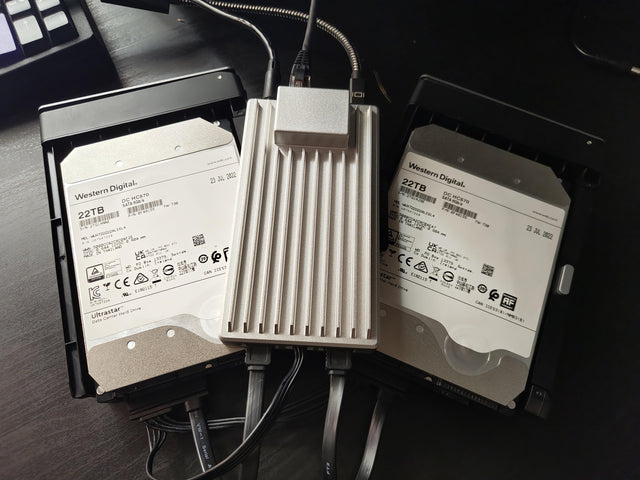
A ZimaBoard 2 Prototype with Two 22 TB Drives on the Test Bench
Explore sabitech2k’s early ZimaBoard 2 drive test, the reported power conditions, and the existing ZimaBoard used for Proxmox backups.
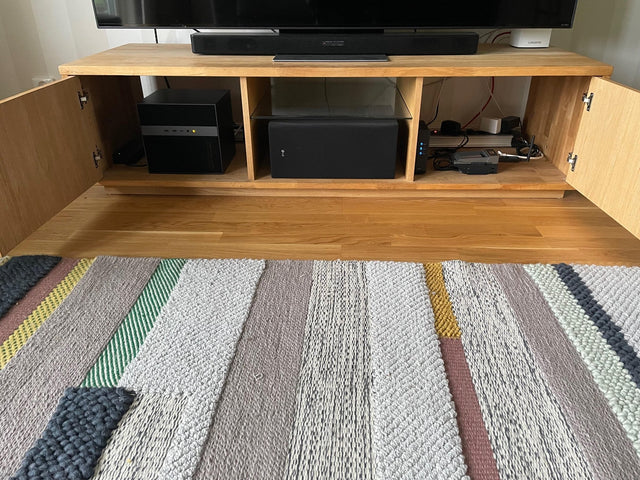
A Quiet ZimaCube and ZimaBoard Homelab with Debian and Docker
A ZimaCube and ZimaBoard split everyday applications from smart-home services, with Debian, Docker, Pi-hole and a Homepage dashboard.
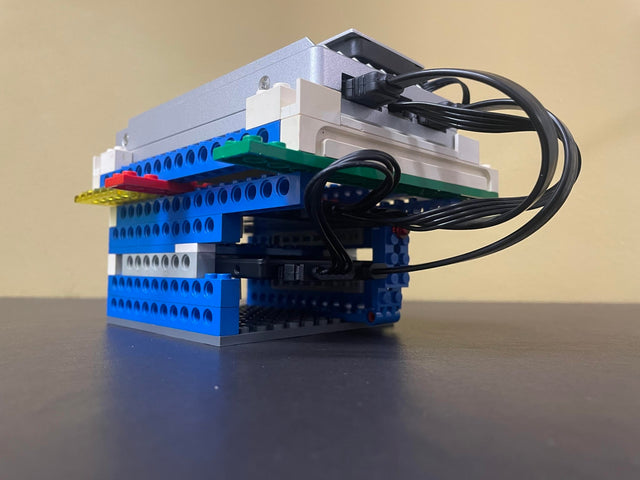
A LEGO Rack for a First ZimaBoard 2 Home Server
See how a first-time builder organized a ZimaBoard 2 and two SSDs in a LEGO rack, with Home Assistant and home-office storage planned next.


