
Why Does Jellyfin Playback Break After a Restart?


When Jellyfin works before a restart but playback breaks afterward, verify the dependencies that had to return during boot before changing the library.
The restart can change mount timing, container device mappings, permissions, DNS, or the order in which services become available. A healthy Jellyfin process does not prove its media path or GPU is usable. Compare the post-boot environment with the working baseline and repair the first missing dependency.
Check That the Media Mount Is Really Mounted
A directory can exist even when the NAS or disk that normally occupies it did not mount. Jellyfin may then see an empty local path and report missing media rather than an obvious mount error.
Mount verification before services start prevents applications from writing into or scanning an empty mount point.
Confirm the filesystem identity with `findmnt` or the platform equivalent, then read a known media file as the Jellyfin service user. Do not rescan until the intended storage is present.
Verify App-Data Ownership After the Runtime Returns
Container recreation or host changes can alter the numeric user that accesses the persistent configuration. Read access alone is not enough because Jellyfin also needs to update database and configuration state.
Containerized services remain predictable when UID and GID mapping matches filesystem ownership across bind mounts.
Run a disposable create-and-delete test in the app-data parent with the service identity. The persistent app-data path should survive runtime replacement without a recursive ownership repair.
Confirm Hardware Devices Reappeared
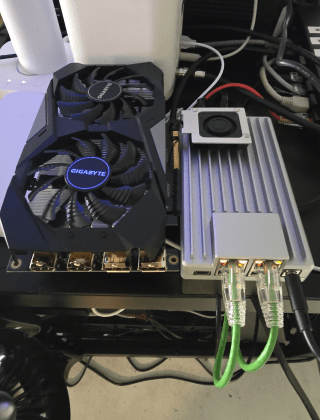
A transcode that used the iGPU before reboot may fall back to CPU or fail if `/dev/dri` or another accelerator mapping is missing. Direct Play may still work, making the outage look media-specific.
A failed device mapping can move the same playback from hardware to software work; a Jellyfin transcode benchmark shows how sharply CPU and GPU load change across hardware-accelerated and filtered paths.
Play one known hardware-transcode test and inspect the active process plus device mapping. Repair the runtime device access before lowering quality or changing codecs.

Re-Test the Network Path Only After Local Playback Works
Remote DNS, VPN, or proxy services can come up later than Jellyfin and produce a remote-only failure. Keep local media and remote reachability as separate acceptance tests.
Network capacity should be checked at the actual delivery edge; a streaming bandwidth model separates LAN, Wi-Fi, NAS, and remote-upload limits instead of treating every playback failure as server compute.
Validate a local wired client first, then one remote client. If local playback is healthy, keep the remaining repair in routing, DNS, proxy, or tunnel configuration rather than rebuilding server state.

Recommended products

Support & Tips
More to Read

NAS Share Shows Old Files After Storage Replacement: Checks and Fixes
Compare local storage with the active share and a clean client. Repair only the layer proven stale, then verify the result survives reconnect and...

Mini PC Cooling Maintenance Guide for Fans, Vents, and Thermal Baselines
Use repeatable idle and load readings. Clean external airflow first, confirm fan behavior, and open the chassis only when evidence survives a controlled retest.
Home Server Firmware Update Checklist for BIOS, Boot Order, and Devices
Capture versions, UEFI entries, storage and passthrough state first. Update one layer at a time and keep console plus rollback access until validation passes.


