
How Should a Household Server Separate Private, Shared, and Administrative Data?


A household server should separate private, shared, and administrative data by ownership, purpose, and recovery impact rather than by one convenient top-level folder.
The three zones serve different users and tolerate different mistakes. Private data belongs to one person or a tightly defined group. Shared data supports a household workflow and needs predictable collaboration rules. Administrative data controls the server, applications, identities, and backups, so ordinary users and media apps should not be able to change it. The storage tree, user groups, service accounts, snapshots, and restore plan should all preserve those boundaries.
Define the Three Data Zones Before Creating Shares
Private data includes personal documents, phone uploads, device backups, work files, and photos that have not been intentionally shared. Shared data includes family documents, selected photos, homework exchange folders, and media libraries. Administrative data includes application databases, server configuration, credentials, recovery keys, backup indexes, and service definitions.
A current family NAS guide recommends individual accounts, private personal folders, and a separate household shared folder rather than one account and one unrestricted share. That three-zone family folder model gives the server a structure users can understand without seeing its administrative layer.
| Data zone | Typical owner | Normal access | Recovery consequence |
|---|---|---|---|
| Private | One household member | Owner plus designated recovery administrator | Restore without exposing it to other family accounts |
| Shared | Household or a defined group | Read or write according to the shared workflow | Restore permissions and versions with the files |
| Administrative | Server or application operator | Admin and bounded service accounts only | Required to rebuild apps, identities, and backup jobs |
Create the zones as named roles before deciding their physical location. They may begin on one storage pool, but their permissions, version rules, backup scope, and application access should remain independent.
Give Every Person an Individual Account Before Using Groups
Shared household credentials hide who changed, deleted, or exposed a file. Individual accounts allow private home folders, separate device backups, revocable access, and clear ownership. Groups then describe shared roles such as adults, children, family-media viewers, or backup operators.
TechTarget defines role-based access control as assigning permissions to roles or groups and then placing users into those roles. That group-based permission model is easier to review than granting every folder directly to several individual accounts.
Create the smallest useful set of groups. A family group may read and write the shared documents area. A media-viewer group may read movies but not change originals. An adult-admin group may manage user access without receiving unrestricted server root access. Avoid groups whose purpose cannot be explained in one sentence.
Make Private Folders Private by Default
Each household member should have a private path for documents, uploads, and device backups. Other users should receive no access unless the owner or recovery policy explicitly grants it. An administrator may need technical recovery access, but that does not make daily browsing of everyone’s files appropriate.
TechTarget describes least privilege as restricting a user, process, or application to only the access required for its purpose. That minimum-required-access principle applies to both family members and automated services.
Test private access using ordinary accounts, not only the administrator dashboard. One user should be unable to list another user’s private path, even when both paths use the same share protocol. Record who can perform emergency recovery and protect that account separately from daily use.

Design Shared Folders Around Workflows, Not Vague Categories
A folder called Family can become a mixture of tax records, school files, movies, device backups, and unreviewed phone uploads. Instead, create shared areas around real workflows: family documents, selected photos, homework exchange, read-only media, and temporary intake.
WIRED notes that a NAS can provide always-available network access for family repositories while allowing users to share selected files and folders. That deliberate shared-folder approach works only when write access follows the purpose of each folder.
For every shared area, define who can read, who can add files, who can rename or delete, and who owns cleanup. A read-only media library and a writable homework folder should not inherit the same permissions merely because both are visible to children.
Keep Administrative State Outside Everyday File Shares
Application databases, configuration, container definitions, encryption keys, backup catalogs, and identity records should not appear inside ordinary SMB or web file shares. A user who can browse family photos does not need access to the database that indexes them or the credentials that run the photo service.
TechTarget distinguishes logical access control as the rules that authenticate and authorize users before they reach systems, files, and data. That authorization-before-data-access model supports an administrative zone that is reachable only through protected management and recovery paths.
Use separate service accounts for backup, media indexing, photo upload, and file sharing. Give each service access only to its required paths. Administrative backups should include configurations and databases, while ordinary users should interact with user-facing data rather than raw app state.
Administrative separation also improves incident response. If a family account is compromised, the operator can disable that identity, review its reachable shares, and restore affected data without rotating every service credential or exposing the backup catalog. This boundary turns one account problem into a limited access event instead of a whole-server rebuild.
Protect Shared and Private Data Without Letting Users Modify Backups
Snapshots and versions can help recover deleted or overwritten files, but users who can delete live data should not automatically be able to erase every recovery point. Backup destinations and retention controls belong in the administrative zone, even when they protect private and shared data.
TechTarget explains that storage snapshots are useful recovery points but are not a standalone replacement for independent backups. That snapshot-versus-backup boundary prevents one storage pool from becoming both the working copy and the only recovery copy.
Apply versions or snapshots to private and shared zones according to their change rate. Send critical data and administrative state to an independent location. Backup service credentials should be protected from ordinary users and from apps that only need to read the source data.
Validate the Permission Matrix Through Use, Failure, and Restore
A permission plan is not complete when the dashboard displays the intended checkboxes. Test the system as a private user, shared-folder contributor, child or guest account, service account, and administrator. Include denied actions: a media app should not modify backups, and a household member should not browse administrative state.
TechTarget’s backup-testing guidance notes that restore validation should include permissions and access controls as well as file content. That permission-aware restore test is the final check that the three zones survive recovery.
| Test identity | Should access | Should be denied |
|---|---|---|
| Private user | Own files and approved shared areas | Other private folders and admin state |
| Child or guest | Approved homework and media paths | Backups, private adult data, and settings |
| Application service | Only its required data paths | Unrelated shares and backup controls |
| Administrator | Management and recovery functions | Routine use through unrestricted admin credentials |
The ZimaSpace beginner home NAS setup guide reinforces individual accounts and a separate recovery plan. A ZimaBoard 2 Mini Home Server fits a compact household server with deliberate attached storage and a small number of services. A ZimaCube 2 AI NAS is the clearer base when multi-drive family storage, several users, snapshots, and longer recovery history define the system.
The separation works when ordinary users see only the files needed for their household role, while administrators can rebuild the server without exposing its control data to daily accounts.

Recommended products

NAS & Server Setup
More to Read
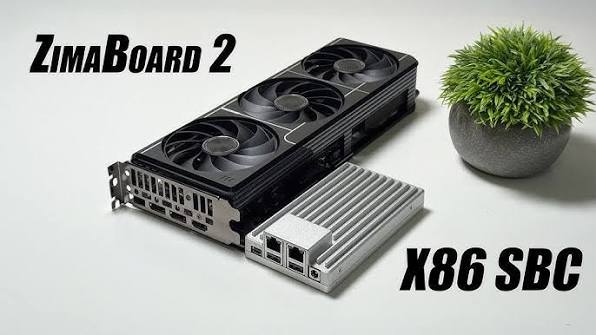
A Local RAG Setup for Research Papers, Notes, and Private Documents
Keep original documents authoritative, make indexing repeatable, require citations, and separate replaceable models from private source data.
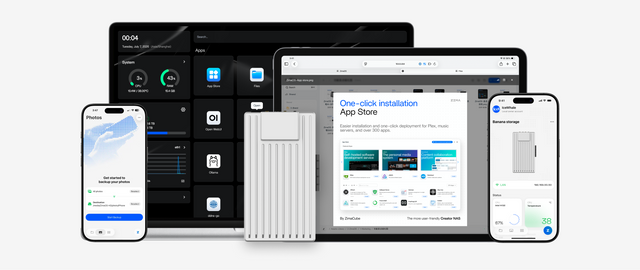
Why Are Developers Using a Gateway Node for Private DNS, VPN, and Test Apps?
A gateway node gives private apps one controlled name and access path, while compute nodes stay unexposed and replaceable.
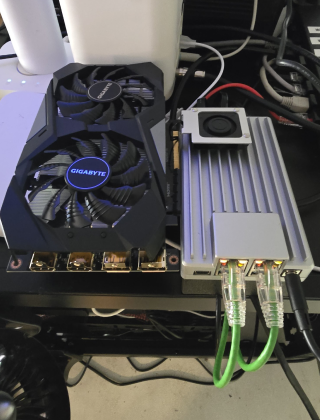
How to Build a Reproducible App Stack With Compose Files, Secrets, and Persistent Data Separated
Keep Compose definitions portable, secrets protected, and app data independently backed up so the stack can be rebuilt on a clean host.


