
Why Are Families Moving Photo Libraries From Shared Cloud Accounts to a Home Server?


Families move photo libraries home when shared cloud accounts blur ownership, storage limits, privacy, exports, and long-term control over original files.
The useful replacement is not simply a large folder on a NAS. A family photo server needs separate user accounts, private upload spaces, shared albums, an authoritative originals library, preserved metadata, enough capacity for video growth, and a backup outside the server. Cloud sharing can remain part of the workflow, but it stops being the only place where the household’s history can be accessed or recovered.
Shared Cloud Accounts Mix Convenience With Ownership Problems
One shared login appears simple because every phone can see the same library. It also mixes private photos, deletion rights, storage quotas, account recovery, payment, and security into one identity. A password change, compromised account, or mistaken cleanup can affect the entire household at once.
WIRED’s NAS setup guide highlights local privacy, automatic backups, central sharing, and separate user access as reasons to bring household storage onto a home server. That separate-account family storage model solves a different problem from giving everyone the same cloud credentials.
Define one library owner for administration, but give each person an individual account and private upload area. Shared albums should be intentional views of selected photos rather than evidence that everyone owns and can delete every original.
Export the Cloud Library Before Declaring the Home Server Authoritative
A migration begins with a complete export, not with turning on phone uploads to an empty server. Inventory every cloud account, shared album, partner library, old laptop folder, memory card, and external drive. Record approximate item counts, date ranges, and file sizes before moving anything.
WIRED’s guide to moving photos between services recommends maintaining an exit strategy because features, prices, and even platforms can change. That cloud-exit workflow supports downloading and validating the library before the household relies on the new destination.
Keep the export unchanged as a migration source. Copy it into a staging area, calculate checksums where practical, and compare counts by year or folder. Do not delete the cloud library until the server has imported the originals, users can find representative photos, and an independent backup exists.
Reconcile the export in several dimensions instead of trusting one total. Compare files by year, media type, account owner, and approximate storage use. Shared albums may reference originals owned by another account, so an album count does not prove that every underlying file was exported. Keep a log of missing items, unsupported formats, and sidecar files that still need interpretation. When two accounts contain the same photo, preserve both source records during staging rather than deduplicating immediately; edits, captions, favorites, or album membership may differ even when the pixels match.
Choose a cutover date only after one complete import has been reviewed by more than one family member. Ask each person to find an old event, a recent video, a favorite, and a shared album. Their ability to recognize missing context is often more useful than a raw file count. The cloud account should remain available until the home server, backup copy, and user-access model all pass this review.
Preserve Metadata Before Rebuilding Albums and Search
A photo library contains more than image pixels. Capture time, location, orientation, filename, camera details, favorites, edits, album relationships, and face labels may be stored partly in files and partly in a cloud database. An export can separate sidecar metadata from originals or change filesystem timestamps.
Backblaze demonstrates that moving files through cloud services can alter timestamps, tags, comments, permissions, and other metadata. That metadata-change risk is why migration validation must include dates, orientation, and searchable context instead of checking only whether JPEG and video files open.
Preserve original filenames and sidecar files until the new photo application has imported them successfully. Test several old photos, edited images, videos, RAW files, and burst sequences. Rebuild albums only after the originals and their embedded metadata are safe.

Replace One Shared Library With Private Spaces and Deliberate Sharing
A family server should make ordinary use easier than administration. Each phone uploads into its owner’s private account. Users create shared albums or move selected originals into a family space. Children, guests, and extended relatives receive only the access required for viewing or contribution.
WIRED’s secure NAS sharing guide explains that a NAS can provide network access while keeping public and private folders separate. That private-versus-shared access boundary keeps a household photo system from reproducing the same shared-credential problem locally.
| Photo space | Who can write | Typical use |
|---|---|---|
| Private phone upload | One user and the upload service | Automatic camera backup before review |
| Family originals | Selected adults or a curator workflow | Authoritative long-term archive |
| Shared albums | Album owners and approved contributors | Trips, events, and family collections |
| Guest view | No write access by default | Sharing selected memories outside the household |
Keep an administrator recovery account separate from daily viewing accounts. The family should be able to upload, browse, and share without receiving permission to manage storage pools, backups, containers, or system updates.
Design the Server Around Originals, App State, and Generated Data
The originals library, application database, thumbnails, indexes, and temporary upload files have different recovery and performance requirements. Originals need durable capacity and independent backup. The database needs consistent protection. Thumbnails and machine-generated indexes can often be rebuilt but may need fast storage for responsive browsing.
A recent Tom’s Hardware account describes a headless home server built around a growing family photo library, with separate storage roles for primary data, computer backups, and redundant copies. That photo-library-plus-backup topology shows why one large drive should not silently become every layer.
Place originals on a capacity pool, persistent app state on a documented low-latency path, and cache on bounded storage. Record which components are needed for a full app restore. Capacity planning should include current originals, several years of phone-video growth, versions, database growth, and free-space reserve.
Run Cloud and Home Uploads in Parallel During the Transition
Do not ask every family member to trust the new system after one successful upload. Keep the existing cloud workflow active while the home server proves automatic background upload, duplicate handling, mobile data rules, battery behavior, and recovery after phones change networks.
WIRED’s overview of cloud photo storage emphasizes how automatic cloud backup and cross-device access make photo services convenient. That low-friction upload expectation is the usability threshold a family home server must match closely enough for ordinary users.
Pilot one phone first, then add another operating system and account. Compare item counts, capture dates, videos, edits, and deletions. Only after several weeks of reliable uploads should the household decide whether cloud storage remains a secondary copy, a sharing channel, or a service to reduce.
Keep the Home Server From Becoming the Only Copy
Moving away from a shared cloud account should increase control without reducing protection. A mirrored pool can keep the server available after one drive failure, but it does not protect against deletion, ransomware, theft, fire, administrator mistakes, or application corruption.
Backblaze’s 3-2-1 framework recommends three copies, two storage types or locations, and one copy off-site. That independent-copy requirement remains necessary after the home server becomes the authoritative photo library.
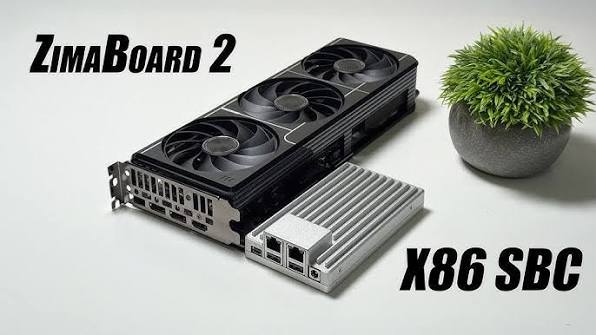
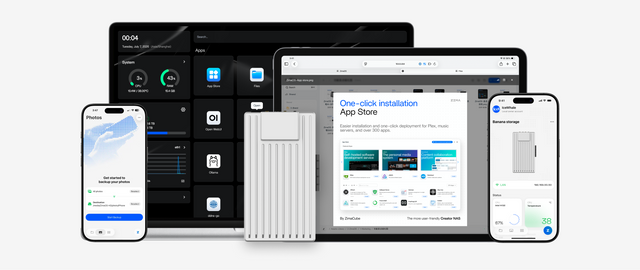
The ZimaSpace guides to safely storing family photos and planning for several phone libraries extend the protection and capacity decisions. A ZimaBoard 2 Mini Home Server fits a compact photo application and attached-storage pilot. A ZimaCube 2 AI NAS is the clearer fit when several users, multi-drive originals, longer retention, and storage-first recovery define the family archive.
Keep a migration ledger that records each source account, export date, imported item count, unresolved metadata issue, and backup status. This gives the family one place to confirm that a library is complete before a cloud subscription is reduced or an old account is closed.
The move is complete when every person has a private account, the originals and metadata are validated, uploads work without an administrator, and the home library can be restored from somewhere outside the server.

Recommended products

NAS & Server Setup
More to Read
A Local RAG Setup for Research Papers, Notes, and Private Documents
Keep original documents authoritative, make indexing repeatable, require citations, and separate replaceable models from private source data.
Why Are Developers Using a Gateway Node for Private DNS, VPN, and Test Apps?
A gateway node gives private apps one controlled name and access path, while compute nodes stay unexposed and replaceable.
How to Build a Reproducible App Stack With Compose Files, Secrets, and Persistent Data Separated
Keep Compose definitions portable, secrets protected, and app data independently backed up so the stack can be rebuilt on a clean host.


