
Världsfotografidagen: Så säkerhetskopierar och organiserar du ett helt livs foton


Världsfotografidagen är en bra tid att skydda de foton som redan är spridda över telefoner, kameror, bärbara datorer, minneskort, molnkonto och gamla familjealbum. Denna guide förklarar hur du samlar dessa filer, organiserar dem i ett tydligt arkiv, skapar pålitliga säkerhetskopior, bevarar tryckta fotografier och bestämmer när en dedikerad fotoserver kan göra en växande samling lättare att hantera.
Varför firas Världsfotografidagen den 19 augusti?
Världsfotografidagen firas den 19 augusti eftersom detaljerna i Louis Daguerres daguerreotyp-process formellt presenterades i Paris den 19 augusti 1839. Processen producerade detaljerade bilder på polerade metallplåtar och hjälpte till att göra permanent fotografi mer praktiskt och allmänt tillgängligt.
Fotografering har förändrats från en långsam kemisk process till något som människor använder dussintals gånger om dagen. En telefon kan fånga familjesammankomster, husdjur, skolhändelser, semestrar, kvitton, kreativa projekt och vardagsögonblick som kan bli meningsfulla år senare.
Den enkla möjligheten att ta bilder har skapat ett annat problem: människor producerar nu bilder snabbare än de organiserar eller skyddar dem. En person kan ha foton lagrade i flera telefonbibliotek, sociala plattformar, meddelandeappar, gamla bärbara datorer, USB-enheter och kamerakort utan att veta vilken plats som innehåller hela samlingen.
Världsfotografidagen kan därför bli en årlig arkivdag. Istället för att bara dela en favoritbild, använd den 19 augusti för att importera nytagna foton, kontrollera säkerhetskopior, märka viktiga händelser och återställa bilder från enheter som kanske inte fungerar så länge till.
Var ska du samla dina foton ifrån?
Börja med en inventering innan du flyttar eller raderar något. Skriv ner varje plats som kan innehålla fotografier, inklusive enheter som inte använts nyligen.
Vanliga källor inkluderar:
-
Nuvarande och tidigare telefoner
-
Digitalkameror och minneskort
-
Bärbara och stationära datorer
-
Externa hårddiskar och USB-enheter
-
Molnbaserade fotobibliotek
-
E-postbilagor
-
Meddelandetjänster
-
Nedladdningar från sociala medier
-
Skannade utskrifter, diabilder och negativ
-
Foton som hålls av andra familjemedlemmar
Skapa en tillfällig importplats för projektet. Kopiera filer dit istället för att omedelbart omorganisera de enda befintliga versionerna. Detta ger dig utrymme att jämföra mappar, identifiera saknade år och känna igen dubbletter utan att skada originalkällorna.
Anta inte att varje molnkonto innehåller original i full upplösning. Vissa nedladdningar kan vara komprimerade, redigerade eller sakna metadata. Jämför bilddimensioner, filstorlek, inspelningsdatum och format innan du bestämmer vilken version som ska sparas som arkivkopian.
Telefoner förtjänar särskild uppmärksamhet eftersom deras bibliotek kan innehålla skärmdumpar, nedladdade bilder, meddelandebilagor, seriebilder, redigerade kopior och videor. Separera uppenbart icke-fotografiska filer vid import, men undvik att fatta hundratals små beslut på en gång. Det är lättare att organisera arkivet i etapper.
För tryckta fotografier, börja med album och lådor som är fysiskt sårbara eller svåra att identifiera. Be släktingar att namnge personer, platser och ungefärliga datum medan den informationen fortfarande finns tillgänglig. Spara dessa detaljer i filnamn, mappanteckningar eller metadata istället för att förlita dig på minnet.
Släng inte de fysiska originalen efter skanning. En digital kopia förbättrar åtkomsten och ger ett extra skyddsskikt, men det ursprungliga fotot, diabilderna eller negativet kan innehålla mer detaljer än den första skanningen fångar.
Hur bör du organisera ett helt livs foton?
Det bästa mappsystemet är ett som förblir begripligt utan en särskild fotoapplikation. En enkel datum-baserad struktur fungerar för de flesta personliga arkiv eftersom mapparna fortsätter att vara meningsfulla när filer flyttas mellan datorer eller mjukvaruplattformar.
En grundläggande struktur kan se ut så här:
Foton/
├── 2024/
│   ├── 2024-03-16 Chicago-helg/
│   ├── 2024-06-08 Examensfest/
│   └── 2024-12-25 Familjens jul/
├── 2025/
│   ├── 2025-04-12 Vårlov/
│   └── 2025-10-31 Halloween/
└── Skannade familjefoton/
    ├── 1960-talet/
    ├── 1970-talet/
    └── Okänt datum/
Använd året först, följt av månad och dag när det är känt. Detta håller mappar i kronologisk ordning utan att kräva särskild programvara. Lägg till en kort beskrivning av evenemang, plats eller motiv efter datumet.
Behåll filnamn användbara men hanterbara
Kamerafilenamn som IMG_4821.JPG är inte nödvändigtvis ett problem när filerna finns i tydligt namngivna mappar. Att byta namn på tusentals bilder kan ta tid utan att förbättra arkivet tillräckligt för att motivera ansträngningen.
Byt namn på filer när de ursprungliga namnen är duplicerade, meningslösa utanför en applikation eller sannolikt skapar konflikter vid import. Ett konsekvent format kan inkludera datum, evenemang och sekvensnummer:
2025-10-31-halloween-party-001.jpg
2025-10-31-halloween-party-002.jpg
Bevara det ursprungliga inspelningsdatumet när det är möjligt. Att kopiera, exportera, ladda ner eller redigera ett foto kan ändra dess filskapelsedatum även om det inbäddade kameradatumet förblir korrekt.
Separera arkivet från de bästa fotona
Det kompletta arkivet och samlingen du regelbundet bläddrar i behöver inte vara samma sak. Behåll alla meningsfulla original i arkivet och skapa sedan album för favoriter, årliga höjdpunkter, familjemedlemmar, resor, husdjur eller portföljarbete.
Detta förhindrar att organiseringsprojektet blir ett försök att redigera varje bild som någonsin tagits. En mapp kan innehålla 600 semesterfoton medan det färdiga albumet bara innehåller de bästa 40.
Använd betyg, flaggor eller album-medlemskap för urval istället för att skapa många onödiga kopior. Exportera separata versioner endast när du behöver en särskild upplösning, beskärning, färgbehandling eller filformat.
Använd taggar selektivt
Taggar är användbara för information som mappar inte lätt kan representera, såsom personerna på ett fotografi, återkommande motiv eller bilder som tillhör flera teman.
Börja inte med att tagga varje objekt i varje foto. Börja med detaljer som kommer att svara på verkliga framtida sökningar:
-
Namn på nära familjemedlemmar
-
Viktiga platser
-
Stora händelser
-
Kund- eller projektnamn
-
Skannade foto-familjegrenar
-
Upphovsrätts- eller användarinformation
-
Bilder valda för utskrift
Automatisering och ansiktsigenkänning kan påskynda processen, men granska viktiga matchningar. Liknande ansikten, barn som förändras över tid och delvis dolda motiv kan ge felaktiga grupperingar.
Hur säkerhetskopierar du foton utan att skapa mer förvirring?
Ett fotoarkiv är inte skyddat bara för att det finns på en stor enhet. Enheter går sönder, bärbara datorer försvinner, konton blir otillgängliga och oavsiktlig radering kan spridas genom synkroniserade mappar.
Den allmänt använda 3-2-1-strategin rekommenderar att man behåller tre kopior av viktig data, använder två olika lagringstyper eller system, med en kopia lagrad på en annan plats än den primära.
För ett personligt fotobibliotek kan det innebära:
-
Det huvudsakliga organiserade biblioteket på en dator eller NAS
-
En automatisk säkerhetskopia på en separat lokal enhet
-
En krypterad moln- eller fysisk off-site-kopia
De exakta verktygen kan variera. Den viktiga principen är att en olycka inte ska förstöra alla versioner.
Förstå skillnaden mellan synkronisering och säkerhetskopiering
Synkronisering är användbart för att hålla foton tillgängliga på flera enheter, men det kan upprepa oönskade ändringar. När ett foto raderas, skrivs över eller omorganiseras felaktigt kan den åtgärden synkroniseras till andra anslutna enheter.
En säkerhetskopia bör bevara återställningsbara versioner oberoende av det aktiva biblioteket. Leta efter versionshistorik, behållning av raderade filer, snapshots eller en annan metod som tillåter att en tidigare kopia kan återställas.
Förvara inte säkerhetskopieringsenheten permanent bredvid huvuddatorn och behandla den som fullständigt skydd. Stöld, brand, vattenskada, elproblem eller skadlig programvara kan påverka båda enheterna samtidigt.
Gör processen automatisk
En säkerhetskopieringsrutin som förlitar sig på att komma ihåg att dra mappar var tredje månad kommer så småningom att hoppas över. Automatisera åtminstone en kopia så att nya importer och redigeringar skyddas enligt ett förutsägbart schema.
En praktisk rutin kan inkludera:
-
Uppladdningar från telefon efter laddning hemma
-
Import från kamerakort efter varje projekt eller resa
-
Nattlig säkerhetskopiering av huvudfotobiblioteket
-
Regelbundna snapshots av ändrade filer
-
Säkerhetskopiering utanför platsen efter att nya mappar lagts till
-
En månatlig genomgång av misslyckade eller pausade jobb
Behåll kamerakorten oförändrade tills filerna har importerats och säkerhetskopierats. Att formatera kortet direkt efter kopiering skapar onödig risk om importen var ofullständig eller placerades i fel mapp.
Testa att foton kan återställas
Säkerhetskopieringsprogram kan rapportera framgång även när en mapp exkluderats, ett konto har gått ut eller fel bibliotek valts. Testa återställning istället för att bara lita på en grön statusikon.
Välj flera filer från olika år och återställ dem till en temporär mapp. Öppna de återställda bilderna, bekräfta deras fulla upplösning och kontrollera att viktig metadata fortfarande är tillgänglig.
Upprepa testet efter att ha bytt dator, lagringsenheter, applikationer eller molnplaner. En säkerhetskopieringsstrategi är bara användbar om någon kan återställa fotografierna utan att behöva bygga om hela systemet från minnet.
När är en dedikerad fotoserver meningsfull?
En dedikerad server är inte nödvändig för varje fotosamling. En bärbar dator, molntjänst för foton och separat säkerhetskopia kan räcka för någon med ett modest telefonbibliotek och inga stora kamerafiler.
Centraliserad lagring blir mer användbar när flera familjemedlemmar bidrar med foton, samlingen innehåller RAW-filer och högupplöst video, eller samma bilder behöver nås från flera datorer. Det kan också minska antalet ofullständiga bibliotek spridda över personliga enheter.
En fotoserver kan vara värd att överväga när:
-
Intern lagring på bärbar dator är ofta full
-
Flera externa enheter innehåller överlappande mappar
-
RAW-fotoprojekt och videoprojekt växer snabbt
-
Flera personer behöver tillgång till ett familjearkiv
-
Automatiska säkerhetskopior av telefon och dator krävs
-
Äldre projekt måste förbli tillgängliga utan att ta upp plats på en huvuddator
-
Arkivet innehåller också dokument, hemmavideor och skannat material
En NAS löser inte automatiskt organisering eller säkerhetskopiering. Den erbjuder en central plats, men mapparna behöver fortfarande konsekventa namn, behörigheter och en separat återställningskopia. Redundanta enheter kan hjälpa till att hålla systemet igång efter att en enhet gått sönder, men de skyddar inte mot radering, stöld eller skada på hela enheten.

För ett större fotobibliotek kan ZimaCube 2 Home NAS fungera som central lagring och applikationslager. Dess sex HDD-fack ger plats för en växande samling, medan fyra M.2 SSD-platser kan hålla snabbare applikationsdata eller aktiva projekt. Dubbla Thunderbolt 4-anslutningar kan stödja direkta arbetsflöden med kompatibla datorer, och Intel-processorval gör att samma system kan hantera fotohantering, enhetssäkerhetskopior och andra självhostade tjänster.
Den nivån av hårdvara är mest meningsfull för fotografer, kreativa hushåll eller familjer som konsoliderar år av media. Den viktiga fördelen är inte att placera varje foto på en ny enhet. Det är att skapa ett förståeligt bibliotek som kan nås, säkerhetskopieras och flyttas till framtida lagring utan att börja om.
Slutsats
Världsfotografidagen är ett tillfälle att skydda bilder som redan dokumenterar en familj, karriär eller kreativt liv. Samla filer utan att radera originalen, organisera dem med en enkel datum-baserad struktur, separera det kompletta arkivet från kuraterade album och behåll flera återställningsbara kopior.
Processen behöver inte slutföras på en dag. Börja med de nyaste fotona eller den äldsta sårbara enheten, avsluta en grupp, bekräfta dess säkerhetskopia och fortsätt därifrån. Ett välskött arkiv ska göra det enklare att återbesöka fotografier – inte förvandla bevarandet till ett permanent ofärdigt projekt.
Vanliga frågor
Vad är det bästa sättet att organisera personliga foton?
Använd en enkel struktur baserad på år, datum och händelse. Behåll filnamn konsekventa när du byter namn, bevara metadata från fotograferingen och använd album eller taggar för personer och teman som inte passar in i mappar.
Är molnlagring tillräckligt för fotobackuper?
Molnlagring kan ge en viktig off-site-kopia, men det bör inte vara den enda platsen. Konto-problem, synkroniseringsfel, radering, planändringar och uppladdningsfel kan fortfarande påverka tillgången till biblioteket.
Hur många kopior av mina foton bör jag behålla?
Behåll minst tre kopior av viktiga fotografier: det aktiva biblioteket och två säkerhetskopior. Se till att en säkerhetskopia är separat från huvudplatsen så att en enda fysisk händelse inte kan påverka alla kopior.
Ska jag radera dubblettfoton?
Ta bara bort exakta dubbletter efter att ha jämfört filkvalitet, upplösning, metadata, redigeringar och lagringsplatser. Bilder som ser identiska ut kan inkludera ett original, en komprimerad nedladdning och en redigerad version som inte automatiskt bör behandlas som utbytbara.
Ska jag behålla RAW-filer och JPEG-filer?
Behåll RAW-filer för fotografier som kan behöva redigeras i framtiden eller har långsiktigt kreativt värde. JPEG-filer är enklare att bläddra igenom, dela och öppna på olika enheter. Många fotografer sparar RAW-originalet tillsammans med en färdig JPEG för viktiga bilder.

Rekommenderade produkter

Zima Kampanjnav
Mer att läsa

Hur Giorgio Cappello Di Paglia testar spelande som om det vore 1997 på ZimaBoard 2
Giorgio Cappello Di Paglia använder ZimaBoard 2 och Batocera för att undersöka om dagens spelare fortfarande kan anpassa sig till spel som är utformade...
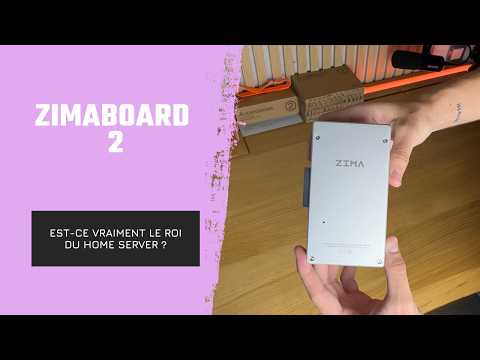
Hur YOTECH utvärderar ZimaBoard 2 som en kompakt hemmaserver
YOTECH granskar ZimaBoard 2 som en kompakt plattform för hemmaservrar och tar upp dess hölje i aluminium med passiv kylning, medföljande kablar, extra fläkt,...
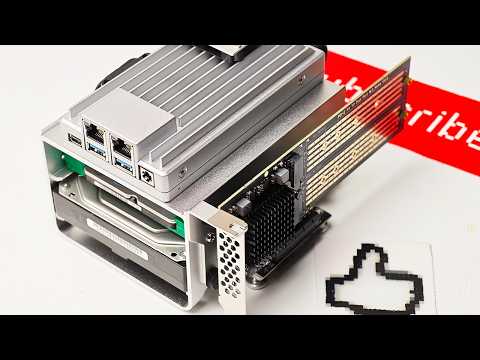
Hur Arthur från Hobby Support kör hemnätverkstjänster på ZimaBoard 2
Arthur från Hobby Support Int. bygger ihop en ZimaBoard 2-hemsserver med SATA-lagring, aktiv kylning och PCIe-expansion och utforskar sedan hur ZimaOS förenklar självhosting. Hans...


