
If you need to repair ZimaOS, choose the recovery method based on what still boots: use Slot A/B recovery when the current system slot is broken, and use a RAUCB offline update when the system still boots but needs repair or updating. Do not reinstall immediately and risk confusing a system problem with user-data loss.
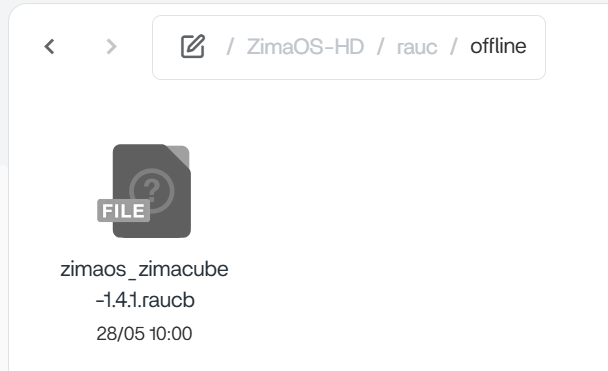
The source case was ZimaOS 1.4.1 and followed an older offline-update path. Current documentation explicitly says the directory changed starting with v1.4.1, which explains why copying the package into the old folder could produce no update prompt.

Method 1: Switch to the Other ZimaOS System Slot
ZimaOS uses two system partitions, Slot A and Slot B. If the active slot is damaged or an update fails, boot the alternate slot from GRUB.
The current ZimaOS system recovery guide explains how to enter GRUB and select the backup slot.
Check Which Slot Is Running
rauc statusThe output marks the currently booted slot. Record it before attempting repair so you know which image is your fallback.
Method 2: Use the Current Offline Update Folder
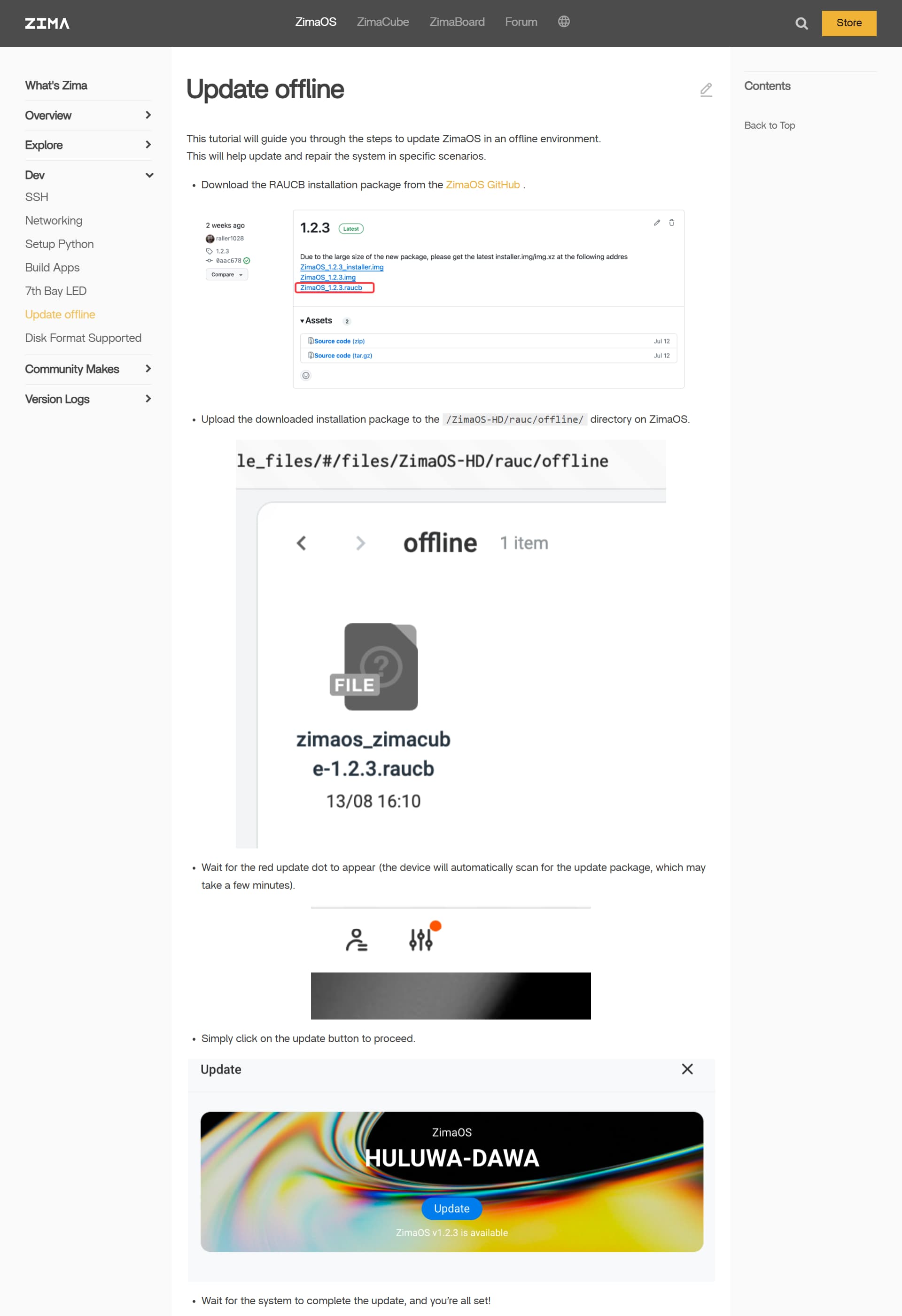
The current ZimaOS offline update guide says the offline package path changed:
- before v1.4.1:
/ZimaOS-HD/rauc/offline/ - v1.4.1 and later:
/ZimaOS-HD/.ota/offline/
This version boundary is the most important correction for the source thread.
Use the Correct RAUCB Package
Download the current ZimaOS RAUCB release from the official release source. Do not rename a generic installer image and expect the offline updater to accept it.
Wait for the Update Scanner
After copying the RAUCB file to the correct directory, wait several minutes for ZimaOS to scan it. The update indicator should appear before you start the upgrade.
Protect User Data Before Repair
Slot switching is designed to leave user data on separate storage, but important files and AppData should still have a verified backup before system repair or reinstall.
Do Not Delete Both System Slots
If one slot still boots, preserve it as a recovery path. Repartitioning or reflashing the system disk should be a later step after safer recovery options fail.
When a Full Reinstall Is Appropriate
Reinstall only when both slots are unusable, the system disk is damaged, or support recommends a clean system image. Document storage pools, AppData, shares, and Plus/device identity first.
The installation and upgrade guide provides the broader recovery plan.
FAQ
Where should a RAUCB file go on ZimaOS 1.4.1 or newer?
Current docs say /ZimaOS-HD/.ota/offline/.
Will switching Slot A/B erase my data?
Current recovery docs say user data is stored separately and is not affected by switching the system slot.
Why does the offline update file do nothing?
Check the version-specific folder, package type, filename integrity, free space, and wait for the scanner to detect it.
Should I reinstall before trying the other slot?
No. Slot recovery is the lower-risk first option when one system slot still works.


