
How Proxmox Works: ASNetworking Explains VMs, Containers, KVM and QEMU


Thanks to ASNetworking for the clear visual explanations in this Spanish-language Proxmox course. Chapter two builds the mental model behind a virtualized host: what a VM borrows from a physical machine, how resource allocation works, when containers differ, and why QEMU and KVM appear together. Watch the original video for the creator’s full walk-through.
Watch before reading: This 20-minute conceptual lesson is useful if you are considering Proxmox VE for a home lab but want to understand its layers before installing anything. The diagrams move from a physical server and several guests to thin-provisioned disks, containers, the Linux kernel, QEMU, and KVM. Some graphics show large enterprise machines or illustrative capacities; they are teaching examples, not hardware specifications for a compact server.
The key distinction is between what a guest is shown and what the host actually has available. A VM may see its own CPU cores, RAM, disk, and operating system, while those resources ultimately come from the same physical host. Proxmox VE brings VM and Linux container management into one interface; this chapter explains the architecture, rather than measuring performance or demonstrating a completed installation.
One physical host, several separate machines
Virtualization lets one server run multiple guest operating systems as distinct VMs. Each guest sees virtual hardware and can run its own applications, while the host schedules the underlying CPU and manages physical memory, storage, and networking. This is why a test Linux VM and a separate service VM can coexist without requiring one physical computer per task.

Overcommitting requires a real resource budget
ASNetworking introduces overcommitting: assigning more virtual resources across guests than the host could supply if every guest demanded them at once. This can be sensible when workloads peak at different times. It is not extra hardware. Heavy simultaneous demand may lead to CPU contention, memory pressure, or slower storage. For a small home lab, start with the physical RAM and storage you actually have, reserve room for the host, and watch usage before adding another guest.

Thin provisioning changes when disk space is consumed
A virtual disk can present a larger logical capacity than the physical space it has consumed so far. The video’s graphic shows five 1 TB virtual disks on a 1 TB physical disk, each currently using 100 GB. That works only while actual writes fit on the real disk. If the guests collectively fill their virtual disks, the host can run out of space long before their displayed capacities suggest a problem. Check free physical space, storage format, snapshots, and backups rather than planning around advertised virtual capacity alone.

The episode also touches on memory tiering. RAM and slower storage do different jobs: moving cold data to a slower tier can help manage pressure, but it does not make storage perform like RAM. Treat every resource-saving feature as a trade-off to verify against the workload, especially on a memory-limited host.
What the hypervisor manages
The hypervisor sits between physical resources and the VMs. The diagram at this point in the video emphasizes that each VM has its own workload but still depends on one host’s CPU, RAM, disk, and network. Proxmox VE adds the management tools around these guests, including a web interface and services for configuration and administration. Its architecture includes KVM virtual machines and LXC containers.


VMs and containers provide different boundaries
A VM includes a guest operating system and virtual hardware. A Linux container isolates applications and their user space while sharing the host’s Linux kernel. That generally makes a container lighter than a full VM, but it is a different isolation and operating-system model. A Windows guest, or a workload that benefits from a separate kernel, belongs in a VM. A suitable Linux service may fit in an LXC container. The Proxmox LXC documentation explains the container model in more detail.

Containers and VMs can also be combined: a container runtime may run inside a VM when that boundary suits the deployment. The video’s comparison chart includes bare metal, virtualized, containerized, and combined arrangements. Pick the boundary for the service and its security, compatibility, and maintenance requirements; a container is not simply a smaller VM.

Where Linux, QEMU, and KVM fit
Proxmox VE is a Linux-based platform with a management interface; you do not need to memorize every command to understand the role of its components. The creator briefly points to the Proxmox download page, then explains the technical layers under a VM. That web download screen identifies the product family, while the virtualization model is explained more directly by the following QEMU/KVM diagram.

KVM is the virtualization capability in the Linux kernel, using supported CPU virtualization extensions. QEMU provides the virtual machine process and emulated or paravirtualized devices; together, QEMU and KVM run hardware-accelerated VMs. This is a useful way to read the labels in Proxmox rather than imagining QEMU and KVM as two competing hypervisors. The Proxmox QEMU/KVM guide covers VM configuration and capabilities.

Apply the model to a small home lab
The video briefly displays a hypervisor market-share graphic. Its percentages are not needed to choose a home-lab platform and should not be treated as independently verified market data. The more useful decision is concrete: which workloads need full guest operating systems, which can share a Linux kernel, and how many can fit within your actual RAM and disk budget.

For a compact host such as the ZimaBoard 2 mini home server, map one or two modest services first, check the exact model’s CPU, memory, boot media, and attached storage, and expand only after observing real usage. This is an application of the lesson’s resource model, not a claim that the video benchmarks ZimaBoard 2 or validates a particular VM count. Keep backups separate from thin-provisioned virtual disks.

With those layers clear, the next chapter can focus on practical installation choices. Watch ASNetworking’s installation chapter for its discussion of RAM, storage formats, and network interface pinning before building your first host.

Recommended products

Zima Campaign Hub
More to Read
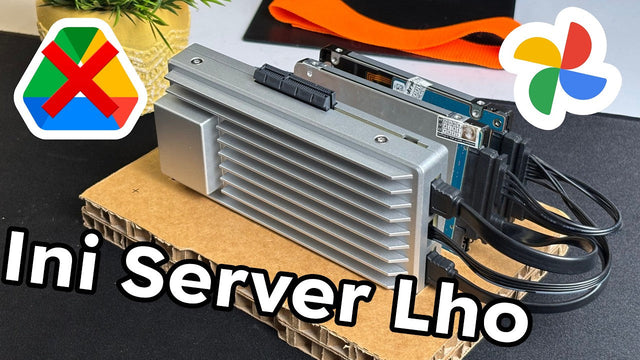
How Rez Tech Builds His Own Personal Cloud With ZimaBoard 2
Rez Tech builds a personal cloud with ZimaBoard 2, two local drives, RAID 1, and ZimaOS, then tests file access, 4K HDR media, and...
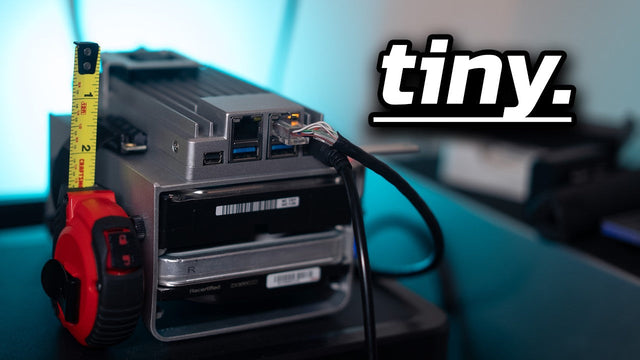
Silicon Steak Shrinks His Homelab With ZimaBoard 2
Silicon Steak explores whether ZimaBoard 2 can replace a much larger homelab machine, testing storage, media playback, Minecraft, Pi-hole, self-hosted apps, and ZimaOS management.

How Smart Life Builds a Private Cloud with ZimaBoard 2
Smart Life turns ZimaBoard 2 into a home destination for phone photos and videos, showing the hardware build, ZimaOS storage setup, phone connection, and...


