
How RelfWolf Builds a Dr. Zola AI Terminal With ZimaBoard 2


Thank you to RelfWolf for showing how a fictional computer can become an interactive project at home. In his Dr. Arnim Zola build video, he combines a printed enclosure, ZimaBoard 2, Ollama, and Home Assistant to create a terminal that answers spoken questions in character.
The project brings several separate systems together. Ollama runs the language model on local hardware, Home Assistant coordinates the conversation, and an ESP-based device provides the microphone and speaker. An animated face on the screen gives those responses a physical presence.
That combination makes the build relevant beyond a Marvel-inspired prop. It explores how a compact home server can support a voice interface, what happens when an integration overwhelms a small model, and why the most convincing voice is not always the most usable choice.
Before you begin: Watch the complete video for the assembly and debugging sequence. Treat it as a record of an experimental build rather than a ready-to-install kit; enclosure dimensions, device settings, and network addresses depend on the components you use.
About this build: The account below follows RelfWolf’s demonstration, including the changes he makes after testing. His local conversation setup does not use ChatGPT, while the visual assets are created separately with AI image and video tools. The finished terminal remains a prototype with further work planned on its enclosure, speech, and response time.

What RelfWolf’s Dr. Zola AI Terminal Actually Does
The terminal turns speech into a response from a locally hosted language model. Home Assistant receives audio from the microphone device, passes the transcribed words to Ollama, and sends the generated reply through text-to-speech before returning audio to the speaker.
RelfWolf gives the conversation agent a system prompt describing the character. He also configures a custom wake phrase and a screen that changes between listening and speaking animations, so the interaction feels connected to the terminal rather than to a separate computer interface.
During a conversation, the system:
- Detects the custom wake phrase and starts listening through the microphone.
- Converts the spoken message into text for the conversation agent.
- Uses Ollama on ZimaBoard 2 to generate a reply and converts that reply into speech.
- Plays the audio while switching the display to its speaking animation.
The screen returns to its idle loop after playback. Panel lights make the stages visible, indicating when the terminal has power, is listening, is processing a request, or is speaking.
What You Need Before Starting
RelfWolf’s build requires preparation across the enclosure, network, and voice software. The components shown include:
- A ZimaBoard 2 with 16GB of RAM running ZimaOS
- Ollama and a locally downloaded language model
- A working Home Assistant installation with a configured voice pipeline
- An ESP-based microphone and speaker device using ESPHome
- A display, control-panel switches, buttons, and indicator LEDs
- A printed enclosure, mounting hardware, wiring, and speakers suitable for the case
The workflow depends on the microphone device, Home Assistant, and the Ollama server being able to communicate. Test these connections before installing the electronics in the enclosure, and check the display dimensions and connector positions against the actual components you plan to use.
Why ZimaBoard 2 Fits This Kind of Local AI Terminal
RelfWolf chooses ZimaBoard 2 as the computer inside the terminal. The 16GB configuration gives him a compact platform on which to test a local language model, manage Ollama through ZimaOS, and drive the character display without building the project around a desktop tower.
The demonstration also shows why memory capacity alone does not determine the experience. The model’s workload, cooling, Home Assistant configuration, and speech generation all affect how long the user waits for an answer.
Part 1: Build the Terminal Enclosure and Control Panel
The first part gives the assistant a physical form. RelfWolf designs a retro computer housing around a screen and a panel of controls, then prepares the printed pieces for assembly.
Step 1: Design and Print the Enclosure
Create a housing around the actual dimensions of the display and internal hardware. RelfWolf’s experience shows why connector placement matters as much as the visible screen size: a slightly different display model creates an unexpected cable-clearance problem later in the build.

Step 2: Prepare the Controls and Mounting Points
Assemble the switches, buttons, LEDs, and wiring on the control panel before closing the case. Threaded inserts allow the panel to be secured with screws and removed again while the electronics are being tested.
Step 3: Fit the Display and Check Cable Clearance
Test the HDMI connection with the screen in its installed position. When the cable clashes with the housing, RelfWolf uses a right-angle HDMI adapter to make the connection fit, avoiding an immediate enclosure redesign and another long print cycle.
Step 4: Secure the Front Panel
Fit the prepared control panel into the front of the terminal and screw it into the inserts. Leave the internal electronics accessible until the software, audio, and display have been tested together.
The assembled shell establishes the appearance of the terminal, but it is still only the housing. The next task is to make the computer generate responses locally and connect those responses to the microphone and speaker.
Part 2: Run a Local Conversation Agent With ZimaOS and Ollama
At 6:01, RelfWolf introduces the local AI hardware. He first tests the model in the command line, then moves into the ZimaOS interface and connects Ollama to Home Assistant.
Step 1: Test Ollama on ZimaBoard 2
Start with a direct text exchange before adding the voice pipeline. RelfWolf receives a quick response in his command-line test, confirming that the board can run the model before the additional integrations are involved.
This initial result becomes a useful reference later. When the same project slows down through Home Assistant, he can investigate what the integration adds to the request rather than assuming the board cannot run local AI at all.
Step 2: Set Up Ollama Through ZimaOS
Use the ZimaOS application interface to install and manage Ollama as shown in the video. The model must be available and responding before another service can use it as a conversation backend.
RelfWolf’s goal is to run the conversation model on his own hardware. ZimaOS provides the application-management interface, while Ollama handles the local model and its responses.
Step 3: Connect Home Assistant to the Ollama Server
Add the Ollama integration in Home Assistant and point it to the server’s local address. Create an Assist agent that uses Ollama for conversation so messages entered through Home Assistant reach the model running on ZimaBoard 2.
Step 4: Configure the Character and Reduce Unnecessary Work
Set a system prompt that defines the character’s behavior, then test by typing a message.

In RelfWolf’s first integrated test, CPU use reaches 100%, temperatures exceed 80°C, and the reply takes much longer than expected. A small fan reduces the temperature, but the returned JSON reveals another problem: the smart-home control information is overwhelming the model. Disabling the associated control option makes the conversation work more effectively.

Step 5: Confirm the Conversation Before Adding Voice
Repeat the text test through Home Assistant and check that the reply follows the character prompt. This separates the language-model integration from the microphone, wake-word, and speaker configuration that comes next.
The improvement is specific to this build and its conversation-focused use. RelfWolf does not need the character to operate his smart-home devices, so removing that extra task lets the model concentrate on answering.
Part 3: Add the Wake Word, Voice and Animated Face
The final part connects the working conversation agent to the physical terminal. ESPHome exposes the microphone and speaker to Home Assistant, and a custom openWakeWord model lets RelfWolf activate the assistant by saying the character’s name. He trains the wake phrase, downloads the resulting files, and adds them to his Home Assistant setup.
He then tests Kokoro for more natural speech and creates two short visual loops: one idle animation and one speaking animation. A small program plays the idle loop at startup and switches clips in response to Home Assistant playback activity. ESPHome also connects the panel indicators to the assistant’s state, while larger 5W speakers replace the small test speaker.

The complete assembly exposes issues that were not obvious in the separate tests. Moving the Ethernet cable to the other network port changes the board’s address and breaks connections. The display also starts its speaking loop before audible speech begins. After adjusting the playback trigger, RelfWolf returns to the faster original speech model because Kokoro adds enough delay to push the overall wait beyond 20 seconds.

Basic Speech vs Kokoro vs the Final Configuration
| Speech setup | Main advantage | Main limitation | Role in the build |
|---|---|---|---|
| Original speech model | Faster speech generation in the demonstration | The initial voice sounds generic | Early testing and the final working terminal |
| Kokoro | More natural voice options | Adds roughly nine seconds of speech-generation delay in the logged test | Voice-quality experiment |
| Final integrated configuration | Combines the faster voice with the character prompt, wake phrase, and screen | Voice quality and response time still need improvement | Completed prototype demonstration |

Important Performance, Network and Synchronization Limits
The finished conversation demonstrates that the parts can work together, but it does not establish a fixed response time for every model or installation. RelfWolf’s tests show that an integration can add substantial work, and that speech generation can remain slow even after the language model has finished answering.
- Measure the complete conversation. The user waits for speech recognition, model inference, and speech generation before hearing an answer.
- Check the agent’s assigned tasks. Unneeded smart-home control information caused problems in this particular conversation setup.
- Monitor cooling under load. The added fan lowered the reported temperature into the mid-60°C range during a subsequent test.
- Keep server addresses consistent. The network-port change interrupted the connections used by the terminal.
- Match animation to audible playback. An early speaker event did not mean the generated speech was already playing.
- Choose speech quality with latency in mind. RelfWolf preferred the faster original model for the final interaction.
Troubleshooting a Local AI Voice Terminal
If the terminal fails after assembly, trace the same three connections that caused problems during RelfWolf’s tests:
- Check that Home Assistant still points to the correct Ollama server address, especially after moving network cables.
- Check the conversation-agent configuration when a previously quick model becomes slow or returns unexpected structured output.
- Check the audio and playback logs when the face starts moving before the speaker produces sound.
Also compare the time at which the model finishes its reply with the time audio actually begins. In the demonstrated logs, those were separate delays. Test each component independently, then repeat a complete spoken conversation with everything installed inside the enclosure.
A Compact Home Server Gives a Fictional Terminal a Working Voice
RelfWolf’s project turns a character-inspired enclosure into a working local AI interface. The result depends on the links between the model, the voice pipeline, the physical controls, and the display as much as it depends on the printed case.
ZimaBoard 2 supplies the local computing platform, ZimaOS supports application management, and Home Assistant coordinates the interaction. The most useful lessons come from the changes made during testing: reducing the conversation agent’s workload, checking network addresses, correcting playback timing, and choosing a faster speech model.
Watch RelfWolf’s complete Dr. Zola build to follow the fabrication, debugging, and final conversation. His closing assessment leaves room for enclosure revisions, better print quality, and further improvements to the voice and response time.
If you are experimenting with local AI, building a voice terminal, or combining Zima hardware with Home Assistant, visit the ZimaSpace community to share your setup and discuss the parts you would improve next.

Recommended products


Zima Campaign Hub
More to Read
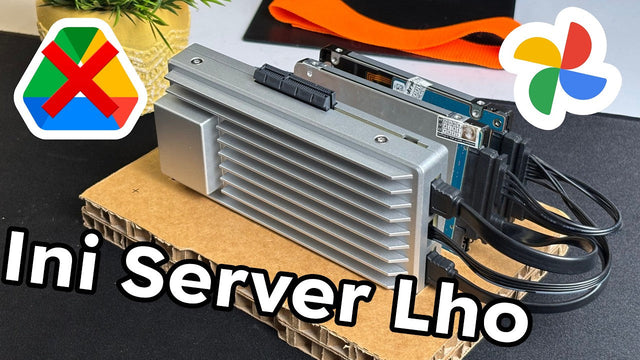
How Rez Tech Builds His Own Personal Cloud With ZimaBoard 2
Rez Tech builds a personal cloud with ZimaBoard 2, two local drives, RAID 1, and ZimaOS, then tests file access, 4K HDR media, and...
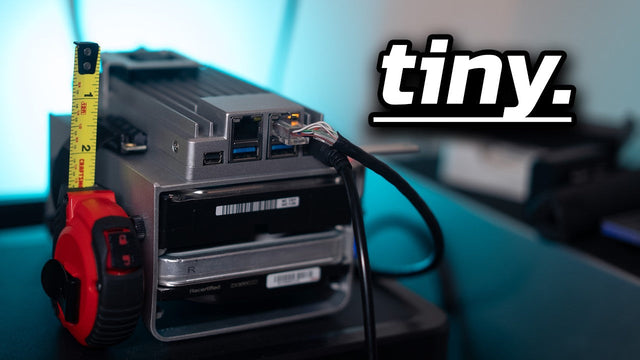
Silicon Steak Shrinks His Homelab With ZimaBoard 2
Silicon Steak explores whether ZimaBoard 2 can replace a much larger homelab machine, testing storage, media playback, Minecraft, Pi-hole, self-hosted apps, and ZimaOS management.

How Smart Life Builds a Private Cloud with ZimaBoard 2
Smart Life turns ZimaBoard 2 into a home destination for phone photos and videos, showing the hardware build, ZimaOS storage setup, phone connection, and...


