
What Are the Warning Signs That a Home Server Boot SSD Is Near Failure?


Fresh I/O errors, read-only remounts, and a disappearing boot device are stronger SSD warnings than slow boot alone.
A home server may start slowly because a service, filesystem check, bootloader, cable, power rail, or NVMe link is misbehaving. Preserve configuration and application data while the disk is still readable, then correlate logs, device health, and a controlled alternate path before deciding that the SSD itself is near failure.
Identify signs that justify immediate preservation
Treat uncorrectable read errors, repeated controller resets, a filesystem remounting read-only, or the boot device vanishing from firmware as urgent. Stop optional workloads and copy configuration, encryption keys, container definitions, and application databases to separate storage.
A health-check guide explains how SMART health, remaining life, writes, and temperature provide useful context, but no single percentage predicts the exact failure date. The stronger case comes from fresh media or integrity errors plus operational symptoms.
Do not keep power-cycling a disk that becomes less readable each time. If the only copy of important data is on it, prioritize an image or professional recovery decision over benchmarks and firmware experiments.
Separate media symptoms from boot and filesystem faults
Save kernel and storage logs from the previous boot, not just the current session. Look for NVMe critical warnings, media and data-integrity errors, SATA link resets, command timeouts, and filesystem errors with matching timestamps.
Compare those findings with the boot timeline. A healthy device with one failed service or a missing boot entry points toward configuration; repeated low-level errors before the filesystem mounts point toward the device or its path.
Run a read-only filesystem check from recovery media only when the filesystem is unmounted and a backup exists. Filesystem repair can restore structure, but recurring corruption after a clean repair suggests the lower storage path remains unreliable.
Isolate SATA, NVMe, power, and thermal paths
For SATA, power down before replacing the data cable, connector, or power lead. If link errors stop with a known-good path while device health remains stable, the original cable or power connection was the likely cause.
For NVMe, check temperature, PCIe link resets, seating, heatsink contact, and firmware-specific behavior. A problem that appears only after sustained heat can mimic dying media, so repeat the same bounded read after cooling and after correcting airflow.
Use the home-server OS guide to plan where boot configuration and service definitions should be exported so replacing the system disk does not become a full server rebuild.

Migrate when evidence converges and verify the new disk
Replace or clone the SSD when fresh uncorrectable or integrity errors grow, health status becomes critical, the device disappears on known-good connections, or errors follow it to another host. Do not wait for complete inaccessibility to make the migration easier to justify.
Restore to a new disk from a known-good image or reinstall and import configuration. Validate filesystems, application data, scheduled jobs, boot entries, and update behavior before retiring the old device.
Finally, reboot twice and run the original workload long enough to cover the prior thermal or I/O trigger. Recovery means no new low-level errors, no read-only remount, stable device detection, and successful service startup after both boots.

Recommended products

Support & Tips
More to Read
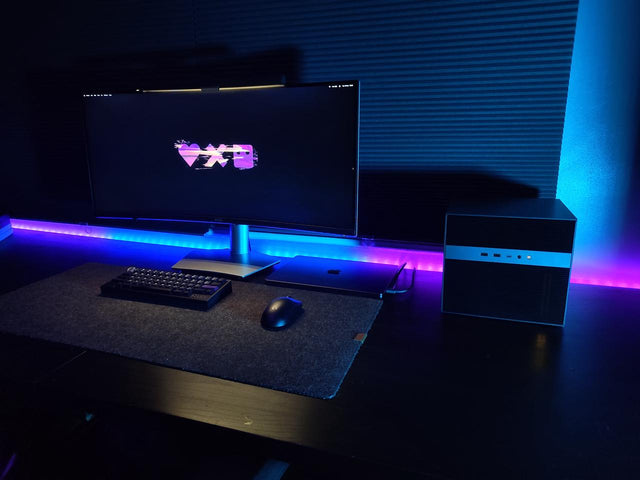
What Display Brightness Helps Reduce Eye Fatigue During Long NAS File Reviews?
There is no universal brightness percentage; match a white screen to the room, control glare, keep text legible, and validate during a timed review.
How to Reduce Neck Strain When a Home Server Console Is Mounted Too Low
Move routine work off the low console or raise the visual target safely while keeping the keyboard lower and retesting a real admin session.
Why Do My Eyes Feel Tired After Monitoring a Bright Server Dashboard at Night?
Night dashboard fatigue often combines brightness mismatch, glare, sustained focus, and reduced blinking; adjust one factor and retest safely.


