
Should You Put Jellyfin Metadata on SSD and Bulk Data on HDD?


Put Jellyfin’s database and high-churn cache on SSD when library browsing, scans, or transcodes show latency; keep bulk media on HDD when its read path is stable.
Are you seeing slow browsing, delayed first frames, or only large-file playback? Separate application state, cache, media, and backup roles before moving anything. The goal is not to make every byte fast; it is to give each role the latency and durability it needs.
Place the database and cache by observed behavior
Jellyfin configuration, database, metadata indexes, and logs perform many small reads and writes. Transcode scratch and image generation also have high churn. Move these roles to local SSD when the disk queue or latency correlates with the symptom. Keep enough free space for a full scan and the largest concurrent transcode set.
After moving a role, verify the configured path, ownership, free space, and a restart. A community case moving Jellyfin cache and metadata to NFS shows why a network-backed path must be tested for latency and persistence rather than assumed to be equivalent to local storage (cache-placement case).
Confirm the database path after container recreation and reboot, then check that the service can write a small state change. If the path changes back, the mount or environment mapping is not persistent.
Keep bulk media on the capacity tier when reads pass
Movies and shows are mostly large sequential reads, so HDD can be sufficient for Direct Play and ordinary transcoding. Test one file from every mounted library, including a remote or high-bitrate file. If HDD spin-up or a shared network mount delays playback, fix mount timing or split the storage path before buying a faster database disk.
Compare first-frame latency and library browsing before and after the move. Keep the SSD placement only when the measured delay improves without weakening the backup path.
If the cache is on a network mount, test a cold start and a temporary NAS outage. A layout that works only while the share is available at boot is not a dependable application path.
Confirm recovery before deleting the old path
Back up application state independently of the media volume. Restore the database and configuration to a clean path, start Jellyfin, and verify users, libraries, and a representative playback session. If the restore works only while the original SSD remains mounted, the migration is incomplete.
Escalate when the filesystem reports errors, the database fails integrity checks, or moving the path changes metadata unexpectedly. Keep the previous copy until the original workload passes after restart.
Confirm the database path after container recreation and reboot, then check that the service can write a small state change. If the path changes back, the mount or environment mapping is not persistent.

Validate the Final SSD and HDD Boundary
Restart Jellyfin with the final mounts active, run a library scan, and play one file from every storage role. Confirm the database, cache, media, and backup paths are still separate after reboot.
Keep metadata on SSD when small-file latency is the observed limit; keep it on HDD when the workload passes and the simpler recovery path matters more. Do not move a role solely because the SSD is faster on a benchmark.
Escalate when a filesystem error, database failure, or missing mount returns after the placement change. Restore the previous path before attempting another storage migration.

Recommended products

Support & Tips
More to Read
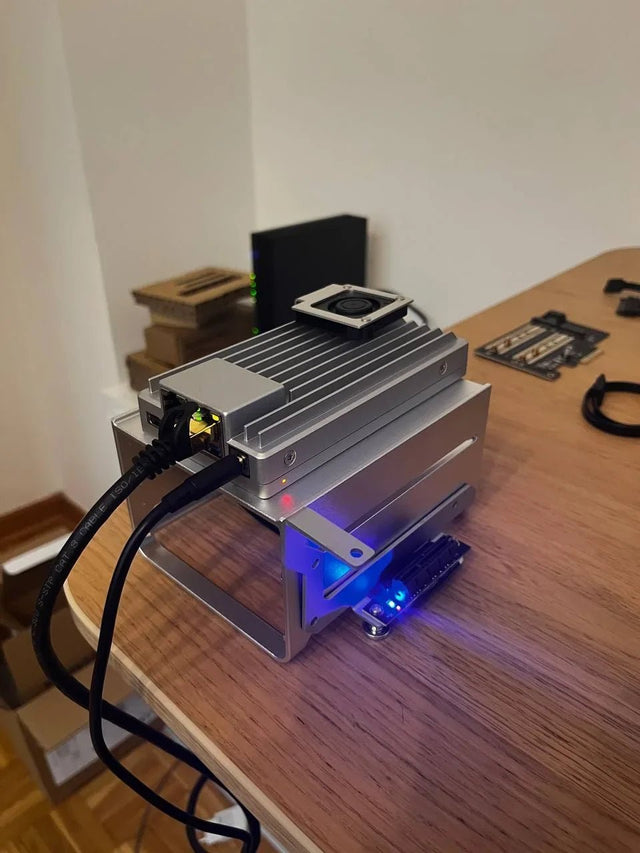
How to Optimize Jellyfin Database Connections for Concurrent Containers
Start with one database owner and measured SQLite lock behavior; add a different backend only when concurrency and recovery justify the complexity.
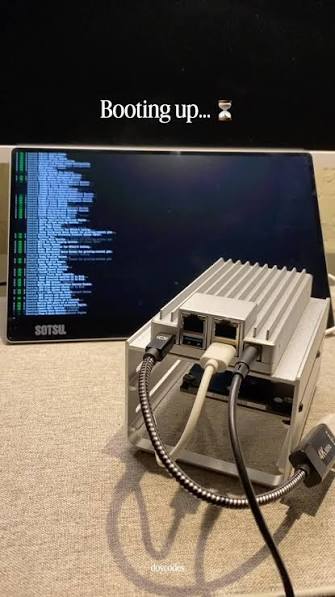
How to Prevent Duplicate Jobs or Imports in Jellyfin
Duplicate work usually comes from overlapping schedulers or more than one writer; assign one owner, one path, and one completion check.
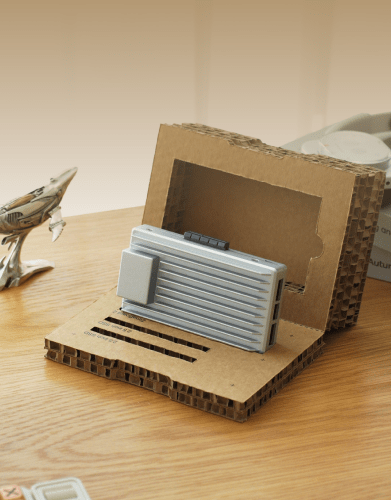
How to Repair Jellyfin After Its Database Volume Fills Up
Stop writes, preserve the database and WAL files, free space without deleting state blindly, then verify integrity and the original workload.


