
What Screen Distance Helps When Watching Several Server Dashboards?


The right screen distance is the farthest position at which all important dashboard text remains easy to read without leaning, squinting, or enlarging your head movements.
For many desktop setups that will fall around an arm's length, but text size and visual acuity matter more than a fixed number. Increase interface scaling before pulling several displays close, place the primary dashboard directly ahead, and validate the layout during a real monitoring session.
Start With Readability, Not a Tape Measure
Sit back in the normal chair position and place the main screen at a comfortable arm's-length distance. Open the smallest text you must read during an incident. If you lean forward, enlarge the browser or operating-system scale before moving the display closer.
a controlled display-distance study found that character size and viewing distance must be considered together; participants leaned forward when text became difficult at farther positions. That is why distance should be tuned together with scaling.
Keep command terminals and alert labels larger than decorative dashboard elements. A dense wall of tiny metrics may look efficient but increases search time and makes the user compensate with posture.
Arrange Displays Around the Primary Task
Place the screen used for active response directly ahead. Put secondary status panels within a modest head turn and avoid placing equally important information at extreme left and right edges. If two screens are used equally, center the seam and switch which window occupies the near-center area.
Angle side displays toward the seated eye position so their surfaces are at similar distances. A wide arc with mismatched depths forces repeated refocusing and larger neck rotations, especially when the outer displays use smaller text.
Move infrequently checked graphs to a rotating overview or a single large display. More dashboards do not create more awareness if important events are visually indistinguishable from ordinary motion.
Use Scaling to Hold Distance Stable
Set browser zoom, dashboard font size, terminal scaling, and operating-system text independently where possible. Avoid lowering resolution below the panel's native setting merely to enlarge content; proper scaling usually preserves clarity better.
a meta-analysis of visual-display fatigue describes viewing conditions as one part of a broader workload that includes duration and environmental factors. Treat scaling, breaks, glare, and distance as a system rather than assigning symptoms to centimeters alone.
Verify that critical widgets still fit without horizontal scrolling after scaling. Remove low-value panels, abbreviate labels carefully, and group related alerts so the interface remains readable at the chosen distance.

Reduce Continuous Watching With Better Alerts
A dashboard should support investigation, not require unbroken visual vigilance. Configure actionable notifications and sensible thresholds so you can look away during healthy operation and open the relevant panel when a real condition changes.
ZimaSpace guide to warning signs for local AI workloads shows how memory, storage, temperatures, and power symptoms can be organized into concrete checks. Apply the same signal hierarchy to any busy home-server dashboard.
Use calm colors for normal states and reserve high-salience color or motion for exceptions. Do not rely on color alone; labels, icons, and state text make alerts easier to interpret and more accessible.
Validate the Layout During a Real Incident Drill
Run a safe test alert and follow the full path from overview to logs and remediation. Notice whether you lean, squint, twist repeatedly, or lose the cursor between screens. Adjust one variable and repeat the same drill.
Keep the setting that lets you read the smallest essential text while remaining supported by the chair. If a farther distance works only with extreme scaling, simplify the dashboard. If a nearer distance causes eye discomfort, enlarge text and restore distance.
Persistent blurred vision, double vision, severe headaches, eye pain, or symptoms that continue away from screens need professional evaluation. Screen-distance guidance is a comfort and layout tool, not an eye examination.

Recommended products

Support & Tips
More to Read
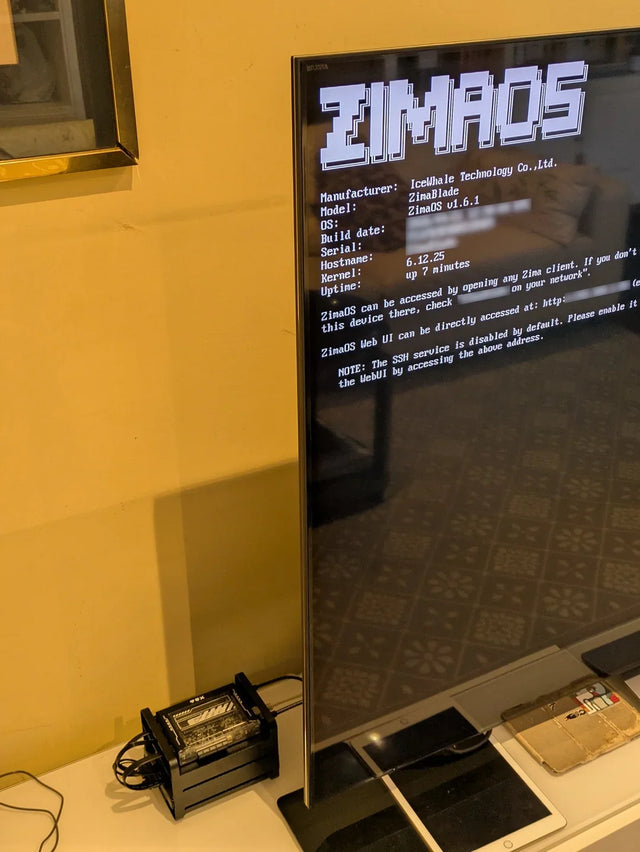
Why Does a Warm Mini PC Under the Desk Make a Small Office Uncomfortable?
Measure wall power and room temperature, clear the exhaust path, and compare placement before changing cooling hardware.
How to Reduce Glare When Reviewing Photos on a NAS-Connected Monitor
A controlled method for separating reflections from brightness and preserving consistent photo-review decisions.
Why Do Status LEDs Disrupt Sleep When a Home Server Is in a Bedroom?
A safe sequence for identifying, dimming, and testing bedroom server LEDs while preserving critical fault visibility.


