
How to Restore Home Assistant After a Failed Container Update


A failed Home Assistant container update should usually be treated as a runtime replacement problem, not as a reason to create a new installation. If the host-mounted /config directory is intact, the safest recovery path is to preserve that state, verify the volume mapping, start a known-good image, and test the existing installation before restoring an older backup.
The dangerous move is letting a new container start against the wrong or empty host path. Home Assistant may then present onboarding as if the configuration disappeared, while the original state still exists elsewhere on disk. Freeze changes first, identify the authoritative config directory, and do not delete the old container or directory until the recovered instance passes.
Stop New Writes and Find the Real /config Path
Stop the failed container and inspect the runtime definition that created it. Confirm which host directory or named volume is mapped to /config, then inspect that location for your YAML files, .storage, custom components, secrets, and database.
A community recovery case after a Docker upgrade found that a “brand-new” Home Assistant instance was actually caused by the container pointing at the wrong configuration folder. The persistent data had not been erased; the replacement runtime was simply not mounting it correctly.
Copy or snapshot the current config directory before changing ownership, paths, or database files. Even a partially broken state is valuable evidence and may contain newer automations or credentials than the last backup.
Recreate the Runtime Without Recreating the Installation
Use the same network mode, timezone, device mappings, USB radio access, privileges or capabilities, and host /config mount that the working container used before the update. The image is replaceable; those runtime inputs and the persistent data define whether the service returns as the same Home Assistant instance.
Container persistence depends on the host mount rather than the container filesystem. A Home Assistant Container example mounts a persistent host volume directly on /config, so recreating the runtime does not recreate the household configuration. If that mapping changes during an update, a replacement container can appear fresh while the original state still exists elsewhere.
Do not copy the old container filesystem into the new image. Recreate the deployment from a documented Compose or run definition and reconnect the persistent state explicitly.
Roll Back the Image Before Restoring Older State
If the config mount is correct but the new Home Assistant version fails to start or breaks a critical integration, test the previous known-good image against the same preserved /config. That separates “new runtime incompatible with current state” from “state itself is damaged.”
The current Home Assistant Container workflow explicitly separates the image from persistent state: back up first, pull the target image, recreate the container, and use a specific older image tag when a downgrade is required. That is the recovery boundary to preserve: replace the runtime while keeping the authoritative configuration path intact.
When rolling back, remember that some upgrades migrate data structures. Use a backup taken before a migration if the older version cannot safely read state already upgraded by the newer version. Do not repeatedly bounce versions against the only copy of persistent data.

Restore a Backup Only When the Current State Is Not Trustworthy
Use a backup when the persistent config is missing, corrupted, partially overwritten, or no longer compatible with the version you can safely run. Restore into an isolated or clean target when possible so you can compare the recovered state with the damaged copy.
Keep the encryption password or emergency kit needed to open the backup outside the failed host. A backup that exists only on the same disk, or cannot be decrypted, does not provide a recovery path.
The ZimaSpace example of separating Home Assistant recovery from the storage host itself reinforces the same rule: application state needs an independent restore path, not only a mirrored live disk.
Validate the Recovered Container Before Deleting Anything
- Confirm the expected users, dashboards, integrations, automations, helpers, and areas are present.
- Verify one local device path and one radio-based path if Zigbee, Z-Wave, or Bluetooth is used.
- Check Recorder for database or migration errors.
- Restart the recovered container and confirm the same state returns.
- Keep the old image tag, config copy, and last known-good backup until this second boot passes.
If the old image with the original config works, the failed update was primarily a runtime/version problem. If every image fails against the same state, move to configuration repair or backup restore. If a clean container works only with an empty /config, do not accept the fresh setup as “fixed” until you understand what in the persistent state prevents recovery.
FAQ
Should I delete the failed Home Assistant container before troubleshooting?
No. Stop it first and preserve its runtime definition and mounted configuration path. You can create a replacement container without deleting the failed one, which keeps rollback information available while you prove the new runtime.
Why does Home Assistant show onboarding after an update?
The most common container-specific reason is that the replacement runtime is not seeing the original /config path. Verify the host mount before assuming the configuration was erased or restoring an older backup over newer state.

Recommended products

Support & Tips
More to Read
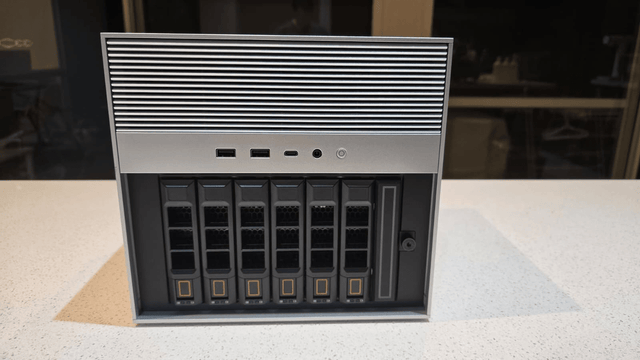
Should You Back Up Home Assistant Live or Stop the Service First?
Built-in Home Assistant backups can run live; plain filesystem copies should stop or quiesce Home Assistant unless the database is backed up consistently.
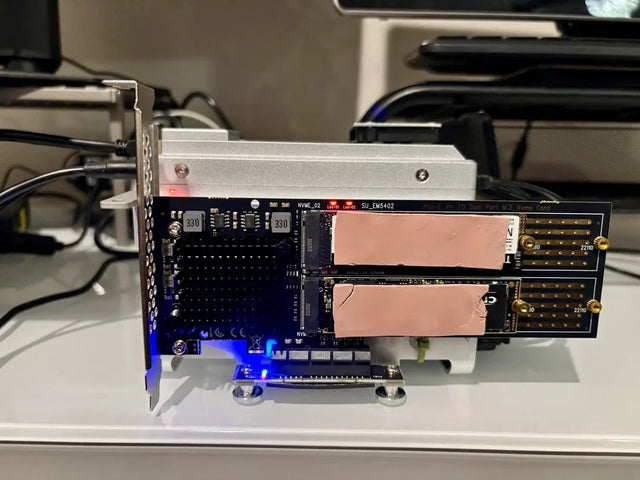
Why Does a Home Assistant Server Run Hot or Noisy During Idle Hours?
Correlate Home Assistant fan or temperature spikes with Recorder, backups, integrations, and co-hosted jobs before changing cooling or CPU limits.
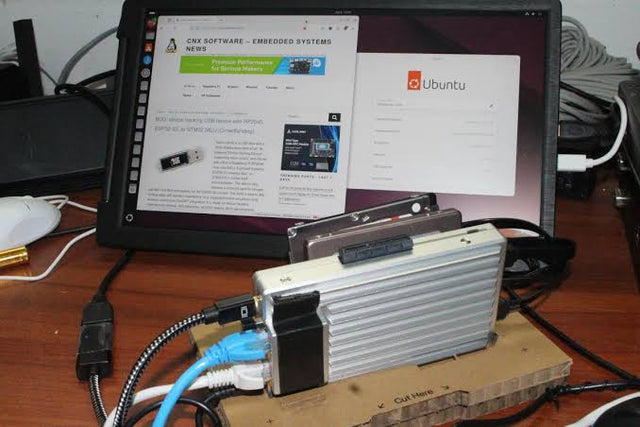
When Should You Rebuild Rather Than Repair Home Assistant?
Repair the smallest failed Home Assistant layer first, restore known-good state next, and rebuild only when persistent configuration cannot be trusted.


