
Can a Mini PC Run Without a Display After a BIOS Reset?


Usually yes. Most mini PCs can run without a display once the operating system and remote access are configured, but a BIOS reset can restore defaults that change boot order, UEFI mode, error halts, or power-recovery behavior.
Do not use fan noise or a power LED as proof of a headless boot. The meaningful signals are network link, DHCP lease, ping or SSH response, and the expected services becoming healthy. That distinction determines the safe configuration, validation method, and rollback point.
Restore the firmware settings that matter
Attach a display for the first boot after reset and confirm the system disk is first, the original UEFI or legacy mode is restored, and storage controllers use the expected mode.
Disable halt-on-keyboard or halt-on-display options when available. Restore AC power recovery, Wake-on-LAN, virtualization, and any fan settings the server role requires.
Save the configuration and photograph or export key pages. Vendor defaults can change after another reset or firmware update.
Separate no-video from no-boot
Check the router for a lease and try SSH before assuming POST failed. A mini PC can boot successfully while firmware or the OS sends no usable picture to a disconnected or slow display.
If it only boots with a monitor, inspect firmware error-halt behavior and try a known-compatible dummy HDMI plug only as a workaround after confirming the system is otherwise healthy.
Use the table below to distinguish the states.
| Observed state | Verdict | Next action |
|---|---|---|
| DHCP lease and SSH respond | Booted headless | Validate services |
| Power LED only; no network | Boot not proven | Reconnect display and inspect POST |
| Boots only with HDMI attached | Display-detection dependency | Fix firmware or use tested emulator |
Rebuild unattended access
Confirm the network interface has a stable reservation, SSH or another remote service starts automatically, and sleep is disabled for a server workload. Keep an emergency local account and recovery media.
The ZimaSpace home NAS build guide covers the broader headless server role.
An independent mini PC BIOS checklist highlights boot mode, AC recovery, and Wake-on-LAN settings that resets can change.
Do not expose remote administration directly to the internet. Use a VPN or trusted management network and confirm remote access survives a reboot before removing the display.

Prove headless cold boot after total power loss
Shut down cleanly, unplug the mini PC and display, wait for standby power to drain, then reconnect only power and network. Measure time until the machine and its services are reachable.
Repeat with no keyboard, mouse, or HDMI cable. Check system and firmware logs for recovery boots, disk changes, or an F1-style halt.
Proceed when repeated cold boots reach the network and services without human input. Stop if boot mode changed, storage disappeared, the machine halts on an error, or remote access does not start reliably.

Recommended products

Support & Tips
More to Read
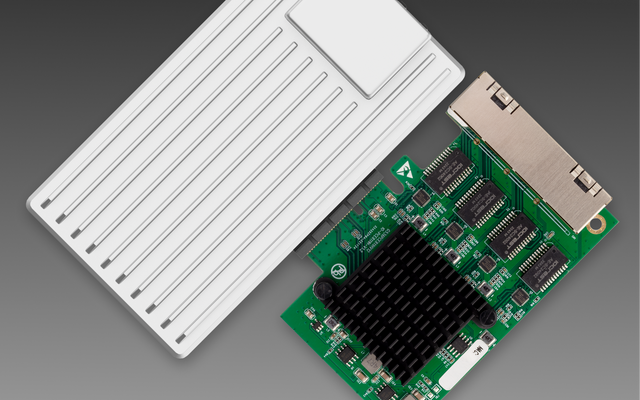
Can You Replace a Noisy Mini PC Fan Without Changing Thermal Control?
Yes—if the replacement matches the electrical interface, airflow, and feedback signals; connector fit alone does not preserve thermal control.
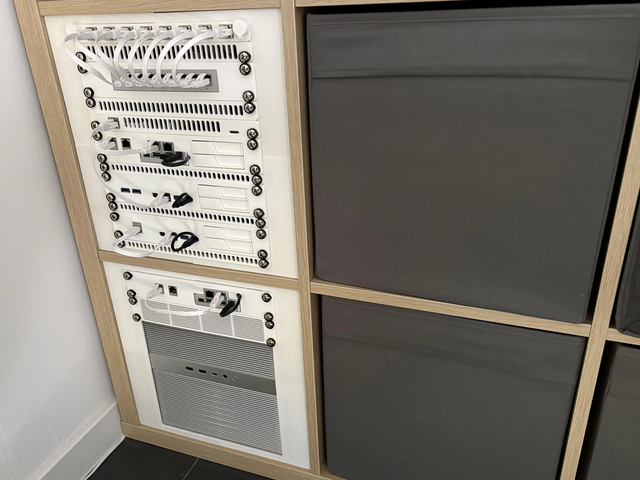
Can a Home Server Resume Services in Dependency Order After UPS Recovery?
Yes—use explicit boot dependencies and readiness checks; restart policies alone do not guarantee services become usable in the right order.
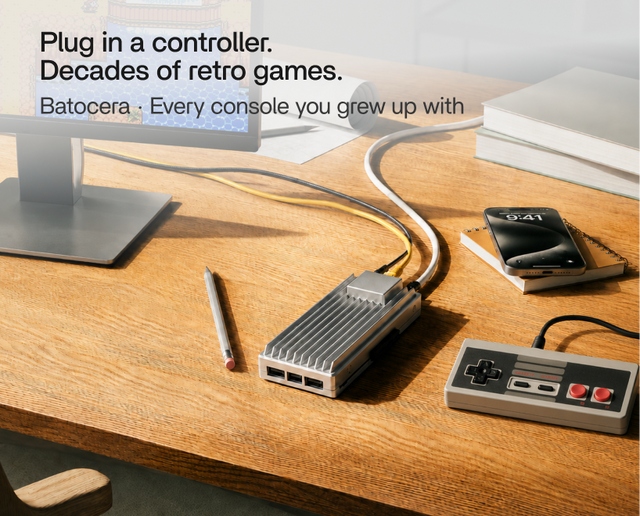
Can You Use Wake-on-LAN After a Complete Power Loss?
Sometimes—WOL needs standby power and firmware/NIC state to recover after AC returns; it cannot wake a machine while power is absent.


