
How to Build a Quiet CasaOS Media Server for the Living Room


A living-room CasaOS media server should be sized for silence and predictable playback, not for the largest processor or drive count.
Noise comes from more than the mini PC fan. Mechanical drives, enclosure vibration, furniture resonance, background indexing, and unnecessary transcoding can make an otherwise compact server noticeable from the couch. The quietest design reduces work at the source, separates active application data from bulk media, preserves airflow, and tests the complete room—not just the hardware on a desk.
Set a Living-Room Noise Budget Before Choosing Hardware
“Quiet” depends on distance, room noise, furniture, and when the server performs work. A low hum that disappears during a movie may become obvious during dialogue, late-night listening, or when the room is otherwise silent. Decide where the server will sit, how far it is from the seating position, and which sounds are unacceptable.
A current NAS placement guide explains that drive noise, fan noise, and vibration through a shelf can make identical hardware feel very different in two rooms. Its placement-first approach to NAS noise is the right starting point for a living-room build.
Avoid hollow cabinets and lightweight TV stands that amplify vibration. Keep front and rear ventilation open, preserve access to cables and drive bays, and leave enough distance that status LEDs and seek sounds do not become part of the viewing experience.
Choose Low-Power Compute for the Real Playback Workload
A media server that mostly delivers compatible files does not need a desktop-class processor. Oversized compute increases heat, fan activity, and idle power without improving direct playback. Choose the mini PC around the number of simultaneous clients, codec compatibility, remote-streaming needs, and whether hardware-assisted transcoding is required.
Starry Hope’s mini-PC server guide recommends matching idle power, RAM ceiling, port count, and noise to the heaviest planned workload rather than paying for unused performance. That workload-based mini-PC selection model is especially valuable when the server shares a room with the audience.
Use wired Ethernet, enough memory for CasaOS and the chosen media application, and an internal SSD for the operating system. A low-power x86 processor with supported media acceleration provides more useful headroom than a higher-wattage CPU that must handle every conversion in software.
Keep CasaOS and Application State on SSD Storage
The internal SSD should hold Linux, CasaOS, and active application state such as the library database, artwork, thumbnails, and configuration. These are small, frequently accessed files. Keeping them away from the bulk-media HDDs reduces seek activity and prevents every dashboard refresh or metadata lookup from waking the mechanical array.
A third-party CasaOS guide notes that the platform can map external drives into applications while the underlying storage design remains the responsibility of the host. That separation between app paths and bulk storage supports a quiet two-tier layout: SSD for active state, HDD or DAS for large media files.
Use a dedicated app-data path and back it up separately from the media library. The media files may be replaceable or recoverable from another copy, but losing the library database can also remove users, watch state, metadata edits, and configuration.
Design for Direct Play Before Adding More Cooling
Transcoding changes the server’s noise profile. The processor or media engine works harder, temperatures rise, and the fan may ramp during the most demanding scene. Before buying more compute or changing the fan curve, reduce how often the server must transform a file.
A practical media-server article explains that direct play sends the file to the client without transcoding, leaving a modest server with far less work. Its direct-play-first playback model applies to any living-room media stack: align file codecs, audio formats, subtitles, and client capabilities before assuming the server is underpowered.
Test the actual television or streaming box with representative 4K, HDR, multichannel-audio, and subtitle combinations. Record which files play directly and which trigger conversion. Hardware acceleration is valuable for unavoidable cases, but the quietest transcode is the one the client does not request.
Control Drive and Chassis Vibration Without Blocking Airflow
Mechanical drives create spindle hum, seek clicks, and vibration that can travel into a shelf or cabinet. The enclosure fan adds another sound source, but wrapping the system in foam or closing it inside furniture can raise temperatures and cause faster fan speeds.
UGREEN’s NAS noise article separates hard-drive noise, cooling-fan noise, and chassis vibration, then recommends addressing the specific source rather than treating all sound as one problem. That source-by-source noise reduction approach supports rubber feet, stable shelving, appropriate drive choices, and unobstructed ventilation.
Place the HDD enclosure on a dense, stable surface with vibration-damping feet. Do not stack it directly on the mini PC. Keep cables loose enough that they do not transmit vibration into the furniture, and position the enclosure so the quiet side faces the room while the vents remain open.
Schedule Noisy Background Work and Protect the Cooling Path
Library scans, thumbnail generation, backups, integrity checks, and large imports can create more noise than normal playback. Run them when the room is unoccupied or when background sound will mask the server. Do not let every new file trigger several competing jobs during evening viewing.
PCWorld’s overheating guide identifies blocked airflow, dust, room temperature, processor power, and charging behavior as common thermal contributors. Its guidance to manage the causes of sustained thermal load is directly relevant to keeping a compact media server’s fan slow.
Leave intake and exhaust clearance, clean dust on a schedule, and observe temperatures during a library scan rather than only at idle. A quiet fan profile is useful only when the processor and storage remain within safe operating temperatures under the heaviest scheduled task.
Verify Playback, Noise, and Recovery From the Couch
Final validation should happen in the living room with the television, furniture, enclosure, and normal listening distance in place. Test cold start, direct playback, one forced transcode, a library scan, and a backup job. Listen for vibration through the stand and confirm that the server remains reachable after a reboot.
TechTarget’s backup-testing tutorial recommends restoring data and checking that the workload operates afterward. That restore-and-function check should include CasaOS configuration and application state, not only the media files.
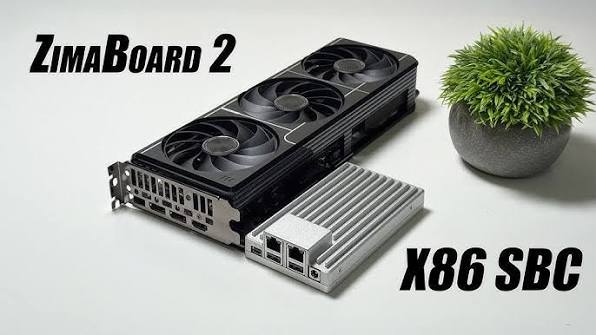
The ZimaSpace benchmark data makes the living-room trade-off more concrete. A ZimaBoard 2 Mini Home Server can run passively for light direct-play workloads, eliminating fan noise from the compute node. Under sustained full CPU load, however, the N150 package reached about 80°C and the enclosure surface about 55°C. Adding the official PWM fan reduced those figures to roughly 64°C and 36°C, so a 24/7 media build must choose between completely passive operation and lower sustained temperatures rather than assuming one cooling mode fits every workload.
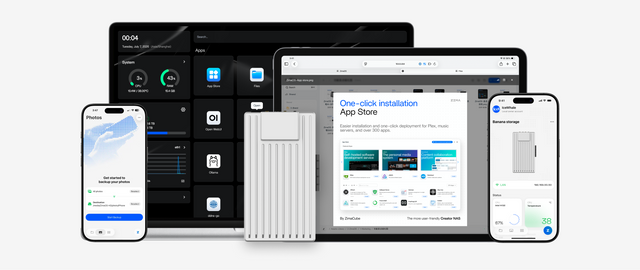
For a larger integrated library, the ZimaCube 2 AI NAS family offers a different acoustic profile. In the supplied ZimaCube 2 Pro benchmark, the system held full-load CPU temperature near 64°C at about 34.5 dB. That result should be read as a model-specific reference point—not as a universal figure for every ZimaCube 2 configuration—but it shows that multi-drive storage and active cooling can remain close to a quiet-room noise target when the complete chassis is engineered as one system.
The correct setup is not the one with the lowest specification-sheet noise. It is the one that remains unobtrusive during real playback, stays cool during background work, and can be restored without rebuilding the media environment from memory.

Recommended products

NAS & Server Setup
More to Read
A Local RAG Setup for Research Papers, Notes, and Private Documents
Keep original documents authoritative, make indexing repeatable, require citations, and separate replaceable models from private source data.
Why Are Developers Using a Gateway Node for Private DNS, VPN, and Test Apps?
A gateway node gives private apps one controlled name and access path, while compute nodes stay unexposed and replaceable.
How to Build a Reproducible App Stack With Compose Files, Secrets, and Persistent Data Separated
Keep Compose definitions portable, secrets protected, and app data independently backed up so the stack can be rebuilt on a clean host.


