
When Should You Replace a Noisy Home Server Fan?


Replace a fan when mechanical noise or unstable rotation remains after dust, cable contact, and mounting vibration are ruled out.
A louder whoosh during a CPU or disk workload may be normal control behavior, while grinding, ticking, delayed starts, or repeated speed hunting can signal a failing bearing or motor. Power down for inspection, establish temperatures and RPM, and prove cooling under the original load before keeping or replacing the fan.
Classify the sound before opening the server
Listen for steady airflow, a loose-panel buzz, rhythmic blade contact, clicking, scraping, or low grinding. Note whether the sound begins at cold start, only at one RPM range, or after the server warms up.
A troubleshooting overview separates dust, workload-driven speed, and a failing fan instead of treating all noise as bearing failure. Match the sound with RPM and temperature rather than relying on loudness alone.
Record current fan RPM, CPU temperature, drive temperature, and workload. A fan that reports zero or erratic RPM while temperatures climb is an urgent cooling fault even if the noise is intermittent.
Inspect safely for contact, dust, and resonance
Shut the server down, disconnect power, and wait for every fan to stop. Check for cables touching blades, packed dust, a bent grille, missing screws, cracked mounts, or a panel that vibrates at one speed.
Clean with the fan held stationary and use dry, appropriate tools; do not overspin it with compressed air. Restore cable clearance and tighten mounts evenly without distorting the frame.
Restart with panels installed as designed and compare the same RPM range. If the buzz disappears when a panel is secured, repair the mounting or damping; if grinding stays with the fan itself, replacement is justified.
Check control behavior and cooling capacity
Confirm that the fan is connected to the intended header and that the control mode matches the fan type. An unsuitable curve can cause rapid speed oscillation, but lowering the curve must not allow components to exceed their normal thermal range.
Run the workload that previously caused noise and log RPM and temperature. Stable temperatures with a smooth, predictable fan curve support continued use; erratic starts, RPM dropouts, or thermal rise despite a demand for more speed point to replacement.
The home-server OS guide can help identify where sensor monitoring belongs on a NAS appliance or general Linux server.

Replace the fan and verify the cooling result
Match fan dimensions, voltage, connector, pinout, airflow direction, control type, and required static pressure. A quieter model that cannot move air through a drive cage or heatsink is not a successful replacement.
After installation, confirm rotation and RPM before placing the server back into service. Repeat the original load from a cold start and after the prior warm-up interval, checking both sound and the hottest component.
Recovery means the abnormal mechanical sound is gone, RPM remains stable, and temperatures are no worse than the baseline. Shut down and escalate if a new fan also fails to start, because the header, controller, or power path may be at fault.

Recommended products

Support & Tips
More to Read
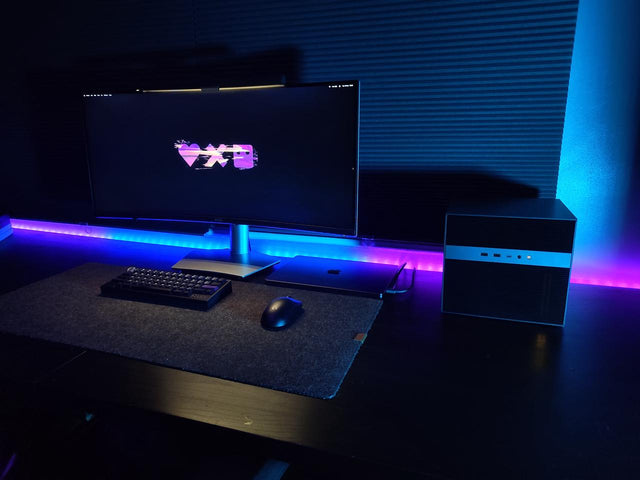
What Display Brightness Helps Reduce Eye Fatigue During Long NAS File Reviews?
There is no universal brightness percentage; match a white screen to the room, control glare, keep text legible, and validate during a timed review.
How to Reduce Neck Strain When a Home Server Console Is Mounted Too Low
Move routine work off the low console or raise the visual target safely while keeping the keyboard lower and retesting a real admin session.
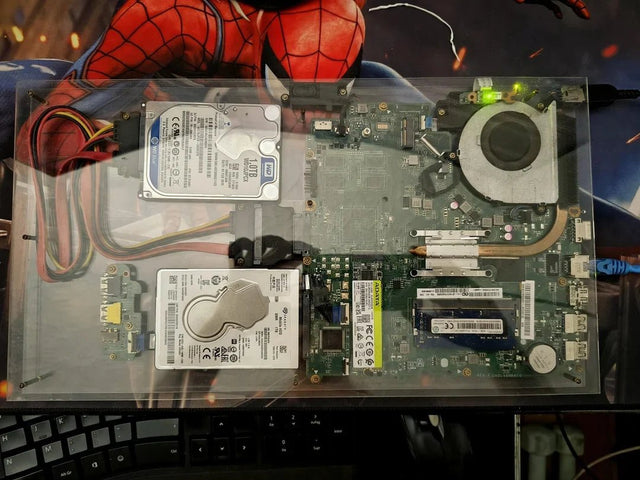
Why Do My Eyes Feel Tired After Monitoring a Bright Server Dashboard at Night?
Night dashboard fatigue often combines brightness mismatch, glare, sustained focus, and reduced blinking; adjust one factor and retest safely.


