
What Room Temperature Helps Keep a Home Office Comfortable Around an Always-On Server?


A useful room temperature is one you find comfortable while the server still has safe inlet air and cooling reserve; there is no universal home-office setpoint.
Start near your normal household comfort range, then measure instead of guessing. Track room temperature at seated height, server inlet temperature, component temperatures, humidity, and wall power during idle and sustained work. The result should remain comfortable for people without forcing the server to run at maximum fan speed.
Measure the Room and the Server Separately
Place one reliable thermometer near the occupied zone and another near the server intake without blocking airflow. Do not use CPU temperature as a proxy for room temperature; workload, heatsink contact, and fan behavior create a large and changing difference.
Log idle conditions for an hour, then repeat during the heaviest normal task such as transcoding, a scrub, backup compression, or local AI inference. Include outdoor conditions and door position because a small office can behave very differently when closed.
Measure humidity as context, not as a single comfort score. Very dry or humid air can change perceived comfort, while server safety also depends on avoiding condensation and maintaining clean airflow.
Choose a Personal Comfort Band, Not a Magic Number
Thermal comfort varies with clothing, air movement, season, activity, humidity, and personal preference. research links indoor thermal sensation and cognitive performance while showing individual variation, so a single published optimum should not override the conditions in your room.
Change the thermostat or ventilation in small steps and hold each condition long enough to stabilize. Record comfort, fan behavior, and task performance. A desk fan may improve personal air movement without lowering the whole room, but it must not blow dust directly into an open chassis.
If several people use the room, select a compromise band and give individuals local options such as clothing layers or low-noise air movement. Do not solve one person's discomfort by directing hot server exhaust toward another seat.
Map the Server's Heat Path
Confirm that cool room air can reach the intake and hot exhaust can leave without recirculating. A shelf with an open front but closed rear can trap a hot pocket even when the center of the room feels comfortable.
ZimaSpace cooling-headroom guide explains why warm inlet air, dust, cabinets, and future workload reduce reserve. Use its sustained-load method to confirm that temperatures stabilize before fans reach their limit.
Keep the server off thick carpet, away from radiators and direct sun, and clear of curtains or papers. Moving the unit a short distance can improve both room comfort and cooling if it prevents exhaust from collecting under the desk.

Reduce Heat at the Source Before Overcooling the Room
Check wall power at idle and under load. Disable truly unused services, schedule heavy jobs outside occupied hours, allow safe drive sleep where the workload supports it, and fix runaway tasks. Every avoided watt reduces both electricity use and heat entering the room.
a systematic review evaluates links among indoor temperature, comfort, and cognitive performance, but methods and outcomes differ. Treat efficiency and ventilation changes as controlled improvements rather than promises that one temperature will maximize concentration.
Do not undervolt, cap fans, or limit cooling without stability and thermal testing. A lower-power workload is safer than hiding heat through an aggressive acoustic limit that causes throttling or storage temperatures to drift upward.
Validate the Warmest Normal Day
Repeat the load test when the room is likely to be hottest, or simulate conservatively by closing the door for a monitored period. Watch the trend: temperatures should rise and then level off with fan reserve remaining.
Set alerts for server inlet or component temperatures based on hardware guidance and your observed baseline. Also set a human comfort trigger: if the office is consistently warmer than adjacent rooms, move or schedule the heat source before buying stronger cooling.
If the room becomes unusually hot, humid, or stuffy despite normal equipment load, inspect HVAC and ventilation rather than assuming the server is solely responsible. Stop and investigate immediately if there is a burning smell, discoloration, unstable power, or unexpected thermal shutdown.

Recommended products

Support & Tips
More to Read
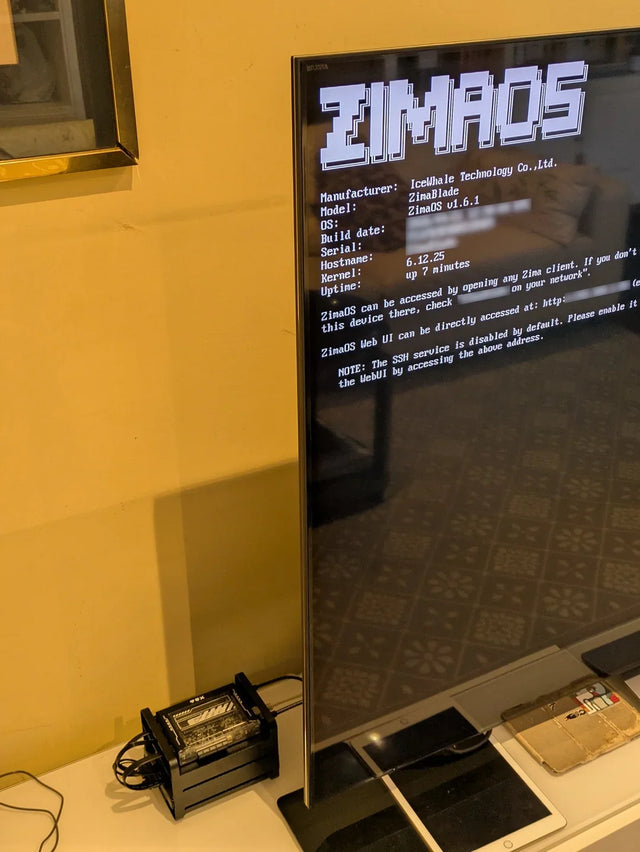
Why Does a Warm Mini PC Under the Desk Make a Small Office Uncomfortable?
Measure wall power and room temperature, clear the exhaust path, and compare placement before changing cooling hardware.
What Screen Distance Helps When Watching Several Server Dashboards?
Start at a comfortable arm's-length range, scale dashboard text, and verify posture instead of chasing one universal distance.
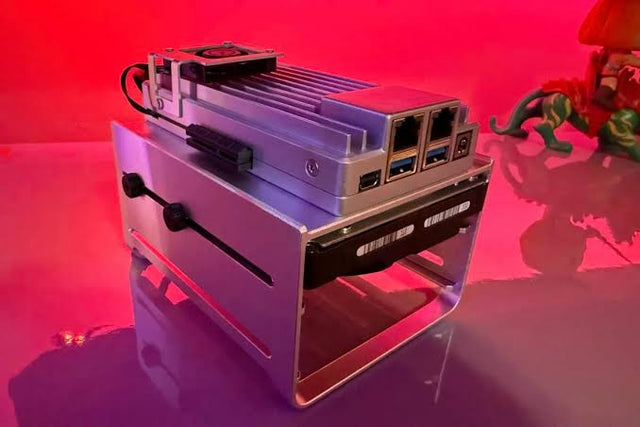
How to Reduce Glare When Reviewing Photos on a NAS-Connected Monitor
A controlled method for separating reflections from brightness and preserving consistent photo-review decisions.


