
How to Reduce Neck Strain When a Home Server Console Is Mounted Too Low


The most effective fix is to move routine work to eye-level remote access or raise the visual target without raising the keyboard with it.
A low console is acceptable for brief boot checks but becomes a posture problem during installations, recovery, or log review. Start with a remote or mirrored view, then use a stable temporary display and separate keyboard only when local access is required; stop and seek clinical advice for radiating pain, numbness, weakness, or symptoms after injury.
Move routine administration away from the low console
Reserve the mounted console for firmware, boot, and network-recovery tasks. Use a secure remote shell, web interface, KVM-over-IP, or mirrored local display for work that lasts more than a few minutes.
This changes the cause rather than asking you to hold a better posture against a low visual target. Confirm that the remote path still exposes the controls needed for the task and keep a documented local fallback for network outages.
The home-server OS guide helps identify platforms with browser administration or remote management, which can reduce time spent at a physically constrained console.
Raise the screen without forcing the hands upward
If local viewing is necessary, use a stable arm, shelf, or temporary external display that does not block vents or service access. Aim for a position that lets you view the main work area with less sustained downward head angle.
Research on screen height and neck alignment supports treating display height as a posture variable. The useful adjustment is the one that reduces sustained flexion without creating shoulder elevation or glare.
Keep the keyboard and pointing device at a comfortable elbow height using a separate input tray or lap board. Raising a console as one rigid unit can trade neck strain for shoulder and wrist strain.
Shorten the task and make posture variable
Prepare commands, update files, and recovery notes at a normal workstation before approaching the console. Batch the local-only steps so time spent looking down is limited to actions that cannot be performed remotely.
Use brief position changes and distance breaks instead of trying to hold one ideal pose. If the neck tightens during the session, pause and change the setup rather than pushing through until the task is complete.
Undo any adjustment that makes the display unstable, creates cable tension, blocks cooling, or requires repeated reaching. A smaller reversible change is preferable to a permanent mount that has not been tested with real service work.

Retest the original console task and set a boundary
Repeat a representative admin session with the remote or raised-display arrangement. Check whether you can read the main console area without sustained downward gaze and operate the keyboard without elevated shoulders.
Recovery means discomfort does not build during the task and does not persist afterward. If the console is comfortable only for a short interval, define that interval as the local-work limit and finish longer work remotely.
Seek evaluation if pain persists despite changing the setup or if symptoms include arm radiation, numbness, weakness, severe headache, fever, or recent trauma. Ergonomic changes can reduce exposure but do not diagnose an underlying condition.

Recommended products

Support & Tips
More to Read
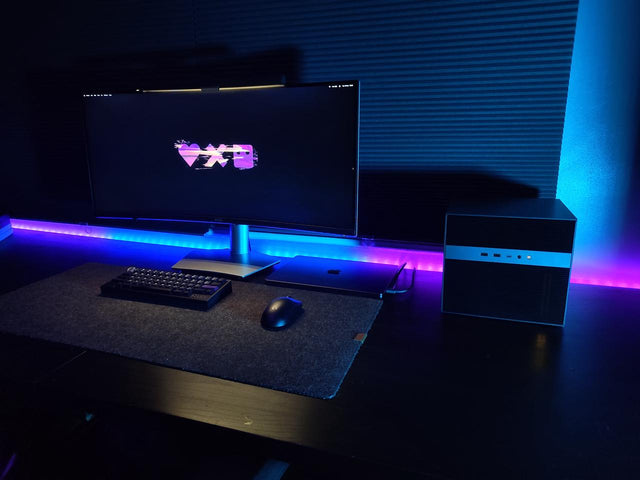
What Display Brightness Helps Reduce Eye Fatigue During Long NAS File Reviews?
There is no universal brightness percentage; match a white screen to the room, control glare, keep text legible, and validate during a timed review.
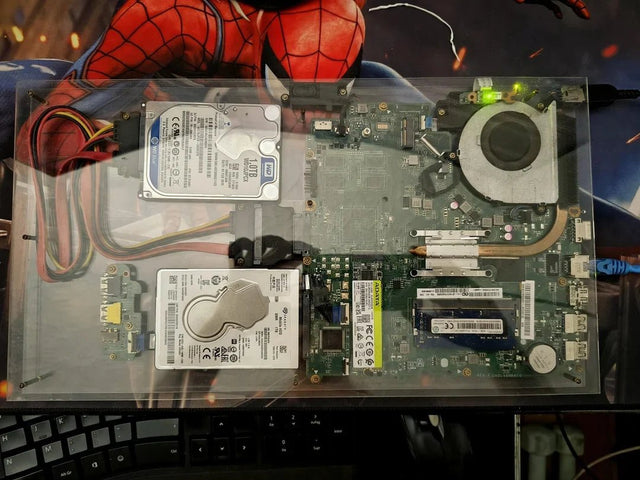
Why Do My Eyes Feel Tired After Monitoring a Bright Server Dashboard at Night?
Night dashboard fatigue often combines brightness mismatch, glare, sustained focus, and reduced blinking; adjust one factor and retest safely.
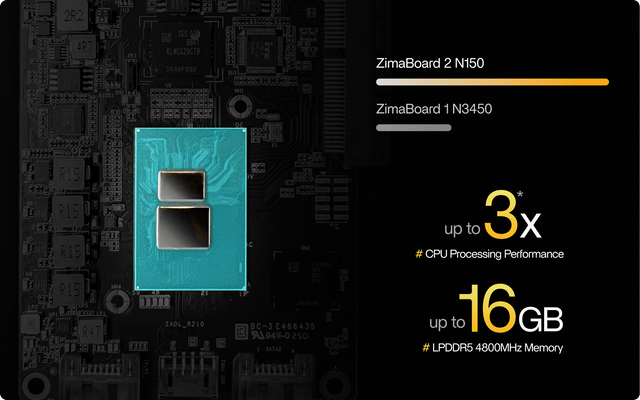
What Are the Warning Signs That a Network Switch Port Is Damaging Transfer Reliability?
A bad switch port is proven when fresh physical errors or loss stay with that port after the cable and endpoint pass controlled swaps.


