


Open WebUI Tether: Connect Your Desktop to a Home AI Server Safely


Open WebUI Tether connects a desktop computer to an existing Open WebUI account so you can use that computer’s models, files, and tools from chat. The work still runs on the connected computer. A home server can keep the WebUI available, but it does not take over the laptop’s GPU or keep its files reachable after the laptop goes offline.
For a NAS or home-server owner, the useful question is how to divide responsibilities: keep the shared interface and persistent data on an always-on machine, connect a personal workstation when needed, and give each tool only the access its job requires. This guide follows the official Tether documentation and separates connectivity from execution permissions.
What actually runs on your server and on your desktop?
The server hosts your Open WebUI instance and its account system. Tether runs on the computer whose resources you want to connect. An inference request can reach a model on that computer, while a terminal task executes in its terminal environment. If you choose a cloud model instead, the model service can still receive the prompt and tool results even though file operations happen locally.
The official Tether guide explains this distinction. Integration keys remain on the Tether computer, but prompts, relevant file contents, and tool outputs pass through the WebUI and model services involved. Local execution therefore does not, by itself, mean every part of the workflow stays on your LAN.

How do you connect a computer without exposing a terminal port?
- Update your existing Open WebUI instance using its documented backup and upgrade process. Confirm the current release supports Tether before installing the client.
- Install the desktop package for your operating system from the official Tether repository.
- Enter your WebUI address and sign in with your own account.
- Choose whether to install and connect Open Terminal. Desktop chat alone does not require enabling local command execution.
- Open the terminal menu in WebUI, choose your computer under Your devices, and start with a small test folder.
Tether establishes an outbound connection, so its documented connection model does not require router forwarding for a new desktop terminal port. That does not remove the need to secure the WebUI instance itself. Use an authenticated, encrypted connection and restrict administrative accounts. A VPN or existing controlled access path is preferable to improvising public terminal exposure.
Keep the desktop awake, connected, and running Tether. Enable its background-running option if you want closing the window to preserve the connection. Test remote access from another device while the desktop is awake before troubleshooting model settings.
Which permissions should you enable first?
| Capability | Starting boundary | What to verify |
|---|---|---|
| Local model | One known inference endpoint | Correct model, successful small prompt, no unintended fallback |
| File operations | A disposable project folder | Read and write behavior before adding valuable data |
| Terminal | Restricted workspace where available | Sandbox status and actual command permissions |
| MCP integration | One trusted server | Its tools, credentials, and independent filesystem access |
The optional workspace sandbox is available on macOS and supported Windows devices; the documented sandbox is unavailable on Linux. A Linux download is not evidence of equivalent sandbox protection. On a supported device, configure Restrict file access under Open Terminal’s sandbox settings, select the folder, restart, and wait for the active status.
Files inside the allowed workspace can still be altered or deleted. Local MCP commands, separately connected terminals, and the unrestricted host shell are outside this sandbox. A file browser opening in a particular folder is also not an access-control boundary. Check the sandbox limitations before connecting private shares.

How should you test a real workflow?
Create a test directory containing two text files and a copy of a small project. Ask the assistant to list the files and write a new summary that names its sources. Check the output yourself. Next, try a reversible edit in a separate Git branch and inspect the diff. Only then add a more capable tool or a larger dataset.
A capable tool-calling model matters more than a successful connection indicator. If the device appears but the assistant never uses tools, inspect the selected model, enabled integrations, and execution logs. If commands work but file access fails, check the sandbox boundary and filesystem permissions rather than granting the entire home directory.
For coding tasks, use a dedicated workspace and keep credentials outside it. Our guide to Git worktrees and isolated agent permissions explains how to prevent two agents from modifying the same working copy. Tether connectivity does not solve Git conflicts or make destructive commands reversible.
Where does ZimaCube 2 fit?
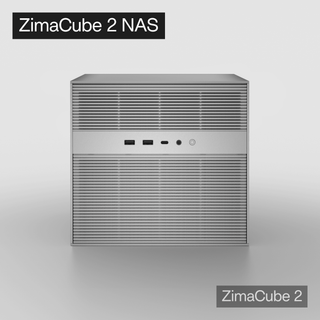
ZimaCube 2 can be the persistent storage and service host in this arrangement, subject to the resources required by your chosen WebUI deployment. Keep project backups, document archives, and application data separate from an agent’s writable scratch area. Expose a narrow share instead of your complete media or backup tree.
The connected workstation still needs enough memory and compute for its selected model. A product running WebUI does not automatically satisfy the model’s VRAM requirement. Tether is also licensed separately: its official repository allows free personal, non-commercial use and requires an enterprise license for commercial or organizational production use. Check that distinction before making it a team service.
FAQ
Can I use my desktop model from a phone?
Yes, through the same WebUI account and connected Tether device, provided the desktop stays awake, online, and running the required services. The phone is an interface, not the inference machine.
Do I need to forward an Ollama or terminal port?
The documented Tether connection is outbound. Start with that workflow instead of publishing desktop service ports. Your WebUI still needs an appropriate secure access configuration.
Why does the computer disappear after I close my laptop?
Sleep, network loss, or stopping Tether can interrupt availability. Background mode cannot keep a sleeping or disconnected machine executing tasks.
Is selecting a workspace folder enough to protect other files?
No. Confirm the supported sandbox is active and check its exclusions. Linux does not have the documented workspace sandbox, and separately configured tools can have broader permissions.
Will local tools keep confidential documents away from a cloud model?
Not automatically. File content returned to chat can be sent to the selected model service. Choose the full data path deliberately and test with non-sensitive files first.
Conclusion
Tether is useful when you want one WebUI account to reach a specific computer’s resources without creating a new inbound terminal service. Begin with one model, a small workspace, and a verified permission boundary. Add integrations only after you understand where commands run and where their output goes.

Recommended products
Support & Tips
More to Read

How to Keep Adult Videos on Your NAS Hidden from Family Members
Keep adult videos private on a family NAS. Check folder permissions, Plex and Jellyfin library access, thumbnails, watch history, shared TV logins and DLNA.
What to Check Before Loading a Community Model in Transformers
Use the Transformers Jinja sandbox update to review model provenance, chat templates, remote code, serialized weights, and isolated first runs.
Run Mirage Locally: OCR and Object Detection from One Image
Try Cactus Compute’s small local vision model, validate OCR and object extraction on real inputs, and understand memory, language, and privacy limits.


