
Why Is Your NAS So Slow? 6 Problems to Check First


A slow NAS is usually not slow for one reason. File transfers, media playback, backups, Docker apps, photo libraries, and remote access all stress different parts of the system.
Before replacing the NAS, check six common bottlenecks first: network, drives, CPU and RAM, RAID state, background tasks, and file-sharing settings. Most NAS performance problems come from the slowest part of the chain, not the NAS box alone.
Problem 1: Your Network Is the Bottleneck
The network is the first place to check because even a fast NAS cannot move files faster than the path between the NAS and your computer. A weak Wi-Fi link, a bad cable, a 100 Mbps switch port, or a router in the middle of the path can make a healthy NAS feel broken.
Speed expectations also matter. A 1GbE connection has a theoretical ceiling of 125 MB/s, and real-world file transfers often land lower after protocol overhead, client speed, drive behavior, and file size are included. A tool like this NAS file transfer speed estimator is useful because it models transfer speed as a bottleneck chain instead of assuming the network rating is the real transfer speed.
| Connection | Practical Meaning |
| 100 Mbps | Too slow for modern NAS transfers |
| 1GbE | Usually enough for basic file sharing, but not SSD-like speed |
| 2.5GbE | A better baseline for modern home NAS transfers |
| 10GbE | Useful for large media, editing, and multi-user work |
| Wi-Fi | Convenient, but unstable for large sustained transfers |
| Remote access | Limited by home upload speed, VPN, relay, and latency |
Also separate Mbps from MB/s. Internet and network ports are usually advertised in megabits per second. File copy windows usually show megabytes per second. Roughly speaking, 1,000 Mbps is 125 MB/s before overhead, not 1,000 MB/s.
Start with a wired test. Connect the NAS and computer to the same switch or router, confirm link speed on both sides, try another cable, and copy one large file before testing Wi-Fi, remote access, or many small files.
Problem 2: The Drives Are Slow, Full, or Failing
If the network looks healthy, check the drives and volume. NAS performance depends heavily on the storage pool behind the share. Old hard drives, mixed drives, low-RPM disks, weak SSDs, unhealthy disks, or a nearly full volume can all slow down reads and writes.
A NAS troubleshooting guide such as this common NAS problems and fixes guide highlights slow performance, drive failure, degraded arrays, rebuilding, overheating, and background strain as issues that can make NAS systems harder to use. That matters because a drive can cause latency and retries before the system shows a dramatic failure warning.
| Disk Condition | What It Does |
| Failing drive | Causes retries, high latency, and unstable performance |
| Nearly full volume | Leaves less room for writes, metadata, and system work |
| Mixed drives | Fast drives may wait for the slowest drive |
| Low-RPM HDDs | Lower throughput and lower IOPS |
| Many small files | Much slower than copying one large file |
| Weak SSD or SMR drive | Can collapse under sustained writes or random I/O |
Check SMART health, error counts, temperature, pending sectors, and pool status. If the NAS is rebuilding, scrubbing, checking parity, or retrying reads from a weak disk, file transfers may slow down even if the network is fine.
SSD cache can help with repeated reads or small-file workloads, but it is not magic. For large sequential video files over 1GbE, the network may still be the ceiling before cache matters.
Problem 3: CPU and RAM Are Too Small for the Workload
An entry-level NAS may be perfectly fine for basic SMB file sharing but weak as a mini-server. When users add Plex, Jellyfin, Docker, VMs, photo indexing, encryption, cloud sync, databases, or AI tools, the NAS has to do far more than store files.
The best time to check CPU and RAM is during the slowdown. An idle dashboard does not explain why the NAS becomes slow during a backup, media scan, video stream, or Docker job.
| Workload | Main Bottleneck |
| Basic SMB file sharing | Network and disk |
| Plex Direct Play | Network and client compatibility |
| Plex transcoding | CPU or GPU |
| Docker apps | CPU, RAM, logs, and volume I/O |
| Virtual machines | CPU, RAM, and SSD storage |
| Photo indexing | CPU, RAM, and small-file I/O |
| Encrypted shares | CPU overhead |
Media apps are a common example. If the client cannot play a file directly, the NAS may need to transcode video or audio. A Plex optimization and transcoding performance guide explains common causes of Plex performance problems, including metadata storage, hardware acceleration, client-side limitations, and Relay behavior.
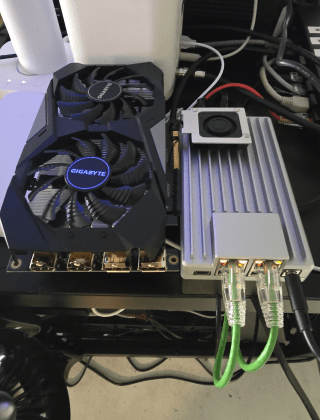
If your workload has grown beyond basic storage, a ZimaBoard 2 personal server can fit lightweight file sharing, backup, and self-hosted apps. For larger media libraries, multi-drive storage, private cloud, and heavier app workloads, a ZimaCube 2 NAS is the stronger fit.
Problem 4: RAID Choice or RAID State Is Slowing Everything
RAID affects performance as well as redundancy. RAID 5 and RAID 6 can read well in many setups, but writes include parity work. RAID 6 adds more protection than RAID 5, but it also stores more parity data and can have slower writes depending on implementation and hardware.
A comparison of RAID 5 vs RAID 6 performance and durability explains the trade-off clearly: RAID 5 uses single parity, RAID 6 uses dual parity, RAID 6 can survive two disk failures, and both require rebuild operations after a failed disk is replaced.
| RAID Situation | Performance Impact |
| RAID 5 / RAID 6 writes | Parity overhead, especially on weaker CPUs |
| RAID 10 / mirrors | Often better random I/O, but lower usable capacity |
| Degraded array | Slower and less safe |
| Rebuild or resync | Heavy disk I/O competes with normal use |
| Scrub or parity check | Background reads can reduce responsiveness |
| Mismatched drives | The slowest disk can limit the pool |
If your NAS suddenly became slow after a drive replacement, disk warning, parity check, or pool repair, do not treat it like a normal performance problem. Check pool status first. A degraded or rebuilding array should be protected and stabilized before you chase speed tweaks.
Problem 5: Background Tasks Are Eating the NAS
A NAS can be slow because it is busy doing something you did not notice. Photo indexing, thumbnail generation, media library scans, antivirus scans, cloud sync, Time Machine backups, snapshots, surveillance recording, Docker logs, and database writes can all compete for CPU, RAM, network, and disk I/O.
This kind of slowdown is easy to misread. The NAS may be fast in the morning and slow at night because a scheduled backup, scrub, sync job, or media scan runs during the time you are trying to use it.
| Background Task | Why It Slows the NAS |
| Media indexing | Reads many files and metadata |
| Thumbnail generation | Uses CPU and disk I/O |
| Backup jobs | Creates many reads and writes |
| Cloud sync | Compares, uploads, downloads, and updates files |
| Antivirus scan | Scans file access and adds latency |
| Surveillance recording | Creates constant writes |
| Docker containers | Generate logs, database writes, and memory pressure |
| Deduplication or compression | Adds compute overhead |
Pause non-essential jobs and test again. If speed improves, the NAS may not be underpowered all the time; it may just need better scheduling, lighter apps, SSD app storage, or fewer services running during heavy file use.
Problem 6: Protocols and Settings Are Cutting Speed
Even with good hardware, protocol and client settings can reduce NAS performance. SMB, NFS, encrypted shares, antivirus scanning, sync agents, permissions, thumbnails, and client OS behavior can all affect how fast files open, browse, and copy.
Microsoft’s guide to slow SMB file transfer troubleshooting notes that SMB signing and encryption can slow transfers depending on hardware, and that small-file transfers suffer from network, protocol, file system latency, and antivirus scanning.
| Setting Issue | Possible Effect |
| SMB/NFS mismatch | Lower speed or higher latency on some clients |
| Encrypted share | CPU overhead on weaker NAS hardware |
| Antivirus scanning | Slower file open and copy operations |
| Sync agent watching folders | Extra file operations and metadata checks |
| Jumbo frame mismatch | Poor performance if NAS, switch, and client do not match |
| Old client OS or driver | Protocol compatibility or network adapter issues |
Test with a simple share before changing advanced settings. Use a wired connection, a plain folder, one large file, and minimal extra features. If that works well, the problem is probably in the workload, protocol options, client behavior, or extra services layered on top.
The First Test Should Be Simple
Do not start by replacing drives, changing RAID, or buying a new NAS. Start with a simple test path that isolates the bottleneck.
| Step | What to Do | What It Tells You |
| 1 | Use wired Ethernet | Removes Wi-Fi instability from the test |
| 2 | Confirm link speed on NAS and client | Finds 100 Mbps or wrong negotiation problems |
| 3 | Copy one large file | Tests sequential transfer speed |
| 4 | Copy many small files | Tests metadata and protocol overhead |
| 5 | Try another client device | Separates NAS issues from client issues |
| 6 | Check CPU, RAM, and disk activity | Shows whether apps or background tasks are overloading the NAS |
| 7 | Pause indexing, backup, sync, torrents, and containers | Shows whether services are stealing resources |
| 8 | Check SMART and RAID status | Finds drive, pool, rebuild, or degraded-array issues |
| 9 | Test LAN before remote access | Separates local NAS speed from internet speed |
If the NAS is fast on wired LAN but slow remotely, the NAS may not be the problem. Remote speed depends on home upload bandwidth, VPN overhead, relay mode, ISP routing, CGNAT, and the connection on the device you are using away from home.
When a Hardware Upgrade Actually Helps
Hardware upgrades help when they match the confirmed bottleneck. A faster NAS will not fix a 100 Mbps switch. A 10GbE card will not fix failing drives. More RAM will not fix Plex Relay. The upgrade should answer the problem you already measured.
| Bottleneck | Upgrade That Helps |
| 100 Mbps link | Better cable, switch, router port, or NIC |
| 1GbE ceiling | 2.5GbE or 10GbE network |
| Wi-Fi transfers | Wired Ethernet |
| HDD app storage | SSD or NVMe app volume |
| Low RAM | RAM upgrade or lighter services |
| CPU transcoding | Direct Play workflow, hardware acceleration, or stronger NAS |
| Large media archive | Multi-bay NAS with faster network |
| Docker or AI workloads | More CPU, RAM, and SSD storage |
If you only use the NAS for backups and basic file sharing, the fix may be a cable, switch, schedule, or drive replacement. If you also run media, private cloud, Docker, databases, and local AI, then stronger hardware and SSD-backed app storage become more important.
Final Takeaway
A slow NAS is usually the result of one bottleneck in a chain: client, cable, switch, network, disks, RAID, CPU, RAM, background services, protocol settings, or remote internet path.
Start with wired LAN testing, confirm Mbps vs MB/s expectations, check disk and RAID health, pause background tasks, and test simple SMB or NFS transfers before buying new hardware. Upgrade only after you know which part is actually slow.
FAQ
Why is my NAS transfer speed so slow?
Common causes include Wi-Fi, 100 Mbps link negotiation, 1GbE limits, slow drives, many small files, background tasks, SMB overhead, antivirus scanning, or client-side issues.
Why is my NAS slow over Wi-Fi but faster over Ethernet?
Wi-Fi has more interference, latency, and speed variation than Ethernet. Large file transfers, backups, and media libraries are much more consistent over wired connections.
Why are small files much slower than one large file on a NAS?
Small files require many open, create, write, close, metadata, and protocol operations. The overhead can dominate even when the total data size is not large.
Why is Plex or Jellyfin slow on my NAS?
If the client cannot Direct Play the file, the NAS may need to transcode video or audio. Transcoding depends heavily on CPU, GPU, hardware acceleration, subtitles, and client compatibility.
Why is my NAS slow during backup?
Backups can create many reads and writes, especially with Time Machine, versioned backup, snapshots, or small-file workloads. They may compete with normal file access.
Why is remote NAS access slower than local access?
Remote speed depends on home upload bandwidth, VPN overhead, relay mode, ISP routing, CGNAT, and the remote device’s connection. Test LAN speed first before judging NAS hardware.

Recommended products

Support & Tips
More to Read

NAS Share Shows Old Files After Storage Replacement: Checks and Fixes
Compare local storage with the active share and a clean client. Repair only the layer proven stale, then verify the result survives reconnect and...

Mini PC Cooling Maintenance Guide for Fans, Vents, and Thermal Baselines
Use repeatable idle and load readings. Clean external airflow first, confirm fan behavior, and open the chassis only when evidence survives a controlled retest.
Home Server Firmware Update Checklist for BIOS, Boot Order, and Devices
Capture versions, UEFI entries, storage and passthrough state first. Update one layer at a time and keep console plus rollback access until validation passes.


