
How to Check Whether a Full System Partition Is Affecting NAS Apps


A full system partition can stop NAS apps even when the large data pool still has terabytes free.
Applications need local space for logs, databases, temporary files, updates, container layers, sockets, and configuration writes. Confirm which mount is full, match the app error to a failed write, find the system consumer, and reclaim space through the component that owns it.
Confirm the System Partition Is the Full Mount
Check all mounted filesystems and map the root, boot, application, container, and data paths. The first task is to confirm the exact full mount, because free space on the data pool cannot satisfy a write directed to the root filesystem.
Use df -h for block capacity and df -i for file records. A path can reject new files when free blocks and free inodes are separate limits and either one reaches exhaustion.
| App symptom | Likely failed write | Check |
|---|---|---|
| Login or database error | Database journal or socket | App logs and database path |
| Update or install fails | Package cache or temp file | Root and temporary mounts |
| Container will not start | Overlay layer, log, or state | Container storage usage |
| Uploads fail | Temporary staging path | Configured temp directory |
Match App Failures to Missing Write Space
Read the app, database, container, and system logs for “no space left,” read-only filesystem, failed journal, or inability to create a temporary file. An app may still display its web page from memory while background jobs, uploads, and database commits fail.
Record timestamps and test one harmless write in the affected path. Avoid broad restarts until you have saved the evidence; restarting every app can create more logs, obscure the first error, and change which service fails next.
Find Logs, Container Layers, Inodes, and Deleted Files
Measure top-level system directories, then drill into the largest result. Common consumers include journals, application logs, image layers, build caches, crash dumps, package caches, thumbnails, and temporary files. Use the app or container manager's reporting before deleting opaque data directories.
If directory totals do not explain filesystem use, check for deleted files still held open. If inodes are full, locate directories containing huge numbers of small cache or session files. After recovery, configure log rotation and retention limits rather than repeating emergency deletion.
Free Space Safely and Verify Recovery
Start with documented cleanup paths: rotate or vacuum logs, remove confirmed-unused package caches, prune only unused container artifacts, and delete old crash dumps through their tools. Preserve databases, named volumes, active images, and configuration until you have a verified backup.
Recheck filesystem and inode usage, then restart only the affected dependency chain and test a real app write. If recovery still fails, investigate service startup order after a reboot instead of assuming space is still the cause.
FAQ
Why does an app fail when the NAS data pool has free space?
The app may write its database, logs, temporary files, or container state to the smaller system partition. Capacity is not shared automatically across mounts.
Can deleting log files make the problem worse?
Yes. A running process may keep a deleted log open, so space remains occupied while the path disappears. Rotate or truncate logs through the correct service procedure.
How much free space should the system partition keep?
There is no universal percentage. Keep enough headroom for updates, logs, database maintenance, container growth, and recovery operations, then alert on both the rate of growth and the remaining amount.

Recommended products

Support & Tips
More to Read
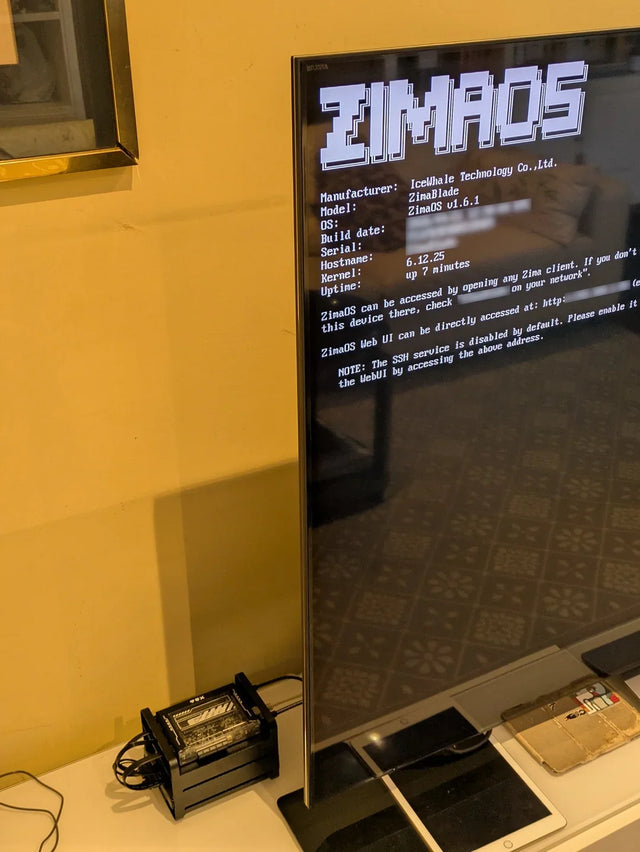
Why Does a Warm Mini PC Under the Desk Make a Small Office Uncomfortable?
Measure wall power and room temperature, clear the exhaust path, and compare placement before changing cooling hardware.
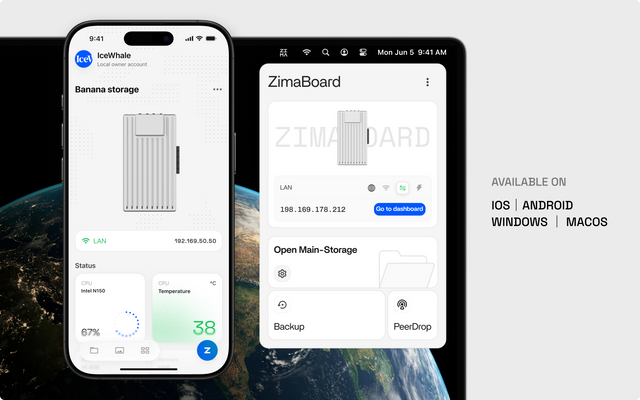
What Screen Distance Helps When Watching Several Server Dashboards?
Start at a comfortable arm's-length range, scale dashboard text, and verify posture instead of chasing one universal distance.
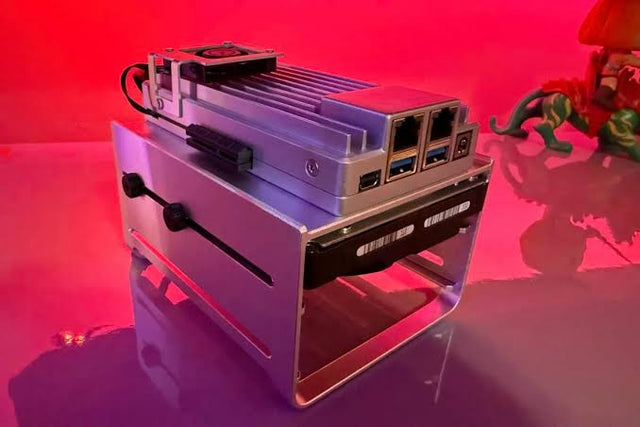
How to Reduce Glare When Reviewing Photos on a NAS-Connected Monitor
A controlled method for separating reflections from brightness and preserving consistent photo-review decisions.


