
Home Assistant Starts but Its Background Workers Remain Offline


When Home Assistant starts but workers stay offline, the usual causes are unavailable dependencies, expired credentials, setup retries, blocked resources, or a version-scoped integration failure.
Begin with scope: determine whether one integration, one protocol bridge, or every background service is unavailable while the core UI remains responsive. Capture the first setup error and timestamp before reloading anything, then test the named dependency from the Home Assistant runtime. Repeated restarts erase timing evidence and can intensify authentication or rate-limit failures.
Classify Which Workers Are Offline
List unavailable integrations, entities, add-ons, automations, and background jobs after the same startup. Group them by shared dependency such as DNS, MQTT, database, USB radio, cloud account, or network segment. One isolated integration suggests a local setup branch; many unrelated failures suggest a host or network prerequisite.
Home Assistant users report integrations that remain unavailable after startup even though the frontend works, with manual reload restoring only the affected component. The case described in a failed integration setup illustrates why scope precedes any reload automation.
If every worker shares one missing dependency, investigate that prerequisite first. If only one integration fails, keep core and unrelated workers running and continue with its setup record. Do not restart the entire host to repair an isolated worker.
Read the First Setup Error, Not the Repeated Tail
Locate the earliest error for the affected integration after startup and record its exception class, dependency name, endpoint, and retry wording. Later messages may repeat a generic unavailable state after the specific authentication, connection, schema, or import failure has scrolled away.
Home Assistant's retry behavior is visible in reports of powered-off devices repeatedly producing failed-setup messages. The observed failed setup retry pattern shows that an offline dependency can be expected while a tight retry loop is a separate operational concern.
A connection error sends the next test to network or service readiness. An authentication error sends it to credentials or account state. An import or version error sends it to component compatibility. Keep these branches separate; a manual reload cannot repair an invalid token or missing library.
Test the Named Dependency From the Runtime
From the Home Assistant container or host context, resolve the dependency name, connect to its port or device, and verify the expected authentication or protocol response. Test after the dependency's own startup is complete. Host-side reachability alone may not represent container DNS, routing, or device mapping.
An integration startup review found wide variation in load times and identified unused or slow components separately. That integration startup timing supports measuring the named worker instead of judging readiness from the main UI.
PASS means the runtime reaches and authenticates to the dependency, moving suspicion to integration state or compatibility. FAIL means repair the service, DNS, route, credential, or device mapping before touching Home Assistant. Retest the dependency first, then allow one setup retry.

Reload Only After the Cause Is Ready
Use one integration reload only after the dependency is online and credentials are verified. Watch for setup completion, entity availability, new events, and queue drainage. If the worker immediately fails with the same root error, repeated reloads are not a recovery strategy.
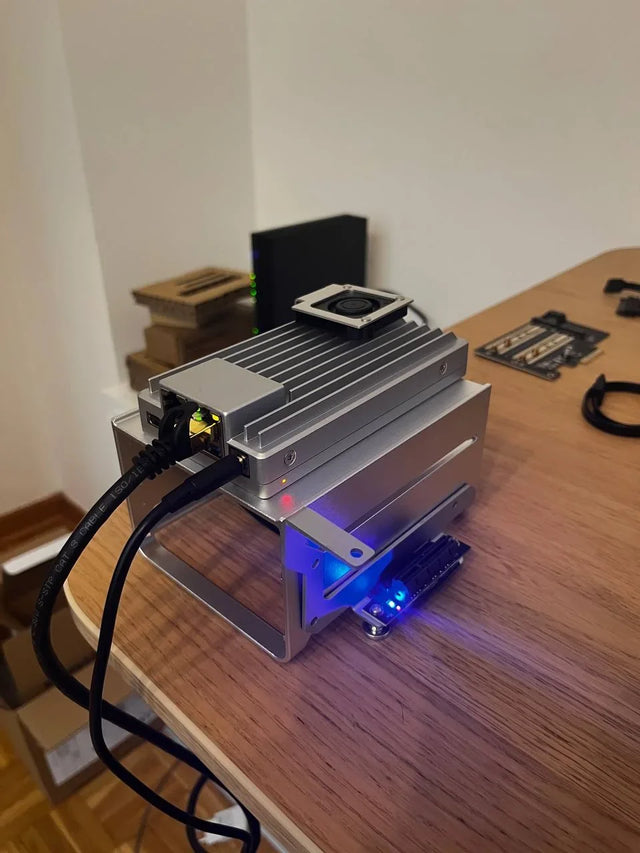
The ZimaSpace startup workflow distinguishes core readiness from blocked integrations and Recorder. Apply the slow-integration check before removing components or increasing hardware.
PASS means the worker remains online and processes its original workload after one Home Assistant restart. FAIL with a new error moves to that new branch; FAIL with the identical error confirms the cause was not corrected. Stop automated retry loops if the provider is rate-limiting or credentials are rejected.
Escalate Persistent Version or Resource Failures
If the dependency is healthy and the same integration fails only after a specific update, capture the exact Home Assistant version, component version, diagnostic data, and reproducible setup sequence. If several workers stall while CPU, memory, or database queues are saturated, address the shared resource instead of filing separate integration reports.
Confirm recovery by running the original trigger, observing the worker event, and checking the target entity or job result across two restarts. A green integration card without processed work is not sufficient. Keep a temporary workaround clearly labeled and reversible.
Escalate when a reproducible version regression remains, the worker corrupts state, or essential local control cannot recover within the planned window. Roll back only with a compatible backup and known image when the upgrade checklist supports it; otherwise preserve evidence and isolate the failing integration.

Recommended products

Support & Tips
More to Read
Home Assistant Works on Wi-Fi but Fails on Ethernet or VPN
Test each network path separately, verify interface and routing state, distinguish direct IP from discovery, then repair only the failed layer.

How to Decommission Home Assistant Without Leaving Unprotected Data
Prove the replacement or archive, revoke every trust path, sanitize each data-bearing device, and retain only documented protected recovery copies.

Should You Use Automatic Updates for Home Assistant on a Home Server?
Choose manual, notification-only, or staged automatic updates from household impact, compatibility risk, observation time, and recovery readiness.


