
This source began as a frustrating permissions problem and eventually turned into a repeatable solution. Syncthing could communicate with the Windows peer and could sync into its default AppData location, but trying to use a mounted NAS path such as /media/raid/NAS/Music produced permission denied and folder path missing errors.
In August 2025, a community user posted the approach that worked for them: reinstall Syncthing with Custom Install, use the real ZimaOS user's PUID/PGID, choose an appropriate sync root, and let Syncthing create its own destination folder. Two later users explicitly confirmed that this worked. IceWhale's current official Syncthing guide now documents essentially the same setup.
The Original Syncthing Could Only Write Its Default AppData Path
The source user could fill:
/DATA/AppData/syncthing/config/Syncbut could not use the desired hard-drive music path even though Files, Jellyfin, and Navidrome could access it. That is strong evidence for a container identity/permission mismatch rather than a failed disk.
Running Syncthing as Root Was Suggested but Is Not the Preferred Current Fix
An early community reply suggested PUID/GUID 0. Running a file-sync service as root can bypass many permission problems, but it also gives the container much broader write/delete ability than necessary.
Current IceWhale guidance explicitly recommends using the real user's IDs instead.
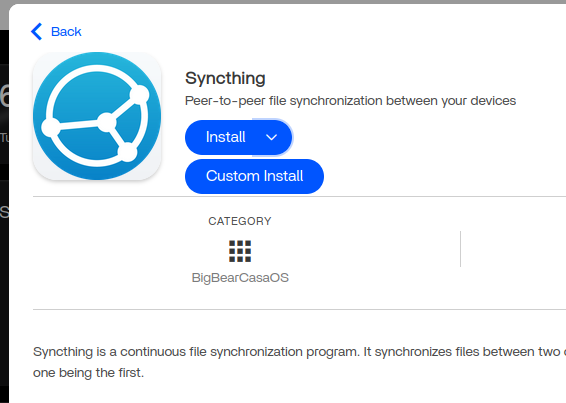
Use Custom Install
Find the Actual ZimaOS User's PUID and PGID
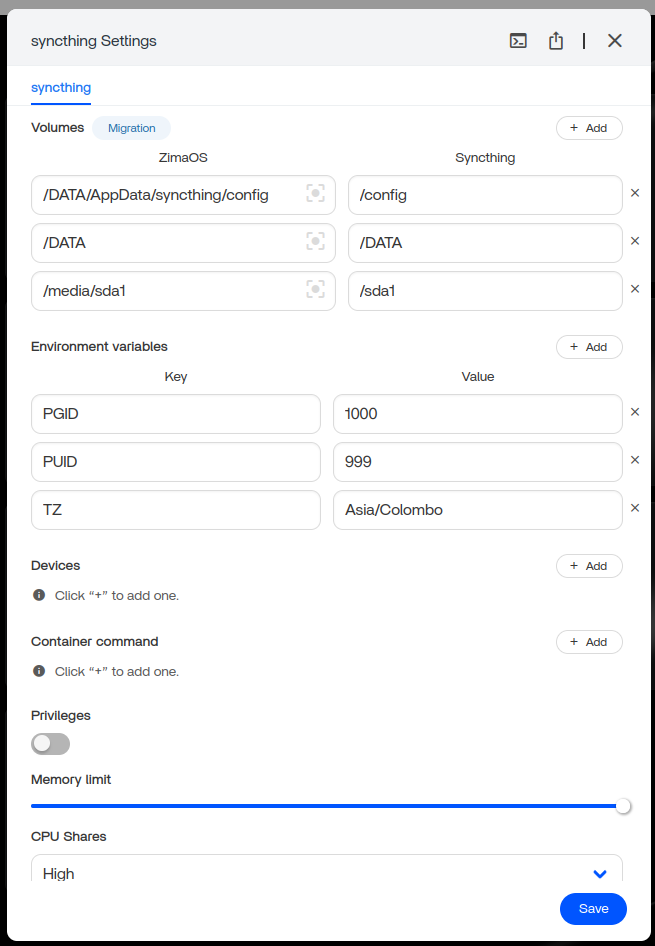
Current official guidance uses:
id -u username
id -g username
Replace username with the ZimaOS account that should own/manage the synchronized files, then copy the returned numeric IDs into the Syncthing environment variables.
Do Not Use the Root of a Mounted Disk as the Syncthing Folder
Current IceWhale documentation says the root of a mounted disk or system folders such as Gallery/Media/Documents should not be used directly as Syncthing's folder path because doing so normally requires root-level privileges.
Create/use an appropriate dedicated subfolder instead.
Let Syncthing Create the Destination Folder
The community solution specifically warned users not to precreate the destination through the ZimaOS Files browser. Current official documentation now repeats the same best practice: define the destination in Syncthing and let Syncthing create it.
This Community Fix Is Now Reflected in Official ZimaOS Documentation
Use the current ZimaOS Syncthing setup.
Why the Guide Warns That Wrong IDs May Require Reinstall
If the first install creates config/folders under the wrong identity, simply changing one value later can leave old ownership behind. Current guidance therefore asks users to verify PUID/PGID carefully before installation.
Back up Syncthing configuration if it contains important device/folder relationships before deleting AppData for a clean reinstall.
Test with a Small Disposable Folder First
Before pointing Syncthing at a large music or document tree, sync a small test folder, verify two-way behavior if enabled, confirm ownership on the NAS, then add production folders.
The Fix Works Because All Permission Layers Finally Agree
For Syncthing to create files successfully, four things must line up: the ZimaOS host folder exists and is writable by the intended user/group, Docker maps that host folder into the container, Syncthing runs with the matching PUID/PGID, and the folder path configured inside Syncthing points to the container-side mount. A mismatch in any one layer can look like the same “permission denied” symptom.
Why Mounted-Disk Roots Are a Bad Default Sync Target
The root of a mounted disk often contains system-managed directories, share metadata, or permissions intended for multiple services. Giving a sync engine broad write access there increases the blast radius of accidental deletes or misconfiguration. A dedicated subfolder makes ownership and backup policy much easier to reason about.
Validate Syncthing's Deletion Semantics Before Enabling Two-Way Sync
Syncthing propagates changes according to its folder mode, including deletions in send/receive setups. Before pointing it at a large music or document library, test create/rename/delete behavior with disposable files and consider Syncthing versioning if recovery from accidental remote deletes matters.
Syncthing on ZimaOS FAQ
Did later users confirm the PUID/PGID approach worked?
Yes. At least two later source participants explicitly said the posted method fixed their problem.
Should Syncthing run as root to access disks?
Current IceWhale guidance recommends using the real ZimaOS user's PUID/PGID and a suitable subfolder instead.
Should I create the destination folder in ZimaOS Files first?
Current IceWhale documentation says to let Syncthing create the destination folder itself.


