
If Stirling PDF stays on the ZimaOS home screen as “App Installing,” first check whether the Docker container actually exists and is running. A stuck installation card can be a frontend/app-management state problem, while a container that is repeatedly restarting points to a real deployment error. Treat those as different failures.
The source thread never reached a verified fix: reinstalling did not clear the state, and a full ZimaOS restart did not help the original user. Therefore, the safe guide is to diagnose container state, logs, App Store metadata, and current package behavior rather than claiming reboot is the solution.
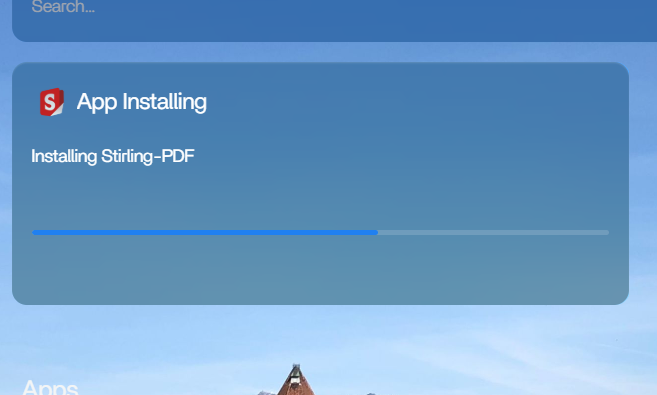
Step 1: Check Whether Stirling PDF Is Running
From the ZimaOS host terminal:
docker ps -a --format 'table {.Names} {.Image} {.Status}' | grep -i stirlingIf a Stirling container is running, test its published Web UI port directly. If it works by direct IP and port, the application is healthy and the stuck card is probably UI/management state.
Step 2: Check Container Logs
docker logs --tail 200 <stirling-container-name>Look for port conflicts, permission failures, invalid environment variables, or restart loops. Do not uninstall repeatedly before you know why the current container is failing.
Step 3: Hard-Refresh the ZimaOS Dashboard
Use a private browser window or clear cached site data for the local ZimaOS address. If the installation card disappears in a clean session, the backend may already be correct.
Step 4: Check App Store and Docker State Together
If the UI says “installing” but Docker shows no Stirling container, the app-management task may be stale. If Docker shows a container that is constantly restarting, the frontend status is reflecting a real incomplete deployment.
Use Current Stirling PDF Docker Settings
Current Stirling PDF documentation uses the official image and persistent configuration volumes rather than requiring ZimaOS-specific host modifications.
The Stirling PDF Docker guide is the source of truth when rebuilding the app definition.
Do Not Delete Persistent Data Just to Clear the Card
If Stirling PDF has already created configuration or user data, removing AppData can turn a cosmetic install-state problem into data loss. Back up mapped volumes before manual Docker cleanup.
When Manual Docker Removal Is Appropriate
If ZimaOS cannot remove a clearly failed orphan container through the UI, advanced users can remove the specific container after recording its image, ports, and volume mappings. Do not delete unrelated images, networks, or volumes.
After cleanup, refresh the App Store and reinstall from a current package or upstream Compose definition.
Check the Current ZimaOS Version
The source case was from mid-2025. Current ZimaOS has received extensive App Store, Docker startup, Web UI port, and YAML compatibility fixes since then. Update to a current stable release before diagnosing the old stuck-install symptom as a present product bug.
The Docker troubleshooting guide gives the broader container model.
Check Whether the Install Task Is Still Producing Activity
If the card remains at the same progress indefinitely, compare Docker pulls, container creation, and network activity over several minutes. A genuinely downloading image should show changing image/layer state, while a stale frontend task can sit unchanged even when nothing is happening.
Check for Port Conflicts Before Reinstalling
Stirling PDF normally exposes a web service. If the host port selected by the package is already occupied, the image can pull successfully but the container can fail to start. Inspect the container logs and current port bindings rather than repeatedly pressing Install.
Confirm Persistent Paths Are Writable
A container may also fail after image download if its config or working directory is mapped to a host folder the service cannot write. Verify the host path exists and has appropriate ownership for the container instead of using broad permissions on all of /DATA.
FAQ
Will rebooting ZimaOS clear a stuck Stirling PDF install?
It may clear transient state, but it did not fix the original user's case. Check the actual Docker container and logs first.
What if Stirling PDF opens even though the dashboard says Installing?
Then the application is likely healthy and the problem is the ZimaOS frontend/app-management state.
Should I delete Stirling PDF AppData?
No, not merely to clear the installation card. Back up persistent volumes before any destructive cleanup.
Should I use the current official Stirling image?
Yes. If you rebuild the app, follow current upstream Docker documentation rather than an old manifest.


