
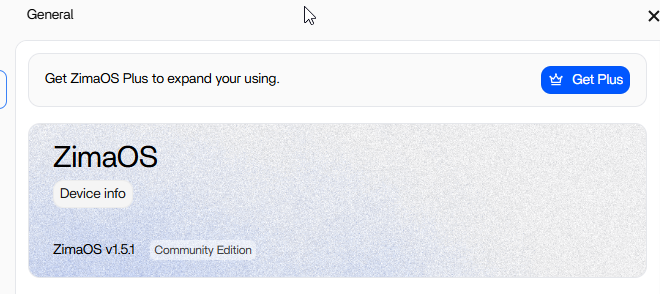
If ZimaOS+ disappears after you change a Proxmox VM, do not assume RAM alone caused the license loss. In the source case, the user later confirmed that both RAM and virtual-disk capacity had been changed. Restoring the VM snapshot, switching back to the previous ZimaOS system slot, and then following a different upgrade sequence restored Plus.
ZimaOS+ is device-bound, so changes that affect the virtual machine's identity can matter. Current ZimaOS pricing also states that VM-to-physical transfers can be handled as special cases through manual reissuance/support. The safest workflow is to preserve a snapshot and the current Device ID before changing virtual hardware.
Why This Was Not Just a RAM Upgrade Problem
The thread began as “I added RAM and lost Plus,” but the user later clarified that the virtual storage was expanded too. That distinction matters because storage changes can affect the identity ZimaOS uses for activation in ways a simple RAM increase may not.
Step 1: Record the VM and License State Before Changes
Before changing Proxmox hardware, record:
- ZimaOS version;
- Plus activation status;
- VM UUID/MAC addresses where relevant;
- virtual system-disk size and controller type;
- a current VM snapshot or backup.
Do not change RAM, system-disk size, controller type, and NIC identity all at once if you want to know which change affected activation.
Step 2: Check Device Identity After the Change
If Plus disappears, compare the current device identity with the previous state before redeeming another key. On current ZimaOS, Plus is bound to a device rather than to a local ZimaOS username.
The current ZimaOS Plus licensing page explains that each purchased license is tied to a single device and that special VM-to-real-device transfers can receive manual support.
Step 3: Use the A/B System Slot as a Recovery Tool
IceWhale support suggested restoring the snapshot and switching to the previous ZimaOS slot, which contained the prior version. The source user confirmed that this recovered the earlier working Plus state.
ZimaOS uses two system slots so an earlier system image can remain available after an upgrade. The current ZimaOS system recovery guide explains the A/B design.
Step 4: Change One Variable at a Time
Once the known-good snapshot is restored, expand RAM first and boot. Verify Plus. Then expand storage and boot again. Finally update ZimaOS. This staged approach gives you a clear checkpoint after every change.
Do Not Rebuild the VM Just to Recover Plus
A new VM can create a completely new virtual-device identity and make license recovery harder. Preserve the working VM definition whenever possible.
If you need to move the installation to another VM or physical NAS, contact support rather than cloning and redeeming the same key repeatedly.
What If the License Says It Is Already in Use?
Stop repeated activation attempts and collect the old/new device details plus proof of purchase. Current ZimaOS+ policy supports license unbinding/transfer under defined conditions, and special VM cases can be handled manually.
The system migration checklist is useful before modifying a working VM.
FAQ
Does adding more RAM always remove ZimaOS+?
No. The source case also changed the virtual disk, so it does not prove that RAM alone changes the license identity.
Will changing the VM disk size affect Plus?
It can affect device identity depending on the virtual hardware and activation logic. Make one change at a time and preserve a snapshot.
Can I transfer a VM Plus license to a real NAS?
Current ZimaOS pricing says special VM-to-physical cases can receive manual reissuance or support.
Should I buy another license immediately?
No. Recover the known-good VM state, compare device identity, and contact support if the original single-device license no longer activates.


