
Formatting a disk from NTFS to ext4 is not a conversion in place. It creates a new filesystem and erases the existing contents of the target partition. The February 2026 source thread is useful because the original user first encountered ZimaOS Error 1, then followed a community terminal workflow to identify the filesystem, unmount the target, and format it successfully. A later participant showed that even an apparently unmounted drive can remain busy and resist formatting.
The correct long-lived guidance is therefore: use current ZimaOS Storage management first, confirm exactly which device is being targeted, and treat low-level formatting commands as destructive community troubleshooting rather than generic copy-and-paste steps.
The Source User Could See the Disk but Formatting Returned Error 1
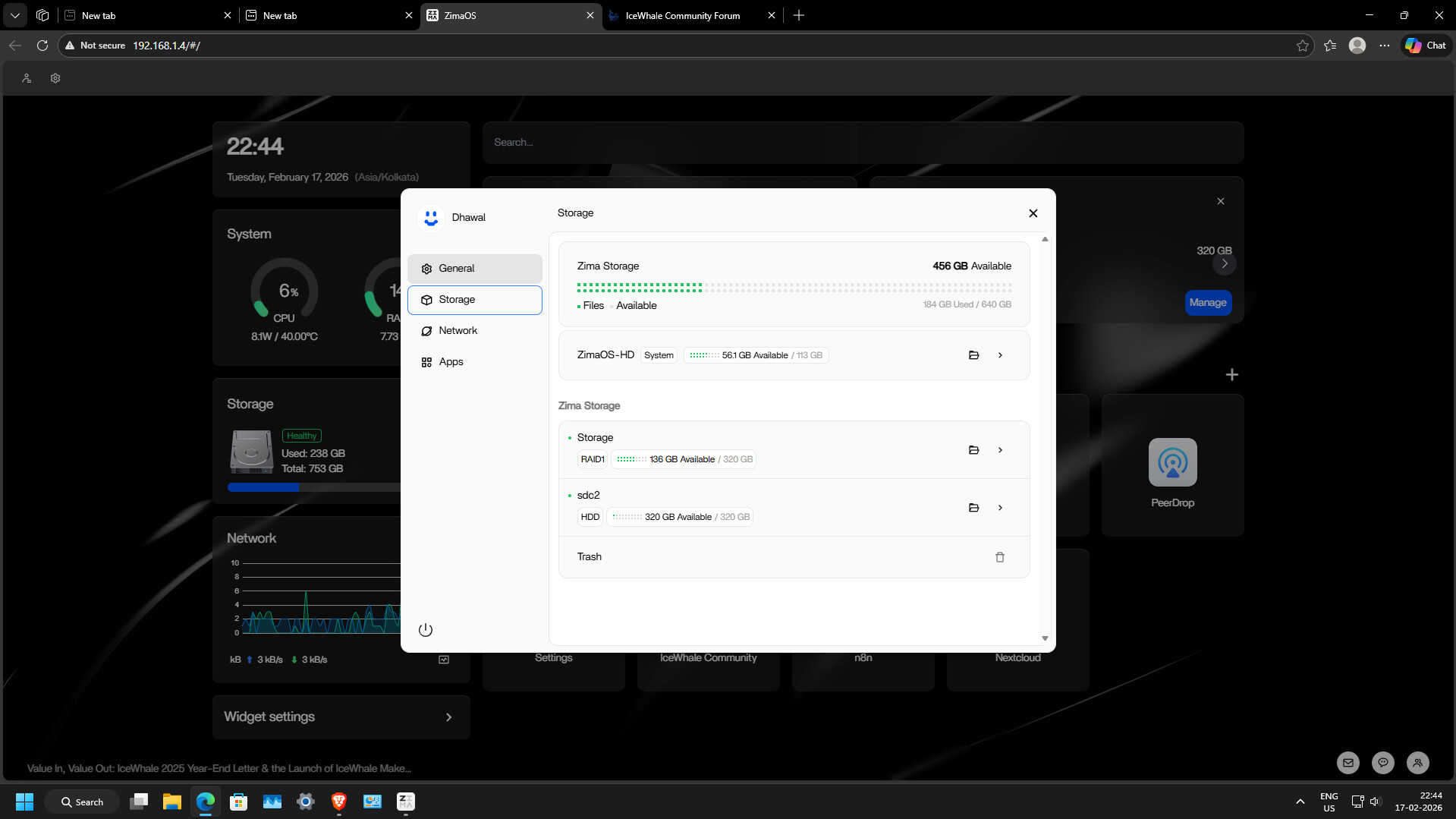
sdc2 failed with Error 1.Start with Current ZimaOS Storage Setup
Current ZimaOS is designed to initialize and manage internal and USB drives from Settings > Storage. For a newly added disk, that interface should be the first choice because it knows how the drive is registered in the rest of ZimaOS.
Use the current ZimaOS storage setup workflow for new disks before bypassing the management layer with terminal formatting.
Identify the Correct Disk and Filesystem Before Erasing Anything
The community responder asked the user to run lsblk -f. That is a read-only inspection command and is valuable because it displays disks, partitions, filesystem types, labels, and mount points.
Do not infer that sdc2 on someone else's server is the same physical disk on yours. Linux device letters can change after reboots or hardware changes.
Error 1 May Mean the Partition Is Mounted or Busy
The responder suspected that the partition was still mounted or in use. They recommended checking whether sdc2 appeared in the mount table before formatting.
This is a strong general principle: formatting tools need exclusive enough access to write new filesystem metadata. A drive used by Files, Docker, Backup, Samba, or another process can remain busy even when the user thinks no file copy is active.
The 2026 Community Workflow Used SSH
The user asked whether the commands should be run from the web interface or through SSH. The community reply instructed them to enable SSH and run the low-level Linux commands from a terminal.
Those exact destructive commands were not posted by IceWhale staff in this thread. They should not be republished as a default ZimaOS formatting procedure without a clear warning and device verification.
The Original User Confirmed the Community Procedure Worked
After following the suggested check, unmount, and ext4 formatting sequence, the original poster replied that everything completed properly and thanked the responder for the detailed help.
That makes the procedure a confirmed community solution for that one partition, not an official universal workflow.
A Later User Found “Unmounted” Was Not the Same as “Free”
In March 2026, another participant tried to reformat an internal NTFS disk to Btrfs because the drive stayed warm and seemed unable to spin down. ZimaOS returned Error 1, and manual checks suggested the disk was not mounted.
The later case is important because a block device can still be held open by a service, filesystem probe, storage-management process, or other kernel/user-space activity even when it has no ordinary mount point.
External Formatting Can Be a Safer Escape Hatch
The later participant ultimately removed the drive, formatted it on another Linux machine, then returned it to ZimaOS. This avoids fighting services on the running NAS, but it requires physical access and an accurate backup because the format still destroys data.
NTFS and ext4 Are Both Supported, but They Serve Different Priorities
Current ZimaOS lists both NTFS and ext4 as read/write filesystems. NTFS is useful when a disk must move between Windows and Linux systems. ext4 is a native Linux filesystem with straightforward POSIX ownership and is often simpler for server-only Docker storage.
Compare the current ZimaOS filesystem support table before reformatting a portable disk.
Do Not Assume Reformatting Fixes Every Spin-Down or Heat Problem
The later user's desire to move away from NTFS was triggered partly by a warm disk that seemed active. A filesystem change can alter driver and metadata behavior, but it does not prove which process is keeping a disk awake.
Before erasing a working disk solely for power management, inspect which services are accessing it.
A Safer Formatting Checklist
- Back up everything that matters.
- Confirm the exact physical disk and partition.
- Record the current filesystem and label.
- Disable ZimaOS services that intentionally use the disk.
- Confirm the partition is not mounted or busy.
- Prefer the current Storage UI when it can perform the operation.
- If CLI formatting is necessary, verify the device again immediately before the destructive command.
- After formatting, let ZimaOS register and mount the new filesystem normally.
NTFS to ext4 FAQ
Does changing NTFS to ext4 erase the data?
Yes. Formatting creates a new filesystem and destroys the old filesystem contents.
Did the terminal method work for the original user?
Yes. The original poster confirmed it completed successfully.
Does Error 1 always mean the disk is mounted?
No. The later reply shows a drive can appear unmounted while still being busy or otherwise unavailable to the formatter.
Should I prefer ext4 over NTFS for every ZimaOS disk?
No. Choose based on whether the disk is server-only or needs cross-platform portability.


