
Check BIOS Before Changing Partitions or ZimaOS Settings
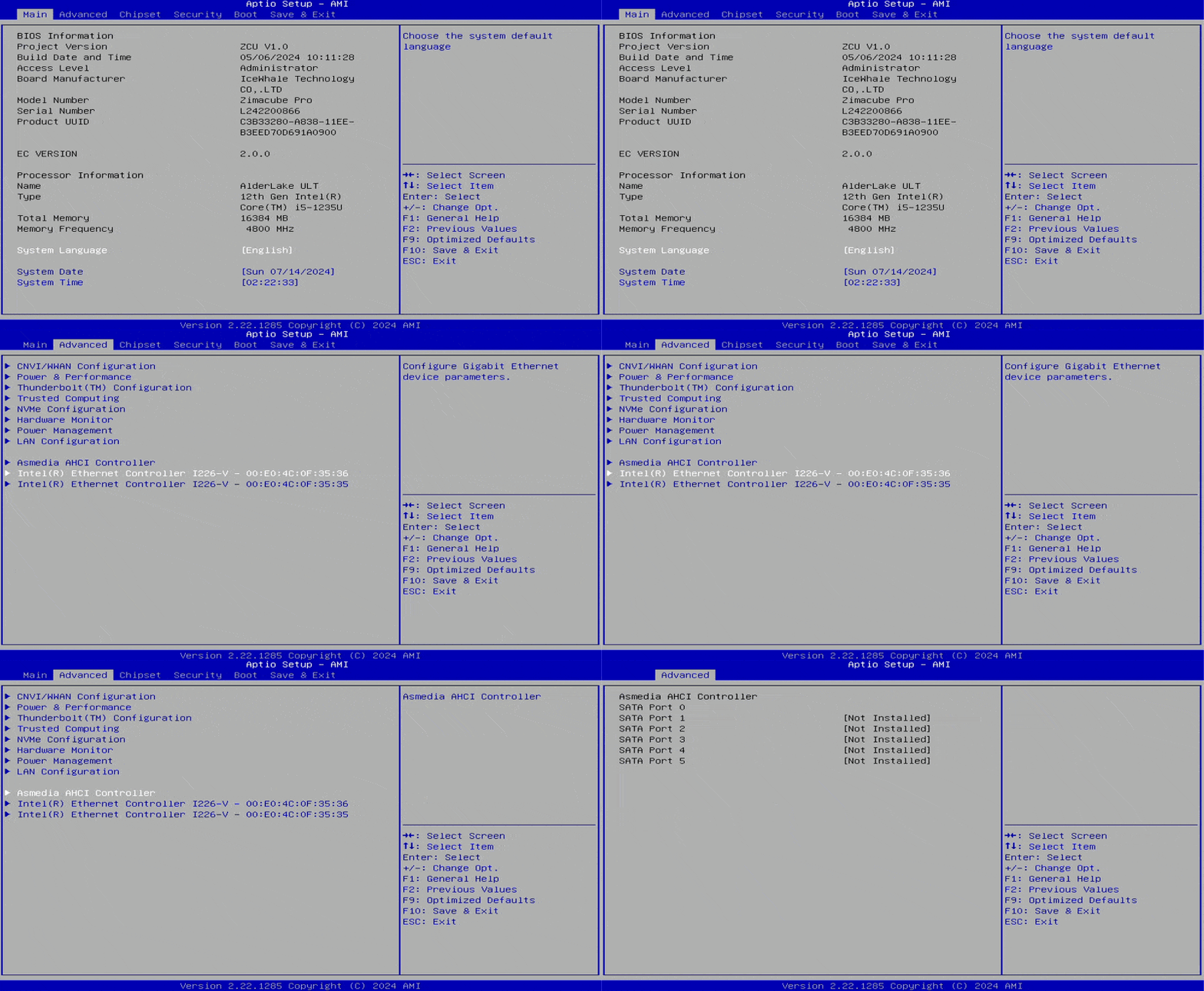
When a SATA drive is absent from both ZimaOS and another installed operating system, firmware visibility is the first discriminator. If the ZimaCube BIOS reports the bay as empty, formatting, mounting, and application settings cannot make that hardware visible.
The original author tested six Seagate IronWolf Pro ST8000NT001 drives. The drives worked on other systems, while an older laptop HDD was detected in the ZimaCube. This ruled out a simple claim that every bay or every tested drive was dead, but it did not prove the author's theory about the SATA revision.
Power the ZimaCube down before inserting, removing, or reseating a drive. The team later stated that drive plug and unplug operations in this diagnostic should be performed with the computer off.
Isolate the Drive, Tray, Bay, and Shared Hardware Path
Confirm that every tray is fully seated before closing its handle. A participant noted that the handle could close even when a sled had not connected correctly. Test one known-good drive at a time instead of filling all bays and changing several variables together.
Watch whether the failure follows one drive or one bay. Another participant found that one faulty drive made other disks drop from the backplane and produced inconsistent detection across boots. A failure that follows the drive points in a different direction from several known-good drives failing in the same bay.
If multiple disks disappear together, power delivery, the backplane, or another shared path remains in scope. Reproduce the result from a cold boot and record exact bay and model combinations before escalating.
Use lsblk Only After Firmware Detects the Device
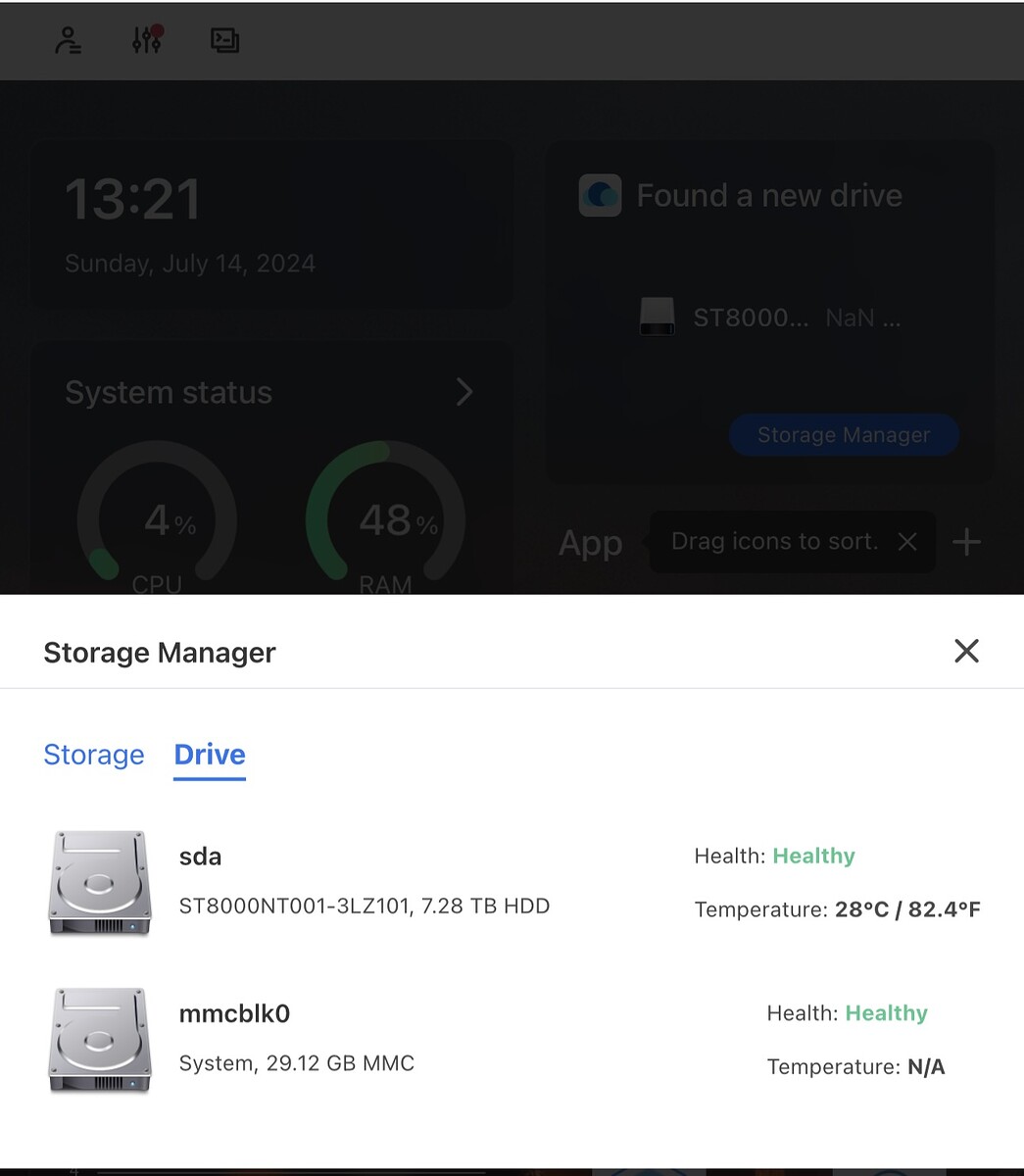
If BIOS lists the disk, boot ZimaOS and run lsblk. A disk visible in BIOS and lsblk but absent from Files or Storage is an operating-system presentation or metadata branch, not the same problem as a completely absent device.
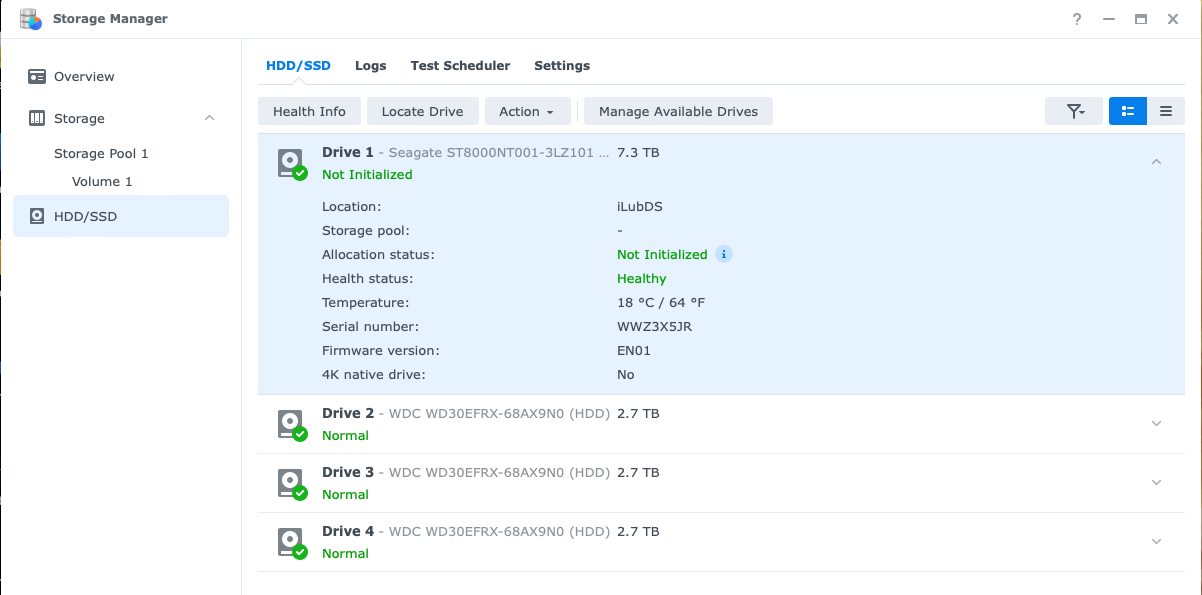
One user had older disks previously used in a Synology RAID. BIOS and lsblk detected them, and removing old formatting and partition information from a live Linux environment allowed ZimaOS to see them. That was a different branch from the original BIOS-level absence.
Wiping partition or RAID metadata is destructive. Identify the device by model, size, and serial; back up recoverable data; and never erase a disk merely because a different user's already-detected disk had stale metadata.
Do Not Treat a 3.3-Volt Pin Workaround as a General Fix
A team reply suggested that some enterprise-class disks may respond to 3.3-volt power-disable behavior and mentioned insulating the relevant power pin as a test. The topic did not validate that suggestion for the original six drives.
Another member using a related 14 TB model reported that the tape test made no difference. The author also rejected taped pins as an unreliable foundation for a RAID or storage pool. Those outcomes prevent this thread from supporting a universal “3.3 V pin fix.”
Do not modify connectors or rely on loose insulation inside a production storage system without hardware-specific documentation and a supported service path. Return to the drive-versus-bay isolation evidence instead.
Escalate When BIOS and lsblk Both Miss the Disk
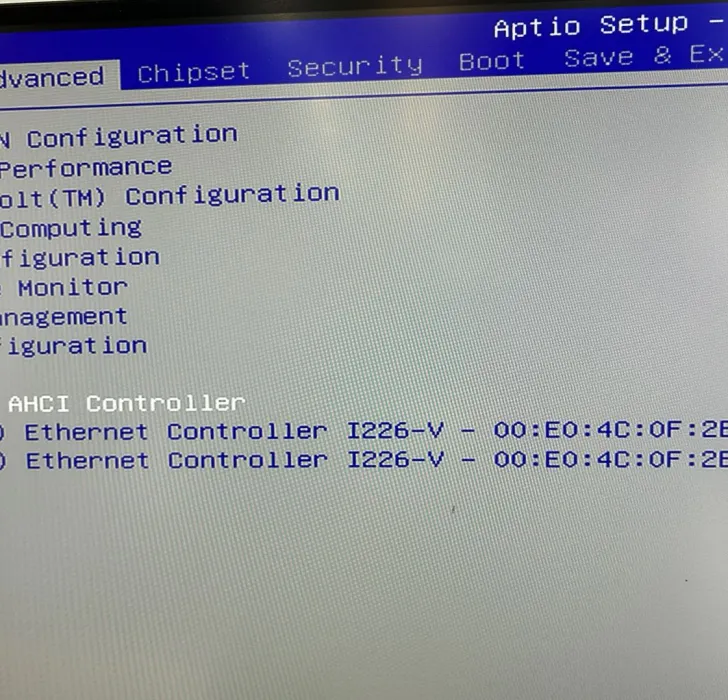
The team's final diagnostic boundary was explicit: check the disk in BIOS and run lsblk. If the disk appears in neither place after correct power-off seating and controlled drive tests, contact IceWhale support about backplane replacement.
Provide the ZimaCube model, drive model and firmware, affected bays, BIOS photos, lsblk output, and results from a known-good drive. This is stronger evidence than assuming an old SATA standard, which the topic never confirmed.
After repair or replacement, validate every bay from a cold boot, check BIOS and lsblk, then perform a second reboot before building a RAID. Detection across both boots is the recovery signal.
FAQ
Should I wipe a drive that is missing from ZimaCube BIOS?
No. Partition data is not the first branch when firmware cannot detect the hardware. Isolate seating, drive, bay, power, and backplane behavior first.
Can one faulty drive make other ZimaCube disks disappear?
One participant reported exactly that behavior. Test one drive at a time to see whether the failure follows a specific disk.
When should I request a backplane replacement?
The team advised contacting support when a correctly tested disk appears in neither BIOS nor lsblk.


