
When ZimaClient stays on Initializing, the problem is often not discovery of the ZimaOS server itself. In the original 2024 community report, the user could already open a ZimaCube through its web interface, but Zima Client 0.1.7 on macOS never completed initialization.
An IceWhale team member later explained the important internal step: at that time, ZimaClient initialization was installing and checking ZeroTier. The thread then became a longer troubleshooting record covering macOS authorization, ZeroTier installation, multiple local users, newer ZimaClient builds, Windows reports, and log collection. Current ZimaSpace documentation still tells users who are stuck during ZimaClient installation to install ZeroTier manually and then run ZimaClient again, while adding a separate macOS fix for cases where Zima processes are running but no window appears.
What Does ZimaClient “Initializing” Mean?
In the July 2024 thread, IceWhale explained that the initialization step was responsible for installing and ensuring that ZeroTier was running. That installation required operating-system authorization, which is why the macOS client requested the user's password before becoming stuck.
This matters because it changes the troubleshooting target. If the ZimaOS web interface already works in a browser, repeatedly changing the ZimaCube LAN address may not address the initialization failure. Instead, verify the client-side helper and ZeroTier installation first.
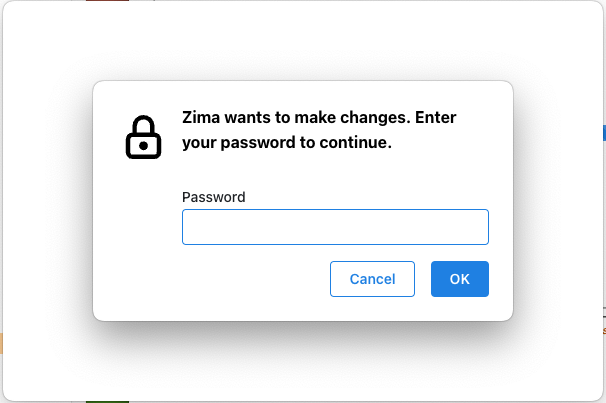
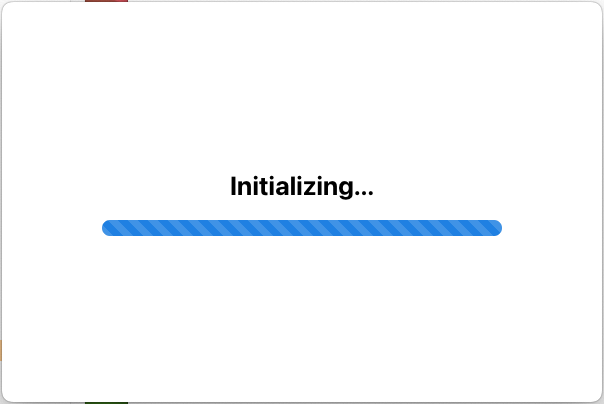
Current Official First Fix: Install ZeroTier and Retry ZimaClient
The current ZimaClient installation guide still recommends ZeroTier as the first check when installation is stuck.
The current workflow is:
- Confirm the computer has a working internet connection.
- Download and install ZeroTier from its official download page.
- Complete the operating-system authorization prompts.
- Run ZimaClient again.
Use the official ZeroTier download page rather than an old package link copied from a historical forum reply.
The Original ZimaClient 0.1.7 Instructions Are Historical
The community post was written in July 2024 and specifically involved Zima Client 0.1.7. IceWhale later posted download links for versions above 0.1.7 and said automatic updates began with 0.1.8. Those direct historical binaries should not be treated as the preferred current download path in 2026.
Use the current ZimaSpace ZimaClient download and installation page for the latest supported build. The thread is still valuable because the root troubleshooting concepts—ZeroTier, authorization, processes, and logs—continued to appear in later official documentation.
Check macOS Password and Authorization Edge Cases
The 2024 IceWhale reply identified two macOS-related conditions that could interfere with initialization:
- A local account with no password or with unusual leading/trailing spaces in the password.
- Multiple local users where ZeroTier was not initialized correctly for the current user context.
The historical guidance was to use a normal local account password and, when multiple users were involved, reinstall ZeroTier under the current user. These points came from the older ZimaClient authorization implementation, so apply them as troubleshooting clues rather than universal macOS password requirements.
If ZimaClient Is Running but No Window Appears on macOS
The original author reported that after manually installing ZeroTier, the Zima Client window disappeared but Zima-related processes remained active in Activity Monitor. Current ZimaSpace documentation now addresses this symptom directly.
On macOS:
- Open Activity Monitor.
- Search for Zima-related processes such as
Zima,Zima Helper, andzima-client-backup. - Close all related Zima processes.
- Open Launchpad and start ZimaClient again.
This is more appropriate than repeatedly clicking the application icon while stale helper processes are already running in the background.
Alternative: Install the ZeroTier Package Bundled with ZimaClient
An official 2025 community troubleshooting guide documented where ZimaClient bundled its ZeroTier installer on Windows and macOS. This can be useful if the external ZeroTier installation and your ZimaClient package are out of sync.
Historical/current-package paths documented by IceWhale include:
Windows:
%LocalAppData%\Programs\zima-client\resources\app.asar.unpacked\resources\installer\zerotiermacOS:
/Applications/Zima.app/Contents/Resources/app.asar.unpacked/resources/installer/zerotierIf these paths do not exist in your current client package, do not recreate them manually. ZimaClient packaging can change. Use the current official installation guide as the primary reference.
Restart the Computer After ZeroTier Installation Problems
IceWhale's later ZimaClient troubleshooting guide also recommends restarting the computer if manually installing ZeroTier does not immediately resolve initialization. This is especially relevant on Windows when a network service or driver installation has not finished registering cleanly.
After the restart, launch ZimaClient again before changing additional network components. Making several network-driver, VPN, bridge, and firewall changes at once makes it harder to determine which change actually fixed or worsened the problem.
Collect ZimaClient Logs Before Reinstalling Everything
The 2024 thread and current ZimaSpace documentation both provide log locations for troubleshooting.
macOS:
~/Library/Application Support/Zima/logsWindows:
%AppData%\Zima\logsIf initialization still fails:
- Take a screenshot of the stuck state or operating-system error.
- Exit ZimaClient as cleanly as possible.
- Copy the Zima logs before another reinstall overwrites useful context.
- Record your operating system, ZimaClient version, and whether ZeroTier is installed and running.
Use the support channel listed by the current ZimaSpace documentation rather than relying on an old forum email address indefinitely, as support routing can change.
What Later Community Replies Added
The original thread did not end with one universal fix. Later users reported similar symptoms on Windows and Windows 11. In February 2025, a newer Zima Client beta was posted in the thread, and one Windows user confirmed that the newer version fixed the initialization problem for them.
That result shows why version context matters: manually installing ZeroTier can be necessary, but some initialization failures can also be client-version bugs. If ZeroTier is installed correctly and the current official client still hangs, collect logs and check for a newer supported ZimaClient release rather than repeatedly reinstalling the same old binary.
You Can Still Use the ZimaOS Web Interface While Troubleshooting the Client
The original author could access the ZimaCube through a browser throughout the client problem. ZimaClient adds desktop-oriented connectivity and integration, but a stuck desktop client does not automatically mean that ZimaOS itself or the storage pool is offline.
If your immediate goal is server administration, continue using the ZimaOS web interface while troubleshooting the local ZimaClient installation. This keeps a desktop-client problem separate from a server-availability problem.
Do You Need ZimaClient Just to Access a Shared Folder on macOS?
The thread also revealed that the author's practical goal was mounting Zima storage on the Mac desktop. Another participant pointed out that once a storage pool and file share are configured, macOS can connect to a shared server using its normal network file-sharing features. ZimaClient is not the only possible path to basic SMB file access.
This does not remove the value of ZimaClient's connectivity features, but it can provide a temporary workaround while the client is being repaired.
ZimaClient Initializing Troubleshooting Checklist
- Confirm the ZimaOS server still opens normally in a browser.
- Confirm the computer running ZimaClient has internet access.
- Use the latest current ZimaClient build from ZimaSpace, not a historical 0.1.7 or beta download.
- Install or repair ZeroTier using the current official guidance.
- Complete macOS or Windows authorization prompts.
- Restart the computer if the ZeroTier service installation does not finish cleanly.
- On macOS, close all Zima-related processes in Activity Monitor if the app is running without a visible window.
- Relaunch ZimaClient and test again.
- If it still hangs, collect the ZimaClient logs before reinstalling or changing more network software.
- Record the exact client and operating-system versions when asking for support.
ZimaClient Stuck on Initializing FAQ
Why does ZimaClient stay on Initializing?
In the original IceWhale explanation, initialization was installing and verifying ZeroTier. A failed helper installation, authorization problem, stale client process, or client-version bug can therefore leave the application stuck at this stage.
Should I install ZeroTier manually?
Yes, it remains an official troubleshooting step. The current ZimaSpace ZimaClient guide tells users who are stuck during installation to install ZeroTier and then run ZimaClient again.
What if I installed ZeroTier and the Zima window disappeared?
On macOS, check Activity Monitor. Current ZimaSpace documentation recommends terminating all Zima-related processes when the app indicates it is running but no interface appears, then relaunching it.
Should I download Zima Client 0.1.7 from the old thread?
No. Version 0.1.7 was the historical build involved in the 2024 report. Use the current ZimaClient download supplied by ZimaSpace.
Where are ZimaClient logs stored?
Current ZimaSpace documentation lists ~/Library/Application Support/Zima/logs on macOS and %AppData%\Zima\logs on Windows.


