
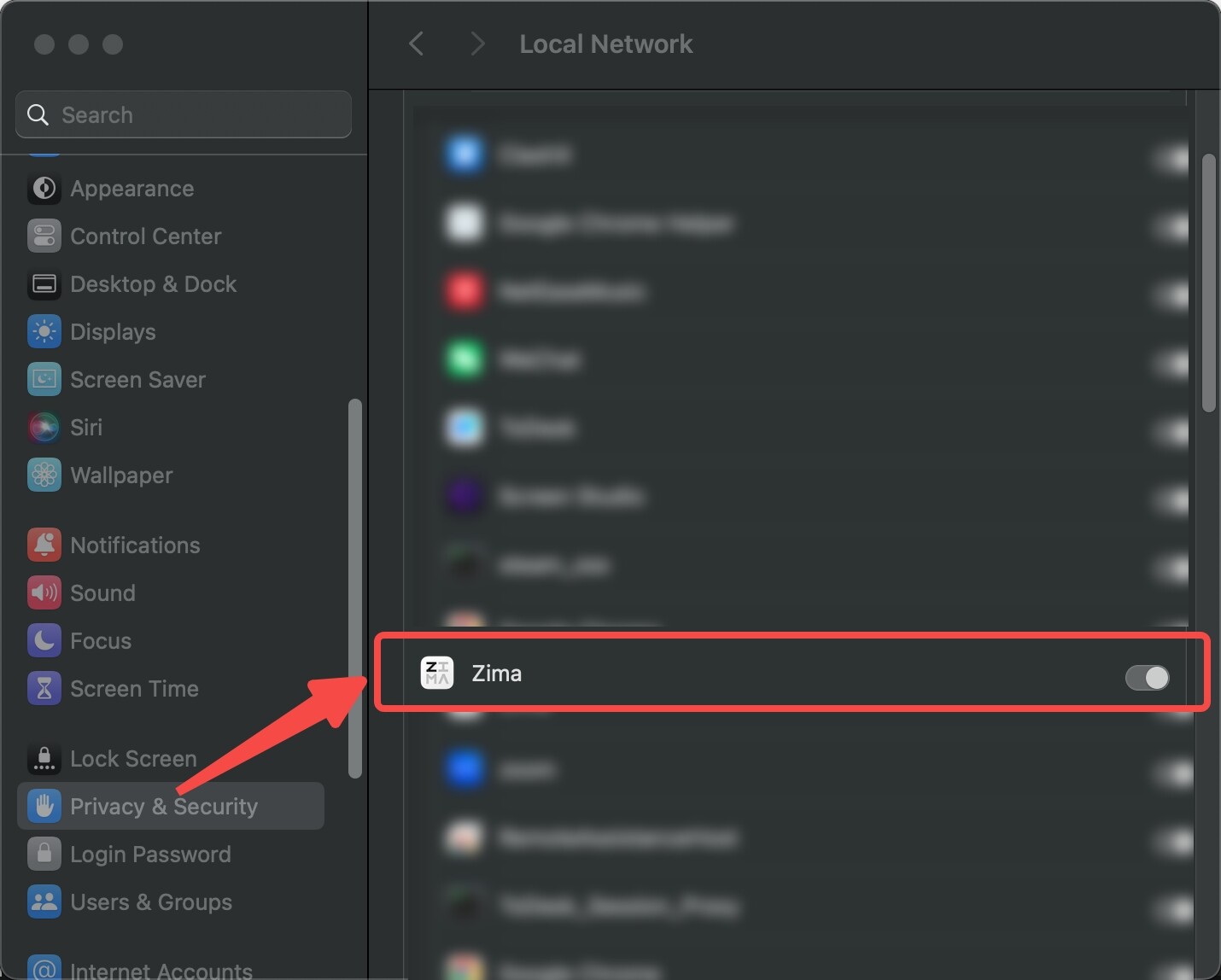
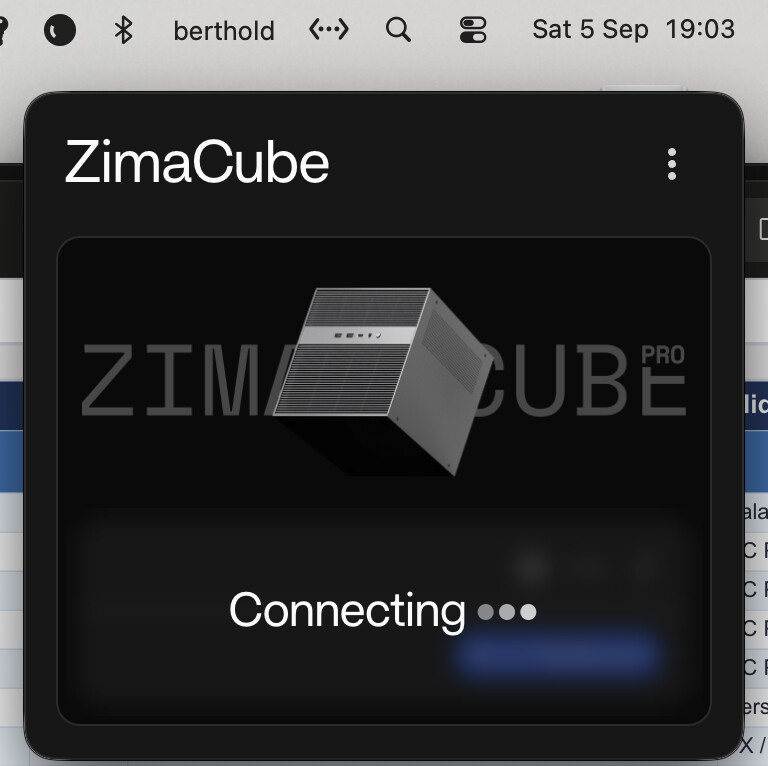
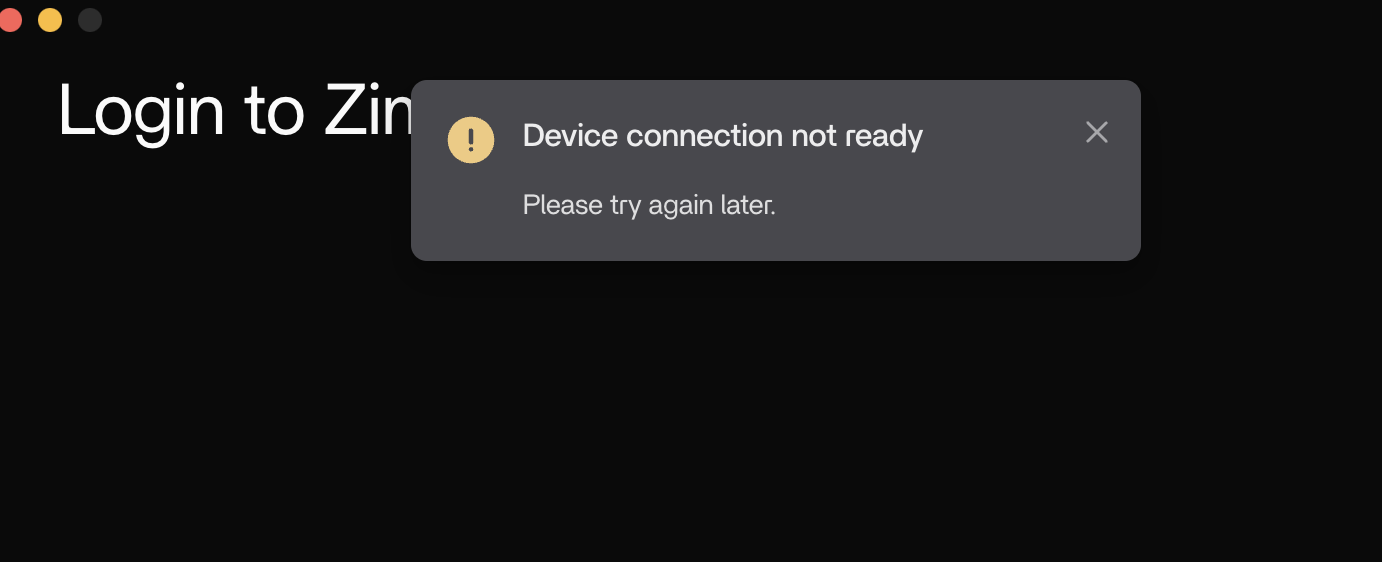
If ZimaClient on macOS says “Device connection not ready” while the ZimaOS web dashboard and ping still work, check macOS Local Network permission first. In the source case, enabling the Zima toggle under Privacy & Security → Local Network immediately fixed the connection.
A second user on a macOS 27 beta already had that permission enabled but still could not connect; the issue disappeared after updating to the next macOS beta. The same symptom can therefore be either a permission problem or a macOS/ZimaClient compatibility bug.
Step 1: Confirm the NAS Works Without ZimaClient
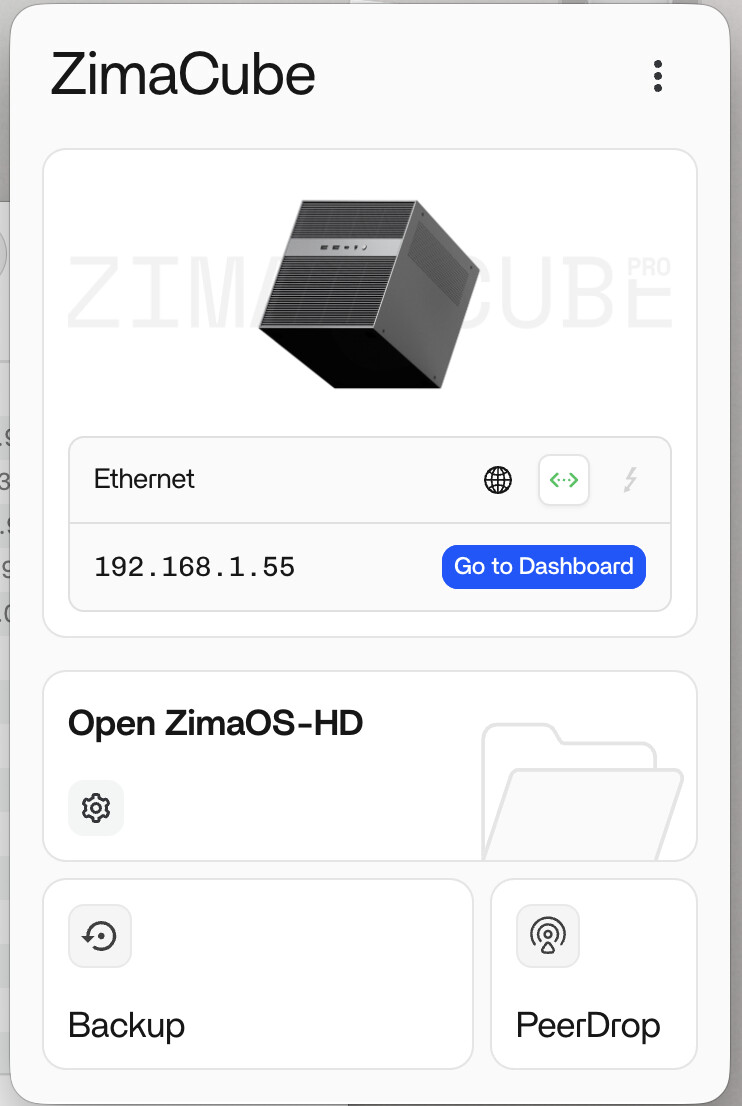
Open the ZimaOS LAN IP directly in a browser and ping the device. If both work, the server and basic network path are healthy.
Step 2: Enable Local Network Permission
On macOS, open System Settings → Privacy & Security → Local Network and make sure Zima is enabled. Quit and reopen ZimaClient after changing the permission.
Step 3: Install the Current ZimaClient
The current ZimaClient installation guide documents current installers, process restart steps, and log locations.
Step 4: Stop Stuck Zima Processes
Open Activity Monitor and quit Zima, Zima Helper, backup helpers, and other Zima-related processes, then launch ZimaClient again.
Step 5: Test macOS Version Compatibility
If Local Network is enabled and the web UI works, check whether you are on a macOS beta. The source thread included a macOS 27 beta regression that resolved in beta 8 without a ZimaOS change.
Step 6: Collect Logs Before Reinstalling Again
~/Library/Application Support/Zima/logsReproduce the failure once, exit the client, then save the logs and screenshots while the timestamps are fresh.
Do Not Reset ZimaOS When Only the Mac Client Is Broken
If iOS or another computer connects normally and direct IP access works, rebuilding the NAS is unlikely to fix a Mac-only permission or compatibility issue.
The connection troubleshooting guide helps keep the layers distinct.
FAQ
Where is the Local Network setting on macOS?
System Settings → Privacy & Security → Local Network.
Why can Finder access the share while ZimaClient cannot connect?
SMB access and ZimaClient discovery/connection use different services and permissions.
Where are ZimaClient logs?
On macOS: ~/Library/Application Support/Zima/logs.
Should I regenerate the Network ID?
Not before checking local permission and client compatibility; the source user regenerated it without fixing the Mac client.


