
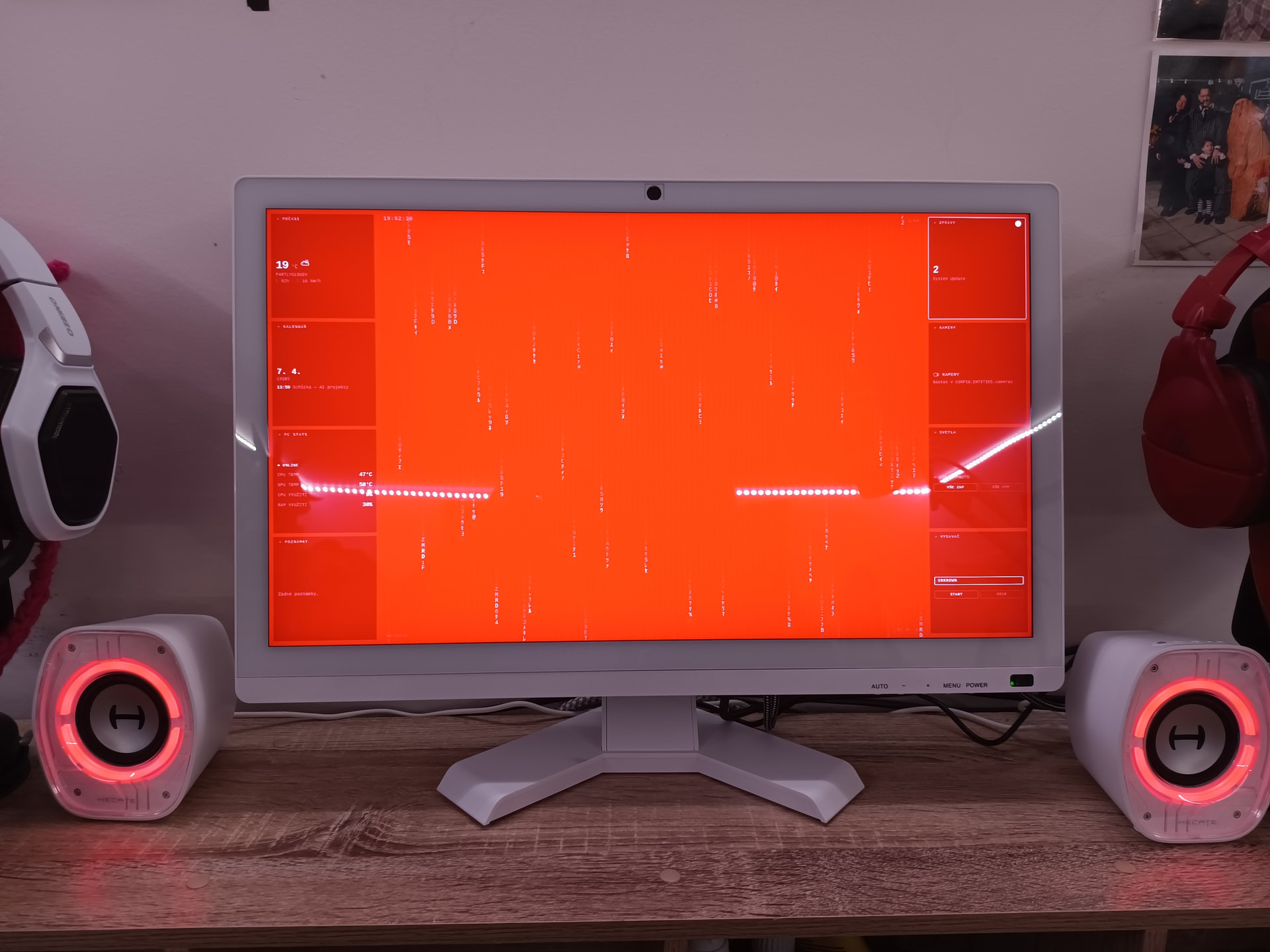
This source is a strong example of using ZimaOS as an appliance host rather than trying to turn its read-only system layer into a desktop distribution. Because ZimaOS has no normal apt environment or built-in X.Org desktop, the author built the entire kiosk stack inside Docker: Debian + X.Org + Chromium for the display, plus a small nginx container for the local dashboard.
The result was a working 22-inch touchscreen kiosk connected to a ZimaBoard 2 1664. This remains a community advanced build, not an IceWhale-supported desktop mode. It uses host networking, direct graphics/input access, and a privileged kiosk container, so users should understand the security and device-access trade-offs before copying it.
The Kiosk Runs a Desktop Stack Inside Docker
The source Dockerfile starts from Debian Bookworm Slim and installs X.Org, libinput, Openbox, Chromium, X11 utilities, fonts, and Mesa. The host remains ZimaOS; the graphical userspace lives inside the container.
This is exactly the kind of workload isolation the ZimaOS appliance model is designed to encourage.
The Intel GPU Is Exposed to the Kiosk Container
The guide uses X.Org's modesetting driver and passes the Intel DRM device into the container. The author specifically found that the required Mesa support needed Bookworm backports for the N100 graphics stack used by ZimaBoard 2.
Current ZimaBoard 2 hardware uses an Intel N150, so users recreating the guide should validate current Mesa/X.Org support rather than assuming the historical N100 detail is identical.
Touch Input Comes Through the Host Input/Udev Layer
The display signal used HDMI/miniDP while the touchscreen controller connected over USB. The guide inspects /proc/bus/input/devices, maps the correct event device in X.Org, and shares /run/udev so the container can identify input hardware.
A Separate nginx Container Serves the Dashboard
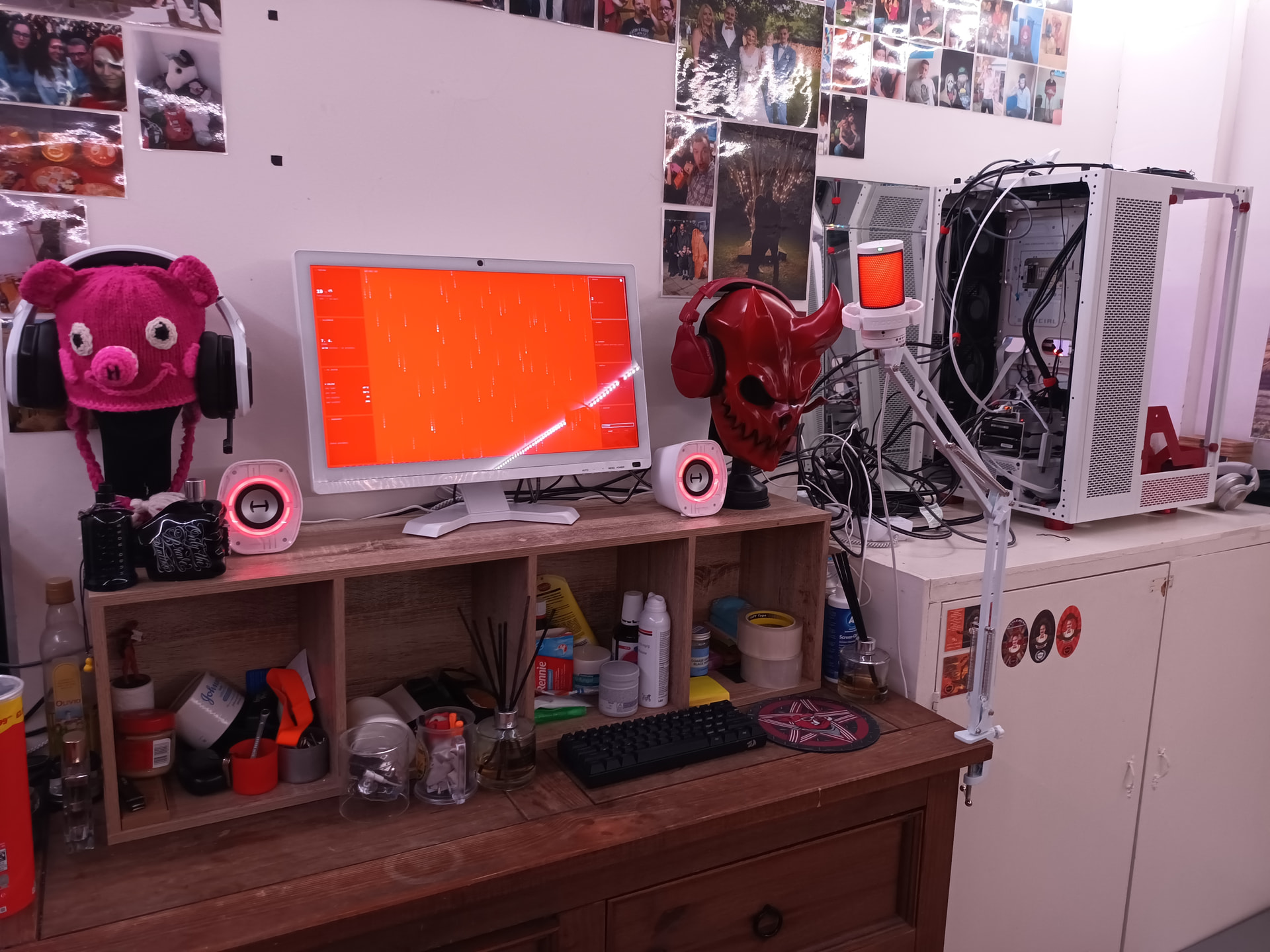
The source runs nginx:alpine on a non-ZimaOS port (8888 in the example) and mounts the dashboard files read-only. Chromium opens that local URL in kiosk mode.
Using a separate web container makes the dashboard files easy to update without rebuilding the graphical container.
Do Not Reuse ZimaOS Port 80 for the Dashboard
The guide explicitly notes that ZimaOS already uses port 80 for its dashboard. If Chromium opens the wrong page, verify the custom dashboard's port and the KIOSK_URL value rather than changing ZimaOS unexpectedly.
The Author Added a Pointer-Event Workaround for Touch Taps
In the source dashboard, tiny finger movement could prevent Chromium from firing traditional onclick handlers. The author replaced click handling with pointerup plus a movement threshold.
That JavaScript is application-specific. Modern web interfaces designed for touch should prefer pointer/touch-friendly controls instead of globally executing inline onclick strings.
Privileged Mode Is the Biggest Security Trade-Off
The source launches the kiosk container with --privileged. That provides broad device and host-kernel access and is much more permissive than an ordinary dashboard container.
If you reproduce the build, first test whether explicit /dev/dri, input-device, and udev mounts plus narrowly scoped capabilities are sufficient. Keep the dashboard on a trusted LAN.
The Source Uses unless-stopped for Automatic Recovery
Both the nginx and kiosk containers use restart: unless-stopped behavior so the display returns after a ZimaOS reboot. Store the Dockerfile, X.Org configuration, entrypoint, and dashboard under persistent /DATA storage.
Current ZimaOS Can Package This More Reproducibly with Compose
Current ZimaOS supports standard Docker Compose/YAML imports. Instead of maintaining several long docker run commands, an advanced user can express both services, restart policies, devices, volumes, and networking in one reviewed Compose file.
Use the current ZimaOS Compose model.
Touchscreen Kiosk FAQ
Does ZimaOS need apt or a desktop environment installed on the host?
No. The source intentionally keeps X.Org, Openbox, Mesa, and Chromium inside Docker.
Is this an official ZimaOS desktop mode?
No. It is a community build that IceWhale asked permission to share with credit.
Why is the kiosk container high-risk compared with a normal app?
The source gives it privileged mode plus direct graphics/input access, which reduces Docker isolation.


