
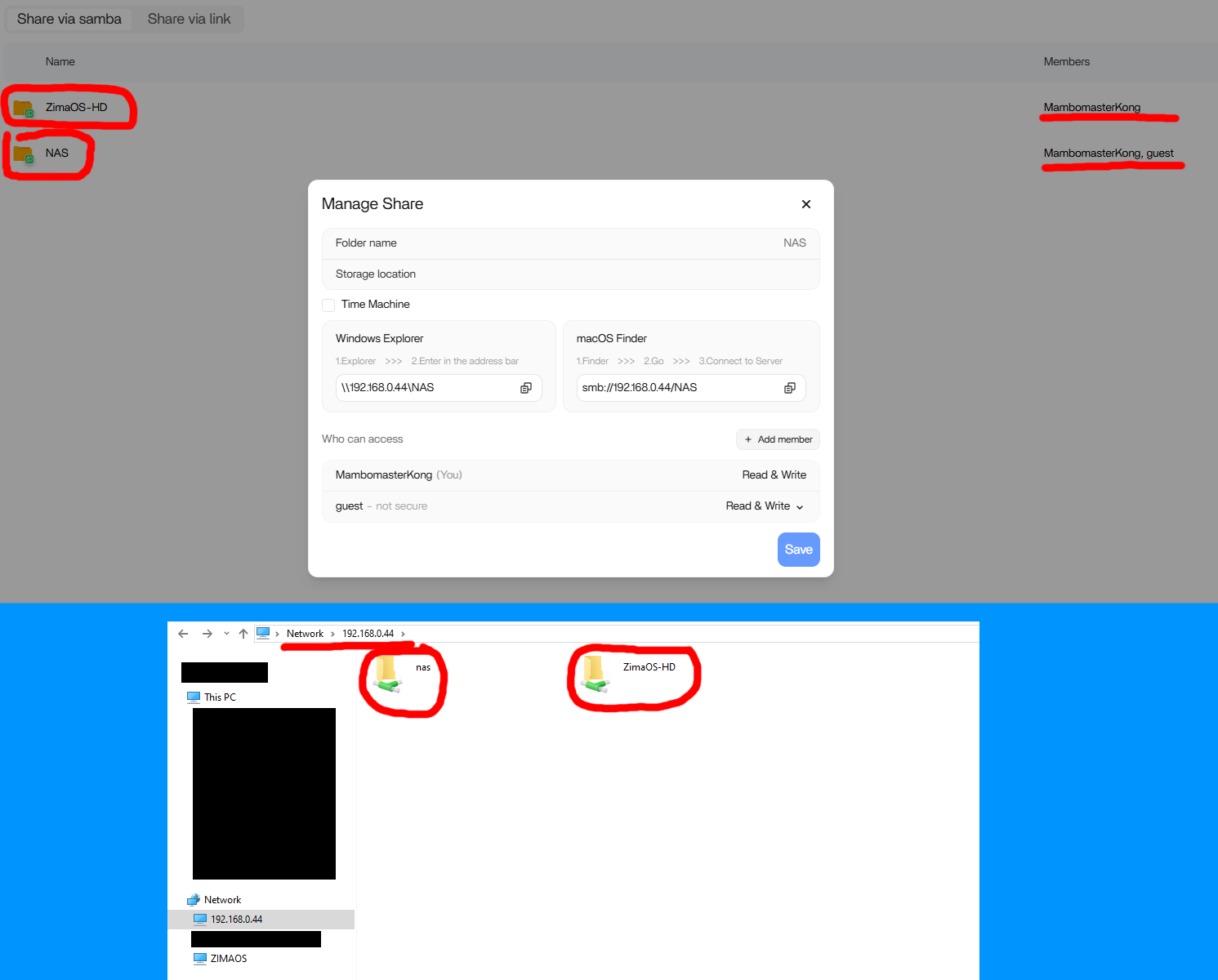
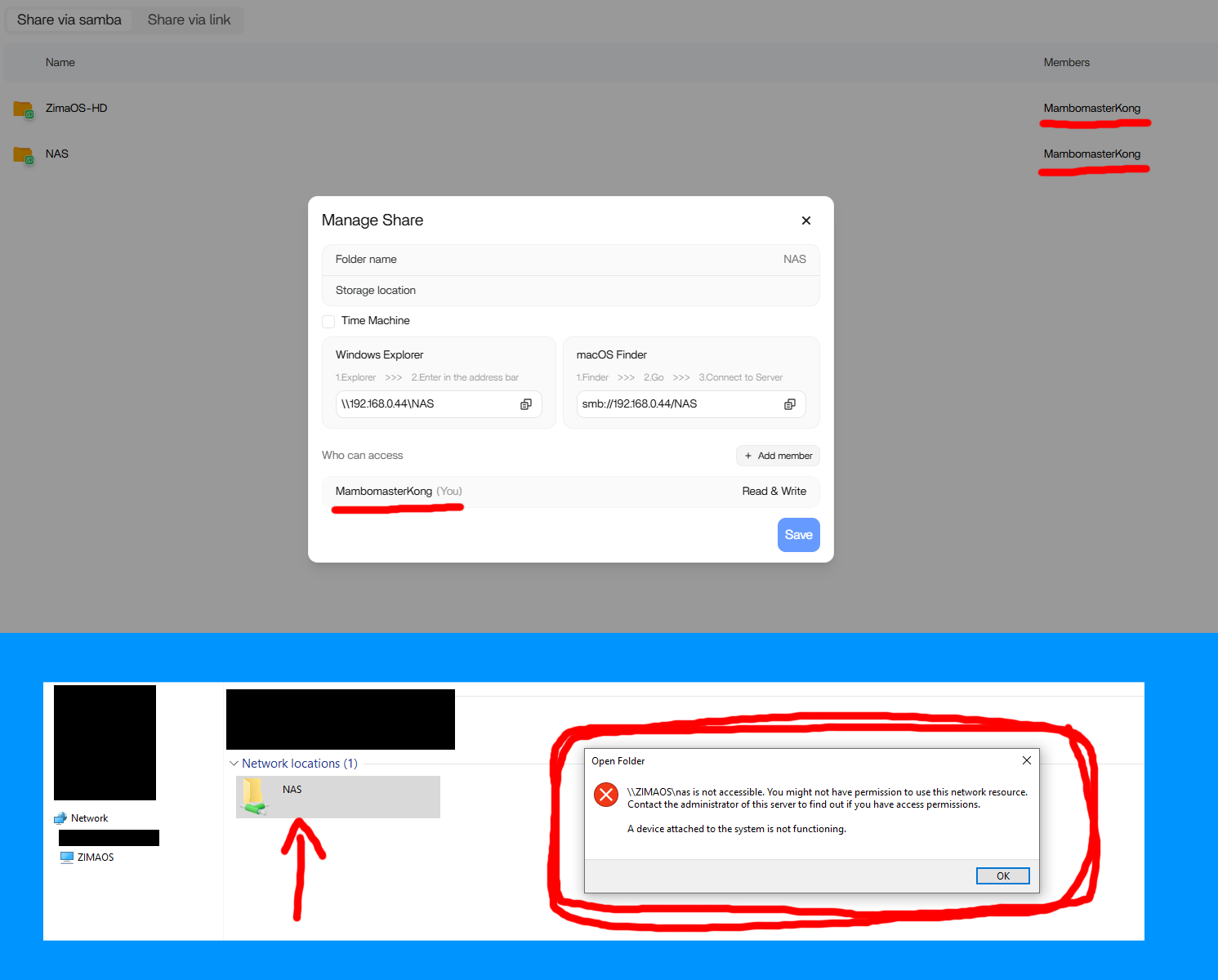
A new ZimaOS user could copy files to a Samba share from Windows Explorer only when the unprotected guest account was added. Once guest access was removed, Windows declared the shares inaccessible and did not show a fresh username-and-password prompt.
The case was resolved without leaving guest access enabled. Zima team member Giorgio asked the user to delete all credentials saved by Windows and run the community Samba connection script again. The author confirmed that this cleared the conflict and restored access.
The Original ZimaOS and Windows Setup
The user had installed ZimaOS 1.4.1 on an ASUS Prime N100I-D D4 system. A Crucial 500 GB M.2 SSD held the operating system, while a single Seagate 1 TB hard drive was exposed as a shared drive through the ZimaOS web interface.
With the guest user enabled, pasting the share URL from Manage Share into Windows Explorer worked. The confusing part was that another password-protected share also appeared reachable in that state, even though guest was not listed for it.
Why the First Credential Attempts Did Not Help
The author suspected a credential problem and manually added an entry in Windows Credential Manager. They also followed the ZimaOS SMB help page and the community command-line connection tutorial. The script prompted for credentials, but entering the expected ZimaOS username and password still did not initially open the share.
One potentially relevant detail was that the same server and IP address had previously run TrueNAS. The thread did not prove that the old installation caused the conflict, but Windows did have multiple saved Web and Windows credentials by the time the issue was diagnosed.
The Confirmed Fix: Remove All Saved Credentials First
Giorgio's sequence was to remove all saved credentials from Windows Control Panel, recreate a share if necessary, and then repeat the ZimaOS Samba command-line connection tutorial. The author deleted both Web Credentials and Windows Credentials, reran the batch file from that tutorial, and confirmed that protected-share access finally worked.
The result matters because enabling guest was only a workaround in this case. The successful path was to make Windows forget its conflicting credential state before authenticating again.
What the Zima Client Screens Looked Like
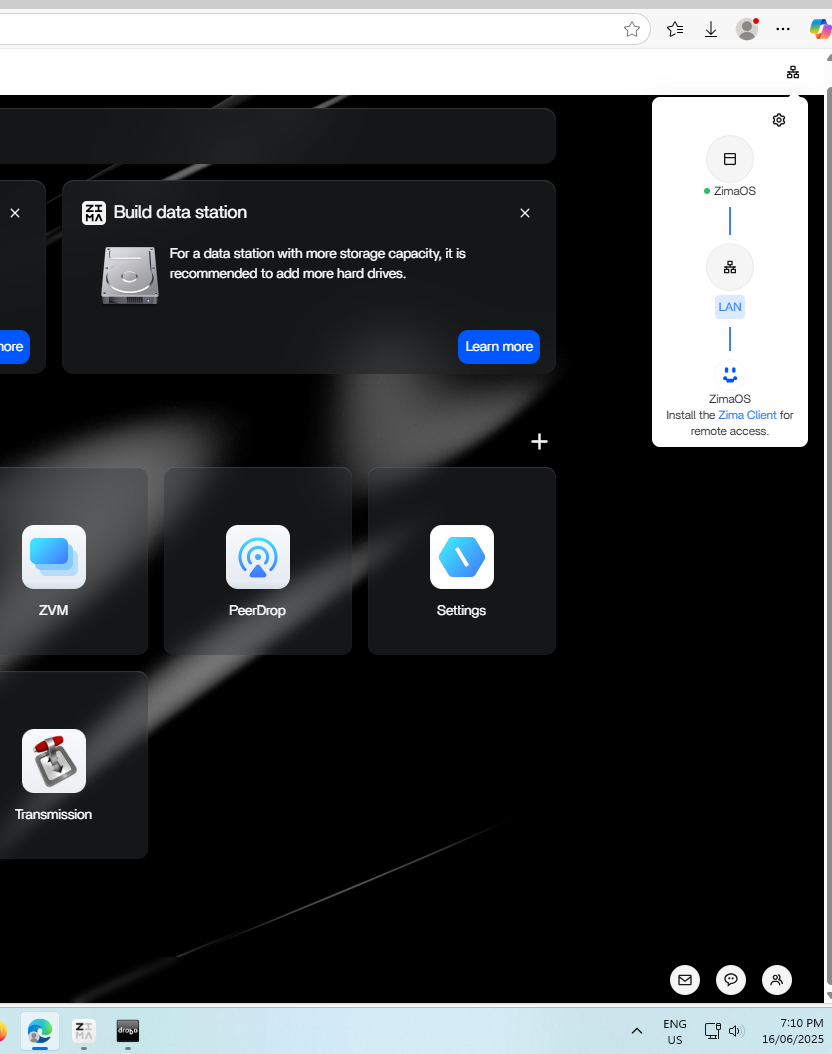
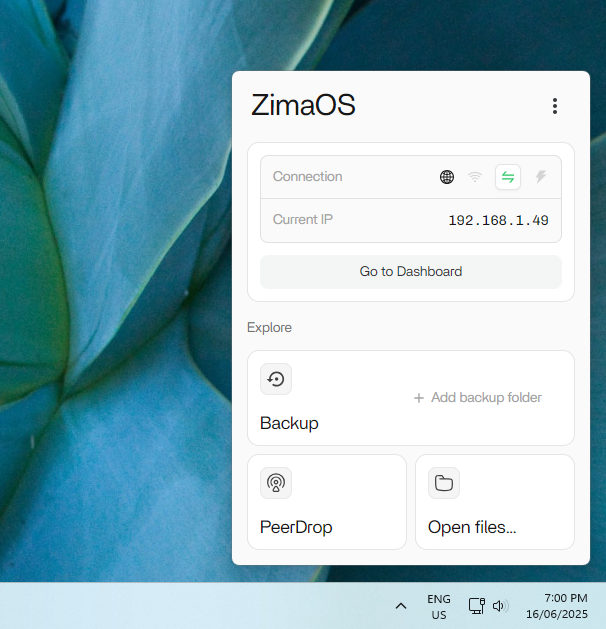
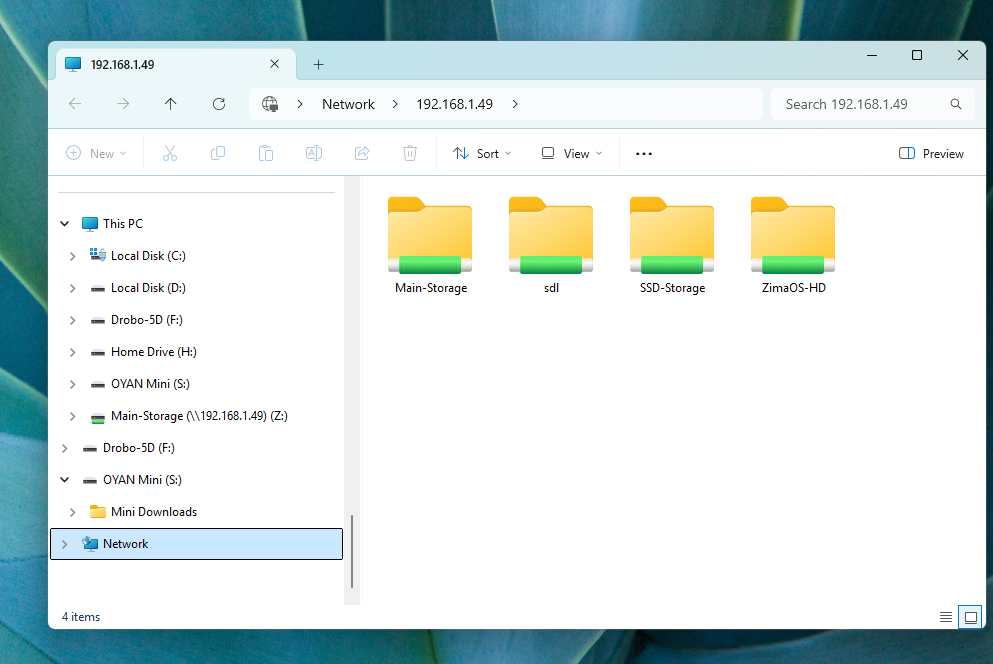
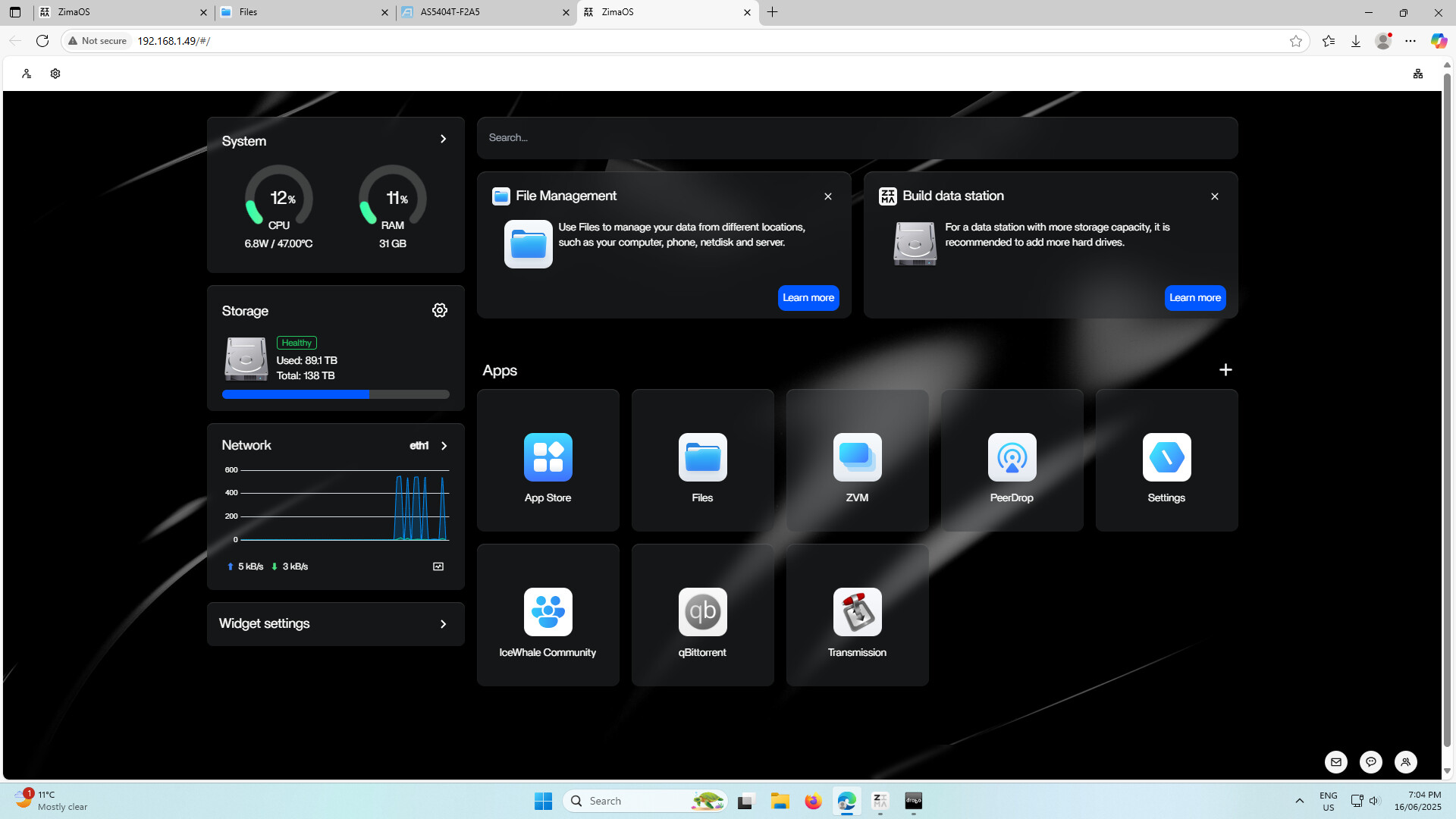
Another community member shared the expected Zima Client and Windows 11 screens from a working mapped-drive setup. These screenshots were not the fix that resolved the author's credential conflict, but they helped distinguish the downloadable client from the separate CLI tutorial.
FAQ
Did this user need to keep guest access enabled?
No. Guest access made the shares reachable temporarily, but the confirmed resolution was to remove all saved Windows credentials and reconnect using the protected account.
Did manually adding one credential solve the problem?
No. The author had already tried adding credentials manually. The successful attempt came only after deleting every saved Web and Windows credential before rerunning the connection script.


