
Page four of a long ZimaOS support discussion follows one user's recurring Jellyfin and Nginx Proxy Manager failures after the first successful remote-access setup. The useful lesson is not a single magic port: a 502 error can return whenever the reverse proxy target, Jellyfin port mapping, Docker network, or application state changes.
This page focuses only on posts 61–80. It does not repeat the earlier DuckDNS and certificate setup covered elsewhere in the same thread.
Separate the NPM API Message From the Jellyfin 502
The user first saw “Communication with the API failed, is NPM running correctly.” Community log review showed that Nginx Proxy Manager itself was running and Let's Encrypt renewal had succeeded. The temporary API message could therefore be a stale browser session or a brief UI-to-backend interruption, while the public 502 remained a separate proxy-to-Jellyfin problem.

Keep Three Address Types Distinct
| Address type | Example role | Should NPM forward to it? |
|---|---|---|
| Public WAN address | ISP-facing address updated by DuckDNS | No |
| ZimaOS LAN address | Stable home-network address such as 192.168.1.50
|
Yes, when Jellyfin publishes a host port |
| Docker container address or name | Internal endpoint such as jellyfin:8096
|
Yes, only when NPM can reach the same Docker network |
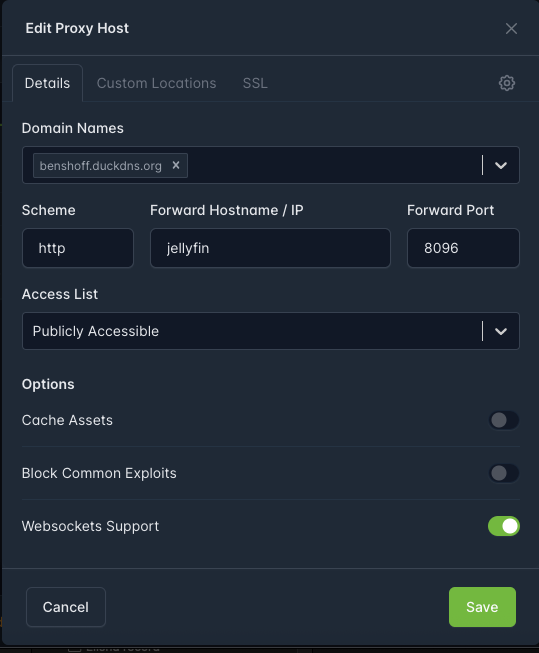
The thread repeatedly switched between a container name, a host LAN address, and an internal Docker address. These are not interchangeable. Choose one supported route and test it from the NPM container before changing TLS or DNS.
Read the Port Mapping in the Correct Direction
The Jellyfin settings showed host port 8097 mapped to container port 8096. When NPM connects through the ZimaOS LAN address, it must use the published host port. When NPM connects directly by container name on a shared Docker network, it normally uses Jellyfin's internal port.

A connection reset from inside NPM showed that the selected route still did not produce a valid Jellyfin response. That is more useful evidence than simply restarting both containers.
Use a Layered Diagnostic Order
- Open Jellyfin locally and confirm playback before touching the proxy.
- Confirm the Jellyfin container is running and read its saved host/container port mapping.
- Choose either the stable ZimaOS LAN address plus published host port, or a container name plus internal port on a shared network.
- Test that exact endpoint from the NPM environment.
- Only after HTTP routing works, re-enable TLS and test the public domain.
- After any app edit or reboot, repeat the local and proxy tests before changing DNS.
A Media-Path Edit Can Trigger a Different Failure
Later, remote users could browse Jellyfin but could not play media. The owner changed Jellyfin's container settings and the public site stopped responding. Community log review then showed Jellyfin was running and scanning /Media/Movies, moving attention back to the proxy target. This illustrates why each change should be recorded and tested independently.
Linux Paths Are Case-Sensitive During Backup
A configuration backup failed because the command referenced /DATA/AppData/duckdns, while the real directory was /DATA/AppData/DuckDNS. Linux treats those as different paths. The source thread proposed a community-created archive command, but it was not supplied by IceWhale, so it is not reproduced here as an official backup procedure.
Before archiving AppData, list the exact directory names, stop applications when their databases require a consistent snapshot, and verify the archive by restoring a copy to a temporary location.
Current Supported Remote Access
For administration and file access, current ZimaOS documents encrypted peer-to-peer access through ZimaClient remote access. A public Jellyfin reverse proxy remains an advanced third-party workflow and should expose only the media service, not the ZimaOS dashboard.
Jellyfin 502 FAQ
Does “NPM API failed” prove NPM is stopped?
No. In the thread, NPM logs and certificate renewal were healthy while the browser displayed that message.
Should NPM use port 8096 or 8097?
Use the internal port with direct container networking, or the published host port when forwarding to the ZimaOS LAN address.
Why did the backup say DuckDNS did not exist?
The real AppData folder used a capital D and DNS; Linux paths are case-sensitive.


