
The September 2023 CasaOS tutorial is a genuine step-by-step post rather than only a link recommendation. It shows the complete historical flow that CasaOS users followed at the time: install the Cloudflared app, create a remotely managed Cloudflare Tunnel, copy the connector token, paste that token into the CasaOS Cloudflared Web UI, start the connector, and verify that Cloudflare reports the tunnel as Healthy.
The core architecture is still useful, but two things need updating for a long-lived page. First, the Cloudflare Zero Trust interface has changed since 2023. Second, the connector token shown in modern Cloudflare Tunnel setup is a sensitive credential and should never be exposed in screenshots or copied from another user's example.
This Is a CasaOS Tutorial, Not a ZimaOS Procedure
The source belongs to the CasaOS category and uses a CasaOS App Store package with its own small Cloudflared Web UI. ZimaOS may run the same upstream Cloudflare technology, but its app-management interface and networking model should not be assumed to match the 2023 screenshots exactly.
Step 1: Install Cloudflared from the CasaOS App Store
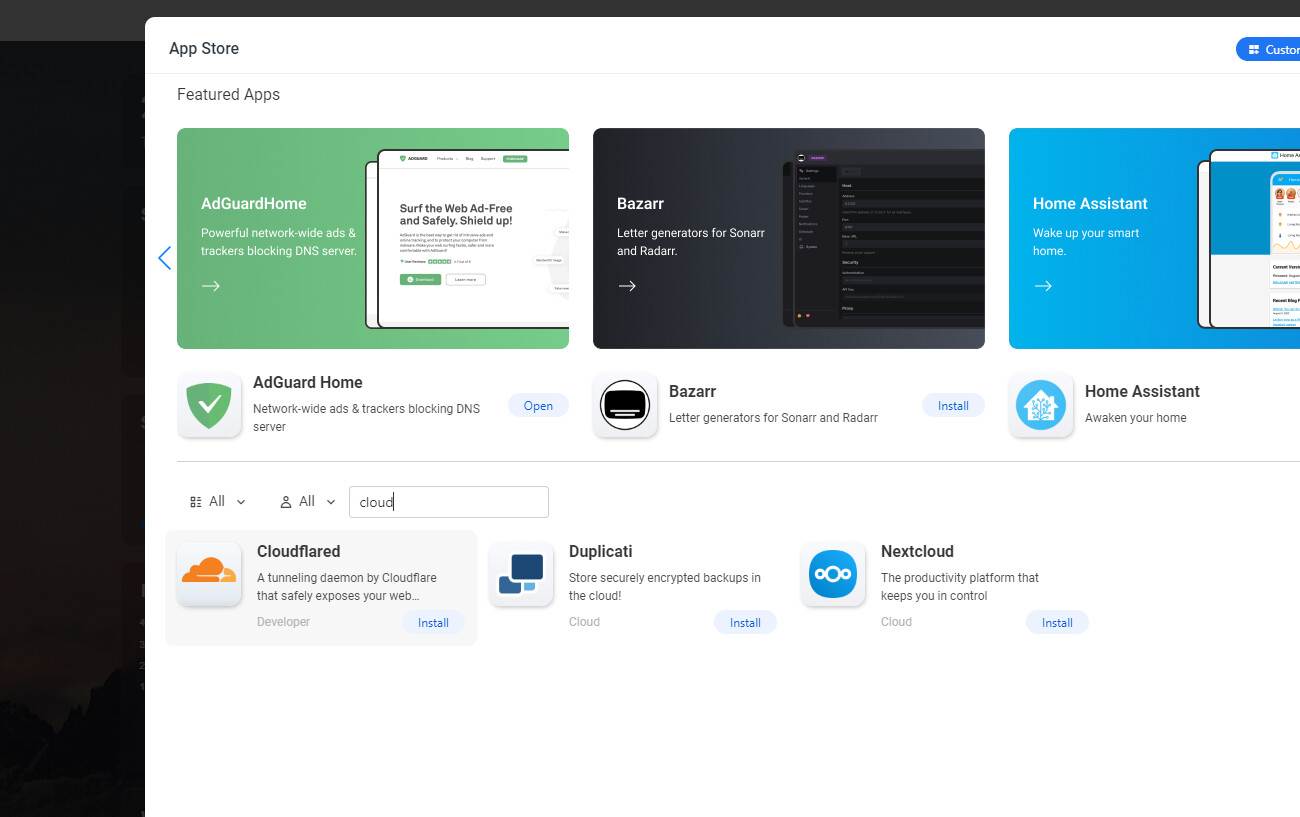
The purpose of this app is to run the Cloudflare connector on the home server. The connector establishes an outbound encrypted path to Cloudflare, so the router does not need a new inbound port-forwarding rule merely to keep the tunnel online.
Step 2: Create a Tunnel in Cloudflare Zero Trust

Give the tunnel a name that identifies the server or location rather than a specific application. One connector can route several hostnames or services, so names such as home-casaos or server-room age better than jellyfin-only.
Step 3: Copy the Connector Token—Privately
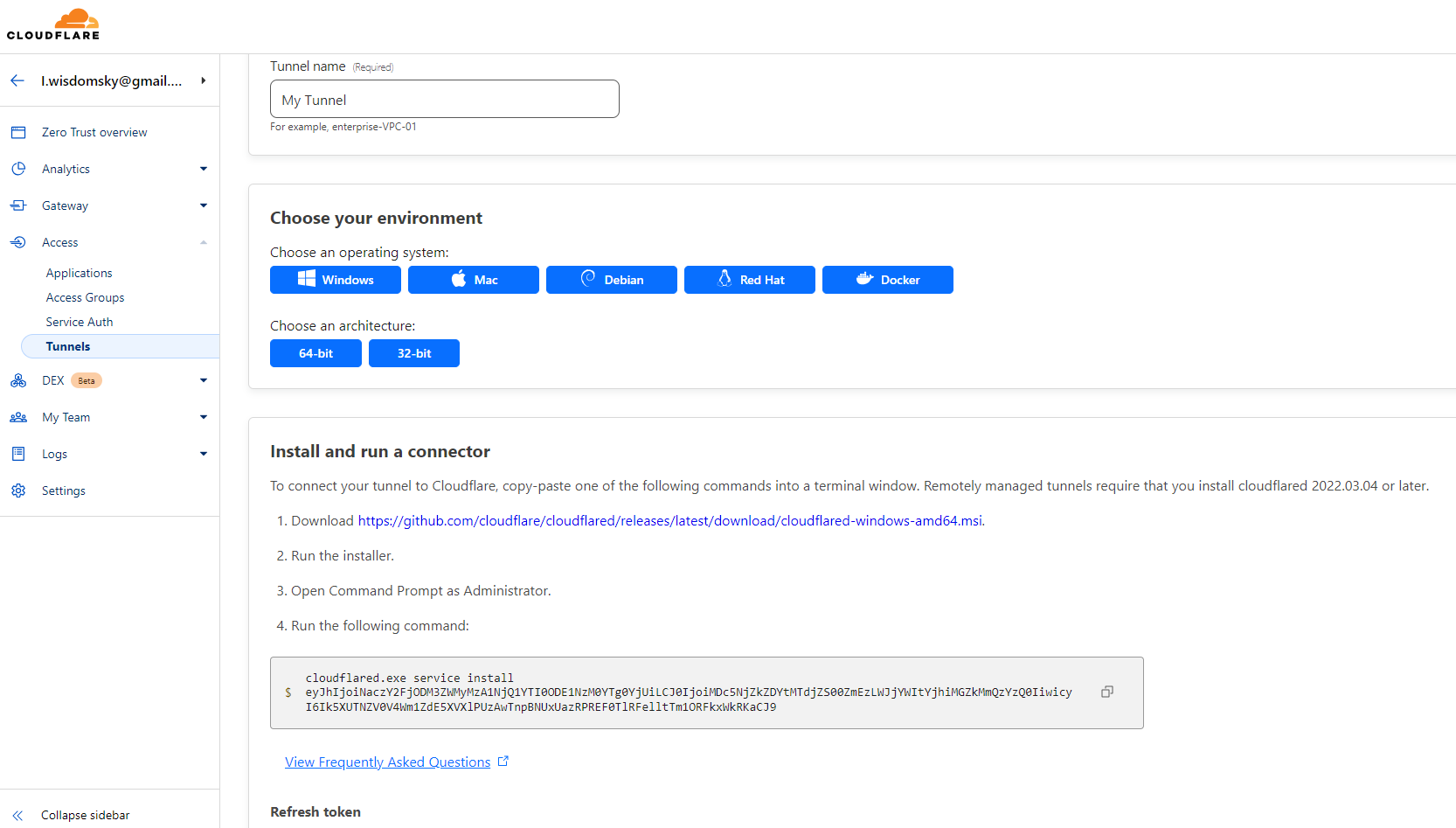
Current Cloudflare guidance makes the security boundary explicit: a tunnel token is sufficient to run a connector for that remotely managed tunnel. Treat it like a password. If a real token has ever appeared in a public screenshot or log, rotate it.
Step 4: Open the CasaOS Cloudflared Web UI
The historical package provided a small interface launched from the CasaOS app icon. That UI accepted the connector token so users did not have to construct the full Docker command manually.
This convenience layer belonged to that CasaOS package. A current Cloudflared container may instead be configured through environment variables, command arguments, a Compose file, or the current package's settings.
Steps 5 and 6: Save the Token and Start the Connector
In the 2023 UI, pasting the token and saving it changed the button state to Start. Starting the connector then changed it to Stop. Those visual states were package-specific, but they represent two separate checks: configuration was accepted, then the connector process was actually launched.
If a modern connector immediately exits, inspect its logs before changing DNS records. A tunnel that is not connected cannot route a hostname regardless of the Cloudflare DNS configuration.
Final Step: Verify the Tunnel Is Healthy
The source tutorial returned to the Cloudflare Tunnels list and checked for a Healthy status. This remains an important validation step. A configured public hostname does not prove the connector itself is connected.
Healthy means Cloudflare can see at least one active connector for the tunnel. It does not yet prove that the connector can reach the local application behind it.
Add a Route to the Correct Local Service
After the connector is online, map a hostname to the actual application origin. For an HTTP application this might be a LAN IP plus port, or another container address that Cloudflared can reach.
If Cloudflared runs inside a normal Docker bridge network, localhost refers to the Cloudflared container itself. It does not automatically mean the CasaOS host. This distinction is one of the most common causes of a healthy tunnel returning 502 or connection errors.
Why No Router Port Forward Is Needed
The connector creates an outbound connection from CasaOS to Cloudflare. Incoming browser requests arrive at Cloudflare and travel back through that established tunnel. That is why a Cloudflare Tunnel can publish a service even when the router has no inbound port forwarding configured.
Protect Sensitive Services with Cloudflare Access
A tunnel is a transport, not an authentication policy. If you publish a dashboard, terminal, password manager, or administration UI through a public hostname, add an identity policy with Cloudflare Access or another appropriate authentication layer.
Keep the application's own authentication enabled as well. Cloudflare Access and application authentication protect different boundaries.
Rotate Tokens When the Deployment Changes Hands
If a server is sold, rebuilt, or transferred to another administrator, revoke or rotate the old tunnel credentials. Persistent Docker volumes can preserve configuration longer than expected, so credential lifecycle should be deliberate.
Cloudflare Tunnel on CasaOS FAQ
Does Cloudflare Tunnel require port forwarding?
No. The connector establishes an outbound connection to Cloudflare.
What did the original CasaOS tutorial use for configuration?
A Cloudflared app with a small Web UI where the user pasted the remotely managed tunnel token.
Is the connector token safe to show in a tutorial screenshot?
No. Treat a real token as a secret and rotate it if it has been exposed.
Does Healthy mean my application is already reachable?
Not necessarily. Healthy confirms the connector is online; the origin route and application still need to be correct.


