
Host Your Photos: Immich Setup Guide on ZimaOS


Introduction
immich offers a seamless, modern platform for organizing, sharing, and accessing your photos and videos. It stands out with its sleek web-based interface for easy media browsing and advanced features like face recognition and object detection.

ZimaOS is a game-changer for NAS enthusiasts, pro users, and studio users. Its intuitive interface simplifies data backup and management, ensuring your critical files are always secure. ZimaOS excels in Docker application installation, streamlining the process with just a few clicks.
Pairing immich with ZimaOS creates a remarkable synergy, blending their advanced features into a seamless and powerful combination. Let’s explore how to experience immich on ZimaOS.

Installing immich on ZimaOS
- You can easily install immich from the ZimaOS App Store.


- After installation, launch immich from the ZimaOS WebUI, which will open a new web page.

Setting Up immich
- Fill in your information to create an account, then log in.


- Adjust settings during the onboarding process to tailor immich to your preferences.

Exploring immich’s Interface
immich’s UI is reminiscent of Google Photos. On the left, the navigation column classifies your photos by location, favorites, etc. At the top, you can search your photos by people, context, country, and more.


Uploading and Viewing Media
- Keep the server address in mind to access your immich server from your mobile phone or desktop computer.

- Click the Upload icon in the upper right corner of the UI to upload photos and videos.

- Use your phone’s browser or the immich app to log into your immich server for uploading and viewing your photos.

- The mobile app also helps you automatically back up your photos continuously.

- After uploading, your photos will be beautifully listed, making viewing them a delightful experience.
More to Experience
immich surpasses traditional file systems with powerful features. For example, on the Explore page, photos can be viewed based on faces and locations, making it easier to organize, find, and manage your photos.

immich offers a richer set of features compared to other photo album apps. Check the feature comparison here.


Zima Campaign Hub
More to Read
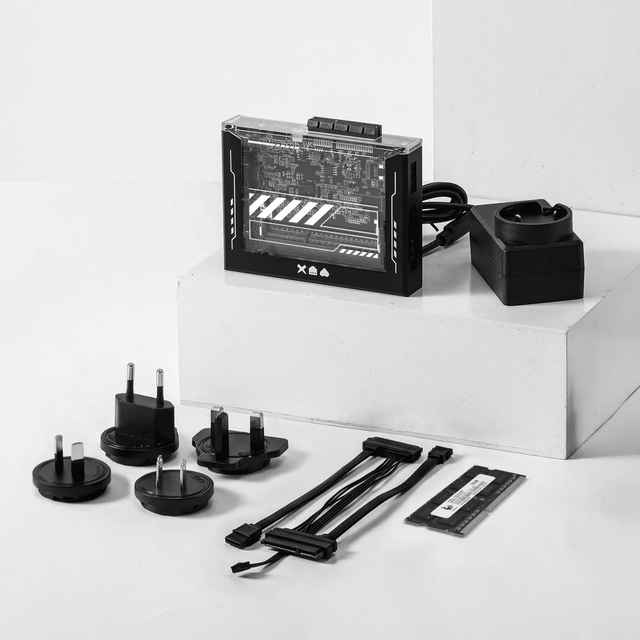
ZimaBlade Is Now ZimaBoard SE: What Changes and Which Kit to Choose
ZimaBlade becomes ZimaBoard SE with installed 8GB or 16GB RAM, 64GB eMMC and ZimaOS Plus. Compare specifications, Starter and NAS Kits, pricing and FAQs.
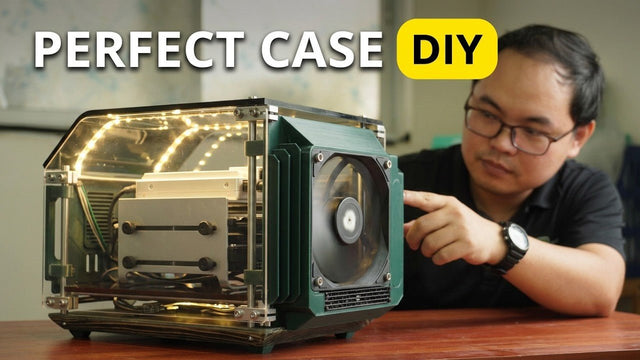
How The TKT Works Builds a Custom Acrylic Case for ZimaBoard 2
Follow The TKT Works’ custom ZimaBoard 2 case build, covering the rod frame, acrylic panels, front display, cable routing, and cooling considerations.
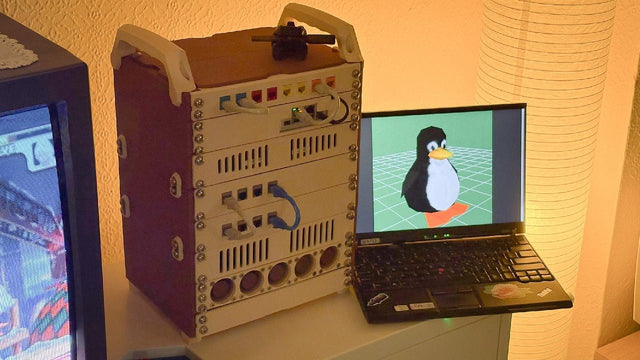
How kabuto Builds a Modular 10-Inch Homelab with ZimaBoard 2
Explore kabuto’s modular 10-inch homelab with ZimaBoard 2, printed patch panels, reused hardware, Immich, Nextcloud, and remote access through Tailscale.


