
10 Self-Hosted Apps Worth Trying on a Home Server


A home server does not become useful simply because it runs dozens of containers. The best self-hosted apps solve a problem you already have: backing up phone photos, streaming media you own, organizing household documents, managing passwords, or reducing dependence on cloud services.
The ten apps below cover different parts of a practical home-server stack. You do not need to install all of them, and some require much more security, backup planning, or hardware than others. Start with one application, learn how its persistent data and updates work, and expand only when the first service is stable and recoverable.
What Makes a Self-Hosted App Worth Installing?
Popularity alone does not make an application useful. A container may receive thousands of recommendations while solving no recurring problem in your household. Every service also adds another database, port, account, update process, and potential recovery task.
A better test is whether the application will be used every week, whether it stores valuable data, and whether you are willing to maintain it. Lists built from long-term home-lab use tend to favor applications that continue providing value after the initial installation experiment, rather than containers that are interesting for only a few days.
Before installing an app, answer four questions: Who will use it? What data will it store? How will it be backed up? What happens when it becomes unavailable? If those answers are unclear, test the application with disposable data before making it part of the household workflow.
| Application | Main Use | Maintenance Level | Most Important Data |
| Homepage | Service dashboard | Low | Configuration files |
| Immich | Photo and video management | Medium to high | Original media and database |
| Jellyfin | Media streaming | Medium | Configuration, metadata, and media |
| Vaultwarden | Password synchronization | High security responsibility | Vault database and attachments |
| Karakeep | Bookmarks and web archiving | Medium | Database, archived pages, and files |
| Stirling-PDF | Local PDF processing | Low to medium | Usually temporary documents |
| Home Assistant | Smart-home automation | Medium to high | Configuration, history, and secrets |
| Nextcloud | File sync and collaboration | High | User files, database, and app data |
| Mealie | Recipes and meal planning | Low to medium | Database and uploaded images |
| AdGuard Home or Pi-hole | Network-level DNS filtering | Medium | DNS configuration and filtering rules |
1. Homepage: Give Every Service One Clear Entrance
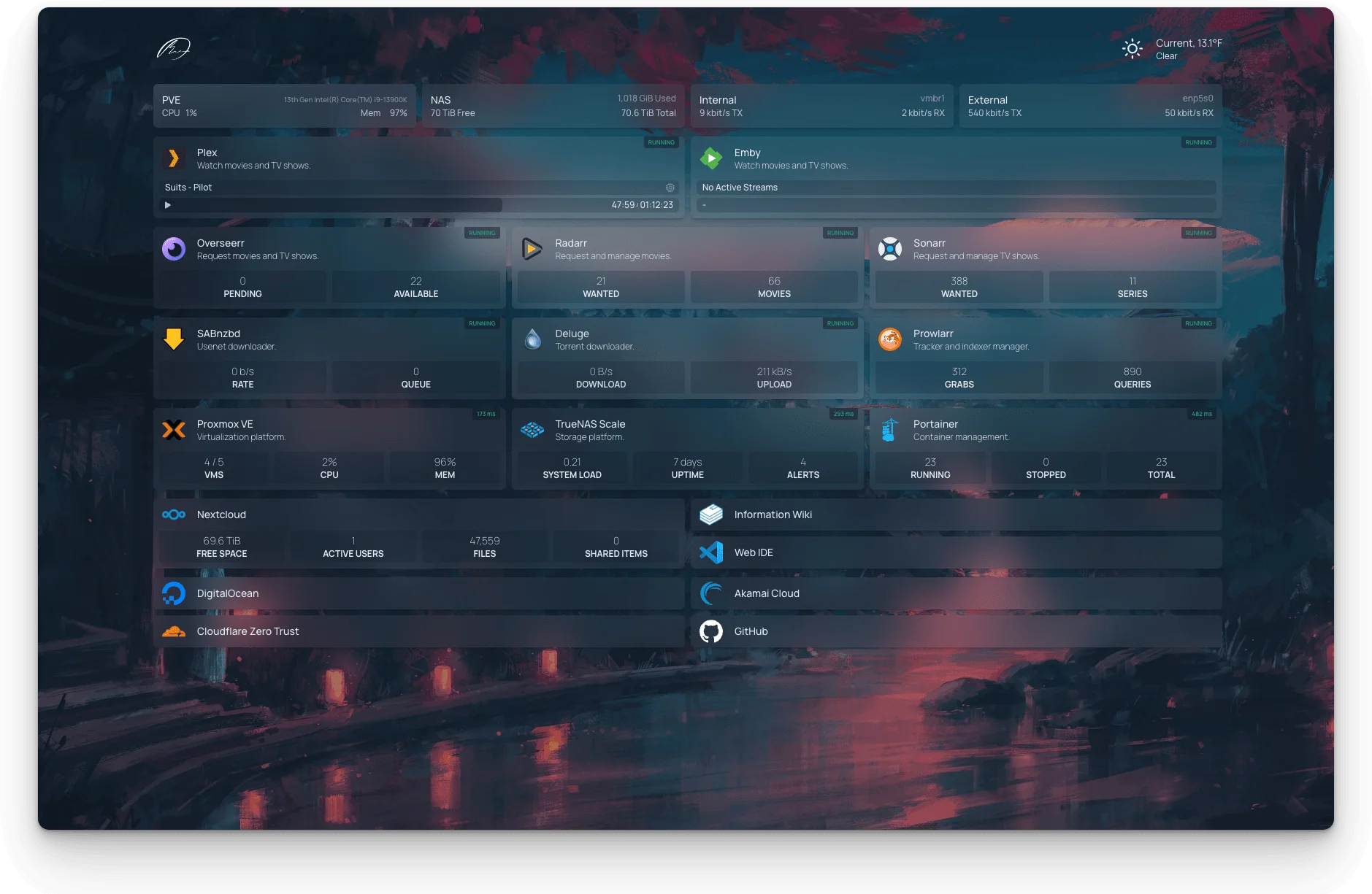
As a home-server stack grows, application addresses often become scattered across browser bookmarks, notes, IP addresses, and port numbers. Homepage provides one dashboard where household services can be grouped by purpose.
It can display ordinary links as well as selected service widgets, system information, and container status. This makes it easier to see storage, media, monitoring, and administrative services without remembering every individual address.
Homepage is an interface, not a monitoring or backup platform. It will not replace alerting, restore testing, or service health checks. Its configuration should still be backed up, and credentials used by widgets should receive only the minimum permissions they require.
2. Immich: Organize Phone Photos on Your Own Storage

Immich is designed for households that want automatic phone uploads, a chronological photo library, albums, sharing, maps, and machine-learning-assisted discovery while keeping the main library on their own server.
It is most valuable when several phones regularly create photos and videos that would otherwise remain scattered across devices or commercial cloud accounts. Machine-learning features can make a large library easier to explore, but they also increase CPU, memory, and storage activity.
Immich must not become the only copy of family photos. Mobile upload creates another location, but the server database and original media library still need independent backups. Check release notes before upgrades and make sure both the database and uploaded assets can be restored together.
3. Jellyfin: Stream Movies, Shows, and Music You Own

Jellyfin turns a local media collection into a streaming library that can be accessed from televisions, phones, tablets, browsers, and desktop clients. It manages posters, descriptions, user profiles, playback progress, and media organization without requiring a commercial media subscription.
The experience depends heavily on the clients and media formats. A supported file may Direct Play with very little server processing, while an unsupported video, audio track, subtitle, resolution, or bitrate can trigger real-time transcoding.
Do not assume that installing Jellyfin guarantees smooth 4K playback. GPU access, hardware acceleration, network throughput, subtitle support, and storage activity all matter. When playback fails, begin with the session’s playback mode rather than immediately replacing the server.
4. Vaultwarden: Host a Bitwarden-Compatible Password Backend

Vaultwarden is a lightweight, community-developed implementation of a Bitwarden-compatible server. It can work with Bitwarden browser extensions, desktop clients, and mobile apps while keeping the synchronized vault on infrastructure you control.
This can be valuable for families that want shared credentials, individual vaults, password generation, and multi-device synchronization without depending entirely on a hosted password service.
It is also one of the highest-responsibility applications on this list. Use HTTPS or restrict access through a private network, disable public registration when it is not needed, protect administrative credentials, apply updates promptly, and back up the database and attachments. A password server should not be the first application casually exposed to the public internet.
5. Karakeep: Turn Saved Links Into a Searchable Archive

Browser bookmarks are easy to create and difficult to rediscover. Karakeep, previously known as Hoarder, provides a dedicated place for saving links, notes, images, and other content with tags and search.
It is useful for research, recipes, technical references, product ideas, and articles that you may want to revisit later. Optional AI-assisted features can help generate tags or summaries, although their quality and hardware requirements depend on the selected model and configuration.
A web archive is not guaranteed to reproduce every page perfectly. Login walls, dynamic scripts, embedded media, and changing websites can limit what is preserved. Back up the database and archived assets rather than assuming the original page will always remain online.
6. Stirling-PDF: Process Sensitive PDFs Locally
Stirling-PDF provides a browser-based collection of tools for merging, splitting, rotating, compressing, converting, organizing, and applying OCR to PDF files.
Its main self-hosting benefit is that household documents do not need to be uploaded to an unfamiliar public conversion website. That can be useful for statements, tax records, contracts, school documents, and scanned paperwork.
Local processing does not remove the need for access control. Review how temporary files are handled, restrict the application to trusted users, and verify the output before deleting an original document. Password-related features should be used only when you are authorized and possess any required password.
7. Home Assistant: Build One Control Layer for the Smart Home

Home Assistant brings devices and integrations from different ecosystems into a common dashboard and automation engine. It can coordinate lights, sensors, plugs, climate systems, media devices, and other connected equipment.
Its strongest use case is local automation. A motion sensor, local radio network, and locally controlled light can continue working without sending every event through a vendor’s cloud. However, actual offline behavior depends on the devices and integrations selected.
Do not assume every smart device becomes fully local after adding it to Home Assistant. Some integrations still depend on manufacturer APIs. Back up the configuration, secrets, automation rules, and supporting services, and retain physical control for essential functions such as lights, locks, heating, and alarms.
8. Nextcloud Hub: Add Sync and Collaboration Beyond SMB

Nextcloud is useful when a household needs more than a folder shared over the local network. It can provide web access, desktop and mobile synchronization, user sharing, calendars, contacts, collaborative tools, and an ecosystem of additional applications.
It makes the most sense when files need to follow users across several devices or be accessed through a browser. When the only requirement is opening files from Windows and macOS on the home LAN, SMB may remain simpler.
Nextcloud also has one of the larger maintenance surfaces in this list. It may involve a database, background jobs, caching, web-server configuration, HTTPS, app compatibility, and upgrade sequencing. Back up both user files and the database, and avoid enabling a large collection of extensions before the basic sync workflow is stable.
9. Mealie: Replace Scattered Recipes and Screenshots
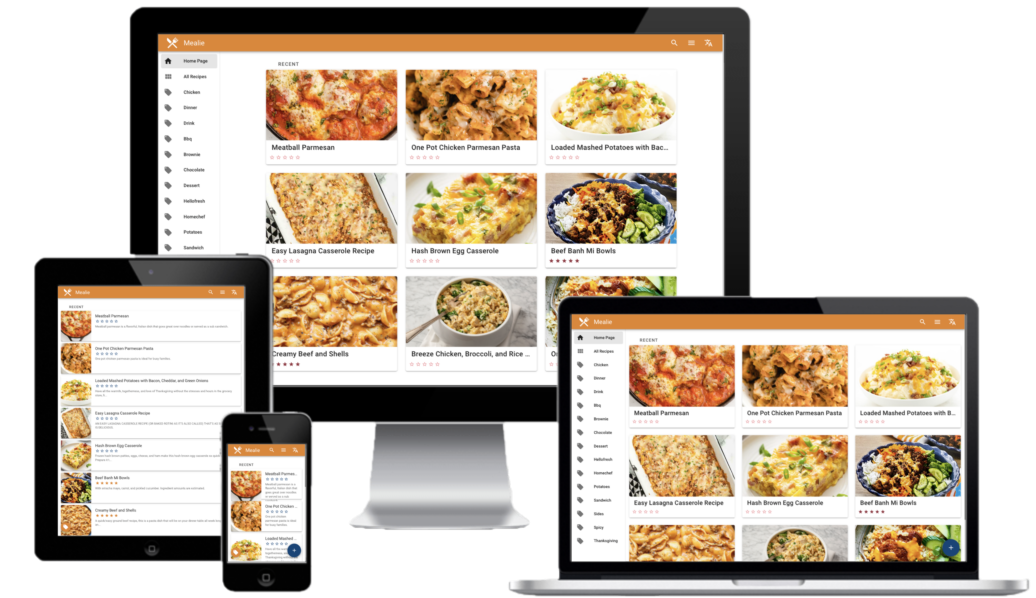
Mealie creates a shared recipe library for households whose cooking information is spread across bookmarks, screenshots, handwritten notes, and advertisement-heavy websites.
It can import recipes from supported web pages, organize ingredients and instructions, build meal plans, and generate shopping lists. This makes it one of the lower-risk applications for learning persistent Docker volumes and household accounts.
Recipe import is not always perfect because websites structure their data differently. Check quantities, units, cooking times, and instructions before relying on an imported recipe. Back up the database and uploaded images, especially after manually correcting or adding family recipes.
10. AdGuard Home or Pi-hole: Filter Domains Across the Network

AdGuard Home and Pi-hole act as DNS services that can block requests to known advertising, telemetry, and tracking domains. Once client devices or the router use the filtered DNS server, the policy can apply to phones, computers, televisions, and IoT devices without installing a browser extension on each one.
DNS filtering is one reason Docker containers can extend a NAS beyond basic file storage. A lightweight network service can provide an immediate household-wide function without requiring a separate full virtual machine.
It will not block every advertisement. Ads delivered from the same domains as normal video or application content may remain visible, and aggressive blocklists can break sign-ins, payments, updates, or smart-device functions. Because DNS is critical to normal internet access, keep a tested rollback path or secondary resolver available.
Which Three Apps Should You Try First?
The best starting combination depends on the problem you want the server to solve. Installing all ten at once makes it difficult to identify which container caused a port conflict, database problem, memory increase, or failed update.
| Primary Goal | Suggested Starting Apps | Why |
| Learn Docker safely | Homepage, Stirling-PDF, Mealie | Clear functions and relatively low data risk |
| Manage family photos | Immich, Homepage, backup workflow | Photo management must begin with data protection |
| Build a media server | Jellyfin, Homepage, DNS name | Tests storage, clients, and optional transcoding |
| Organize private documents | Stirling-PDF, Nextcloud, Karakeep | Local processing, synchronization, and retrieval |
| Run a smart home | Home Assistant, Homepage, AdGuard Home | Automation, service access, and network visibility |
| Reduce cloud dependence | Immich, Nextcloud, Jellyfin | Photos, files, and owned media move to local storage |
A beginner should usually start with one low-risk utility and observe it for several days. After learning where its data is stored, how it updates, and how it is restored, add the next application.
Prepare Persistent Storage Before Installing Apps
Containers are replaceable, but their data is not. Each stateful application should have clearly documented persistent directories or named volumes for configuration, databases, uploads, thumbnails, and other generated data.
Do not assume that backing up a Compose file protects the application. Compose can recreate the container definition, but it cannot recreate family photos, password records, recipes, Nextcloud files, or Home Assistant automations.
Keep application definitions separate from user data, document every mount, and include database-consistent backups where required. The schedule should reflect how quickly the application changes and how much recent data you can accept losing.
Do Not Expose Every Container to the Internet
A container listening on a port does not automatically need public access. Homepage, Stirling-PDF, Home Assistant, Mealie, DNS administration, and many other services can often remain available only on the local network or through a private remote-access connection.
Public exposure adds responsibilities such as HTTPS, authentication, rate limiting, patching, logging, and vulnerability monitoring. Password managers, photo libraries, document systems, and administrative dashboards deserve especially conservative access rules.
Begin with LAN-only deployment. Add remote access only after local behavior, backups, and updates are stable, and expose the smallest possible number of entry points.
Plan Updates and Rollbacks Before Using “Latest”
Self-hosted applications change independently. An application update may require a database migration, configuration change, new environment variable, or updated companion service.
Automatically replacing every container image without reviewing release information can turn a minor update into an unexpected outage. Fast-moving applications that manage valuable data deserve backups immediately before major upgrades.
Record the current image version, configuration, and restoration procedure. A successful update process should include a way to confirm application health and recover when the new version cannot use the existing data correctly.
Avoid These Common First-Stack Mistakes
- Installing all ten applications in one day
- Using privileged mode for every container
- Publishing every container port through the router
- Keeping databases and uploads in undocumented paths
- Backing up Compose files but not application data
- Treating Immich as the only copy of family photos
- Running Vaultwarden without secure transport or recovery tests
- Updating every image automatically without a rollback plan
- Using one administrator password for every application
- Depending on a single DNS-filtering container without a fallback
The ability to launch a container is only the beginning. A service becomes part of a reliable home server when you know how to update it, monitor it, restore it, and remove it without losing unrelated data.
Use This Checklist Before Keeping an App
- Confirm that someone in the household will use it regularly.
- Identify every directory, volume, and database it creates.
- Decide whether it can remain accessible only on the LAN.
- Set unique credentials and disable unnecessary registration.
- Record CPU, memory, storage, and optional GPU requirements.
- Create a backup before importing important data.
- Test one file, record, or configuration restore.
- Document the update and rollback procedure.
- Configure disk-space and service-failure notifications.
- Remove the application if it is no longer being used.
Final Takeaway
These ten applications show how a home server can support more than file storage. It can become a photo library, media platform, password backend, document toolkit, smart-home controller, private workspace, recipe collection, web archive, service dashboard, and network DNS filter.
You do not need every application. Homepage, Stirling-PDF, or Mealie can be approachable first projects. Immich, Nextcloud, Home Assistant, and Vaultwarden provide greater value when they solve a real household need, but they also require stronger backup, security, and maintenance plans.
The main advantage of self-hosting is control, not freedom from responsibility. An application is worth keeping only when its purpose is clear, its data is protected, its access is controlled, and its recovery process has been tested.
FAQ
Which self-hosted app should a beginner install first?
Start with an app that stores little irreplaceable data, such as Homepage, Stirling-PDF, or Mealie. These make it easier to learn ports, volumes, permissions, updates, and backups before deploying a password vault or photo library.
Do I need a powerful server to run these ten apps?
Not necessarily, but workload matters more than the number of containers. Homepage, Mealie, and DNS filtering are relatively light. Immich machine learning, Jellyfin transcoding, Nextcloud activity, and several simultaneous databases may require more CPU, RAM, storage performance, or GPU support.
Are self-hosted apps automatically more private?
No. Local storage can reduce reliance on external providers, but privacy still depends on access controls, network exposure, software updates, logging, account security, and backups. A misconfigured public service may create more risk than a well-managed hosted alternative.
Should these apps be accessible from the public internet?
Most can begin as LAN-only services. Use a private network connection when possible, and publish an application only when remote access is necessary and you can maintain HTTPS, authentication, updates, monitoring, and recovery.
What should be backed up in a Docker application?
Back up persistent volumes, bind-mounted directories, databases, uploaded files, configuration, secrets, and the Compose definition. For database-backed applications, use a backup method that produces a consistent database state rather than copying active files blindly.

Recommended products

Support & Tips
More to Read
How to Optimize Immich Database Connections for Concurrent Containers
Do not raise max_connections first. Measure Immich sessions, total every container's demand, preserve admin headroom, and tune only the proven bottleneck.
How to Prevent Duplicate Jobs or Imports in Immich
Separate repeated jobs from duplicate assets. Use one canonical ingestion path, control retries and path changes, then test re-entry on a small cohort.
How to Repair Immich After Its Database Volume Fills Up
Never delete PostgreSQL WAL to free space. Stop Immich writes, preserve database state, add safe capacity, recover PostgreSQL, then prevent recurrence.


