
How to Give Children Access to Movies and Homework Files Without Exposing Backups


Children should access movies and homework through a limited account that exposes curated folders while denying backup repositories, private data, and server administration.
The setup needs two different child workflows. Movies are normally read-only and selected by adults. Homework requires a writable personal or class folder where children can create and revise files without changing family archives. Backups remain invisible and unwritable because they are recovery infrastructure, not another shared folder. The user account, media profile, storage paths, and restore plan must enforce those differences together.
Create a Child Account Instead of Sharing an Adult Login
A separate child account provides a stable identity for file permissions, media access, device connections, and later removal. Sharing a parent login gives the child every permission attached to that adult, including access that may not be visible in the main interface.
Common Sense Media explains that parental controls generally depend on each child using an individual user profile. That profile-based control requirement also applies to local file and media services.
Use a normal household account with no administrative privileges. Protect adult and server-management accounts separately. The child should be able to complete everyday tasks without knowing an administrator password or asking an adult to mount unrestricted storage.
Expose a Curated Media Library Instead of the Whole Storage Pool
Create a children’s media library containing approved movies, shows, and family videos. Give the child profile playback rights to that library but no access to adult media, raw downloads, private recordings, or the folder where new content is reviewed.
Common Sense Media recommends child profiles, age-based restrictions, and profile locks to limit access to mature streaming content. That curated child-profile pattern is stronger when the underlying server also separates the visible library from other storage.
Make the media path read-only to the child account and, where possible, to the playback service itself. Adults can add approved files through a separate intake path. This prevents playback devices from becoming a route to rename or delete the originals.
Give Homework Its Own Writable Personal Folder
Homework needs different permissions from movies. The child should be able to create, rename, organize, and revise files inside a personal school folder. Parents may need read or recovery access, while siblings and guests should normally have none.
A family NAS setup guide recommends a private folder for each household member plus separate shared areas for common files. That personal-folder-plus-shared-folder model gives homework a bounded writable location.
| Child-facing area | Child permission | Adult permission | Server rule |
|---|---|---|---|
| Children’s movies | Read and play | Add, remove, and curate | Separate from intake and adult media |
| Personal homework | Read and write | Recovery or review access as agreed | Versioned and backed up |
| Family school exchange | Read and limited contribution | Manage structure and cleanup | No inherited access to private folders |
| Backup repositories | No access | Restore through protected tools | Not published as a normal share |
Do not make the homework folder the same location as the device backup. One is an active workspace; the other is a recovery copy that should not be casually edited.
Version history is especially useful for homework because the child may overwrite a draft, rename a folder, or delete a file while organizing it. Keep recent versions available through a parent-managed restore path, but do not expose the snapshot or backup browser as a normal child-facing share. Recovery should be simple without granting control over retention.

Use Groups to Grant Purpose-Built Access
Create groups such as children, family-media viewers, homework contributors, and adults rather than assigning every folder directly to each user. A child can belong to more than one group while each group retains a clear purpose.
TechTarget defines role-based access control as granting permissions through roles or groups rather than configuring every user independently. That purpose-based group model simplifies later changes when a child’s age or responsibilities change.
Review effective access from the child account after every group change. Avoid broad groups such as “all users” for backup, administration, or private adult data. A group name should describe the workflow it enables, not simply the people currently inside it.
Keep Backups Invisible and Unwritable From Child Devices
A backup repository should not appear as another mapped drive beside homework and movies. A child account, compromised laptop, or accidental drag-and-drop operation should not be able to erase historical versions or modify recovery data.
TechTarget explains that least privilege limits users and processes to only the access required for their task. That minimum-access boundary means the child receives no backup permissions because viewing movies and editing homework do not require them.
Run backup jobs through a dedicated service account. Store backup catalogs and retention controls in the administrative zone. Parents can restore a homework version through a protected workflow without exposing the backup destination to the child’s devices.
The same restriction should apply to automatic device backups. A child may need access to current school files, but not to complete laptop images, phone backups, browser data, or old deleted-file histories. Those copies can contain credentials and private material that were never intended for day-to-day browsing.
Protect Adult Profiles and Administration With Separate Credentials
The child should not be able to switch from a restricted media profile into an adult profile, create a new unrestricted user, or open the NAS administration interface. Profile PINs, separate administrator credentials, and device-level restrictions serve different parts of this boundary.
Common Sense Media notes that profile locks can prevent children from entering adult profiles or creating new profiles without authorization. That protected-adult-profile pattern should be combined with server permissions rather than treated as the only control.
Do not save administrator passwords in the browser used for homework or media playback. Where possible, keep the management interface on a different local address or require reauthentication. The easiest child experience should lead directly to approved files and playback, not to the storage dashboard.
Also review remembered sessions on shared televisions and tablets. A PIN-protected profile is less useful when an old administrator session remains signed in behind the same device.
Test Normal Use, Denied Actions, and Recovery
Sign in as the child from the actual television, tablet, and homework computer. Confirm approved movies play, homework files save, and the intended shared folder appears. Then test denial: private adult folders, backup shares, administrative pages, and media-deletion controls should remain unavailable.
TechTarget’s backup-testing checklist warns that permission inconsistencies can make restored data inaccessible or expose it incorrectly. That access-aware restore test should include one deleted homework file and its permissions.
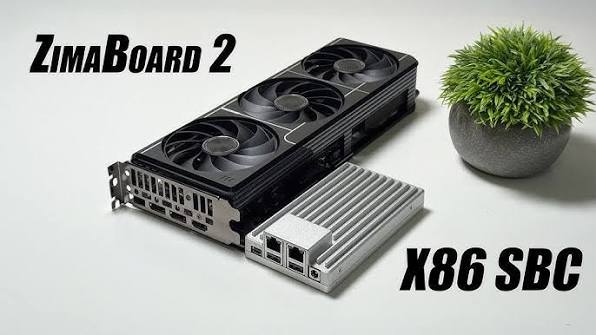
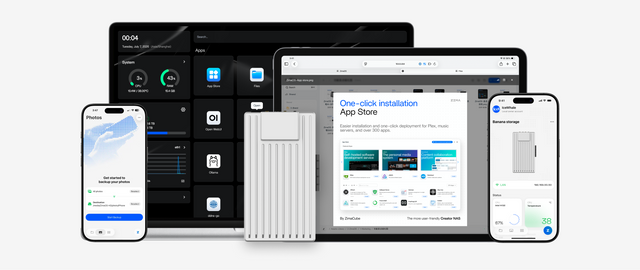
The ZimaSpace guide to building a family media server connects content, users, storage, and backup. A ZimaBoard 2 Mini Home Server fits a compact household file and media stack with deliberate attached storage. A ZimaCube 2 AI NAS is the clearer architecture when several family accounts, multi-drive storage, longer file history, and storage-first recovery are explicit requirements.
The setup succeeds when children can reach movies and school files without seeing backups, private adult data, raw app state, or any control capable of changing the server’s recovery boundaries.
Repeat the test after changing devices, adding a new share, or upgrading the media application. Permissions can drift when a folder is moved or recreated. Keep a short access matrix outside the server so the parent can compare intended access with what the television, tablet, and homework computer actually display.

Recommended products

NAS & Server Setup
More to Read
A Local RAG Setup for Research Papers, Notes, and Private Documents
Keep original documents authoritative, make indexing repeatable, require citations, and separate replaceable models from private source data.
Why Are Developers Using a Gateway Node for Private DNS, VPN, and Test Apps?
A gateway node gives private apps one controlled name and access path, while compute nodes stay unexposed and replaceable.
How to Build a Reproducible App Stack With Compose Files, Secrets, and Persistent Data Separated
Keep Compose definitions portable, secrets protected, and app data independently backed up so the stack can be rebuilt on a clean host.


