
Building a Homelab: Top Hardware Picks for Beginners to Pros


A homelab can feel like a small luxury at first, then it quietly becomes essential. One weekend, you’re blocking ads and cleaning up DNS. A month later, you’re hosting a password manager, backing up photos, and spinning up test VMs for work. The tricky part is hardware: choosing something that stays reliable at home, runs the software you actually want, and grows with you instead of forcing a full rebuild.
The goal here is simple: help you build a home server setup that solves real problems, stays quiet, and keeps your options open as your lab evolves.
What is a Homelab? Exploring Self-Hosting and Edge Computing
A homelab is a set of computers, storage, and network gear you control at home to run services locally. Some people build one to learn infrastructure skills. Others want independence from subscription apps and cloud outages. Many do both without realizing it.
This idea overlaps with edge computing, because you’re running workloads close to where the data is created and used. Your router, your smart devices, your laptops, and your media all live in the same physical space, so local services can be faster and more private.
The Benefits of Learning Linux and Networking at Home
Most career growth in IT comes from repetition, not theory. A home lab gives you daily practice with Linux, networking, and troubleshooting under realistic constraints: limited hardware, noisy Wi-Fi, imperfect power, and family devices that expect things to “just work.”
A practical learning path usually touches these topics early:
- Linux basics: users, permissions, SSH, systemd services
- Networking: subnets, DHCP, DNS, port forwarding, VLANs
- Security: firewall rules, updates, access control
- Operations: monitoring, logs, backups, disaster recovery
Hardware choices affect how smooth this feels. For steady progress, pick something that supports mainstream Linux distributions, has good driver support, and offers enough memory for a few services without constantly swapping to disk.
Hosting Your Own Password Managers and Cloud Drives
Two services expose the real value of self-hosting faster than almost anything else: a password manager and a personal cloud drive. They replace recurring subscriptions with something you own, and they bring peace of mind because your data stays under your control.
These workloads are not CPU-hungry, but they benefit from stable storage and good uptime. A small SSD makes logins, sync, and file browsing feel instant. Backups matter even more because “self-hosted” also means you are the recovery plan.
A safe approach looks like this:
- Encrypted backups stored off the server
- Automatic snapshots for quick rollback
- A tested restore process, at least once every few months
If your home server can survive a reboot, a drive failure, and an internet outage without drama, you’re already ahead of many paid cloud experiences.

Typical Homelab Services: Pi-hole, AdGuard, and More
Day-one services should deliver immediate value with minimal setup. Network-wide ad blocking and local DNS improvements are perfect examples. Pi-hole is commonly described as a DNS sinkhole that reduces unwanted content across devices without installing apps everywhere.
Other “high impact, low effort” homelab services include:
- Local monitoring dashboards
- A lightweight reverse proxy for internal services
- Automated backups for PCs and laptops
- Media library management
- A simple home wiki for notes and documentation
These services run comfortably on modest hardware, which makes them ideal candidates for a low-power node that stays on all day. That always-on box becomes the dependable foundation of your lab.
Why x86 Architecture is Critical for Homelabs
Many labs begin with an inexpensive board or spare laptop. That works until you hit software limitations that have nothing to do with your skills. Architecture matters because it influences compatibility, stability, and how much time you spend fixing problems that aren’t interesting.
For most people building a homelab around Docker and virtualization, x86 makes life easier. It’s the common denominator across server software, drivers, and container ecosystems.
ARM vs. x86: Solving the Docker Container Compatibility Issue
Containers feel portable because the tooling is consistent. The catch is CPU architecture. A lot of images are published for multiple platforms, yet “amd64-first” assumptions still show up, especially with older or less-maintained projects.
On x86, Docker tends to be smooth: pull an image, run it, move on. On ARM, issues can appear in a few forms:
- The image only exists for amd64
- The image runs via emulation and feels slow
- A dependency expects x86 binaries
- A build step requires manual fixes
That’s why many Raspberry Pi alternatives for a home server are actually compact x86 machines. You still get low power and a small footprint, but the container experience becomes far closer to plug-and-play.
Virtualization Support: Running Windows and Linux VMs Simultaneously
Virtual machines change what’s possible in a lab. They let you isolate experiments, test network layouts safely, and run OS-specific workloads without dedicating separate hardware to each job.
For virtualization to feel stable, your CPU and chipset should support common virtualization extensions. In practical terms, look for:
- Hardware-assisted virtualization features enabled in BIOS/UEFI
- Sufficient RAM for multiple guests
- Fast storage for VM disks, ideally SSD or NVMe
- Network flexibility for bridged interfaces and VLANs
A popular platform here is Proxmox VE, which combines KVM for virtual machines and LXC for containers. That pairing is especially useful when you want both lightweight services and full OS environments living side by side on one host.
Long-Term Software Support and Community Drivers
A home lab succeeds when updates are boring. The best lab hardware is the one you can patch without losing a weekend to driver issues.
Some niche platforms rely on out-of-tree drivers, incomplete firmware, or smaller communities. That doesn’t mean they’re bad. It just means the long-term experience can be uneven.
x86 generally benefits from strong upstream support across Linux distributions and hypervisors. That stability matters for:
- Network cards and VLAN features
- Storage controllers and drive behavior
- Power management and sleep states
- GPU drivers if you expand later
If you want your homelab to behave like infrastructure, aim for hardware that the broader Linux and virtualization communities already know well.
Storage Foundations: Scaling with 6-Bay HDD and SSD Arrays
Storage is where a hobby turns into something you rely on. Once your photos, documents, media, and backups live on your server, you’re no longer experimenting with data. You’re protecting it.
A strong storage foundation has three traits: it scales cleanly, it stays consistent under load, and it fails gracefully when a drive dies.

The Role of Mass Storage: Why You Need Multi-Bay Enclosures
External USB drives are fine for temporary copies and travel backups. They’re frustrating as a long-term storage strategy. Cables loosen, power adapters die, and drive management becomes messy.
Multi-bay storage solves several pain points at once:
- Cleaner power and data paths
- Easier expansion without juggling devices
- Better organization for RAID and pools
- More predictable behavior under continuous use
If you care about data integrity, internal SATA connections, and stable enclosures you remove a whole category of weird errors that external setups can introduce.
Tiered Storage Strategy: Combining HDDs for Capacity and SSDs for Speed
HDDs still win on cost per terabyte. SSDs win on responsiveness. Putting them together gives you a system that feels fast while staying budget-friendly.
A tiered approach maps data to the storage that fits it best:
Use SSDs for:
- VM boot disks
- Container volumes
- Databases and authentication services
- Cache or scratch space for downloads
Use HDDs for:
- Media libraries
- Backups and archives
- Large file storage
- Snapshots and cold data
This split keeps your home server quick during normal use, even while backups and scrubs run in the background.
RAID Basics for Homelabbers: Balancing Redundancy and Performance
RAID improves availability, but it does not replace backups. It prevents a single drive failure from taking the whole system down, which is valuable when your lab runs daily services.
In a 6-bay mindset, the most common choices are:
- RAID 1: simple mirroring, good for boot drives or small sets
- RAID 5: efficient capacity, tolerates one drive failure
- RAID 10: strong performance and redundancy, uses extra disks
A reality check helps here: rebuilds take time, and large drives rebuild slowly. Plan for a failure, not an ideal world. Pair RAID with an off-box backup, then you get both uptime and real recovery.
A quick storage reliability checklist:
- Keep SMART monitoring enabled
- Schedule regular scrubs or consistency checks
- Use UPS power protection if possible
- Confirm restore steps before you need them
Advanced Networking: Virtualization and Soft Routers
A lab can have the best server in the world and still feel fragile if the network is shaky. Networking determines how services are discovered, how secure segmentation is, and how clean your troubleshooting becomes.
A strong homelab network setup usually improves in these stages:
- Reliable DNS and DHCP
- Separate guest and trusted networks
- VLANs for IoT devices
- Faster internal transfers for storage
Building a DIY Router with pfSense, OPNsense, or OpenWrt
Software routers bring control that typical consumer routers struggle to match. They allow structured firewall rules, clean segmentation, and better visibility into what’s happening on your network.
A DIY router setup is especially useful when your home server begins hosting important services. It gives you:
- Better logging for debugging
- More reliable VPN behavior
- Flexible VLAN and subnet design
- Stronger firewall rules and NAT control
Hardware for this role should be stable and predictable. Prioritize good network interfaces and simple storage. This box becomes the gatekeeper for everything else.
The Importance of Dual 2.5GbE or 10GbE Network Ports
One Ethernet port limits what you can do cleanly. Two ports unlock architecture options: WAN/LAN separation, dedicated management networks, and safe segmentation without awkward compromises.
2.5GbE often hits the practical sweet spot at home. It accelerates NAS transfers without dragging you into expensive switch upgrades immediately. 10GbE shines when storage becomes central, and you move large files often.
A simple rule that prevents regret: choose hardware that does not force you to redesign your network later. Ports are freedom.
Virtualizing Network Appliances within Proxmox VE
Virtualizing your router can reduce hardware count and power draw, especially when your host already runs containers and VMs. A single strong machine can handle routing, firewalling, and internal services in a clean stack.
This approach works best when you have:
- Reliable console access for recovery
- Solid snapshots and backup habits
- Comfort with virtual switches and bridges
- A plan for maintenance windows
Many labs do well with a dedicated router machine at first. Virtualizing the router becomes attractive once your system management habits are solid and outages feel manageable.
Expanding Horizons: Using PCIe Slots for 10GbE and Thunderbolt eGPU
Expansion separates a disposable setup from a long-term platform. Even if you don’t need upgrades today, having the option saves money later. PCIe lanes, NVMe support, and high-speed ports can extend the useful life of your system by years.
Expansion is also how a lab keeps up with your learning. Networking and storage needs grow quickly once you run multiple services and share files across devices.
Breaking the Bandwidth Bottleneck with High-Speed NICs
Network speed matters most when storage is centralized. Backups, restores, media libraries, and VM images all feel better when the network keeps up.
A practical upgrade path often looks like this:
- 1GbE for early experiments and basic services
- 2.5GbE once NAS usage becomes regular
- 10GbE after storage becomes a shared workspace
PCIe-based NIC upgrades are valuable because they allow a targeted improvement without replacing the entire server. Keep an eye on your switch and cabling, since the slowest link still sets the ceiling.
Thunderbolt Explained: Connecting External Graphics Cards for AI
GPU needs arrive suddenly. One day, you want faster transcoding. Another day, you want to run local AI tools, and the CPU feels painfully slow.
Thunderbolt can provide a high-bandwidth path for external devices, including eGPU enclosures and fast storage. This can be appealing when you want GPU acceleration without committing to a large tower build.
A few realities keep expectations healthy:
- OS and driver support matters
- Cooling and power delivery still matter
- Some workloads benefit more than others
- Stability improves when the setup stays consistent
Treat eGPU as a deliberate upgrade, not a default requirement. Plenty of excellent labs run for years without it.
Customizing Your Lab with Modular Add-ons
Modularity makes your lab feel personal. It also keeps the system useful as your priorities change.
Common add-ons homelab users adopt over time:
- 10GbE NICs for fast storage access
- NVMe expansion for VM density
- Storage controllers for large drive pools
- Dedicated media transcode paths
- Capture cards and specialized I/O
The theme is flexibility. A platform that supports expansion helps you move forward without ripping everything apart.
Achieving Reliable Smart Home Automation
Smart homes are supposed to reduce friction. Cloud outages, laggy triggers, and disconnected devices do the opposite. Reliability is the difference between a fun hobby and something your household trusts.
Local automation helps because it reduces dependency on external services and improves responsiveness. It also makes privacy easier to protect, since device events and control data stay inside your network.
Why Local Control Beats Cloud-Based Hubs: Privacy and Performance
Local-first smart home automation tends to feel better in daily life. Lights respond instantly. Automations fire consistently. You avoid the awkward moment when the internet blips and half the house stops cooperating.
Privacy improves, too. Device state, schedules, presence signals, and camera events can stay inside your home network with tighter access control.
For hardware, uptime is the priority. Choose something quiet, stable, and easy to recover after updates. A compact x86 system works well here, and a reliable single-board computer can also succeed if storage and power are handled properly.
Integrating Zigbee and Z-Wave Dongles via USB or PCIe
Zigbee and Z-Wave devices rely on local radios. A dongle connects your automation server to these networks, which gives you local control even when your internet is down.
USB dongles are common and easy. Placement matters, since radios can be sensitive to interference. A short USB extension cable often improves reliability by moving the dongle away from metal cases and noisy electronics.
PCIe-based options exist, too, though most homes do fine with USB as long as the signal is clean.
Ensuring Stability: Watchdogs and Auto-Restart Features
Stability comes from recovery habits. Services crash sometimes. Updates break things sometimes. A reliable setup handles those moments without panic.
A practical stability checklist:
- Use a UPS or at least surge protection
- Enable automatic restart for core services
- Monitor disk health and filesystem space
- Keep logs accessible for quick diagnosis
- Patch on a predictable schedule
This is where a homelab becomes a real home system. It behaves consistently and fails in understandable ways.
Designing the Ultimate Setup: The Hybrid Hardware Approach
Hybrid design keeps your lab comfortable and efficient. One machine stays quiet and always on. Another brings performance for heavy tasks. This split reduces noise, lowers baseline power draw, and improves uptime for essential services.
It also supports a natural growth path. You add capability without replacing what already works.

The Power of Hybrid Architecture: Low-Power Nodes + High-Performance Cores
Always-on services rarely need big CPUs, but they benefit from stability:
- DNS and ad blocking
- Password manager
- Smart home automation
- Reverse proxy and certificates
- Basic monitoring
Heavy workloads deserve stronger hardware:
- Virtual machine labs
- Storage pools and scrubs
- Media management and transcoding
- Large backups and restores
- AI experiments and GPU tasks
This separation protects daily comfort. If you reboot the performance machine for upgrades, your network services can remain available.
Optimizing Power Consumption and Noise in Multi-Node Clusters
Power draw and noise are silent motivation killers. A lab that sounds like a leaf blower or spikes the electric bill gets turned off, then everything falls apart.
A few design choices keep things pleasant:
- Low base power hardware for always-on roles
- SSDs for frequent reads to reduce drive chatter
- Larger fans running at lower RPM
- HDD-heavy boxes placed away from bedrooms
- Scheduled maintenance and backup windows
Quiet hardware makes the lab usable every day, which is the whole point.
Homelab Scenarios: Choosing Where to Host Each Service
Services behave better when each one lives on hardware that fits it. This mapping keeps your lab organized and avoids the classic trap of one overloaded box running everything.
| Service category | Typical workloads | Best-fit hardware traits |
| Network essentials | DNS filtering, DHCP, local resolver | low power, stable SSD, consistent uptime |
| Identity and access | password manager, SSO, VPN | reliable storage, backups, TLS support |
| Virtualization | test VMs, training labs | x86 virtualization support, ample RAM, fast SSD/NVMe |
| Media and downloads | library management, transcoding | stronger CPU, fast scratch space, stable networking |
| Storage and backups | file shares, snapshots, archives | multi-bay SATA, high HDD capacity, clear redundancy plan |
| AI and acceleration | local inference, GPU tasks | GPU options, strong cooling, fast I/O paths |
This structure also makes upgrades obvious. If file transfers feel slow, improve networking. If VM performance drags, add memory or faster storage. If backups take forever, expand storage throughput.
Conclusion: Start Small, Think Big
A good homelab makes your digital life calmer: fewer subscriptions, faster local services, and a safer place for data that matters. Hardware decisions steer the experience. x86 keeps containers and virtualization predictable, multi-bay storage improves reliability, and strong networking makes everything feel stable. Keep always-on services quiet and dependable, then reserve heavier machines for burst workloads. With that hybrid mindset, your home server grows naturally and stays useful for years.

Recommended products

Zima Campaign Hub
More to Read
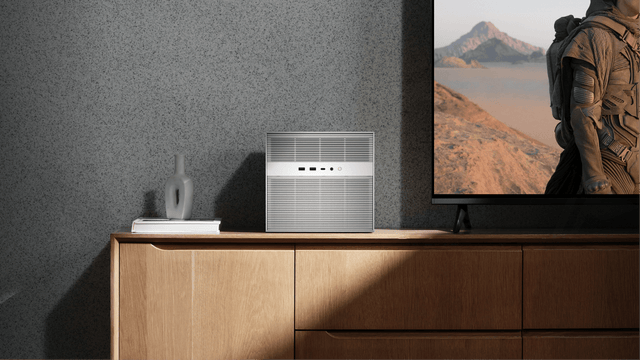
IceWhale Technology Launches ZimaCube 2: A Self-Hosting Powerhouse
IceWhale’s ZimaCube 2 is an open self-hosting platform with Intel 12th Gen, dual PCIe, Thunderbolt 4 & ZimaOS, available in 3 configurations and now...
What Happened When AI Took Over a ZimaBoard 2
This article explores how a creator used ZimaBoard 2 to run a looping AI agent in Linux, revealing both the promise and limits of...
3 Real Incidents That Exposed Hidden Threats in My Smart Home Network
At ZimaSpace, we’re all about equipping makers, tinkerers, and homelab enthusiasts with compact yet seriously capable hardware that runs 24/7 without draining your electricity...


